
1. Product Overview
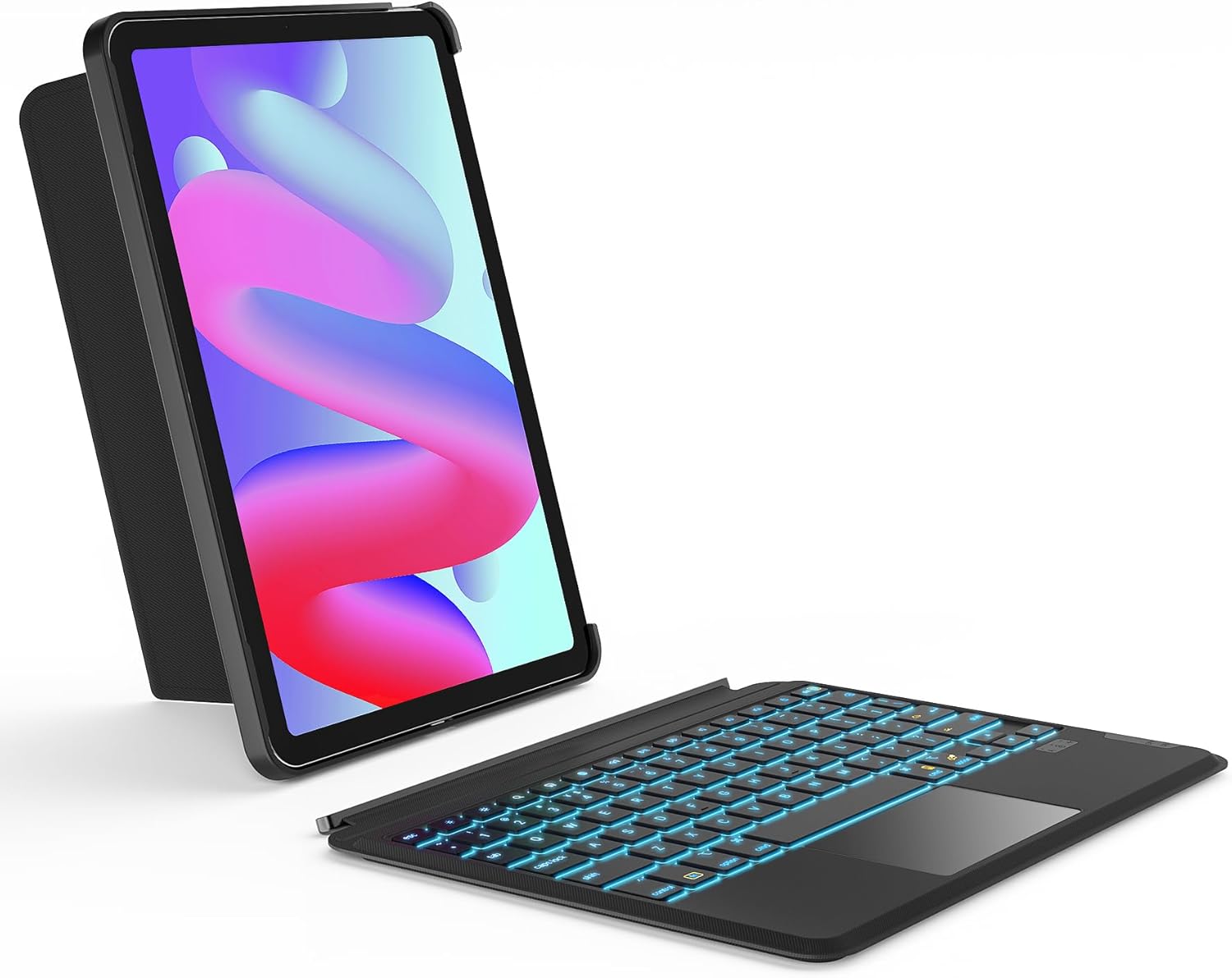
The Inateck KB04111 is a versatile keyboard case designed to enhance your iPad experience. It features a detachable keyboard with a precision touchpad and 7-color backlighting, offering multiple viewing and usage modes. This manual provides instructions for setup, operation, and maintenance.
2. Compatibility
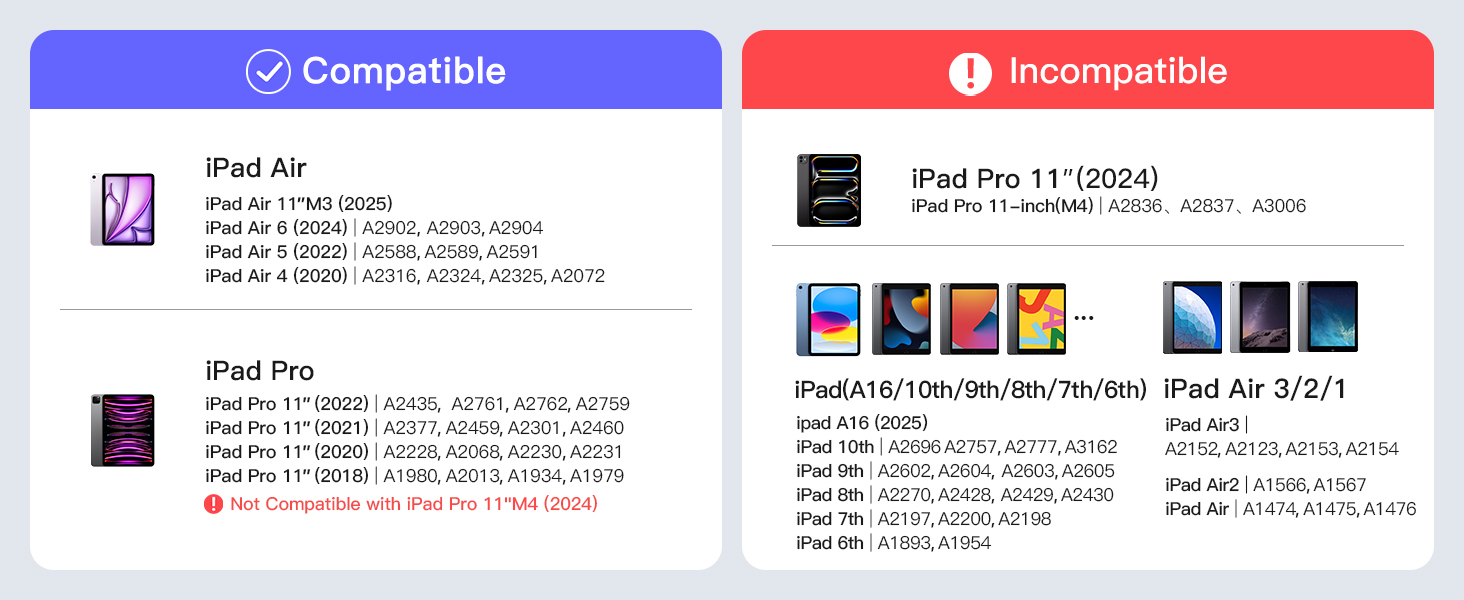
This keyboard case is specifically designed for the following iPad models:
- iPad Air:
- iPad Air 6th Gen (2024) - Models: A2902, A2903, A2904
- iPad Air 5th Gen (2022) - Models: A2591, A2589, A2588
- iPad Air 4th Gen (2020) - Models: A2325, A2324, A2316, A2072
- iPad Pro 11-inch:
- iPad Pro 11-inch 4th Gen (2022) - Models: A2435, A2759, A2761, A2762
- iPad Pro 11-inch 3rd Gen (2021) - Models: A2301, A2377, A2459, A2460
- iPad Pro 11-inch 2nd Gen (2020) - Models: A2228, A2068, A2230, A2231
- iPad Pro 11-inch 1st Gen (2018) - Models: A1980, A2013, A1934, A1979
Note: This product is not compatible with iPad Pro 11-inch M4 (2024) or iPad 10th Gen (2022).
3. Package Contents
- Inateck KB04111 Keyboard Case
- USB-C Charging Cable
- User Manual
4. Setup Instructions
4.1 Installing Your iPad
- Gently align your iPad with the case frame.
- Press the iPad firmly into the case until it is securely seated. Ensure all corners are protected.
4.2 Pairing the Keyboard via Bluetooth
- Ensure the keyboard is charged (refer to Section 5.1).
- Slide the power switch on the keyboard to the 'ON' position. The indicator light will flash.
- On your iPad, go to Settings > Bluetooth.
- Turn on Bluetooth. Your iPad will search for nearby devices.
- Select "Inateck Keyboard" from the list of available devices.
- Follow any on-screen prompts to complete the pairing process. The indicator light on the keyboard will turn off once successfully paired.

5. Operating Instructions
5.1 Keyboard Features
- Scissor Switch Keys: Designed for comfortable and responsive typing.
- 1mm Short Key Travel: Provides accurate and efficient keystrokes.
- Independent Shortcut Keys: Access common iPad functions quickly.

5.2 Touchpad Functionality
The integrated touchpad supports all standard iPad gestures for navigation and interaction.
- Precision Control: Offers smooth and responsive cursor movement.
- Palm Rejection: Prevents accidental input while typing.
- Multi-Touch Gestures: Supports gestures such as drag, scroll, swipe, zoom in/out, secondary click, show desktop, App Exposé, and switching between full-screen apps.

5.3 Backlight Settings
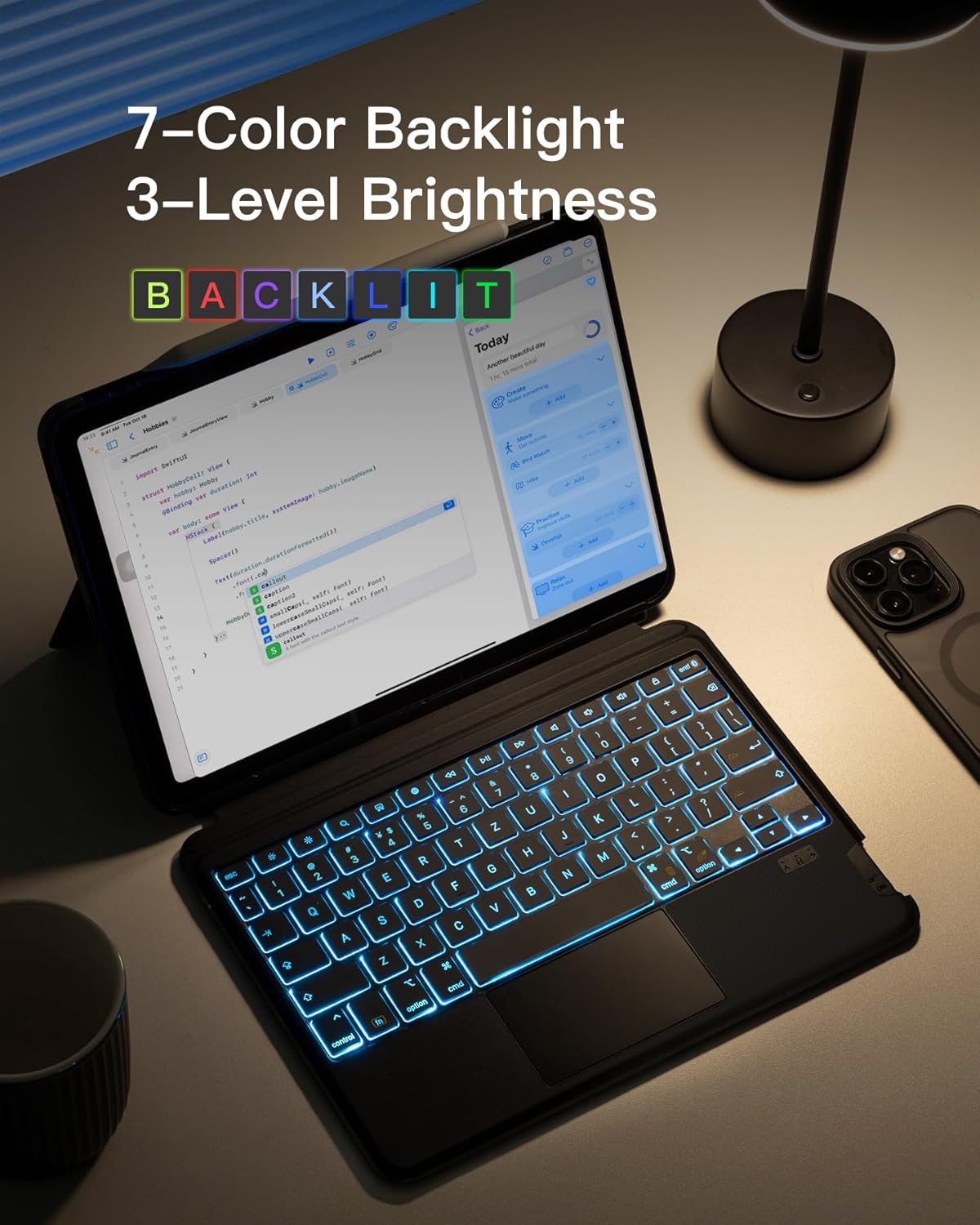
The keyboard features 7-color backlighting with 3 adjustable brightness levels.
- Press the light bulb icon key to cycle through backlight colors.
- Press the Fn + light bulb icon key to adjust brightness levels.
5.4 Usage Modes
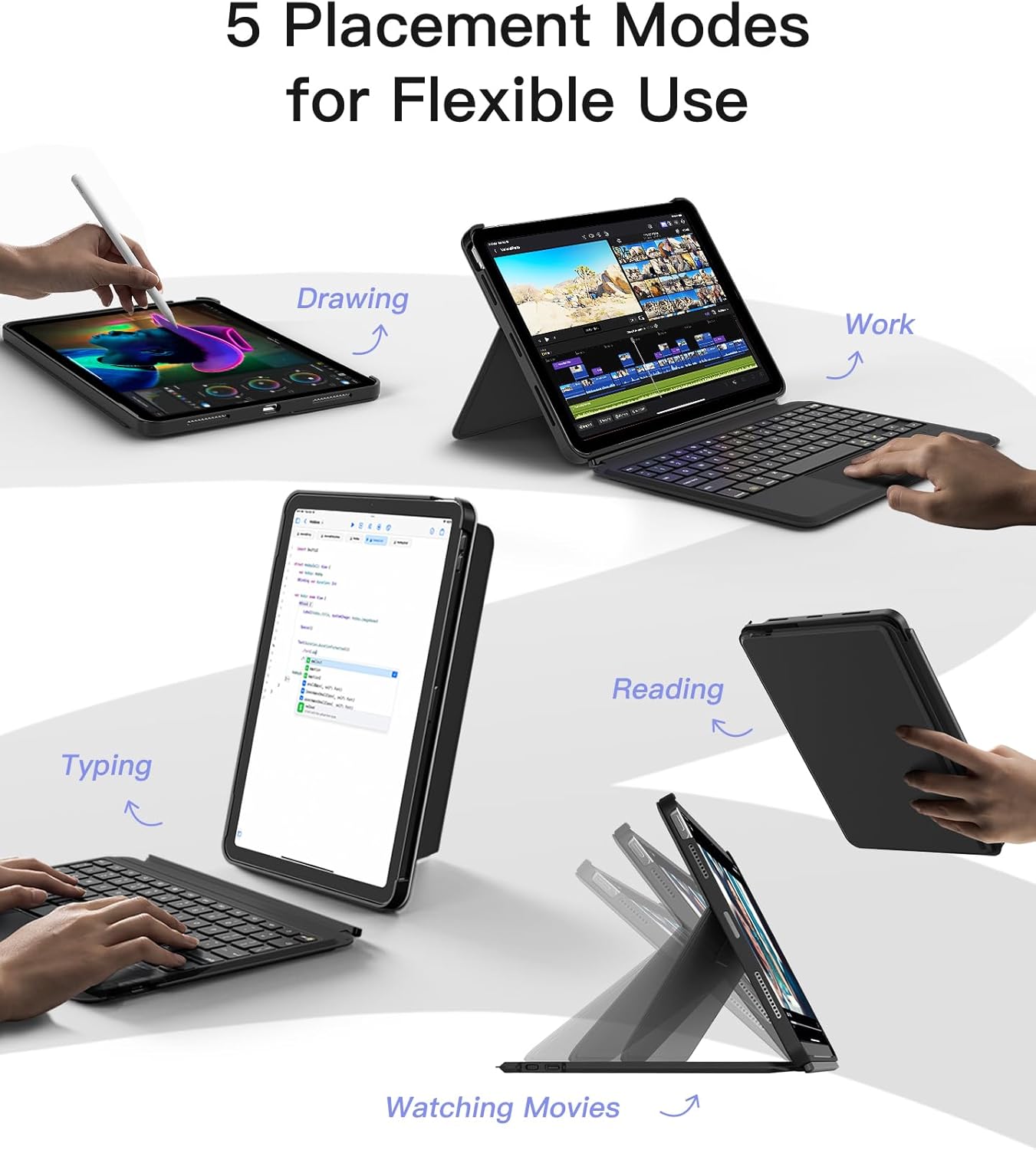
The detachable design and flexible stand allow for five distinct usage modes:
- Work Mode: iPad in landscape, keyboard attached for typing.
- Typing Mode: iPad in portrait, keyboard attached for document creation.
- Watching Movies Mode: Keyboard detached, iPad in landscape stand.
- Drawing Mode: Keyboard detached, iPad laid flat or at a low angle.
- Reading Mode: Keyboard detached, iPad held as a tablet.
6. Charging the Keyboard
The keyboard is powered by a built-in Lithium-Ion battery.
- Locate the USB-C charging port on the side of the keyboard.
- Connect the provided USB-C cable to the keyboard's charging port.
- Connect the other end of the USB-C cable to a compatible USB power adapter (not included) or a computer's USB port.
- The charging indicator light will illuminate during charging and turn off when fully charged.

7. Maintenance
- Keep the keyboard case away from liquids and extreme temperatures.
- Clean the surface with a soft, damp cloth. Avoid harsh chemicals.
- Do not attempt to disassemble the keyboard or case.
- Store in a dry place when not in use for extended periods.
8. Troubleshooting
8.1 Keyboard Not Connecting
- Ensure the keyboard is powered on.
- Check if the keyboard battery is charged.
- Verify Bluetooth is enabled on your iPad.
- Forget the device in your iPad's Bluetooth settings and attempt to re-pair.
- Restart both your iPad and the keyboard.
8.2 Keys Not Responding
- Ensure the keyboard is properly connected via Bluetooth.
- Check for low battery.
- Clean any debris from around the keys.
8.3 Touchpad Not Working
- Ensure the keyboard is connected and powered on.
- Check iPad settings to ensure touchpad support is enabled.
- Clean the touchpad surface.
9. Specifications
| Model Number | KB04111 |
| Connectivity | Bluetooth |
| Backlight | 7-Color, 3-Level Brightness |
| Touchpad | Full-surface, Multi-touch gestures, Palm Rejection |
| Battery Type | Lithium Ion (included) |
| Charging Port | USB-C |
| Dimensions (LxWxH) | 9.94 x 7.24 x 0.75 inches |
| Weight | 1.3 pounds |
10. Warranty and Support
Inateck products typically come with a one-year warranty from the date of purchase. For warranty claims, technical support, or further assistance, please contact Inateck customer service through their official website or the platform where the product was purchased.
Please retain your proof of purchase for warranty validation.


