
nubia nubia Flip
nubia Flip 5G User Manual
Model: nubia Flip
Introduction
Welcome to the nubia Flip 5G user manual. This guide provides comprehensive instructions for setting up, operating, maintaining, and troubleshooting your new foldable smartphone. The nubia Flip 5G combines innovative foldable technology with powerful performance, featuring a dual-screen design, a 50MP AI dual camera, and a robust 4310 mAh battery with 33W fast charging.
Please read this manual carefully to ensure proper use and to maximize your device's potential.
1. Setup
1.1 What's in the Box
- nubia Flip 5G Smartphone
- Clear phone case
- Charger
- Type-C data cable
1.2 Initial Charging
Before first use, fully charge your nubia Flip 5G using the provided charger and Type-C data cable. The device supports 33W fast charging, allowing for a rapid charge.
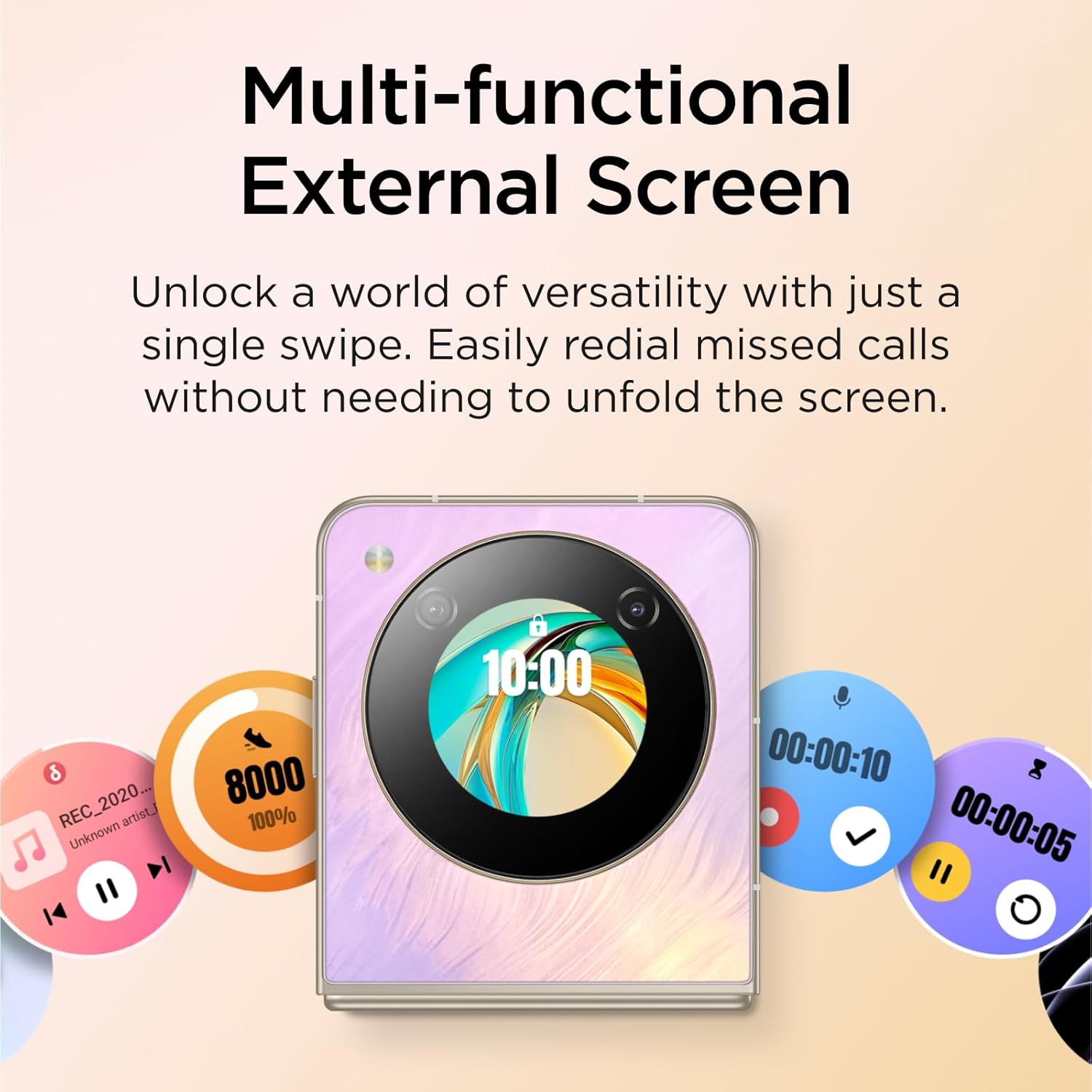
Image: The nubia Flip 5G in its folded state, connected to a charging cable, illustrating the charging process.
1.3 SIM Card Insertion
Locate the SIM card tray on the side of the device. Use the SIM ejector tool (not explicitly listed in box contents, but standard) to open the tray. Insert your Nano-SIM card(s) into the designated slots. Ensure the card is correctly oriented before reinserting the tray.
1.4 Powering On/Off
- Power On: Press and hold the Power button (located on the side) until the nubia logo appears.
- Power Off: Press and hold the Power button, then select "Power off" from the options that appear on the screen.
- Restart: Press and hold the Power button, then select "Restart" from the options.
1.5 Initial Setup Wizard
Upon first power-on, the device will guide you through an initial setup process. This includes selecting your language, connecting to a Wi-Fi network, setting up your Google account, and configuring security options like fingerprint and face unlock.
2. Operating Your Device
2.1 Foldable Design and Displays
The nubia Flip 5G features a revolutionary foldable design, allowing it to transform from a compact, pocket-sized device to a full-sized smartphone. It has two main displays:
- Main Internal Display: A 6.9-inch FHD+ screen that unfolds for an immersive viewing experience.
- External OLED Display: A 1.43-inch interactive display accessible when the phone is folded.
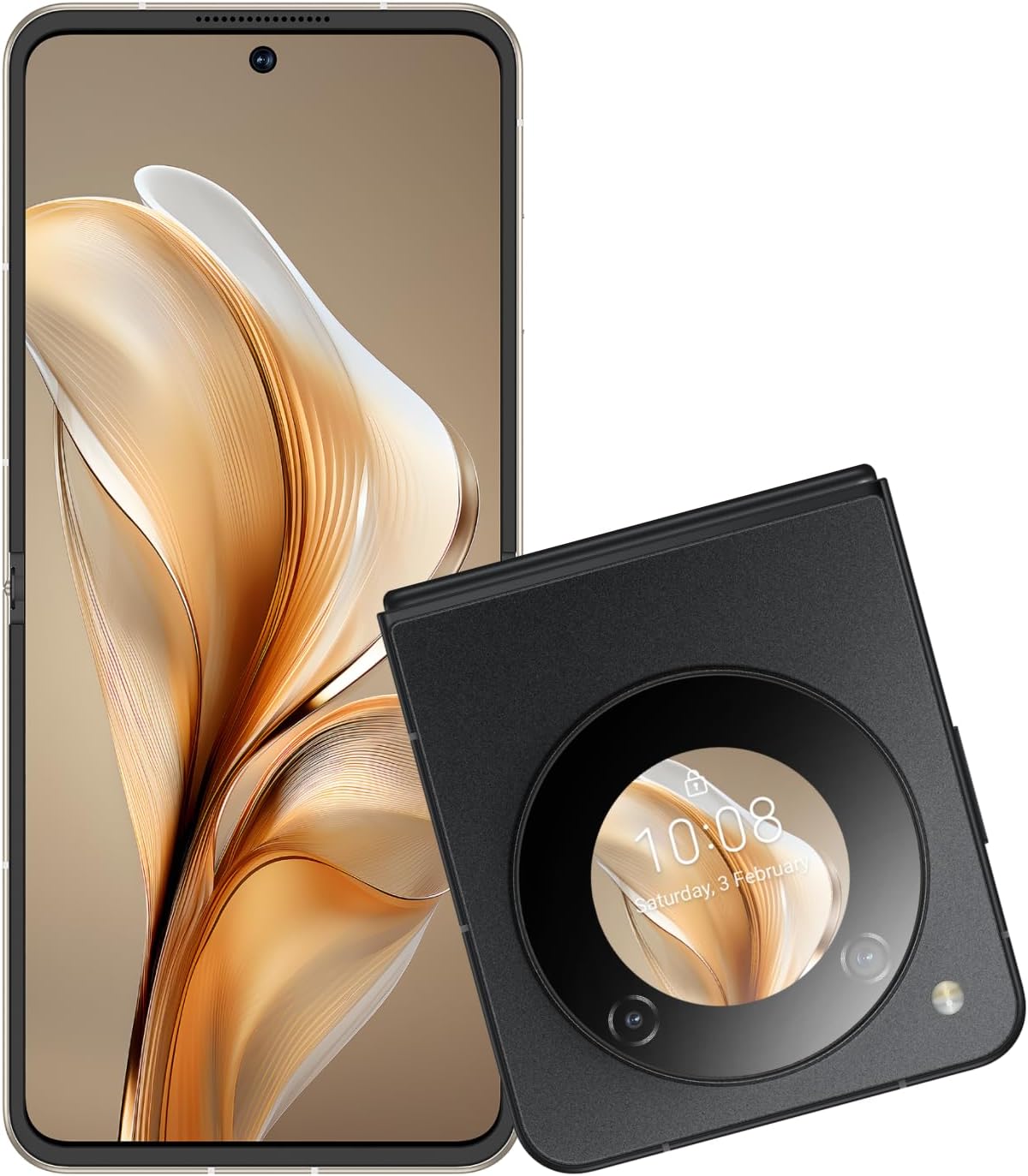
Image: The nubia Flip 5G shown both unfolded and folded, highlighting its dual-screen capability.

Image: A hand holding the folded nubia Flip 5G, illustrating its compact and pocket-friendly design.
2.2 External Display Functions
The 1.43-inch external OLED display provides quick access to essential information and controls without unfolding the phone. Swipe across the external screen to:
- View missed notifications and messages.
- Reply to texts (limited functionality).
- Control music playback.
- Answer or redial calls.
- Access quick settings.
- Interact with a virtual animated 'pet'.

Image: The external display of the nubia Flip 5G showcasing its multi-functional capabilities with various interactive widgets.
2.3 Camera Usage
The nubia Flip 5G is equipped with a versatile camera system:
- Rear Cameras: 50MP Main Camera (f/1.8) and a 2MP Depth Lens.
- Front Camera: 16MP.
The foldable design allows for unique photography angles. You can stand the phone at multiple angles for hands-free shooting.
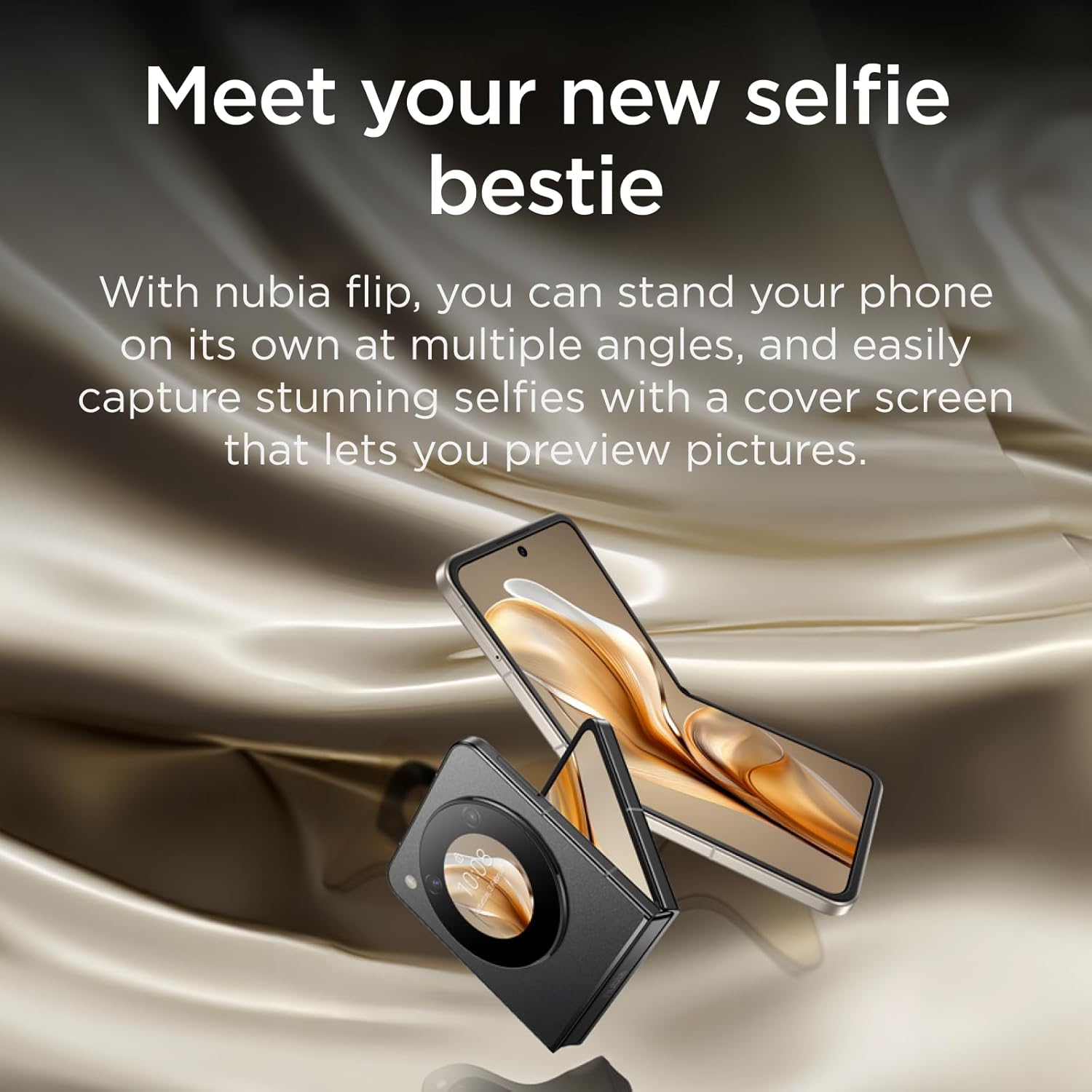
Image: A person using the nubia Flip 5G's external display for a selfie, demonstrating the camera's capabilities.

Image: The nubia Flip 5G in a partially folded position, used as a stand for taking a selfie, showcasing its flexible design for photography.
2.4 Unlocking Methods
Your nubia Flip 5G offers multiple secure unlocking options:
- Fingerprint Sensor: The power button integrates a fast and accurate fingerprint sensor. Register your fingerprints in the Security settings.
- Face Wake-up: Use facial recognition to unlock your device. Set this up in the Security settings.
- PIN/Pattern/Password: Standard Android security options.

Image: Visual representation of the dual unlocking methods: Face Wake-up and Fingerprint Unlock.
2.5 MyOS 13 Features
The nubia Flip 5G runs on MyOS 13, offering a straightforward and convenient user experience with various customization options:
- Animation Speed Adjustment: Customize system animation speeds for a smoother or faster feel.
- Wallpaper Color Picker: Easily select and apply colors from your wallpaper to theme your interface.
- Split-screen: Multitask efficiently by running two apps side-by-side on the main display.
2.6 Connectivity
The device supports a wide range of connectivity options:
- 5G Network: Enjoy lightning-fast 5G network speeds for browsing, streaming, and gaming.
- Wi-Fi: Connect to wireless networks for internet access.
- Bluetooth: Pair with Bluetooth accessories like headphones and speakers.
- USB Type-C: For charging, data transfer, and connecting peripherals.
3. Maintenance
3.1 Cleaning Your Device
To keep your nubia Flip 5G in optimal condition:
- Use a soft, lint-free cloth to wipe the screen and body.
- Avoid using harsh chemicals, abrasive cleaners, or aerosol sprays.
- Do not expose the device to excessive moisture.
3.2 Software Updates
Regularly check for and install software updates to ensure your device has the latest features, security patches, and performance improvements. Go to Settings > System > System update to check for updates.
3.3 Battery Care
To prolong battery life:
- Avoid extreme temperatures.
- Do not let the battery drain completely before recharging frequently.
- Use the original charger and cable for optimal charging.
4. Troubleshooting
4.1 Common Issues and Solutions
| Issue | Solution |
|---|---|
| Device not powering on | Ensure the battery is charged. Press and hold the Power button for at least 10 seconds to force restart. |
| No mobile data connection | Check SIM card insertion. Verify APN settings (consult your carrier). Ensure mobile data is enabled in settings. Confirm your SIM card's frequency bands are supported by the device. |
| Screen unresponsive | Restart the device. If the issue persists, consider a factory reset (backup data first). |
| Apps crashing/freezing | Clear app cache/data (Settings > Apps). Update the app. Reinstall the app. |
4.2 Factory Reset
A factory reset will erase all data from your device and restore it to its original factory settings. Backup all important data before proceeding.
To perform a factory reset: Go to Settings > System > Reset options > Erase all data (factory reset). Follow the on-screen prompts.
5. Specifications
| Feature | Detail |
|---|---|
| Model Name | nubia Flip |
| Operating System | Android 13.0 |
| Main Screen Size | 6.9 Inches |
| Main Screen Resolution | 2790*1188 |
| Refresh Rate | 120 Hz |
| External Screen Size | 1.43 Inches (OLED) |
| Processor | Qualcomm Snapdragon 7 Gen 1 (up to 2.4GHz) |
| RAM | 8 GB |
| Storage Capacity | 256 GB |
| Rear Camera | 50MP AI Dual Camera |
| Front Camera | 16MP |
| Battery Capacity | 4310 mAh |
| Charging | 33W Fast Charge |
| Dimensions (folded) | Approx. 8.7 x 7.55 x 1.4 cm (estimated from unfolded dimensions) |
| Dimensions (unfolded) | 17 x 7.55 x 0.7 cm |
| Weight | 209 g |
| Supported Bands (NR) | n1/n3/n5/n8/n28A/n41/n78 |
| Supported Bands (FDD) | B1/B2/B3/B4/B5/B7/B8/B12/B17/B20 |
| Supported Bands (TDD) | B34/B38/39/40/41 |
| Supported Bands (UMTS) | B1/B2/B4/B5/B8 |
| Supported Bands (CDMA) | BC0 |
| Supported Bands (GSM) | B2/B3/B5/B8 |
6. Warranty and Support
6.1 Warranty Information
Your nubia Flip 5G comes with a standard manufacturer's warranty. Please refer to the warranty card included in your product packaging or visit the official nubia website for detailed terms and conditions regarding warranty coverage and duration.
6.2 Customer Support
For technical assistance, troubleshooting beyond this manual, or warranty claims, please contact nubia customer support through their official website or the contact information provided in your product documentation. Ensure you have your product model number and purchase details ready when contacting support.
You can also visit the nubia Store on Amazon for additional product information and support resources.
Related documentsnubia Flip


Ask a question about this manual
Ask about setup, troubleshooting, compatibility, parts, safety, or missing instructions. Manuals+ will review the question and use this page’s manual context to help answer it.