Introduction
This manual provides detailed instructions for the installation, operation, maintenance, and troubleshooting of your Biorunn 9 Inch Android Stereo. Please read this manual thoroughly before using the product to ensure proper function and safety. This unit is specifically designed for Toyota Prius C models from 2012 to 2014 with Left Hand Drive (LHD) configurations.
Product Specifications
The Biorunn Android Stereo offers advanced features and robust performance. Key specifications include:
- Operating System: Android
- Processor: 4-Core
- Screen: 9-inch IPS Touch Screen, 1280x720 resolution
- Memory: 2GB RAM
- Storage: 32GB ROM
- Connectivity: Bluetooth 5.0, Wi-Fi, Wireless/Wired Car-Play, Android Auto
- Radio: FM RDS with 18 preset stations
- Navigation: Built-in GPS (Global Positioning System)
- Features: Split Screen support, Steering Wheel Control compatibility, Multi-Touch Screen, Multi-language support
- Ports: 2x USB ports, Camera input, Microphone port, Audio/Video multifunctional plug
- Audio Formats: MP3, WMA, AAC, RM, FALC, etc.
- Video Formats: MPEG-1/2/4, H264, H263, VC1, RV, RMVB, DivX, Sorenson SparK, Spark, VP8, AVS Stream
- Photo Formats: JPG/BMP/JEPG/GIF/PNG
- Warranty: 1 year
Setup and Installation
Proper installation is crucial for optimal performance. It is recommended that installation be performed by a qualified professional.
1. Pre-Installation Check
- Verify that the vehicle is a Toyota Prius C (2012-2014 LHD).
- Ensure all components listed in the packaging are present.
- Disconnect the vehicle's battery before starting installation to prevent electrical damage.
2. Wiring Diagram
Refer to the following diagram for correct wiring connections. Incorrect wiring can damage the unit or vehicle's electrical system.

Image: Detailed wiring diagram for the Biorunn Android Stereo. This diagram illustrates connections for power (ACC, B+, GND), speaker outputs (FR, FL, RR, RL), USB ports, GPS antenna, camera input, microphone, and steering wheel control lines. Note the specific connection point for CANBUS if required by your vehicle.
- Power Connections: Connect ACC (Accessory), B+ (Battery 12V), and GND (Ground) wires securely.
- Speaker Connections: Connect front left (FL), front right (FR), rear left (RL), and rear right (RR) speaker wires to their corresponding outputs.
- USB Ports: Connect the provided USB cables to the unit and route them to an accessible location.
- GPS Antenna: Connect the GPS antenna and place it in a location with a clear view of the sky for optimal signal reception.
- Camera Input: If installing a reversing camera (not included), connect its video output to the camera input port.
- Steering Wheel Control: Connect the steering wheel control wires (KEY1, KEY2) to your vehicle's steering wheel control interface. Configuration may be required in the unit's settings.
- CANBUS: If your vehicle requires a CANBUS connection, use the designated cable and port as indicated in the diagram.
3. Physical Installation
- Carefully remove the original head unit from your vehicle's dashboard.
- Mount the Biorunn Android Stereo into the dashboard opening, ensuring a secure fit.
- Connect all necessary wiring harnesses.
- Before fully reassembling the dashboard, temporarily reconnect the vehicle battery and perform a functional test.

Image: Visual comparison of the Toyota Prius C dashboard before and after the Biorunn Android Stereo installation. The "Before installation" image shows the original car stereo, while the "After installation" image displays the new 9-inch Android stereo seamlessly integrated into the dashboard, showing its main application interface.
4. Initial Power-On and Configuration
- After installation, reconnect the vehicle battery.
- Turn on the vehicle ignition. The stereo should power on automatically.
- Follow the on-screen prompts for initial setup, including language selection and time zone.
- Connect to a Wi-Fi network for software updates and app downloads. Go to Settings > Network & Internet > Wi-Fi.
Operating Instructions
This section details the primary functions and how to operate your Biorunn Android Stereo.
1. Main Interface and Navigation
The main screen provides access to all applications and features. Swipe left or right to navigate between screens, and tap icons to open applications.

Image: The main user interface of the Biorunn Android Stereo. It displays a customizable home screen with widgets for music playback and radio, along with icons for various applications such as Waze, Spotify, YouTube, and general settings. The top bar shows time, date, and connectivity status.
2. FM RDS Radio
Access the radio function by tapping the "Radio" or "FM" icon on the main screen.
- Automatic Search: Tap the "AS" button to automatically scan and save available stations.
- Manual Tuning: Use the arrow buttons to manually tune to frequencies.
- Preset Stations: Tap on P1-P6 to select preset stations. You can drag and drop station icons to rearrange your channel list.
- RDS Function: Radio Data System (RDS) displays station information such as station name and program type.

Image: The FM RDS Radio interface of the Biorunn Android Stereo. It shows the current frequency (87.5 MHz), preset station buttons (P1-P6), and controls for automatic search (AS) and manual tuning. The screen also displays a frequency spectrum and the RDS information.
3. Bluetooth Function (BT)
The Bluetooth 5.0 module allows for hands-free calling and audio streaming.
- Pairing: Go to the Bluetooth settings on the stereo and your mobile device. Search for available devices and select "Biorunn Stereo" (or similar name) to pair.
- Hands-Free Calling: Once paired, you can make and receive calls directly from the stereo screen. The phonebook can be downloaded for easy access to contacts.
- Bluetooth Music: Stream audio from your paired device to the stereo.
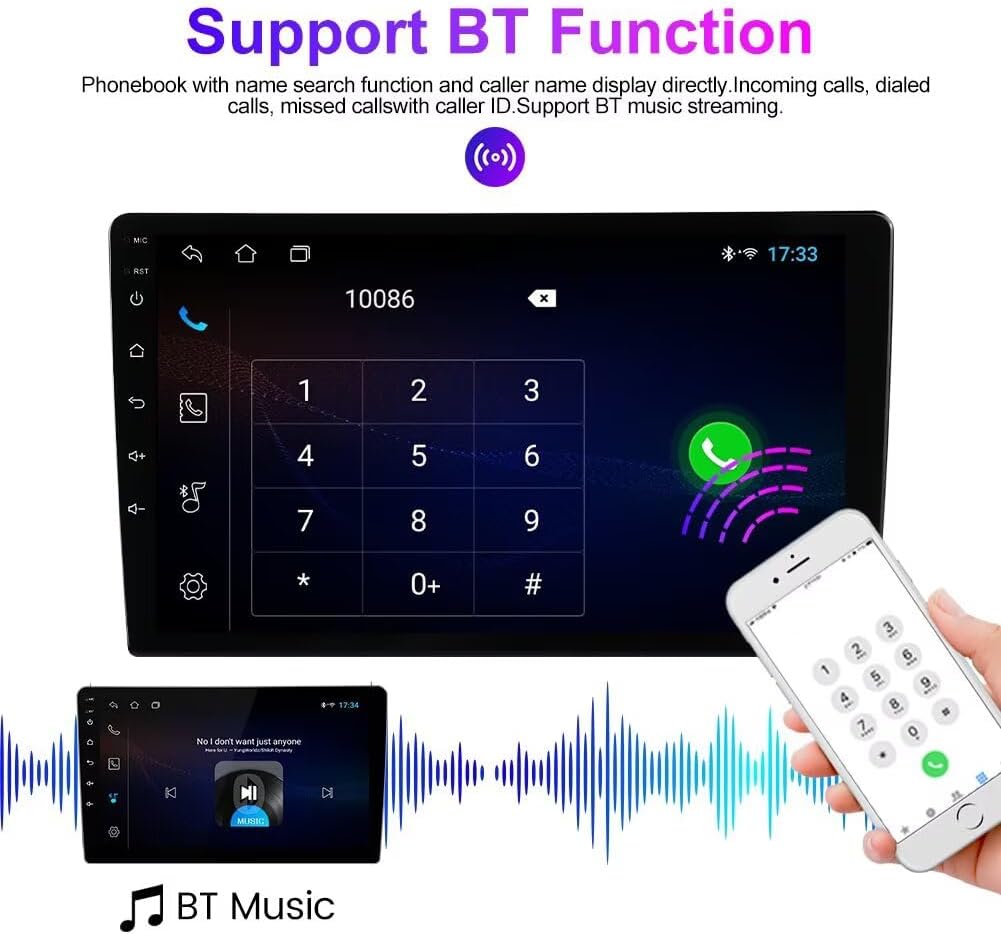
Image: The Bluetooth interface of the Biorunn Android Stereo. The top part shows a dial pad for making calls, with a phonebook search function. The bottom part illustrates Bluetooth music streaming, showing album art and playback controls, with sound waves indicating audio output.
4. Wireless Car-Play / Android Auto
Connect your smartphone for seamless integration of navigation, music, and communication apps.
- Connection: For wireless connection, ensure Bluetooth and Wi-Fi are enabled on your phone and the stereo. Follow the on-screen prompts to connect. For wired connection, use a USB cable.
- Functionality: Access phone calls, messages, maps, and music directly through the stereo's interface.
5. GPS Navigation
The unit comes with built-in GPS for navigation. Ensure the GPS antenna is properly installed for accurate positioning.
- Map Applications: Use pre-installed navigation apps or download your preferred apps from the Google Play Store (requires Wi-Fi connection).
- Route Planning: Enter your destination to receive turn-by-turn directions and real-time traffic updates (if supported by the app).
6. Split Screen Function
The split screen feature allows two applications to be displayed simultaneously, enhancing multitasking capabilities.
- Activation: While an app is open, long-press the recent apps button or drag an app to one side of the screen (method may vary slightly by Android version).
- Usage: For example, you can have navigation running on one side and music playback on the other.

Image: The split screen feature in action on the Biorunn Android Stereo. The left side of the screen displays a video player with playback controls, while the right side shows a map application, demonstrating the ability to run two applications concurrently for enhanced user convenience.
7. Reversing Camera (Optional)
If a reversing camera is connected, the display will automatically switch to the camera view when the vehicle is put into reverse gear.
- Note: The reversing camera is not included with the stereo unit.
- Guidelines: The screen may display parking guidelines to assist with maneuvering.

Image: A visual representation of the reversing camera display on the Biorunn Android Stereo. The screen shows the rear view from a car, complete with dynamic parking guidelines (green, yellow, red lines) to assist the driver in safely backing up. A graphic of a car and its reverse sensors is overlaid to illustrate the function.
Maintenance
Regular maintenance ensures the longevity and optimal performance of your Android Stereo.
- Screen Cleaning: Use a soft, lint-free cloth slightly dampened with water or a screen cleaner specifically designed for electronics. Avoid harsh chemicals or abrasive materials.
- Software Updates: Periodically check for system updates via the settings menu (Settings > System > System update). Updates can improve performance and add new features. Ensure a stable Wi-Fi connection during updates.
- General Care: Avoid exposing the unit to extreme temperatures, direct sunlight for prolonged periods, or excessive moisture.
Troubleshooting
If you encounter issues with your Biorunn Android Stereo, refer to the following common problems and solutions:
| Problem | Possible Cause | Solution |
|---|---|---|
| No Power | Loose power connection, blown fuse, vehicle battery issue. | Check power wiring (ACC, B+, GND). Inspect vehicle fuses. Ensure vehicle battery is charged. |
| No Sound | Volume too low, mute activated, incorrect speaker wiring, audio settings. | Increase volume. Check if mute is active. Verify speaker connections. Adjust audio output settings. |
| GPS Not Working / Inaccurate | GPS antenna not connected, antenna obstructed, poor satellite signal. | Ensure GPS antenna is securely connected and placed in a clear location (e.g., dashboard, under windshield). Try moving the vehicle to an open area. |
| Bluetooth Pairing Issues | Bluetooth not enabled, device not discoverable, interference. | Ensure Bluetooth is enabled on both the stereo and your phone. Make sure your phone is in discoverable mode. Restart both devices. |
| Touch Screen Unresponsive | Temporary software glitch, screen dirty. | Restart the stereo (turn vehicle ignition off and on). Clean the screen. If issue persists, a factory reset might be necessary (consult support). |
| CarPlay/Android Auto Not Connecting | Incorrect USB cable, software issues, phone settings. | Use a high-quality USB data cable. Ensure CarPlay/Android Auto is enabled on your phone. Check stereo settings for connection options. Update phone OS and app. |
If the problem persists after trying these solutions, please contact customer support.
Warranty and Support
Warranty Information
The Biorunn Android Stereo comes with a 1-year warranty from the date of purchase. This warranty covers manufacturing defects and malfunctions under normal use. It does not cover damage caused by improper installation, misuse, accidents, unauthorized modifications, or natural disasters.
Please retain your proof of purchase for warranty claims.
Customer Support
For technical assistance, warranty claims, or any questions regarding your Biorunn Android Stereo, please contact the seller or manufacturer directly. Refer to your purchase documentation for specific contact details.
When contacting support, please provide the following information:
- Product Model: 4-Core, 2GB RAM, 32GB ROM
- ASIN: B0CZ44SQM6
- Date of Purchase
- A detailed description of the issue


