
1. Setup
This section guides you through the initial setup of your DOOGEE U10 tablet.
1.1 Package Contents
Ensure all items are present in the box:
- DOOGEE U10 Tablet
- USB Type-C Cable
- Power Adapter
- SIM Eject Tool (if applicable)
- Quick Start Guide
- Warranty Card
1.2 Device Layout
Familiarize yourself with the physical features of your tablet.
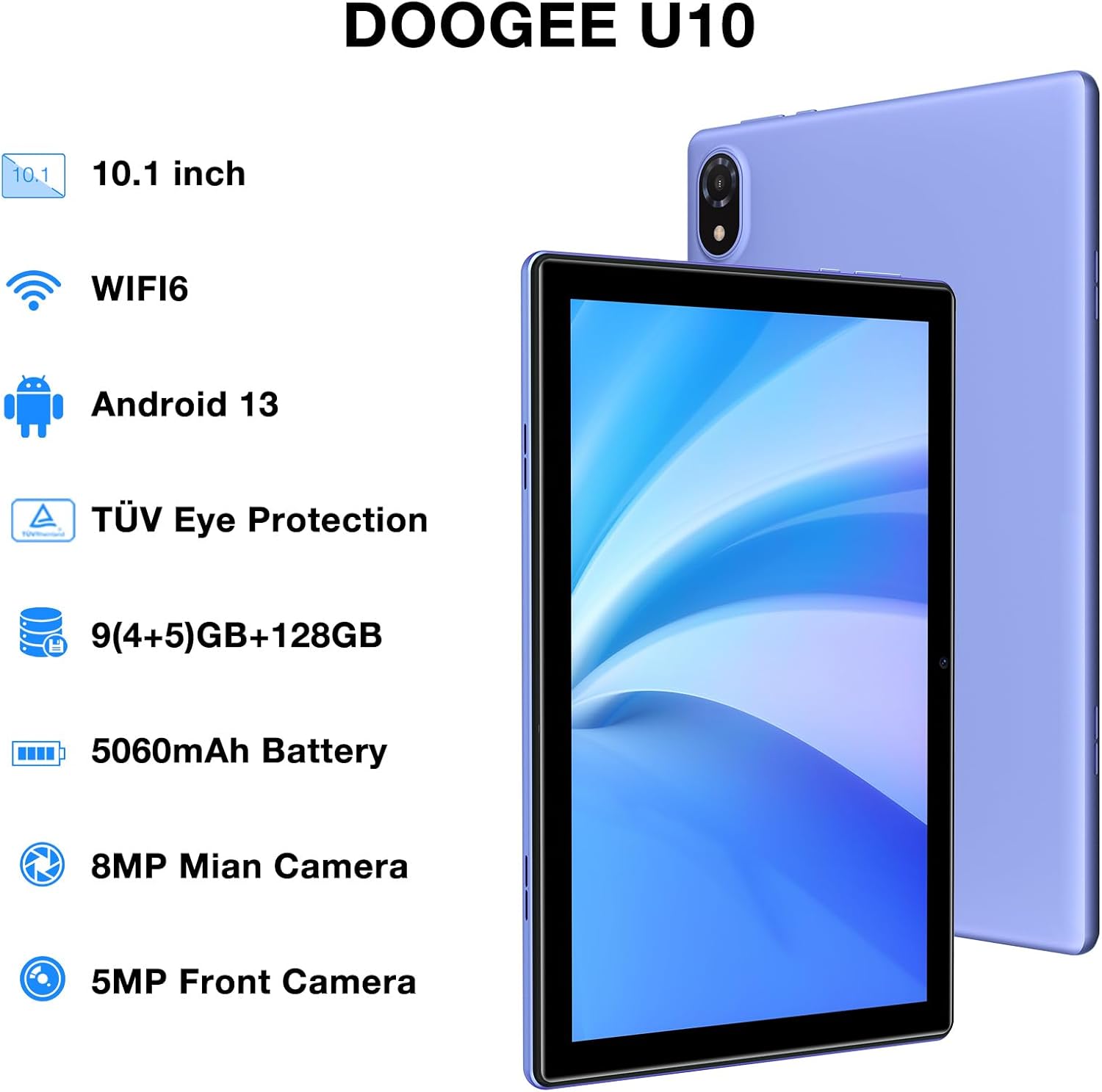
Figure 1: DOOGEE U10 Tablet Overview. This image highlights the tablet's 10.1-inch display, WiFi 6 capability, Android 13 operating system, TÜV Eye Protection, 9GB RAM, 128GB ROM, 5060mAh battery, 8MP main camera, and 5MP front camera.
- Power Button: Located on the side, press and hold to power on/off or restart.
- Volume Buttons: Adjust media volume and notification sounds.
- USB Type-C Port: For charging and data transfer.
- 3.5mm Headphone Jack: Connect wired headphones.
- Front Camera: For video calls and selfies.
- Rear Camera: For taking photos and videos.
- Speakers: Dual stereo speakers for audio output.
1.3 Initial Power On and Charging
Before first use, fully charge your tablet. Connect the USB Type-C cable to the tablet and the power adapter to a wall outlet. The battery indicator will show charging status.
- Press and hold the Power Button until the DOOGEE logo appears.
- Follow the on-screen instructions to select your language, connect to Wi-Fi, and set up your Google account.
2. Operating Your Tablet
Learn how to navigate and use the core features of your DOOGEE U10 tablet.
2.1 Display and Navigation
The DOOGEE U10 features a 10.1-inch IPS HD display with a resolution of 1280x800 pixels, providing clear visuals for various tasks.

Figure 2: Vivid IPS HD Display. This image illustrates the tablet's 10.1-inch screen with 800x1280 HD+ resolution, ideal for media consumption.
- Touch Gestures: Tap to select, swipe to scroll, pinch to zoom.
- Home Screen: Customize with widgets and app shortcuts.
- Notifications: Swipe down from the top to access notifications and quick settings.
- Face Recognition: Unlock your tablet using facial recognition for convenience.
2.2 Performance and Storage
The tablet is powered by a Quad-Core RK3562 processor clocked at up to 2.0GHz, ensuring smooth performance. It comes with 9GB RAM (5GB physical + 4GB expansion) and 128GB internal storage, expandable up to 1TB via a microSD card.

Figure 3: Powerful Processor and Memory. This image details the tablet's Rockchip RK3562 Quad-Core processor, 9GB RAM, 128GB ROM, and support for 1TB TF card expansion.
2.3 Connectivity
- Wi-Fi 6: Connect to high-speed Wi-Fi networks for faster browsing and streaming. Go to Settings > Network & internet > Wi-Fi.
- Bluetooth 5.0: Pair with wireless headphones, speakers, or other Bluetooth devices. Go to Settings > Connected devices > Bluetooth.
- OTG (On-The-Go): Connect USB peripherals like flash drives or keyboards using an OTG adapter (sold separately).
2.4 Camera Functions
The tablet is equipped with an 8MP main camera and a 5MP front camera for photos and video calls.

Figure 4: Dual Camera System. This image showcases the tablet's 8MP main camera and 5MP front camera, suitable for capturing moments and video conferencing.
- Open the Camera app from the home screen or app drawer.
- Tap the shutter button to take a photo.
- Switch between front and rear cameras using the camera icon.
2.5 Battery Management
The 5060mAh battery provides extended usage. To optimize battery life, adjust screen brightness, close unused apps, and enable power-saving modes.

Figure 5: Large Capacity Battery. This image highlights the 5060mAh battery, Type-C charging, 5V2A fast charging, and 3.5mm headphone jack, along with estimated usage times for gaming, movies, and music.
2.6 Multimedia Experience
Enjoy an immersive audio experience with dual stereo speakers. The tablet supports Widevine L1, allowing for high-quality streaming from various video platforms.

Figure 6: Immersive Audio and DRM L1. This image illustrates the tablet's support for WiFi 6, Bluetooth 5.0, dual speakers, and DRM L1 for enhanced multimedia playback.
2.7 Eye Protection Mode
The DOOGEE U10 is TÜV SÜD blue light certified, reducing harmful blue light emissions to protect your eyes during prolonged use.

Figure 7: TÜV Certified Eye Protection. This image shows the TÜV Rheinland certification, indicating the tablet's low blue light feature for eye comfort.
2.8 Official Product Videos
DOOGEE U10 Tablet Showcase
This video provides a general overview and showcase of the DOOGEE U10 tablet's features and design.
DOOGEE U10 Fantastic Experience for Kids
This video demonstrates how the DOOGEE U10 tablet can be used by children, highlighting its suitability for educational and entertainment purposes for younger users.
3. Maintenance
Proper care ensures the longevity and optimal performance of your tablet.
3.1 Cleaning Your Tablet
- Use a soft, lint-free cloth to clean the screen and body.
- Avoid using harsh chemicals, abrasive cleaners, or aerosol sprays.
- For stubborn smudges, slightly dampen the cloth with water or a screen cleaner designed for electronics.
3.2 Software Updates
Regularly check for and install software updates to enhance performance, security, and add new features.
- Go to Settings > System > System update.
- Connect to a stable Wi-Fi network before downloading updates.
4. Troubleshooting
This section addresses common issues you might encounter with your DOOGEE U10 tablet.
4.1 Device Not Powering On
- Ensure the battery is charged. Connect the tablet to the charger for at least 30 minutes.
- Press and hold the Power Button for 10-15 seconds to force a restart.
4.2 Connectivity Problems (Wi-Fi/Bluetooth)
- Toggle Wi-Fi or Bluetooth off and on in Quick Settings or Settings menu.
- Restart your tablet and the router/Bluetooth device.
- Forget the network/device and reconnect.
4.3 Apps Crashing or Freezing
- Close the problematic app and reopen it.
- Clear the app's cache: Settings > Apps > [App Name] > Storage & cache > Clear cache.
- Ensure the app is updated to its latest version.
- If the issue persists, consider uninstalling and reinstalling the app.
5. Technical Specifications
Key technical details of the DOOGEE U10 tablet.
| Feature | Specification |
|---|---|
| Model Name | U10 |
| Operating System | Android 13 |
| Screen Size | 10.1 Inches |
| Screen Resolution | 1280 x 800 pixels (HD+) |
| Processor | Quad-Core (Rockchip RK3562, up to 2.0GHz) |
| RAM | 9GB (5GB physical + 4GB expansion) |
| Internal Storage | 128GB |
| Expandable Storage | Up to 1TB (microSD/TF card) |
| Main Camera | 8MP |
| Front Camera | 5MP |
| Battery Capacity | 5060mAh |
| Connectivity | Wi-Fi 6, Bluetooth 5.0, OTG |
| Dimensions (LxWxH) | 9.6 x 6.4 x 0.4 inches |
| Weight | Approximately 1.13 lbs (427g) |
| Eye Protection | TÜV SÜD Low Bluelight Certified |
| DRM Support | Widevine L1 |
6. Warranty and Support
Information regarding your product's warranty and how to obtain support.
6.1 Limited Warranty
The DOOGEE U10 tablet typically comes with a 2-year limited warranty. This warranty covers manufacturing defects and workmanship under normal use. Please refer to the warranty card included in your package for specific terms and conditions, including coverage details and exclusions.
Keep your proof of purchase for warranty claims.
6.2 Customer Support
If you encounter any issues not covered in the troubleshooting section or require further assistance, please contact DOOGEE customer support.
- Online Support: Visit the official DOOGEE website for FAQs, support resources, and contact options.
- Email Support: Refer to your warranty card or quick start guide for specific email addresses.
- Service Centers: Information on authorized service centers may be available on the DOOGEE website.
When contacting support, please have your tablet's model number (U10) and purchase information ready.


