
Introduction
Welcome to the Cinnado D1 5MP Indoor Security Camera user manual. This guide provides detailed instructions for setting up, operating, and maintaining your security camera. Please read this manual thoroughly before use to ensure proper functionality and to maximize your product experience.
Product Overview
Package Contents
Upon opening the package, please verify that all the following items are included:
- 1x Cinnado D1 5MP Indoor Security Camera
- 1x Mounting Bracket
- 1x Pack of Screws
- 1x Type-C Cable
- 1x Power Adapter
- 1x Installation Guide (this manual)
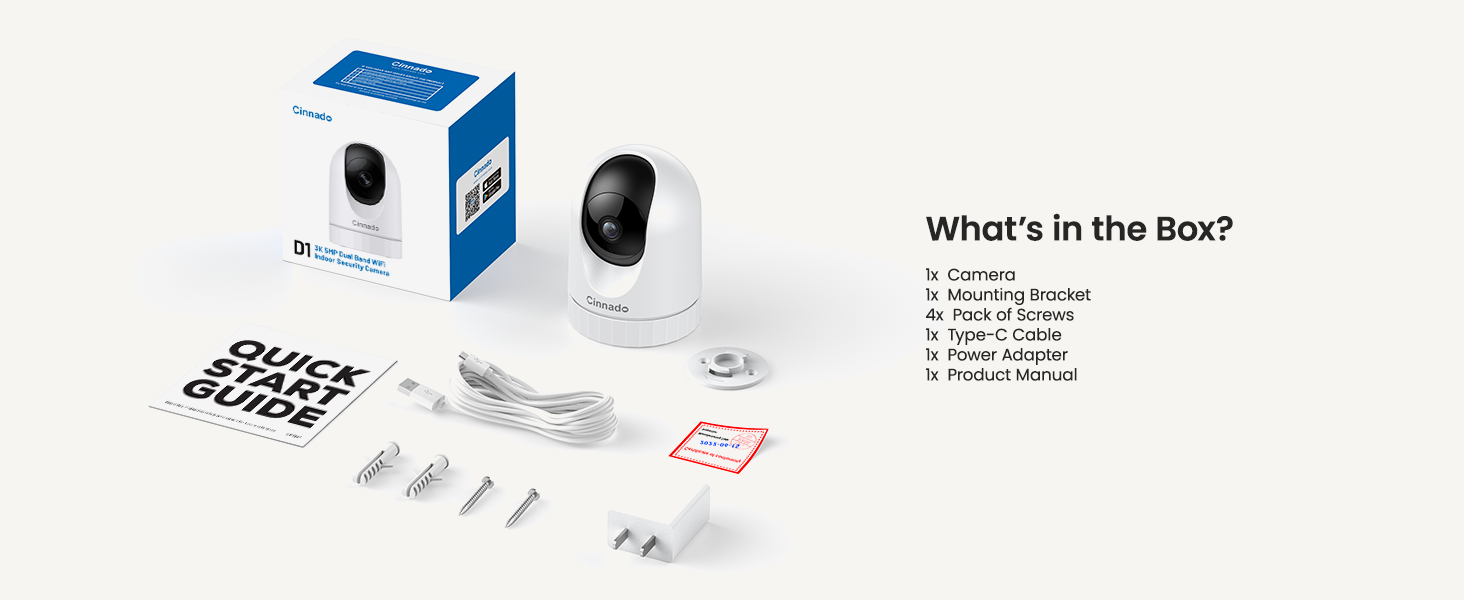
Image: Contents of the Cinnado D1 Security Camera package.
Key Features
- 5MP Super HD Resolution: Provides clear and detailed video footage.
- Dual-Band WiFi (2.4Ghz/5Ghz): Offers flexible and stable network connectivity.
- Excellent Night Vision: Equipped with 4x 940nm invisible IR lights for clear viewing in low-light conditions.
- 360° Auto Tracking: Automatically follows detected movement within its field of view.
- Smooth Two-Way Audio: Built-in microphone and speaker for real-time communication.
- Flexible Storage Options: Supports local SD card storage (up to 128GB, not included) and optional cloud storage.
- Multi-User Access: Allows sharing camera access with family and friends.
- Smart Home Compatibility: Works with Amazon Alexa and Google Home.
- Motion Detection Alerts: Sends instant notifications upon detecting movement.

Image: Cinnado D1 5MP Indoor Security Camera.
Setup Guide
Step 1: Prepare for Installation
Before beginning the installation, ensure you have a stable 2.4Ghz or 5Ghz Wi-Fi network available. The camera requires a corded electric power source and is designed for indoor use only.
Step 2: Download and Install the App
- Search for the 'Wansview Cloud' app on the Apple App Store (for iOS devices) or Google Play Store (for Android devices).
- Download and install the app on your smartphone or tablet.
- Open the app and create a new account or log in if you already have one.

Image: Download the companion app from your device's app store.
Step 3: Connect the Camera
- Plug the Type-C cable into the camera and connect the power adapter to an electrical outlet. The camera will power on and initiate its startup sequence.
- Once the camera is ready (indicated by a specific LED status or voice prompt), open the Wansview Cloud app.
- In the app, tap the '+' icon to add a new device.
- Follow the on-screen instructions to scan the QR code located on the camera or its packaging.
- Select your 2.4Ghz or 5Ghz Wi-Fi network and enter the password. Ensure your phone is connected to the same Wi-Fi network during this process.
- The camera will attempt to connect to your Wi-Fi network. Once connected, you will hear a confirmation sound or see a steady LED indicator.

Image: The Cinnado D1 camera supports both 2.4Ghz and 5Ghz Wi-Fi bands for flexible connectivity.
Step 4: Mounting the Camera
The Cinnado D1 camera can be placed on a flat surface or mounted to a ceiling using the included mounting bracket and screws.
- Choose a suitable indoor location with a clear view and within Wi-Fi range.
- If mounting, use the bracket as a template to mark screw positions on the ceiling.
- Drill pilot holes and secure the mounting bracket with the provided screws.
- Attach the camera to the mounting bracket, ensuring it is securely fastened.
- Adjust the camera's angle as needed within the app after installation.
Operating Instructions
Live View and Monitoring
Open the Wansview Cloud app and select your camera from the device list to access the live video feed. You can use the on-screen controls to pan (horizontal) and tilt (vertical) the camera to adjust its viewing angle.

Image: The camera offers 360-degree coverage with pan and tilt functionality.
Two-Way Audio
The camera features a built-in microphone and speaker. To use two-way audio:
- While in live view, tap the microphone icon in the app.
- Speak into your phone's microphone to transmit your voice through the camera's speaker.
- Tap the speaker icon to hear audio from the camera's environment.

Image: Smooth two-way audio allows communication through the camera.
Motion Detection and Alerts
The Cinnado D1 camera can detect motion and send alerts to your phone:
- Navigate to the camera settings in the app.
- Enable motion detection and adjust sensitivity levels as desired.
- Configure alert notifications to receive instant messages on your device when motion is detected.
- The 360° Auto Tracking feature, when enabled, will automatically pan and tilt the camera to follow detected movement.
Video Playback and Storage
The camera supports two storage methods for recorded footage:
- Micro SD Card Storage: Insert a Micro SD card (up to 128GB, not included) into the camera's designated slot for 24/7 continuous recording.
- Cloud Storage: An optional cloud storage service is available, often with a 30-day free trial. This allows for secure, off-site storage of your recordings.
To view recorded footage, access the playback feature within the Wansview Cloud app. You can browse recordings by date and time.

Image: Flexible storage options including SD card and cloud storage.
Sharing Access
You can share access to your camera's live feed with family members or trusted individuals:
- In the Wansview Cloud app, go to the camera settings.
- Locate the 'Share Device' or similar option.
- Follow the prompts to invite other users, who will need their own Wansview Cloud accounts.
Smart Home Integration
The Cinnado D1 camera supports integration with Amazon Alexa and Google Home. Refer to the respective smart home assistant's app or documentation for specific instructions on connecting your camera and using voice commands.
Maintenance
To ensure optimal performance and longevity of your Cinnado D1 camera:
- Cleaning: Gently wipe the camera lens and body with a soft, dry cloth. Avoid using harsh chemicals or abrasive materials.
- Firmware Updates: Regularly check the Wansview Cloud app for available firmware updates. Keeping your camera's firmware up-to-date ensures access to the latest features and security enhancements.
- Placement: Ensure the camera is placed in a stable indoor environment, away from direct sunlight, extreme temperatures, and moisture.
Troubleshooting
If you encounter issues with your Cinnado D1 camera, please refer to the following common solutions:
| Problem | Possible Solution |
|---|---|
| Camera fails to connect to Wi-Fi | Ensure your Wi-Fi network is 2.4Ghz or 5Ghz. Verify the Wi-Fi password is correct. Move the camera closer to the router. Restart the camera and your router. |
| Poor video quality | Check your internet connection speed. Ensure the camera lens is clean. Adjust camera placement to avoid glare or insufficient lighting. |
| Motion detection not working | Verify motion detection is enabled in the app settings. Adjust sensitivity levels. Ensure there are no obstructions in the camera's field of view. |
| Two-way audio issues | Check volume settings on your phone and in the app. Ensure microphone and speaker permissions are granted to the app. |
| Camera offline frequently | Improve Wi-Fi signal strength by moving the camera closer to the router or using a Wi-Fi extender. Ensure the power supply is stable. |
If these solutions do not resolve your issue, please contact Cinnado customer support for further assistance.
Specifications
| Feature | Detail |
|---|---|
| Model Name | D1 |
| Resolution | 5MP (3K) |
| Connectivity | Dual-Band Wi-Fi (2.4Ghz/5Ghz) |
| Field of View | 110 Degrees (Lens), 360 Degrees (Pan/Tilt Coverage) |
| Night Vision | 4x 940nm Invisible IR Lights |
| Storage Options | Micro SD Card (up to 128GB), Cloud Storage (optional) |
| Power Source | Corded Electric |
| Compatible Devices | iOS, Android |
| Dimensions (L x W x H) | 2.89 x 2.89 x 4.01 inches |
| Item Weight | 10.2 ounces |
| Mounting Type | Ceiling Mount, Tabletop |
| Alert Type | Motion Only |
Warranty and Support
Cinnado is committed to providing high-quality products and customer satisfaction. Your Cinnado D1 5MP Indoor Security Camera comes with lifelong technical support and after-sales service.
For any questions, technical assistance, or support needs, please do not hesitate to contact Cinnado customer service. Our team is available to provide professional guidance and resolve any issues you may encounter.
Please refer to the contact information provided with your product packaging or visit the official Cinnado website for support details.


