
1. Introduction
This manual provides detailed instructions for the installation, operation, and maintenance of your Road Top 12.3-inch Ultra-Narrow Carplay Touchscreen. This device is designed to upgrade your vehicle's infotainment system while retaining original factory functions.

Image: The Road Top 12.3-inch touchscreen unit, shown both as a standalone product and integrated into a BMW dashboard, displaying the Apple CarPlay interface.
2. Compatibility
The 12.3-inch Ultra-Narrow Carplay Touchscreen is compatible with specific BMW 3 and 4 Series models. Please verify your vehicle's model and year before installation.
- BMW 4 Series: F32, F33, F36 (Years: 2013 - 2015)
- BMW 3 Series: F30, F31, F34 (Years: 2012 - 2015)
Important Note: This screen is compatible if the LVDS port behind your factory screen is 6-pin, regardless of whether your original car screen displays CD/multimedia (CIC system interface) or multimedia (NBT system interface).

Image: A compatibility chart detailing BMW 3 and 4 Series models and years, with visual examples of compatible NBT and CIC system interfaces and incompatible EVO ID5/ID6 systems.
3. Product Features
The Road Top 12.3-inch touchscreen replaces your original car screen with a Linux-based system, enhancing functionality while preserving the original OEM system. Key features include:
- Wireless Connectivity: Supports Wireless Apple CarPlay, Wireless Android Auto, and Wireless Mirrorlink for iOS and Android phones.
- High-Resolution Display: Features a 1920x720 HD resolution touchscreen for clear visuals.
- Audio Quality: EQ adjustable for optimal audio experience.
- Camera Support: Compatible with original factory reverse cameras, parking radar, and aftermarket reverse cameras. Supports front view camera DVR (CVBS input). Does not support aftermarket 360 cameras.
- Day and Night Mode: Automatic light sensitivity adjusts the display based on your car's original headlights for comfortable viewing.
- Original Function Retention: Retains all original functions, including car radio, amplifier, factory joystick control, and original reversing camera.
- Control Methods: Supports hand touch control and steering wheel control buttons (voice control, Tel button, voice buttons).
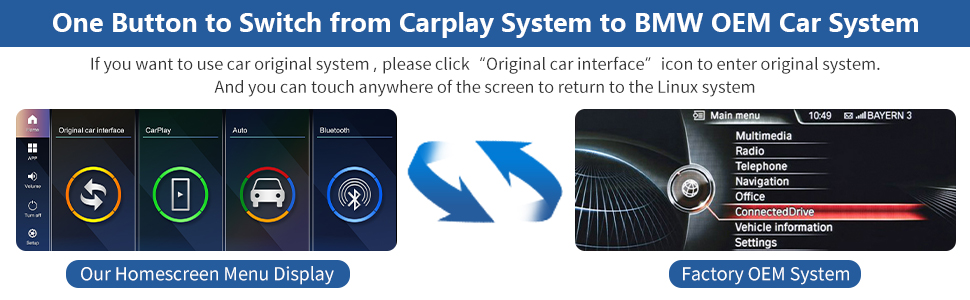
Image: Visual representation of the product's core features, including OEM car radio interface, CarPlay, Android Auto, Mirrorlink, Bluetooth, touch screen, music, navigation, video, and phone functionality.
4. Installation
Installation requires removing parts of the car dashboard to connect wires. It is crucial to ensure all features work correctly before reassembling the dashboard.
4.1. Pre-Installation Check
Before beginning installation, confirm the LVDS port behind your factory screen is 6-pin. This is a critical compatibility requirement.
4.2. Wiring Connections
Carefully follow the wiring diagram provided with your product. Incorrect cable connections are a common source of issues. Ensure all connections are secure.
- Power Cable: Connect the provided power cable to the vehicle's power source.
- USB Cable: Connect the USB cable for data transfer and updates.
- AUX Cable: Connect the AUX cable for audio output.

Image: A diagram illustrating the 12.3-inch screen's dimensions and the essential cables included for installation: power cable, USB cable, and AUX cable.
4.3. Post-Installation Verification
After making all connections but before fully reassembling the dashboard, power on the unit and test all features (CarPlay, Android Auto, Mirrorlink, camera, audio, steering wheel controls) to confirm proper functionality. This helps in identifying and resolving any issues promptly.

Image: A visual comparison of the car's dashboard before and after the installation of the 12.3-inch touchscreen, highlighting the aesthetic and functional upgrade.
5. Setup and Operation
5.1. Initial Setup
Upon first power-on, the system will guide you through basic setup. Ensure your phone's Bluetooth and Wi-Fi are enabled for wireless connectivity features.
5.2. Wireless CarPlay / Android Auto
To connect your smartphone wirelessly:
- Enable Bluetooth on your smartphone.
- On the touchscreen, navigate to the CarPlay or Android Auto interface.
- Pair your phone via Bluetooth. Follow on-screen prompts to establish the wireless connection.


Image: Two images demonstrating wireless connectivity for Apple CarPlay and Android Auto, showing navigation, music, and call features on the touchscreen.
5.3. Mirrorlink
The Mirrorlink function allows you to display your phone's screen on the car's touchscreen. This supports both wireless and wired connections for iOS and Android devices. Refer to your phone's specific Mirrorlink instructions for detailed setup.

Image: A visual representation of wireless Mirrorlink functionality, showing both iOS and Android phones mirroring content to the car's display.
5.4. Switching Between Systems
The unit allows seamless switching between the new Linux system and your BMW's original OEM system. To return to the original system, click the "Original car interface" icon on the touchscreen. You can touch anywhere on the screen to return to the Linux system.

Image: A diagram illustrating the one-button switch function between the new touchscreen's interface and the BMW factory OEM system.
5.5. Day and Night Mode
The system features automatic light sensitivity. It adjusts the display's brightness and color scheme between day and night modes based on your car's original headlight status, ensuring optimal visibility and reducing eye strain.

Image: A split image demonstrating the automatic day and night mode adjustment of the screen based on ambient light conditions.
6. Camera Functions
The touchscreen unit supports various camera inputs to enhance driving safety:
- Factory Original Reverse Camera: Fully compatible with your BMW's existing reverse camera and parking radar system.
- Aftermarket Reverse Camera: Supports the integration of aftermarket reverse cameras. When reverse gear is engaged, the camera view will automatically display on the screen.
- Front View Camera DVR: Supports front view camera DVRs with CVBS input.
- 360 Camera Systems: This unit does not support aftermarket 360-degree camera systems.

Image: The car's touchscreen displaying a reverse camera feed with dynamic parking guidelines.
7. Specifications
| Feature | Detail |
|---|---|
| Item Weight | 4.2 pounds |
| Package Dimensions | 13.39 x 7.95 x 6.26 inches |
| Display Size | 12.3 Inches |
| Operating System | Linux |
| Resolution | 1920x720 HD |
| Control Method | Touchscreen, Steering Wheel Controls |
| Connectivity Technology | Bluetooth, Wireless CarPlay, Wireless Android Auto, Wireless Mirrorlink |
| Audio Output Mode | Stereo |
| Mounting Type | Dashboard Mount |
| Included Components | Car screen, Power cable, USB cable, AUX cable |
8. Troubleshooting
This section addresses common issues you might encounter during installation or operation.
8.1. No Power / Screen Not Turning On
- Check Power Connections: Ensure the power cable is securely connected to both the unit and the vehicle's power source.
- Verify Fuse: Check the vehicle's fuse box for any blown fuses related to the infotainment system.
8.2. No Audio Output / Poor Sound Quality
- AUX Cable Connection: Confirm the AUX cable is correctly connected to both the unit and your car's AUX input.
- Vehicle's AUX Mode: Ensure your car's original radio is set to AUX input mode.
- Bluetooth Interference: If using CarPlay/Android Auto, ensure your phone's Bluetooth is connected to the new screen, and not simultaneously to the car's original Bluetooth system, as this can cause conflicts. You may need to delete the BMW Bluetooth from your phone.
- EQ Settings: Adjust the EQ settings on the new screen to optimize sound quality.
8.3. CarPlay / Android Auto Not Connecting
- Bluetooth & Wi-Fi: Ensure both Bluetooth and Wi-Fi are enabled on your smartphone.
- Phone Pairing: Re-attempt the Bluetooth pairing process from the touchscreen's interface.
- Software Updates: Check for any available software updates for the touchscreen unit or your smartphone.
8.4. Mounting Bracket Issues
If the screen feels unstable or shakes, ensure the mounting bracket is securely fastened. In some cases, the bracket might require minor adjustments for optimal fit, especially if designed for specific regional vehicle configurations (e.g., left-hand vs. right-hand drive).
9. Maintenance
To ensure the longevity and optimal performance of your touchscreen:
- Cleaning: Use a soft, lint-free cloth to clean the screen. Avoid abrasive cleaners or harsh chemicals.
- Temperature: Avoid exposing the unit to extreme temperatures for extended periods.
- Software Updates: Periodically check the manufacturer's website for firmware updates to ensure the best performance and compatibility.
10. Warranty and Support
10.1. Warranty Information
The Road Top 12.3-inch Ultra-Narrow Carplay Touchscreen comes with a 1-year warranty from the date of purchase. This warranty covers manufacturing defects and malfunctions under normal use. Please retain your proof of purchase for warranty claims.
10.2. Customer Support
For any issues, questions, or technical assistance, please contact Road Top customer support. Many problems can be resolved with guidance on cable connections and settings.

Image: Instructions on how to access customer support by clicking the 'Road Top Direct' button on the product page and then selecting 'Ask a question'.