
1. Introduction
Thank you for choosing the Generic T1000 Ultra Smartwatch. This manual provides essential information for setting up, operating, and maintaining your device. Please read it carefully before use to ensure optimal performance and longevity of your smartwatch.
2. Safety Information
- Do not attempt to disassemble, repair, or modify the device. This may void the warranty and cause damage.
- Keep the device away from extreme temperatures, direct sunlight, and high humidity.
- Avoid exposing the device to strong impacts or drops.
- Use only the provided or approved charging accessories.
- Consult a medical professional before starting any new fitness regimen, especially if you have pre-existing health conditions.
- This device is not a medical instrument and should not be used for diagnostic or treatment purposes.
3. Package Contents
Ensure all items are present in the package:
- Generic T1000 Ultra Smartwatch
- Wireless Charging Cable/Base
- User Manual (this document)
4. Product Overview
The Generic T1000 Ultra Smartwatch features a modern square design with a touchscreen display, offering various smart functionalities including Bluetooth calls, NFC, fitness tracking, and built-in GPS.

Figure 4.1: Generic T1000 Ultra Smartwatch packaging, displaying the watch face on the box.

Figure 4.2: Generic T1000 Ultra Smartwatch and its wireless charging cable as found inside the product box.
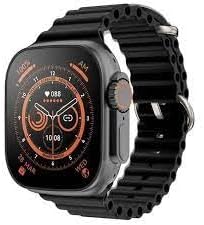
Figure 4.3: Front view of the Generic T1000 Ultra Smartwatch displaying a digital watch face.
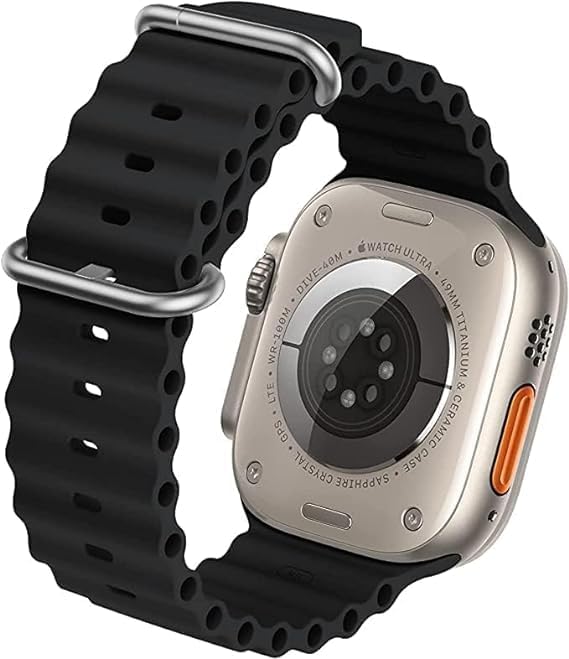
Figure 4.4: Rear view of the Generic T1000 Ultra Smartwatch, showing the heart rate sensors and charging contacts.
5. Setup
5.1. Charging the Smartwatch
Before first use, fully charge your smartwatch. Place the watch on the provided wireless charging base. Ensure the charging contacts on the back of the watch align with the charger. The screen will indicate charging status. A full charge typically takes 2-3 hours.
5.2. Power On/Off
- To Power On: Press and hold the side button until the screen lights up.
- To Power Off: Press and hold the side button, then select 'Power Off' on the screen.
5.3. App Installation
To unlock full functionality, download the companion app on your smartphone. Scan the QR code in the watch's settings or search for the app name (usually found in the watch's 'About' section or quick start guide) in your phone's app store (Google Play Store for Android, Apple App Store for iOS).
5.4. Pairing with Smartphone
- Ensure Bluetooth is enabled on your smartphone.
- Open the companion app on your smartphone and follow the on-screen instructions to add a new device.
- On your smartwatch, navigate to the Bluetooth settings or pairing mode.
- Select your smartwatch from the list of available devices in the app.
- Confirm the pairing request on both your smartphone and smartwatch.
6. Operating Instructions
6.1. Basic Navigation
- Touchscreen: Swipe left/right, up/down to navigate menus and screens. Tap to select.
- Side Button: Press to return to the home screen or wake the device. Long press for power options.
6.2. Bluetooth Calls
Once paired, you can make and receive calls directly from your smartwatch. Access the dialer or call log from the main menu. Ensure your watch is within Bluetooth range of your phone for call functionality.
6.3. Notifications
Enable app notifications in the companion app on your smartphone. Your smartwatch will display incoming calls, messages, and app alerts. Swipe down from the top of the watch face to view your notification center.
6.4. Fitness Tracking
The smartwatch includes a pedometer and optical heart rate sensor. Access the fitness tracking features through the dedicated app icons. Data will sync with the companion app on your smartphone for detailed analysis.
6.5. NFC Functionality
The smartwatch supports NFC (Near Field Communication). Refer to the specific instructions within the watch's settings or companion app for details on how to use NFC features, such as mobile payments or access control, if supported by your region and service providers.
6.6. GPS
The built-in GPS allows for accurate tracking of outdoor activities without needing your phone. Ensure GPS is enabled in the watch settings for activities like running or cycling.
7. Maintenance
7.1. Cleaning
Wipe the smartwatch and band regularly with a soft, damp cloth. Avoid using harsh chemicals or abrasive materials, which can damage the device. Ensure the watch is dry before charging.
7.2. Water Resistance
The T1000 Ultra Smartwatch is water-resistant up to 50 meters. This means it can be used for shallow-water activities like swimming. However, it is not suitable for diving, high-speed water sports, or exposure to hot water/steam (e.g., showers, saunas). Water resistance is not a permanent condition and may decrease over time.
8. Troubleshooting
- Watch not turning on: Ensure the watch is fully charged. Connect it to the charger and wait a few minutes before attempting to power on again.
- Cannot pair with phone: Check if Bluetooth is enabled on both devices. Ensure the watch is in pairing mode and within range. Try restarting both the watch and phone.
- Inaccurate fitness data: Ensure the watch is worn snugly on your wrist. Calibrate the pedometer in the companion app if available.
- Notifications not appearing: Verify that notifications are enabled in both your phone's settings and the smartwatch's companion app. Ensure the watch is connected via Bluetooth.
- Charging issues: Check the charging cable and adapter for damage. Ensure the watch is correctly placed on the wireless charging base.
9. Specifications
| Feature | Detail |
|---|---|
| Brand Name | Generic |
| Model Name | T1000 Ultra |
| Model Number | T1000 |
| Operating System | Smartwatch OS |
| Special Features | Smart, Wireless, Wireless Charging, Bluetooth |
| Connectivity Technology | NFC, Bluetooth |
| Wireless Communication Standard | Bluetooth |
| GPS | Built-in GPS |
| Item Shape | Square |
| Style | Modern |
| Color | Black |
| Band Material Type | Resin |
| Case Material Type | Plastic |
| Water Resistance Level | Water Resistant |
| Water Resistance Depth | 50 meters |
| Human Interface Input | Touchscreen |
| Clasp Type | Buckle |
| Supported Application | Fitness Tracker |
| Satellite Navigation System Support | Global Positioning System (GPS) |
| Controller Type | Touch Control |
| Meter Type | Optical Heart Rate Sensor |
| Closure Type | Buckle |
| Wireless Service Provider | Unlocked |
| Connectivity Feature | Bluetooth, NFC |
| SIM Card Size | eSIM |
| Compatible Devices | Smartphone |
| Compatible Phone Models | Compatible with Android and iOS smartphones |
| Target Audience | Adults (Unisex) |
| Age Range Description | Adult |
| Wearable Computer Type | Smartwatch |
| Display Type | OLED or LCD |
| Maximum Screen Brightness | 500 nits |
| Warranty Type | Limited |
10. Warranty and Support
The Generic T1000 Ultra Smartwatch comes with a limited warranty. Please refer to the warranty card included in your package for specific terms and conditions. For technical support, troubleshooting assistance, or warranty claims, please contact the retailer or manufacturer's customer service through the contact information provided with your purchase.


