Introduction
This manual provides essential information for using your new Samsung Galaxy M55 5G smartphone. Please read this manual carefully to ensure proper and safe use of your device. Keep this manual for future reference.
The Samsung Galaxy M55 5G features a 6.7-inch FHD+ Super AMOLED+ display with a 120Hz refresh rate, powered by the Snapdragon 7 Gen 1 processor. It includes a versatile triple-camera system and a 5000mAh battery.
Safety Information
Before using the device, read all safety information to ensure safe and proper use. Follow warnings and regulations to prevent injury to yourself or others and to prevent damage to your device.
- Do not expose the device to extreme temperatures or direct sunlight for prolonged periods.
- Use only Samsung-approved batteries, chargers, and accessories.
- Avoid dropping or subjecting the device to severe impact.
- Keep the device dry. Do not use it in wet environments.
- Maintain a safe distance from medical devices to avoid interference.
Package Contents
Check the product box for the following items:
- Samsung Galaxy M55 5G Smartphone
- USB Type-C Cable
- SIM Ejection Pin
- Quick Start Guide
- 25W Fast Charger (if bundled)
The actual components may vary depending on the region and service provider.
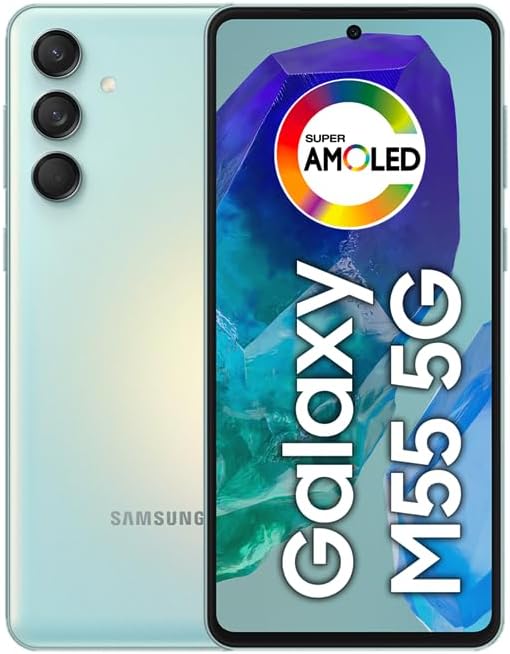
Image: Front and back view of the Samsung Galaxy M55 5G smartphone, showcasing the camera module and display.
Device Layout
Familiarize yourself with the main components of your device.
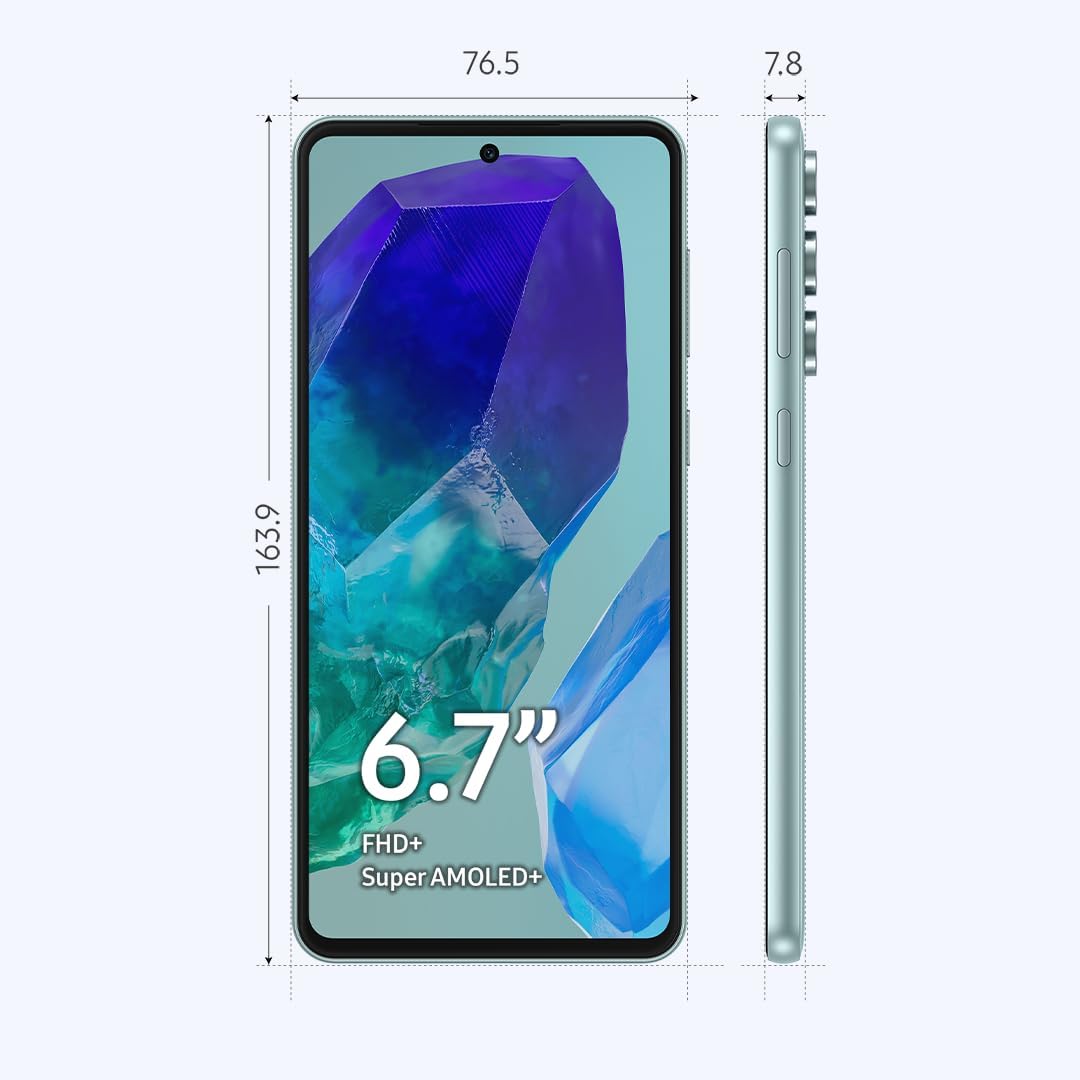
Image: Diagram showing the dimensions (163.9mm height, 76.5mm width, 7.8mm thickness) and key physical features of the Samsung Galaxy M55 5G, including the 6.7-inch Super AMOLED+ display, power button, and volume buttons.
- Front Camera: For selfies and video calls.
- Display: 6.7-inch FHD+ Super AMOLED+ screen.
- Volume Keys: Adjust volume up or down.
- Side Key (Power/Bixby): Power on/off, wake/sleep, or activate Bixby.
- USB Type-C Port: For charging and data transfer.
- Speaker: Audio output.
- Microphone: For calls and voice commands.
- SIM/SD Card Tray: Insert SIM cards and a microSD card.
- Rear Cameras: Main, Ultrawide, and Macro lenses.
- Flash: For photos in low light.
Setup
1. Insert SIM or SD Card
- Locate the SIM/SD card tray on the side of your device.
- Insert the provided SIM ejection pin into the small hole next to the tray to open it.
- Place your Nano-SIM card(s) and/or microSD card into the tray with the gold contacts facing down. Ensure they are correctly seated.
- Carefully push the tray back into the slot until it clicks into place.
Note: The device supports Dual SIM functionality, allowing two SIM cards or one SIM card and one microSD card. You cannot use two SIM cards and a microSD card simultaneously.
2. Charge the Battery
- Connect the USB Type-C cable to the device's charging port.
- Connect the other end of the cable to the power adapter, then plug the adapter into a power outlet.
- Allow the device to charge until the battery is full before initial use.
3. Power On and Initial Setup
- Press and hold the Side Key until the Samsung logo appears.
- Follow the on-screen prompts to complete the initial setup, including language selection, Wi-Fi connection, Google account setup, and fingerprint/face recognition.
Operating Your Device
Display and Navigation
- Touchscreen Gestures: Tap, double-tap, swipe, pinch-to-zoom.
- Home Screen: Access apps, widgets, and notifications.
- Navigation Bar: Use gestures or traditional buttons (Back, Home, Recents) to navigate.
- Fingerprint Sensor: The optical fingerprint sensor is located under the display for secure unlocking.
Camera Usage
Your device features a versatile camera system:
- Main Camera (50MP): For high-resolution photos.
- Ultrawide Camera (8MP): For capturing broader scenes.
- Macro Camera (2MP): For close-up shots of small objects.
- Front Camera (50MP): For selfies and video calls.
To open the camera, tap the Camera app icon. Select your desired mode (Photo, Video, Portrait, Pro, etc.) and tap the shutter button to capture.
Connectivity
- 5G Network: The device supports 5G connectivity for faster data speeds where available.
- Wi-Fi: Connect to wireless networks via Settings > Connections > Wi-Fi.
- Bluetooth: Pair with other Bluetooth devices via Settings > Connections > Bluetooth.
- NFC: For contactless payments and data exchange.
Battery Management
The 5000mAh battery provides extended usage. To optimize battery life:
- Adjust screen brightness.
- Enable Power saving mode in Settings > Battery and device care.
- Close unused apps running in the background.
- Disable Wi-Fi, Bluetooth, and GPS when not in use.
Maintenance
Software Updates
Regularly check for software updates to ensure your device has the latest features and security enhancements. Go to Settings > Software update > Download and install.
Cleaning Your Device
- Use a soft, lint-free cloth to clean the screen and body.
- Avoid using harsh chemicals or abrasive materials.
- Gently wipe ports to remove dust, but avoid inserting objects.
Storage Management
Your device comes with 256GB of internal storage. You can expand this using a microSD card. To manage storage, go to Settings > Battery and device care > Storage. Here you can view usage and free up space.
Troubleshooting
If you encounter issues with your device, try the following solutions:
Common Issues
- Device not turning on: Ensure the battery is charged. Press and hold the Side Key for an extended period (up to 10 seconds).
- Apps crashing or freezing: Close the app and reopen it. Clear the app's cache (Settings > Apps > [App Name] > Storage > Clear cache).
- Poor network connection: Check your SIM card insertion. Restart the device. Verify network settings.
- Battery draining quickly: Refer to the Battery Management section for tips.
- Screen unresponsive: Force restart the device by pressing and holding the Side Key and Volume Down button simultaneously for about 7 seconds.
Factory Data Reset
If problems persist, you may need to perform a factory data reset. This will erase all data from your device. Backup your data before proceeding.
- Go to Settings > General management > Reset > Factory data reset.
- Review the information and tap "Reset".
- Enter your screen lock credentials if prompted.
- Tap "Delete all" to confirm.
Specifications
| Model Name | Samsung Galaxy M55 5G |
| Model Number | SM-M556B/DS |
| Display | 6.7-inch FHD+ Super AMOLED+, 120Hz Refresh Rate (1080 x 2400 pixels) |
| Processor | Qualcomm Snapdragon 7 Gen 1 (4nm) Octa-core |
| RAM | 8 GB |
| Internal Storage | 256 GB (expandable via microSD) |
| Rear Camera | 50MP (wide) + 8MP (ultrawide) + 2MP (macro) |
| Front Camera | 50MP (wide) |
| Battery | 5000 mAh |
| Operating System | Android 14, One UI 6.1 |
| Connectivity | 5G, 4G LTE, Wi-Fi, Bluetooth 5.2, GPS, NFC |
| SIM Type | Dual Nano-SIM (Hybrid slot) |
| Dimensions (H x W x D) | 163.9 x 76.5 x 7.8 mm (6.45 x 3.01 x 0.31 inches) |
| Weight | 180 grams (6.3 ounces) |
Warranty and Support
This device is an International Model. Please note that there is no warranty coverage in the United States for this specific model.
For support and further information, please visit the official Samsung support website for your region or contact your local service provider.
- Online Support: www.samsung.com/support/
- Customer Service: Refer to your region's Samsung website for contact numbers.


