
Introduction
This manual provides comprehensive instructions for the Dpofirs Wired Keyboard with Touchpad. It covers setup, operation, maintenance, troubleshooting, and product specifications. Please read this manual thoroughly before using the product to ensure proper function and longevity.
Product Features
- Wired USB Touchpad Keyboard: Mini design for space-saving and portability.
- Scissor Foot Mechanical Structure: Ensures even force distribution on keys for a smooth typing experience and prevents finger slippage.
- Anti-slip Mat: Provides stability on various surfaces, reducing keyboard movement during use.
- 1.4 Meter USB Cable: Offers stable signal transmission and flexible connectivity.
- Built-in Touchpad: Allows computer operation without an external mouse, ideal for limited space environments.
Setup Instructions
The Dpofirs Wired Keyboard with Touchpad is designed for simple plug-and-play functionality. Follow these steps to connect your keyboard:
- Unpack the Keyboard: Carefully remove the keyboard from its packaging.
- Locate a USB Port: Identify an available USB port on your computer (desktop, laptop, or other compatible device).
- Connect the USB Cable: Insert the USB-A connector of the keyboard's cable into the USB port on your computer.
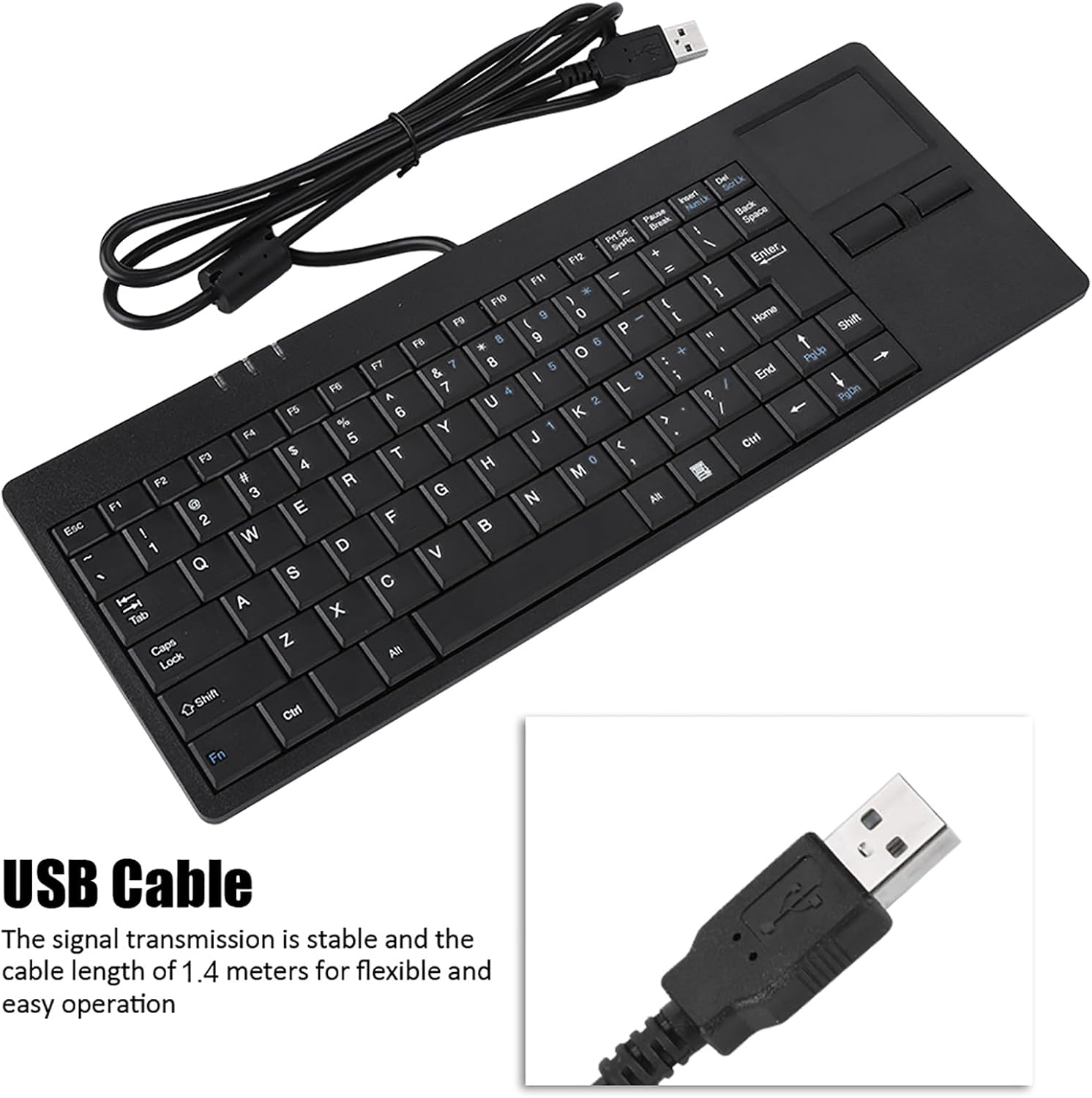
Image: The Dpofirs Wired Keyboard with Touchpad, showing the integrated USB cable ready for connection. The cable length is 1.4 meters.
- System Recognition: Your operating system should automatically detect and install the necessary drivers. This process usually takes a few seconds.
- Begin Use: Once recognized, the keyboard and touchpad are ready for immediate use. No additional software installation is required.

Image: The Dpofirs Wired Keyboard with Touchpad connected to a desktop computer, illustrating its plug-and-play functionality.
Video: A demonstration of connecting the Dpofirs Wired Keyboard with Touchpad to a computer and testing its basic functions. This video highlights the ease of setup and immediate usability.
Operating Instructions
Keyboard Usage
The keyboard features 86 keys with a standard QWERTY layout. The scissor foot mechanical structure ensures a comfortable and responsive typing experience.
- Standard Typing: Use the alphanumeric keys for text input.
- Function Keys (F1-F12): These keys perform various system functions, often in combination with the Fn key. Refer to your operating system's documentation for specific function key assignments.
- Modifier Keys: Utilize Shift, Ctrl, Alt, and Caps Lock as you would with any standard keyboard.

Image: A top-down view of the Dpofirs Wired Keyboard with Touchpad, showcasing the 86-key layout and the integrated touchpad on the right side.

Image: Hands typing on the Dpofirs Wired Keyboard, illustrating the comfortable and smooth typing experience provided by its scissor foot mechanical structure.
Touchpad Usage
The integrated touchpad functions as a mouse, allowing navigation and interaction with your computer.
- Cursor Movement: Slide your finger across the touchpad surface to move the cursor on the screen.
- Left Click: Press the left button below the touchpad, or tap the touchpad surface once.
- Right Click: Press the right button below the touchpad, or tap the touchpad surface with two fingers (if supported by your operating system settings).
- Scrolling: Use two fingers to scroll vertically or horizontally on the touchpad (if supported by your operating system settings).

Image: A hand demonstrating interaction with the built-in touchpad of the Dpofirs Wired Keyboard, showing the area for cursor control.
Maintenance
To ensure the longevity and optimal performance of your Dpofirs Wired Keyboard with Touchpad, follow these maintenance guidelines:
- Cleaning:
- Disconnect the keyboard from your computer before cleaning.
- Use a soft, lint-free cloth slightly dampened with water or a mild cleaning solution to wipe the surface.
- Avoid using harsh chemicals, abrasive cleaners, or excessive moisture, as these can damage the keyboard.
- For dust and debris between keys, use compressed air.
- Storage: Store the keyboard in a clean, dry environment away from extreme temperatures and direct sunlight when not in use.
- Handling: Avoid dropping the keyboard or placing heavy objects on it. Do not pull the USB cable forcefully.
- Anti-slip Mat: Ensure the anti-slip mats on the bottom are clean to maintain stability.
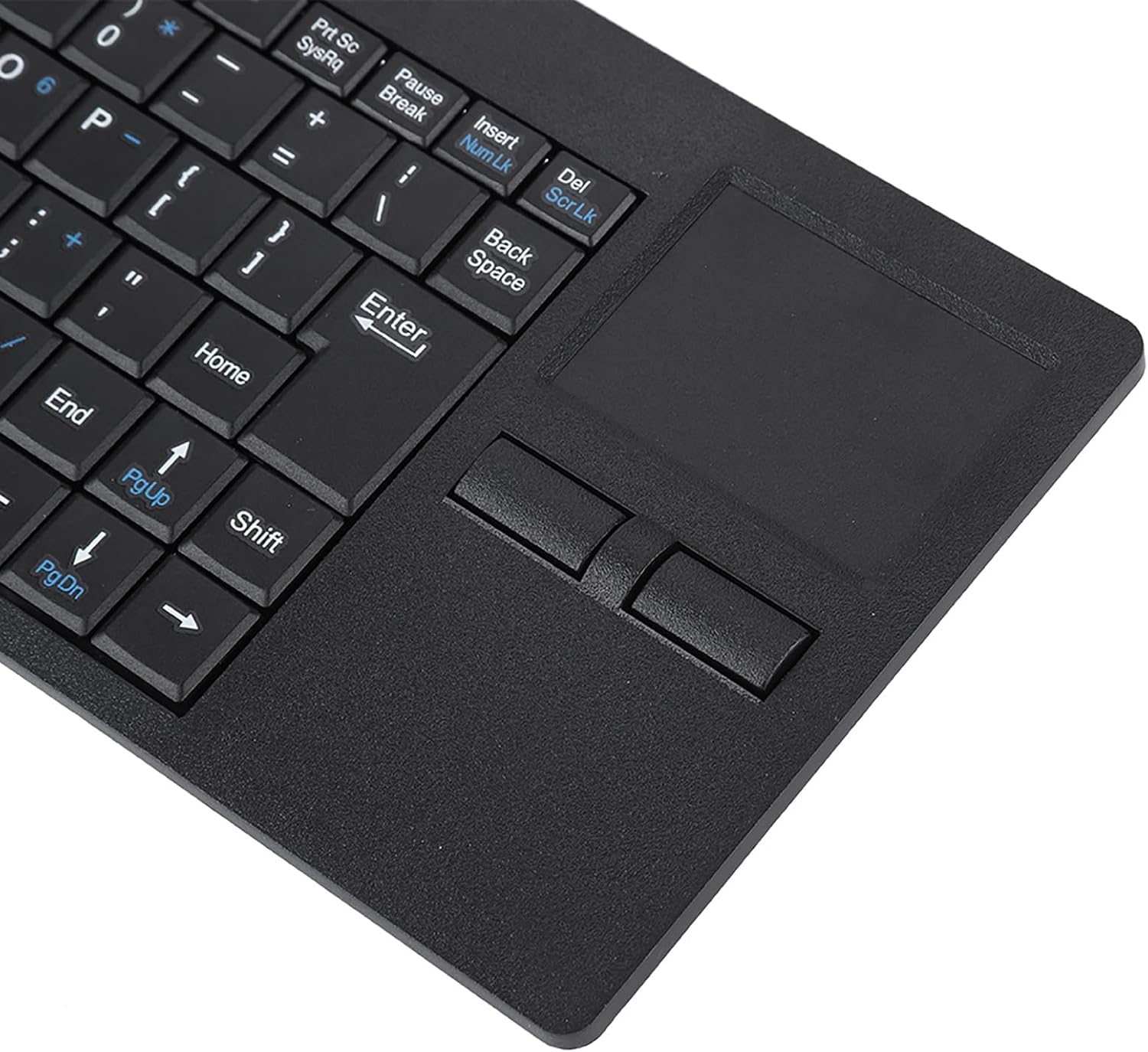
Image: The underside of the Dpofirs Wired Keyboard, showing the anti-slip mats designed to provide stability during use.
Troubleshooting
If you encounter issues with your Dpofirs Wired Keyboard with Touchpad, refer to the following common problems and solutions:
| Problem | Possible Cause | Solution |
|---|---|---|
| Keyboard or Touchpad not responding |
|
|
| Keys are sticky or unresponsive |
|
|
| Touchpad cursor moves erratically |
|
|
Specifications
| Feature | Detail |
|---|---|
| Brand | Dpofirs |
| Model | B0CZ13F24B |
| Connectivity Technology | USB (Wired) |
| Special Feature | Integrated Touchpad |
| Compatible Devices | Personal Computer (Desktop, Laptop) |
| Keyboard Description | Mechanical (Scissor Foot Structure) |
| Number of Keys | 86 |
| Cable Length | 1.4 meters |
| Power Source | Corded Electric (USB powered) |
| Dimensions (Approximate) | 31cm (12.2in) Length x 11.5cm (4.5in) Width x 2cm (0.8in) Height Image: The Dpofirs Wired Keyboard with Touchpad showing its approximate dimensions: 31cm (12.2in) length, 11.5cm (4.5in) width, and 2cm (0.8in) height. |
Warranty Information
The Dpofirs Wired Keyboard with Touchpad comes with a manufacturer's warranty for 90 days from the date of purchase. This warranty covers defects in materials and workmanship under normal use. It does not cover damage caused by misuse, accidents, unauthorized modifications, or external causes.
For warranty claims or further details, please retain your proof of purchase and contact the seller or manufacturer directly.
Support
For technical assistance, troubleshooting beyond this manual, or general inquiries, please contact Dpofirs customer support.
- Online Support: Visit the official Dpofirs store on Amazon for product information and support resources.Dpofirs Amazon Store
- Seller Contact: You may also contact the seller, Xinxakk, directly through the Amazon platform for assistance.