
Introduction
This manual provides detailed instructions for the setup, operation, maintenance, and troubleshooting of your AUSDOM 98Pro Wireless Mechanical Keyboard. Designed for versatility and comfort, this keyboard features tri-mode connectivity, hot-swappable switches, and customizable backlighting. Please read this manual thoroughly to ensure optimal performance and longevity of your device.

Figure 1: AUSDOM 98Pro Wireless Mechanical Keyboard (Yellow Cat Theme)
What's in the Box
- Wireless Mechanical Keyboard x 1
- USB Receiver x 1
- Type-C Charging Cable x 1
- Instruction Manual x 1
- Mechanical Switch x 3
- Switch Puller x 1
- Cat Sticker x 1

Figure 2: Packaging contents including keyboard, cables, and accessories.
Product Overview
The AUSDOM 98Pro keyboard is designed for enhanced typing comfort and versatility across multiple devices. Key features include:
- Tri-Mode Connectivity: Seamlessly switch between Bluetooth, 2.4GHz wireless, and wired USB-C connections.
- Gasket Structure Design: Reduces keyboard shaking and provides a focused typing experience.
- Hot-Swappable Switches: Customize your typing feel by easily changing 3-pin/5-pin mechanical switches.
- Adjustable Backlight System: Features 16 lighting effects and 4 brightness levels for various environments.
- Ergonomic Design: Dual height adjustment brackets and varying keycap heights for comfortable typing.
- Durable PBT Keycaps: Resistant to wear and oil, ensuring long-lasting legibility.
- 97-Key Layout: Compact design that retains essential arrow keys and a number pad.

Figure 3: Exploded view of the keyboard's gasket structure and internal components.

Figure 4: Ergonomic design with adjustable two-part foot support and varying keycap heights.
Setup
1. Initial Charging
Before first use, connect the keyboard to a power source using the provided USB-C cable. The keyboard has a 3000mAh battery. A full charge is recommended for optimal wireless performance.

Figure 5: 3000mAh battery capacity.

Figure 6: USB-C charging port.
2. Connecting Your Keyboard
The AUSDOM 98Pro supports three connection modes: Bluetooth, 2.4GHz wireless, and wired USB-C. Use the mode switch located on the top right of the keyboard to select your desired connection type.

Figure 7: Tri-mode connectivity for up to 5 devices.

Figure 8: Keyboard mode switch.
2.1. 2.4GHz Wireless Connection
- Set the mode switch to the '2.4G' position.
- Insert the USB receiver into an available USB port on your computer.
- The keyboard will automatically connect.
2.2. Bluetooth Connection
- Set the mode switch to the 'BT' position.
- On your device (PC, laptop, tablet), enable Bluetooth and search for new devices.
- Select 'AUSDOM 98Pro' from the list of available devices to pair.
- The keyboard supports simultaneous connection to up to five devices. Switch between paired devices using the FN+ key combination.
2.3. Wired USB-C Connection
- Connect the provided USB-C cable to the keyboard's USB-C port and the other end to your computer's USB port.
- The keyboard will function as a wired device and charge simultaneously.
3. Mac/Windows Layout Switching
To switch between Mac and Windows layouts, use the following key combinations:
- FN + O: Switch to Mac layout.
- FN + P: Switch to Windows layout.

Figure 9: Keyboard layout switching for Mac and Windows.
Operation
1. Backlight Adjustment
The keyboard features adjustable backlighting with multiple effects and brightness levels.
- FN + Left Arrow: Change backlight levels (4 levels).
- FN + Right Arrow: Change backlight effects (16 effects).

Figure 10: Backlight level and effect adjustment.
2. Hot-Swappable Switches
The AUSDOM 98Pro allows you to easily change mechanical switches without soldering. This feature enables customization of your typing experience.
- Use the provided switch puller to carefully remove the desired keycap.
- Use the switch puller to gently extract the mechanical switch from its socket.
- Align the pins of the new 3-pin or 5-pin switch with the holes on the PCB.
- Press the new switch firmly into place until it clicks.
- Reattach the keycap.
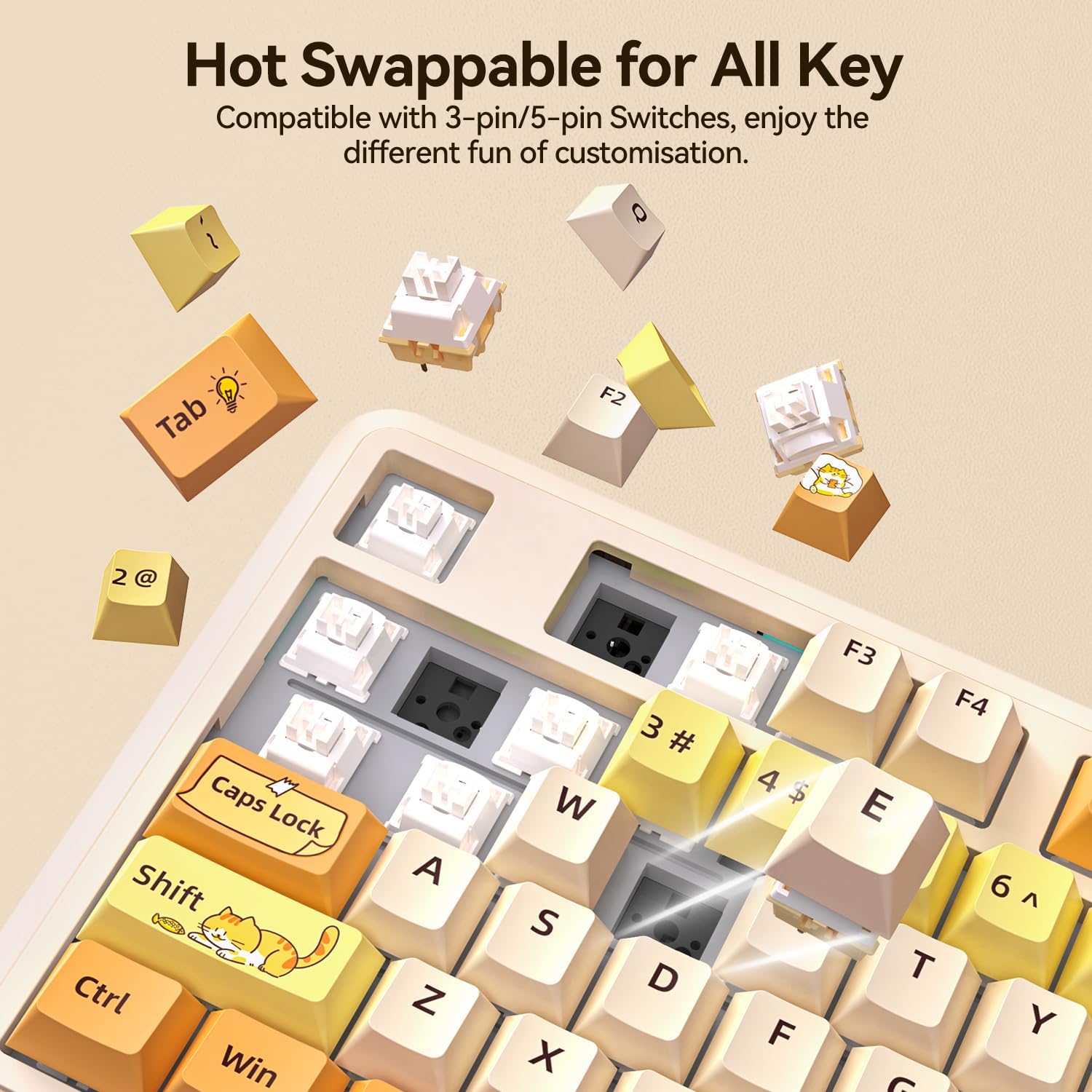
Figure 11: Hot-swappable switch compatibility.
3. Anti-Ghosting and Game Mode
The keyboard features 97-key anti-ghosting to ensure all key presses are registered accurately during rapid typing or gaming. To prevent accidental interruptions during gaming, you can lock the Windows key:
- FN + WIN: Enter game mode and lock the Windows key. Repeat to unlock.

Figure 12: Anti-ghosting and Windows key lock for game mode.
4. Battery Level Check
You can check the approximate battery level using a key combination. This function is not supported in wired mode.
- FN + Backspace: Check battery level. Indicators will light up to show charge percentage.

Figure 13: Battery level check indicators.
5. Programmable Software
The AUSDOM 98Pro supports custom software for advanced customization of light effects, macro programming, and shortcut keys. The software is compatible with Windows systems only and supports wired and 2.4G modes.
- Customized light effects.
- All key support macro programmable.
- Customize the shortcut keys.
- Driver download: Visit the AUSDOM official website for the latest software.

Figure 14: Programmable software interface for customization.
Maintenance
Proper maintenance ensures the longevity and performance of your keyboard.
- Cleaning: Regularly wipe the keycaps and keyboard body with a soft, dry cloth. For deeper cleaning, remove keycaps and use compressed air to clear debris from between switches.
- Keycap and Switch Care: When replacing keycaps or switches, use the provided tools to avoid damaging the components. Store spare switches and keycaps in a safe place.
- Battery Care: Avoid exposing the keyboard to extreme temperatures. If storing for an extended period, charge the battery to about 50% to preserve its lifespan.
Troubleshooting
If you encounter issues with your AUSDOM 98Pro keyboard, refer to the following common problems and solutions:
| Problem | Possible Solution |
|---|---|
| Keyboard not connecting (2.4GHz) | Ensure the USB receiver is properly inserted. Check if the keyboard mode switch is set to '2.4G'. Try a different USB port. |
| Keyboard not connecting (Bluetooth) | Ensure the keyboard mode switch is set to 'BT'. Make sure Bluetooth is enabled on your device. Remove previous pairings and re-pair. Ensure your device's operating system supports Bluetooth connections (Windows 7 and below do not support Bluetooth). |
| Keys not responding or sticking | Check for debris under the keycap. If hot-swappable, try reseating the switch or replacing it with a spare. Ensure the keyboard is charged. |
| Backlight not working or dim | Ensure the keyboard is charged. Adjust backlight levels using FN + Left Arrow. |
| Windows key locked in normal use | Press FN + WIN to toggle game mode off. |
| Software not detecting keyboard | Ensure the keyboard is connected via wired USB-C or 2.4G wireless. The software only supports Windows systems. Download the latest driver from the official AUSDOM website. |
Official Product Videos
For visual guidance, please refer to the official product videos provided by the manufacturer:
Video 1: Overview of the AUSDOM 98Pro Mechanical Keyboard, showcasing its features and design.
Video 2: Detailed look at the AUSDOM 98PRO Wireless Mechanical Keyboards, highlighting key functionalities.
Specifications
| Feature | Detail |
|---|---|
| Brand | AUSDOM |
| Model Number | AUSDOM 98Pro-Yellow Cat Theme |
| Connectivity Technology | Bluetooth, 2.4G, USB-C |
| Keyboard Description | Mechanical |
| Number of Keys | 97 |
| Special Features | Ergonomic, Gasket Structure Design, Backlit, 3-Mode Connection, Hot-Swappable |
| Compatible Devices | Laptop, PC, Tablet |
| Keyboard Backlighting Color | Single Color |
| Battery | 1 Lithium Polymer battery (included) |
| Item Weight | 3.85 pounds |
| Package Dimensions | 17.36 x 7.95 x 2.13 inches |
| Country of Origin | China |
Warranty and Support
AUSDOM products come with a standard manufacturer's warranty. For detailed warranty information, technical support, or service inquiries, please visit the official AUSDOM website or contact their customer service directly. Keep your purchase receipt for warranty claims.
Official Website: AUSDOM Store on Amazon