
AUSDOM AUSDOM 98Pro-Manga Girl Theme
Contents
AUSDOM 98Pro Wireless Mechanical Keyboard User Manual
Model: AUSDOM 98Pro-Manga Girl Theme
Brand: AUSDOM
Introduction
Thank you for choosing the AUSDOM 98Pro Wireless Mechanical Keyboard. This keyboard is designed to enhance your typing and gaming experience with its versatile connectivity options, customizable features, and ergonomic design. This manual provides detailed instructions to help you set up, operate, and maintain your new keyboard.
Key features include:
- Multi-device Connection: Supports BT5.0, 2.4GHz wireless, and USB wired connections, allowing switching between up to 5 devices.
- Pleasant Typing Experience: Gasket structure design for improved acoustics and a dual-height stand for ergonomic comfort.
- Hot Swappable: Easily replace keycaps and mechanical switches without disassembling the keyboard.
- Adjustable Backlight System: 16 lighting effects and 4 backlight levels for various environments.
- Durable PBT Keycaps: Wear-resistant and oil-resistant for long-lasting clarity.
- Mac/Win Compatibility: Seamless switching between operating systems.
What's in the Box
Please check the contents of your package to ensure all items are present:
- Wireless Mechanical Keyboard x1
- USB Receiver x1
- Type-C Charging Cable x1
- Instruction Manual x1
- Mechanical Switch x3
- Switch Puller x1
- Animation Sticker x1

Image: The AUSDOM 98Pro keyboard and its included accessories, such as the USB receiver, Type-C cable, and instruction manual.
Setup
Charging the Keyboard
Before first use, fully charge the keyboard using the provided Type-C cable. Connect the Type-C end to the keyboard's port and the USB-A end to a power source (e.g., computer USB port, USB wall adapter).
Connection Modes
The AUSDOM 98Pro keyboard supports three connection modes: Bluetooth, 2.4GHz Wireless, and USB-C Wired.

Image: The keyboard connected to multiple devices via Bluetooth, 2.4GHz wireless, and USB-C wired connections.
1. 2.4GHz Wireless Connection
- Locate the USB receiver included in the package.
- Plug the USB receiver into an available USB port on your computer.
- On the keyboard, switch the mode selector to 2.4G mode. The keyboard should automatically connect.
2. Bluetooth Connection
The keyboard can store up to 3 Bluetooth profiles (BT1, BT2, BT3).
- On the keyboard, switch the mode selector to Bluetooth mode.
- Press and hold FN + 1 (for BT1), FN + 2 (for BT2), or FN + 3 (for BT3) for 3-5 seconds until the indicator light flashes rapidly, indicating pairing mode.
- On your device (computer, tablet, phone), enable Bluetooth and search for new devices.
- Select "AUSDOM 98Pro" from the list of available devices to pair.
- Once connected, the indicator light will stop flashing.
3. USB-C Wired Connection
- Connect the provided Type-C cable to the keyboard's Type-C port.
- Connect the USB-A end of the cable to an available USB port on your computer.
- The keyboard will automatically switch to wired mode and be ready for use.
Operating Instructions
Function Key Combinations (FN Key)
The FN key allows access to various secondary functions and controls.
- FN + Q/W/E/R/T: Switch between paired Bluetooth devices (BT1, BT2, BT3) or 2.4G/Wired mode. (Specific mapping may vary, refer to keyboard legends).
- FN + O/P: Switch between Mac and Windows layouts.
- FN + WIN: Lock/Unlock Windows key to prevent accidental presses during gaming.
- FN + Backspace: Check battery level (not supported in wired mode).

Image: Instructions for switching between Mac and Windows keyboard layouts using FN key combinations.

Image: Illustration of the 97-key anti-ghosting feature and how to lock the Windows key.

Image: Visual guide for checking the keyboard's battery level.
Backlight Control
The keyboard features adjustable backlighting with multiple effects.
- FN + < / >: Change backlight levels (4 levels).
- FN + V: Change backlight effects (16 kinds).

Image: Controls for adjusting backlight brightness and cycling through different lighting effects.
Hot-Swappable Feature
The AUSDOM 98Pro keyboard supports hot-swappable switches, allowing you to change mechanical switches without soldering.
- Use the included switch puller to carefully remove existing switches.
- Align the pins of the new 3-pin or 5-pin switch with the holes on the PCB and gently press it into place until it clicks.

Image: Demonstration of the hot-swappable design, showing how switches can be easily replaced.
Programmable Software
Customize key functions, macros, and lighting effects using the dedicated software. The software only supports the Windows system and customization in wired and 2.4G modes.
- Download the driver from the official AUSDOM website.
- Install the software and follow the on-screen instructions for customization.
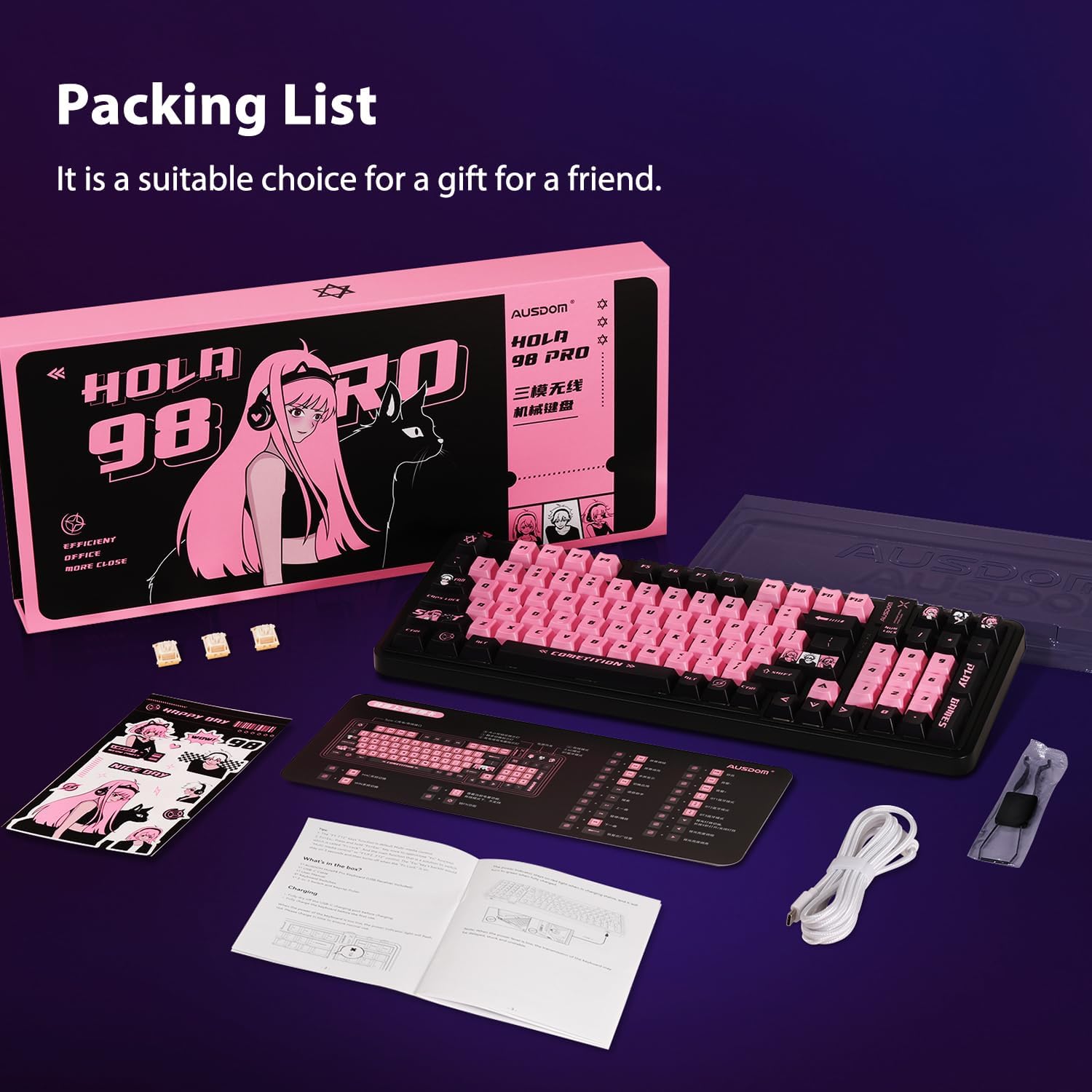
Image: The programmable software interface for customizing keyboard settings.
Maintenance
Cleaning the Keyboard
To ensure longevity and hygiene, regular cleaning is recommended:
- Disconnect the keyboard from all power sources and devices.
- Use a soft, lint-free cloth slightly dampened with water or a mild cleaning solution to wipe the keycaps and surface.
- For deeper cleaning, you may carefully remove keycaps using a keycap puller (not included) and clean underneath with compressed air or a small brush.
- Ensure the keyboard is completely dry before reconnecting.
Keycap and Switch Replacement
As the keyboard is hot-swappable, you can easily replace keycaps and switches:
- To remove keycaps, use a keycap puller to gently pry them off.
- To remove switches, use the provided switch puller to grip and pull the switch straight up.
- When installing new keycaps or switches, ensure they are properly aligned before pressing them down to avoid damage.
Troubleshooting
If you encounter issues with your AUSDOM 98Pro keyboard, please refer to the following common problems and solutions:
| Problem | Possible Cause | Solution |
|---|---|---|
| Keyboard not connecting (2.4GHz) | USB receiver not plugged in; keyboard not in 2.4G mode; interference. | Ensure receiver is firmly plugged in. Switch keyboard to 2.4G mode. Try a different USB port. Move closer to the receiver. |
| Keyboard not connecting (Bluetooth) | Not in pairing mode; device Bluetooth off; incorrect profile selected. | Press FN + 1/2/3 to enter pairing mode. Ensure Bluetooth is enabled on your device. Select the correct profile. |
| Keys not responding or double-typing | Loose switch; software issue; low battery. | Check if switches are fully seated. Recharge the keyboard. Try resetting the keyboard (if applicable, refer to software). |
| Backlight not working or dim | Backlight turned off; low battery; software setting. | Press FN + < / > to adjust brightness. Recharge the keyboard. Check software settings. |
| Mac/Win layout incorrect | Incorrect layout selected. | Press FN + O (for Mac) or FN + P (for Windows) to switch layouts. |
If the problem persists after trying these solutions, please contact AUSDOM customer support for further assistance.
Specifications
| Feature | Detail |
|---|---|
| Product Dimensions | 15.51 x 5.59 x 1.46 inches |
| Item Weight | 3.72 pounds |
| Manufacturer | AUSDOM |
| Item Model Number | AUSDOM 98Pro-Manga Girl Theme |
| Batteries | 1 Lithium Polymer battery (included) |
| Connectivity Technology | 2.4G, Bluetooth, USB-C |
| Keyboard Description | Mechanical |
| Recommended Uses | Gaming |
| Special Features | 3-Mode Connection, Backlit, Ergonomic, Gasket Structure Design, Hot-Swappable |
| Color | Pink |
| Number of Keys | 97 |
Warranty and Support
Warranty Information
AUSDOM products are manufactured to high quality standards. For specific warranty terms and conditions, please refer to the warranty card included with your product or visit the official AUSDOM website. Keep your purchase receipt as proof of purchase for warranty claims.
Customer Support
If you have any questions, require technical assistance, or need to report an issue with your AUSDOM 98Pro keyboard, please contact AUSDOM customer support. Contact details can typically be found on the official AUSDOM website or on the product packaging.
Documents and downloads
Ask a question about this manual
Ask about setup, troubleshooting, compatibility, parts, safety, or missing instructions. Manuals+ will review the question and use this page’s manual context to help answer it.