
1. Product Overview
The MAYFLASH F500 FLAT is an all-button arcade controller designed for precision and versatility across multiple gaming platforms. It features a durable construction and customizable components to enhance your gaming experience.

Figure 1: Front view of the MAYFLASH F500 FLAT controller.

Figure 2: Angled view showcasing the controller's profile.
Key Features:
- Multi-Platform Compatibility: Supports PS4, PS3, Xbox Series S/X, Xbox One, Xbox 360, Switch/Switch 2, PC Windows, macOS, Android, Raspberry Pi, Steam, Steam Deck, NEOGEO mini, NEOGEO Arcade Stick Pro, SEGA MEGA DRIVE mini, SEGA GENESIS mini, SEGA Astro City Mini, and PS Classic Mini.
- Audio and Chat Support: Features headset support for background music and online chat on PS4, Xbox Series X/S, Xbox One, and Xbox 360.
- Turbo Functions: Includes multiple speed settings for Turbo functions.
- Ultra-Moddable Design: Compatible with Sanwa Denshi buttons for easy customization.
- Removable Clear Acrylic Top Plate: Allows for personalized artwork and easy access to internal components.
2. Setup and Connection
Follow these instructions to connect your MAYFLASH F500 FLAT controller to your desired gaming platform.
General Connection Steps:
- Ensure your gaming console or PC is powered on.
- Connect the USB cable from the F500 FLAT controller to an available USB port on your console or PC.
- The controller should be automatically recognized by most systems.
Platform-Specific Notes:
- PS4, Xbox Series S/X, Xbox One, Xbox 360: A wired PS4 or Xbox controller must be plugged into the USB slot of the F500 FLAT for functionality on these consoles.
- PS5: For PS5 compatibility, use a MAYFLASH Magic-S Ultimate adapter or MagicBoots for PS4 and PS5 Converter, plugged into the USB slot of the F500 FLAT.
- Nintendo Switch: Connect directly to the Switch dock via USB.
- PC Windows, macOS, Android, Raspberry Pi, Steam, Steam Deck: Connect directly via USB.

Figure 3: The integrated cable cabinet for convenient storage of the USB cable.
Video 1: Demonstrates connecting the MAYFLASH F500 FLAT to various consoles and gameplay examples.
3. Operating Instructions
Understand the various functions and controls of your F500 FLAT controller.
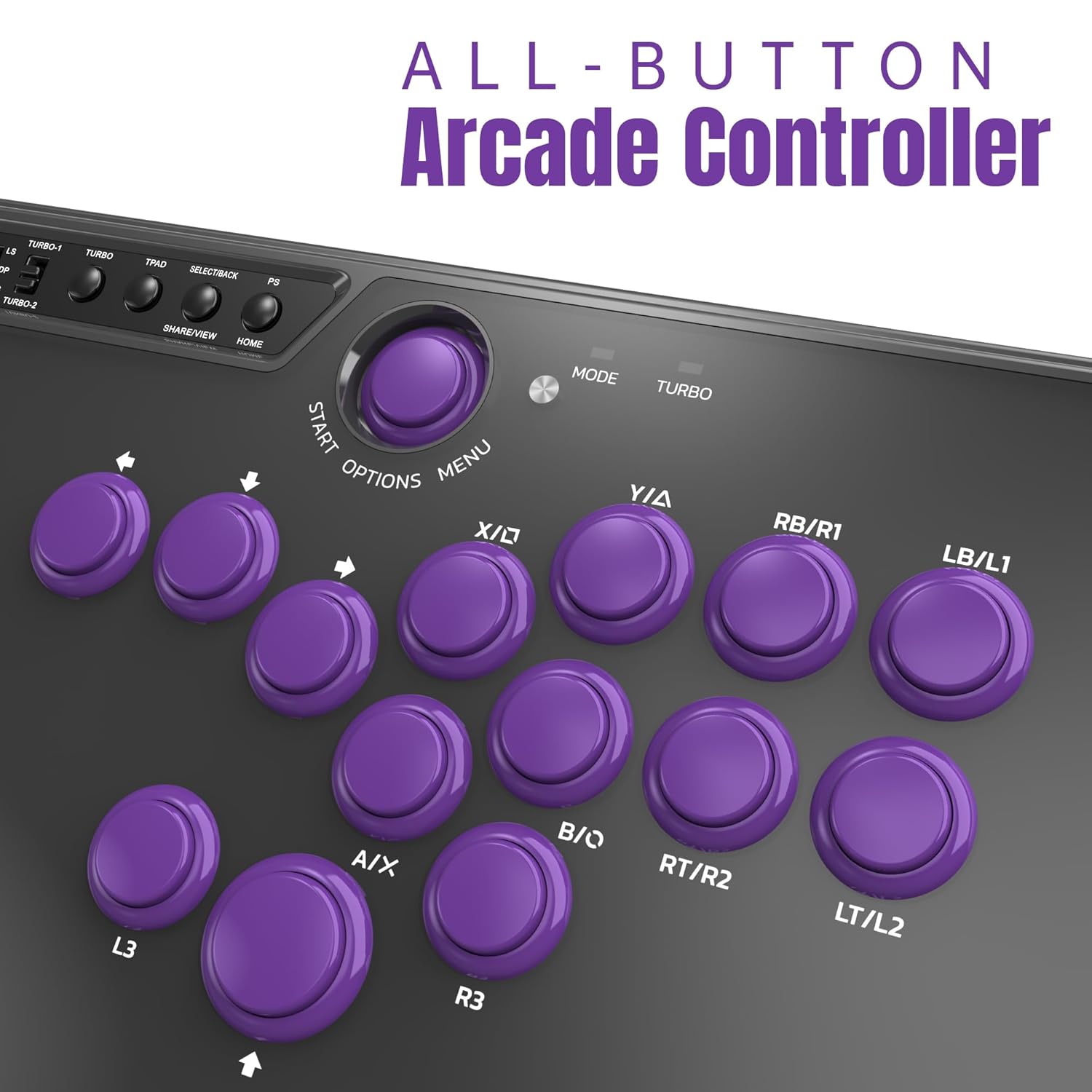
Figure 4: Close-up of the F500 FLAT control panel, showing buttons and switches.
Control Panel Functions:
- Input Mode Switch: Select between XINPUT (PC), PS3/SNK, and other modes depending on your connected device.
- LS/DP/RS Switch: Toggles the directional buttons between Left Stick, D-Pad, and Right Stick functionality.
- Turbo Buttons (TURBO-1, TURBO-2): Activate rapid-fire functionality for assigned buttons. Refer to the full manual for detailed Turbo setup.
- Start, Options, Menu, Share/View, Home Buttons: Standard console navigation and game control buttons.
Audio and Chat:
The F500 FLAT supports headsets for in-game audio and voice chat on compatible platforms (PS4, Xbox Series X/S, Xbox One, Xbox 360).

Figure 5: Headset port and microphone mute button on the side of the controller.
4. Maintenance and Customization
The F500 FLAT is designed for easy maintenance and extensive customization, allowing users to personalize their controller.
Moddable Components:
- Buttons: The controller supports Sanwa Denshi buttons, allowing for replacement with preferred button types or colors.
- Artwork: The removable clear acrylic top plate enables users to insert custom artwork, creating a unique look. Downloadable templates may be available from the manufacturer's website.

Figure 6: Exploded view illustrating the layers of the F500 FLAT, including the acrylic clear panel, replaceable PVC paper, top metal panel, bottom metal panel, and rubber cushion.

Figure 7: The clear acrylic top plate, which can be removed for artwork customization.
Button Replacement Process:
To replace buttons or customize artwork, you will need a Phillips head screwdriver and needle-nose pliers.
- Unscrew the bottom metal panel of the controller.
- Carefully disconnect the wires from the existing buttons using needle-nose pliers.
- Remove the old buttons and insert your new Sanwa-compatible buttons.
- Reconnect the wires to the new buttons, ensuring correct connections as indicated by the internal wiring diagram (refer to the video for visual guidance).
- If customizing artwork, place your printed design under the clear acrylic top plate before reassembling.
- Securely reattach the bottom metal panel.
Video 2: Detailed guide on how to customize the F500 FLAT controller, including button replacement and artwork changes.
5. Troubleshooting
Common Issues and Solutions:
- Controller Not Recognized on PS4/Xbox: Ensure a wired official PS4 or Xbox controller is connected to the F500 FLAT's USB slot. This is required for authentication.
- No PS5 Compatibility: The F500 FLAT requires a MAYFLASH Magic-S Ultimate adapter or MagicBoots for PS4 and PS5 Converter to function with PS5 consoles.
- Buttons Not Responding After Customization: Double-check all wire connections to the buttons. Ensure they are securely attached to the correct terminals.
- Turbo Function Not Working: Verify that the Turbo function is correctly activated and configured according to the detailed instructions in the full product manual.
6. Specifications
| Feature | Detail |
|---|---|
| Model Number | MT-010306 |
| Product Dimensions | 14.17 x 9.06 x 1.97 inches |
| Item Weight | 5.8 Pounds |
| Manufacturer | MAYFLASH |
| Connectivity | Wired USB |

Figure 8: Illustration of button dimensions (30mm and 24mm) on the F500 FLAT controller.
7. Warranty and Support
For warranty information, technical support, or further assistance with your MAYFLASH F500 FLAT All Button Arcade Controller, please refer to the official MAYFLASH website or contact their customer support directly.
- Official Website: Visit the MAYFLASH Store on Amazon
- Customer Service: Consult your product packaging or the official website for contact details.


