
1. Introduction
This manual provides essential information for the safe and efficient use of your Brother MFC-J739DN A4 Inkjet Multifunction Printer. Please read it thoroughly before operating the device and keep it for future reference.
The Brother MFC-J739DN is an all-in-one inkjet printer offering print, copy, scan, and fax functionalities, along with cordless phone support and wireless LAN connectivity. It is designed for small offices and shops, providing a compact and versatile solution.
2. Safety Information
Always follow basic safety precautions to reduce the risk of fire, electric shock, and injury.
- Do not block or cover the slots and openings in the product.
- Use only the power cord supplied with the product.
- Do not attempt to service the product yourself. Refer all servicing to qualified service personnel.
- Keep the product away from water and moisture.
3. Package Contents
Verify that all items are included in the package:
- Brother MFC-J739DN Main Unit
- CD-ROM (Driver & Software)
- Starter Ink Cartridges (Black, Cyan, Magenta, Yellow)
- Telephone Cord (1.5m)
- User Guide (this document)
Note: USB and LAN cables for PC connection are not included and must be purchased separately if needed.
4. Setup
4.1 Unpacking and Initial Placement
Carefully remove the printer from its packaging. Place the printer on a flat, stable surface with adequate space for paper trays and ventilation.

Image: Front view of the Brother MFC-J739DN printer with dimensions (W400mm x D343mm x H151mm, excluding protrusions).
4.2 Power Connection
Connect the power cord to the printer and then to a power outlet. Ensure the power switch is in the OFF position before connecting.
4.3 Ink Cartridge Installation
Open the ink cartridge cover located at the front of the printer. Insert the starter ink cartridges into their corresponding slots until they click into place. Close the cover.

Image: A hand inserting an ink cartridge into the front-loading ink slot of a Brother printer. This model features easy front access for ink replacement.
Important: Starter ink cartridges are for initial setup. For extensive printing, consider purchasing standard replacement ink cartridges.
4.4 Telephone Line Connection
Connect the telephone cord to the LINE port on the back of the printer and to your telephone wall jack. If you have an external telephone, connect it to the EXT. port.

Image: Rear view of the Brother MFC-J739DN showing the EXT. and LINE ports for telephone connections, and a network port.
4.5 Software Installation
Insert the provided CD-ROM into your computer's drive and follow the on-screen instructions to install the printer drivers and software. Alternatively, download the latest drivers from the official Brother support website.
5. Operating Instructions
5.1 Control Panel Overview
The printer features a 2.7-inch touch panel LCD for easy navigation. Use the touch screen and physical buttons to access various functions.

Image: Close-up of the Brother MFC-J739DN control panel, showing the LCD screen and various function buttons for fax, copy, and menu navigation.
5.2 Loading Paper
Open the paper tray at the front of the printer. Adjust the paper guides to fit the paper size and load up to 100 sheets of plain paper. The printer also supports a manual feed tray for single sheets.

Image: A hand inserting a memory card into a slot on the side of the printer, and another image showing paper being loaded into the front paper tray.
5.3 Printing from a Computer
Ensure the printer is connected to your computer via USB, LAN, or Wi-Fi. Select the Brother MFC-J739DN as your printer in your application's print dialog and adjust settings as needed before printing.
5.4 Copying Documents
Place the document face down on the scanner glass or face up in the Automatic Document Feeder (ADF). Select "Copy" from the control panel, choose your settings (e.g., number of copies, color/mono), and press Start.
5.5 Scanning Documents
Place the document on the scanner glass or in the ADF. Select "Scan" from the control panel or initiate scanning from your computer using the installed software. Choose scan destination and settings.
5.6 Sending/Receiving Faxes
To send a fax, place the document in the ADF, enter the recipient's fax number using the keypad, and press "Fax Start". To receive, the printer will automatically answer incoming fax calls. You can also use PC Fax functionality to send faxes directly from your computer (Windows only for receiving).
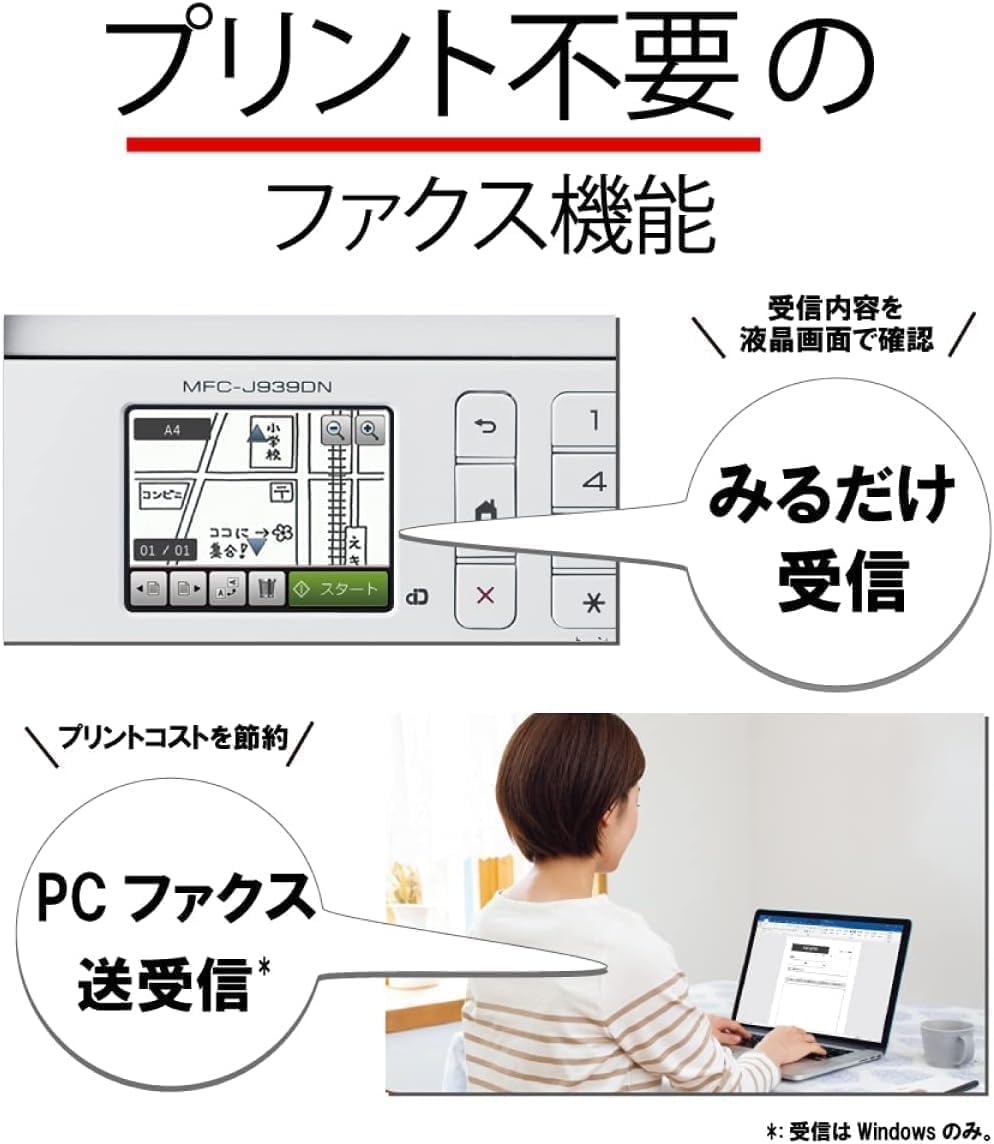
Image: Display showing fax reception options on the MFC-J739DN, including "View Only" reception to save print costs, and a person using a laptop for PC fax transmission/reception.
5.7 Wireless Connectivity (Wi-Fi)
Access the network settings from the control panel to connect your printer to a Wi-Fi network. Follow the on-screen instructions to select your network and enter the password.
5.8 Mobile Printing (Brother Mobile Connect)
Download the "Brother Mobile Connect" app on your smartphone or tablet. This app allows you to easily print photos and documents directly from your mobile device over Wi-Fi.
Image: A smartphone displaying the Brother Mobile Connect app interface, with images of documents and photos being printed. The app assists with connecting to the printer.
Video: Product Introduction
Video: A brief product introduction showcasing the Brother MFC-J739DN's features and compact design.
6. Maintenance
6.1 Cleaning the Printer
Regularly wipe the exterior of the printer with a soft, lint-free cloth. For the scanner glass, use a glass cleaner applied to the cloth, not directly to the glass.
6.2 Replacing Ink Cartridges
When an ink cartridge is low or empty, the printer's LCD will display a message. Open the ink cartridge cover, press the release lever, remove the old cartridge, and insert a new one until it clicks. Close the cover.
6.3 Print Head Cleaning
If print quality deteriorates (e.g., streaks, missing colors), perform a print head cleaning from the printer's maintenance menu. If issues persist, try a deeper cleaning cycle.
7. Troubleshooting
7.1 Common Issues and Solutions
- Printer not responding: Check power connection, USB/LAN cable, or Wi-Fi connection. Restart the printer and computer.
- Poor print quality: Perform print head cleaning and alignment. Check ink levels and replace empty cartridges. Ensure you are using appropriate paper.
- Paper jams: Follow the on-screen instructions or refer to the printer's internal diagrams to carefully remove any jammed paper. Ensure paper is loaded correctly.
- Cannot connect to Wi-Fi: Verify your Wi-Fi password. Ensure the printer is within range of your router. Try restarting both the printer and router.
7.2 Error Messages
Refer to the printer's LCD display for specific error codes or messages. Consult the full user manual (available on the CD-ROM or Brother website) for detailed explanations and solutions for each error.
8. Specifications
| Feature | Specification |
|---|---|
| Model Name | MFC-J739DN |
| Functions | Print, Copy, Scan, Fax, Cordless Phone |
| Print Technology | Inkjet |
| Max Print Resolution (Color) | 5760 x 1440 dpi |
| Max Print Resolution (Mono) | 4800 x 1200 dpi |
| Max Print Speed (Color) | 9.5 ppm |
| Max Print Speed (Mono) | 17 ppm |
| Ink Colors | 4 (Black, Cyan, Magenta, Yellow) |
| Connectivity | Wi-Fi |
| Max Media Size | A4 |
| Paper Tray Capacity | Max 100 sheets |
| Output Tray Capacity | Max 50 sheets |
| Dimensions (W x D x H) | 400 x 343 x 151 mm (excluding protrusions) |
| Weight | Approx. 6.8 kg (excluding cordless phone) |
| Display | 2.7-inch Touch Panel LCD |
| Duplex Printing | No |
9. Warranty and Support
For warranty information, please refer to the warranty card included with your product or visit the official Brother website. For technical support, driver downloads, and FAQs, please visit the Brother support website or contact their customer service.
Official Brother Support Website: www.brother.com/support