
1. Introduction to TOUR BOX Lite
The TOUR BOX Lite is a compact, wired editing keyboard designed to streamline creative workflows across various software applications. It provides intuitive, one-handed control, reducing reliance on complex keyboard shortcuts and mouse movements. This manual provides detailed instructions for setting up, operating, and maintaining your TOUR BOX Lite.

Image: The TOUR BOX Lite, a compact wired editing keyboard with a central knob and various buttons, designed for ergonomic use.
2. What's in the Box
Upon unboxing your TOUR BOX Lite, please ensure all the following items are present:
- TOUR BOX Lite Console (Device)
- USB Cable
- Quick Start Guide

Image: The TOUR BOX Lite device and its accompanying USB cable, as typically found in the product packaging.
3. Setup and Installation
3.1. System Requirements
- macOS 10.13 or later
- Windows 7 or later (64-bit)
- Not compatible with iPadOS or AndroidOS devices.
3.2. Connecting the Device
- Connect one end of the provided USB cable to the TOUR BOX Lite.
- Connect the other end of the USB cable to an available USB port on your computer.
3.3. Software Installation
To fully utilize the TOUR BOX Lite, you must install the TourBox Console software. This software allows for extensive customization and management of the device.
- Visit the official TOUR BOX website to download the latest version of the TourBox Console software.
- Follow the on-screen instructions to complete the installation.
- Launch the TourBox Console application after installation.

Image: A hand connecting the TOUR BOX Lite to a laptop, illustrating the wired connection setup.
4. Operating Instructions
4.1. Basic Controls
The TOUR BOX Lite features a variety of buttons, a scroll wheel, and a knob, all designed for intuitive control:
- Knob: Rotates for fine adjustments, can be pressed for additional functions.
- Scroll: Used for scrolling through lists, zooming, or other continuous actions.
- Buttons: Configurable for single clicks, double clicks, and combinations with other buttons.
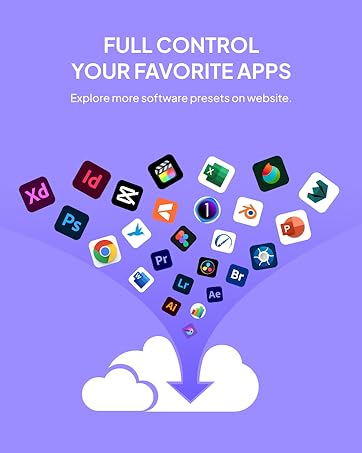
Image: A user's hand comfortably gripping the TOUR BOX Lite, highlighting its ergonomic shape and accessible controls.
4.2. Customizing Functions with TourBox Console
The TourBox Console software is central to customizing your device. It allows you to assign specific actions to each button, knob, and scroll function, tailored to your workflow and preferred software.
Video: A detailed walkthrough of the TourBox Console software, demonstrating how to customize settings, assign functions to buttons and knobs, and manage presets for various applications.
4.2.1. Preset Management
The Console allows you to create and manage multiple presets for different applications. When the 'Auto Switch' feature is enabled, the TOUR BOX Lite automatically switches to the relevant preset when you open a linked application.
- Creating New Presets: You can start from scratch or use pre-made templates.
- Importing/Exporting Presets: Share or backup your custom configurations.

Image: The TourBox Console interface displaying various software presets, indicating the device's readiness for immediate use with popular creative applications.
4.2.2. Assigning Shortcuts and Functions
Each button, knob, and scroll action can be assigned a specific function:
- Single Click/Double Click: Assign common actions like Undo/Redo.
- Combinations: Combine buttons (e.g., Button + Knob) for advanced controls.
- Mouse Functions: Integrate mouse actions like scrolling, clicking, and dragging.
- Built-in Functions: Access specialized functions developed by TourBox for specific software.

Image: An illustration detailing the various actions possible with the TOUR BOX Lite's buttons and knobs, such as single click, double click, scroll, and rotate.
4.2.3. Macro Commands
Create complex sequences of actions with Macro commands. This feature allows you to automate repetitive tasks, saving significant time.
- Text Automation: Automatically input predefined text.
- File Operations: Open specific files or folders.
- Web Links: Launch web pages directly.
4.2.4. TourMenu Plugin
The TourMenu is an exclusive feature that provides a customizable on-screen menu for quick access to a multitude of functions. You can configure which functions appear in the menu and how they are executed.

Image: The TourMenu interface, illustrating its customizable color adjustment panels and extensive configuration possibilities for various functions.
4.2.5. UP Mode
UP Mode allows commands to be triggered only after a button is released, rather than immediately upon pressing. This is particularly useful for combined key actions where you want the primary button to register its press only after a secondary button is also pressed and then released.
4.2.6. REP Mode
REP Mode enables the sending of repetitive commands. By holding down a button configured with REP Mode, the assigned command will be continuously executed, such as repeatedly performing an 'Undo' action in Photoshop.
4.2.7. Speed Adjustment
You can adjust the speed of the knob and scroll wheel actions. This allows for precise control over how quickly values change or how fast you navigate, similar to adjusting mouse scroll settings.
4.2.8. HUD (Head Up Display)
The HUD provides an on-screen display of the current functions assigned to the TOUR BOX Lite, including combinations. This visual feedback helps you quickly recall and utilize your custom settings without looking down at the device.

Image: The TourBox HUD (Head Up Display) providing real-time on-screen prompts for assigned button functions, enhancing eye-free operation.
Video: A demonstration of the TOUR BOX Lite in use for digital drawing, showcasing one-handed control and eye-free operation for efficient creative work.
5. Maintenance
To ensure the longevity and optimal performance of your TOUR BOX Lite, follow these maintenance guidelines:
- Cleaning: Use a soft, dry cloth to wipe the device. Avoid abrasive cleaners or solvents.
- Storage: Store the device in a cool, dry place away from direct sunlight and extreme temperatures.
- Handling: Avoid dropping the device or exposing it to excessive force.
6. Troubleshooting
If you encounter issues with your TOUR BOX Lite, refer to the following common solutions:
- Device Not Responding: Ensure the USB cable is securely connected to both the device and your computer. Try a different USB port.
- Software Not Recognizing Device: Restart the TourBox Console software and your computer. Ensure the software is up to date.
- Functions Not Working: Verify that the correct preset is active for the application you are using. Check the assigned shortcuts in the TourBox Console.
- Incompatible Operating System: Confirm your operating system meets the minimum requirements (macOS 10.13+ or Windows 7+ 64-bit).
7. Specifications
| Feature | Detail |
|---|---|
| Brand | TOUR BOX |
| Model Number | TBL |
| Color | Black |
| Material | Metal |
| Item Dimensions (L x W x H) | 6.3 x 3.94 x 2.36 inches |
| Item Weight | 11.6 ounces |
| Connector Type | Plug In (USB) |
| Compatible Devices | Desktop, Laptop, Mac, PC, Win tablet |
| Operating System | Mac OS X 10.13 and higher, Windows 7 and higher (64 bit only) |
| UPC | 850040209198 |
8. Warranty and Support
TOUR BOX provides comprehensive support for its products:
- Warranty: A 12-month warranty period from the date of purchase.
- Technical Support: Lifetime technical support is available.
- Returns: A 30-day refund/replacement policy is offered.
For non-human caused hardware issues, free replacements will be provided.

Image: An overview of the support services provided by TourBox, including warranty, technical support, and return policies.