
MARVO M413
MARVO M413 Wired Mouse User Manual
Model: M413
Brand: MARVO
1. Introduction
This manual provides detailed instructions for the setup, operation, maintenance, and troubleshooting of your MARVO M413 Wired Mouse. Please read this manual thoroughly before using the product to ensure optimal performance and longevity.
2. Package Contents
Please verify that all items are present in your product package:
- MARVO M413 Wired Mouse
- User Manual (this document)

Image: The MARVO M413 Wired Mouse shown in its retail packaging, highlighting the product's presentation.
3. Setup Instructions
Follow these steps to connect and begin using your MARVO M413 Wired Mouse:
- Connect the Mouse: Locate an available USB port on your computer. Insert the USB connector of the MARVO M413 mouse firmly into the USB port.
- Driver Installation: The mouse is plug-and-play. Your operating system (Windows 7 or newer) should automatically detect and install the necessary drivers. No additional software installation is typically required for basic functionality.
- Verification: Once connected, the mouse's RGB lighting should illuminate, and the cursor should respond to movement.

Image: The MARVO M413 Wired Mouse connected to a laptop, demonstrating a typical setup scenario.
4. Operating the Mouse
The MARVO M413 Wired Mouse features 7 buttons and adjustable DPI settings for enhanced control.
4.1 Button Functions

Image: Top view of the MARVO M413 mouse, clearly showing the left click, right click, scroll wheel, and DPI adjustment button.
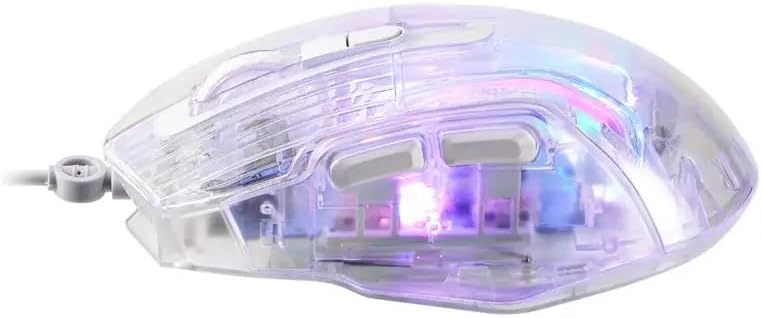
Image: Side view of the MARVO M413 mouse, illustrating the placement of the two programmable side buttons.
- Left Click Button: Standard primary click function.
- Right Click Button: Standard secondary click function.
- Scroll Wheel: Scrolls content up or down. Can also be pressed for a middle-click function.
- DPI Button: Cycles through available DPI (Dots Per Inch) sensitivity settings.
- Side Buttons (2): Typically function as "Forward" and "Backward" in web browsers or file explorers. These may be programmable via specific software (if available from manufacturer).
4.2 DPI Adjustment
The MARVO M413 mouse supports DPI settings up to 7200 DPI. Press the DPI button (located below the scroll wheel) to cycle through different sensitivity levels. Each press will change the DPI, allowing you to adjust cursor speed to your preference or task requirements.
4.3 RGB Backlight
The mouse features RGB backlighting. The lighting effects are typically pre-programmed and cycle automatically. Specific software may be required for advanced customization of RGB lighting, if available from the manufacturer.

Image: An angled view of the MARVO M413 mouse, showcasing its transparent design and vibrant RGB backlight in operation.
4.4 Polling Rate
The mouse operates with a polling rate up to 125Hz. This indicates how often the mouse reports its position to the computer. A 125Hz polling rate means the mouse reports its position 125 times per second.
5. Maintenance
Proper care will extend the life of your MARVO M413 mouse:
- Cleaning: Use a soft, dry cloth to wipe the surface of the mouse. For stubborn dirt, slightly dampen the cloth with water. Avoid using harsh chemicals or abrasive materials.
- Storage: When not in use, store the mouse in a clean, dry environment away from direct sunlight and extreme temperatures.
- Cable Care: Avoid sharply bending or twisting the mouse cable to prevent internal damage.
6. Troubleshooting
If you encounter issues with your MARVO M413 mouse, refer to the following common solutions:
| Problem | Solution |
|---|---|
| Mouse not responding / Cursor not moving |
|
| Erratic cursor movement |
|
| RGB lighting not working |
|
7. Specifications
Technical details for the MARVO M413 Wired Mouse:
| Brand | MARVO |
| Model Name | MARVO M413 WIRED MOUSE |
| Item Model Number | MARVO M413 |
| DPI | Up to 7200 DPI |
| Buttons | 7 Buttons |
| Backlight | RGB |
| Polling Rate | Up to 125Hz |
| Switch Rating | 5 million clicks |
| Cable Length | 1.5m |
| Working Voltage and Current | 5V∷100mA |
| Operating System | Windows 7 or newer |
| Hardware Platform | PC |
| Material | Plastic |
| Power Source | Electric (Wired) |
| Batteries Required | No |
| Colour | Transparent |
8. Warranty Information
The MARVO M413 Wired Mouse comes with a manufacturer's warranty of 6 months from the date of purchase. This warranty covers defects in materials and workmanship under normal use. Please retain your proof of purchase for warranty claims. The warranty does not cover damage caused by misuse, accident, unauthorized modification, or external causes.
9. Support
For further assistance, technical support, or information regarding warranty claims, please visit the official MARVO website or contact their customer service department. Contact details can typically be found on the product packaging or the manufacturer's website.
Related documentsM413


Ask a question about this manual
Ask about setup, troubleshooting, compatibility, parts, safety, or missing instructions. Manuals+ will review the question and use this page’s manual context to help answer it.