
eufy Omni S1 Pro
Contents
eufy Omni S1 Pro Robot Vacuum Cleaner with Mop Instruction Manual
Model: Omni S1 Pro
1. Introduction
This manual provides comprehensive instructions for the safe and efficient operation of your eufy Omni S1 Pro Robot Vacuum Cleaner with Mop. Please read this manual thoroughly before using the product and retain it for future reference. The eufy Omni S1 Pro is designed to provide advanced floor cleaning, combining vacuuming and mopping functionalities with an intelligent UniClean Station.
2. What's in the Box
Verify that all components are present and in good condition upon unpacking.
- 10-in-1 UniClean Station
- Robot Vacuum
- Additional Rolling Mop
- Additional Dust Bag
- Cleaning Tool
- Power Cord
- Hard Floor Cleaner
- Additional High-Performance Filter
- Side Brush × 2 Sets

3. Setup
3.1 UniClean Station Placement
Place the UniClean Station on a hard, level surface against a wall, ensuring there are no obstacles within 1 meter (3 feet) to the front and 0.5 meters (1.5 feet) to the sides. Connect the power cord to the station and plug it into a wall outlet. Ensure the station is in an area with good Wi-Fi signal.
3.2 Initial Charging
Place the robot vacuum onto the UniClean Station. The robot will automatically begin charging. For optimal battery life, fully charge the robot before its first use.
3.3 App Connection
Download the eufy Clean app from your device's app store. Follow the in-app instructions to connect your Omni S1 Pro. Note: The robot supports 2.4GHz Wi-Fi networks only. Ensure your router is configured to support a 2.4GHz frequency band.

4. Operating Instructions
4.1 Cleaning Modes
The Omni S1 Pro offers various cleaning modes, including vacuum-only, mop-only, and combined vacuum & mop. These can be selected and customized via the eufy Clean app.

4.2 HydroJet Roller Mop System
The revolutionary HydroJet System features an Instant Clean Mop Combo and a dual water reservoir. The 11.4-inch mop self-cleans in real-time at 170 RPM, removing dirt. With 1 kg of downward pressure, it mimics hand scrubbing for effective stain removal. The system uses ozonated water for enhanced cleaning.

4.3 Powerful Suction
The robot delivers intense suction for deep cleaning on both carpets and hard floors, efficiently removing hair and embedded dirt. Actual performance may vary based on floor type and dust level.

4.4 3D MatrixEye Obstacle Avoidance
Equipped with active binocular infrared imaging technology and an RGB camera, 3D MatrixEye mimics human vision to create real-time 3D models. This allows the robot to identify and avoid various objects, ensuring smooth navigation even in low-light conditions.
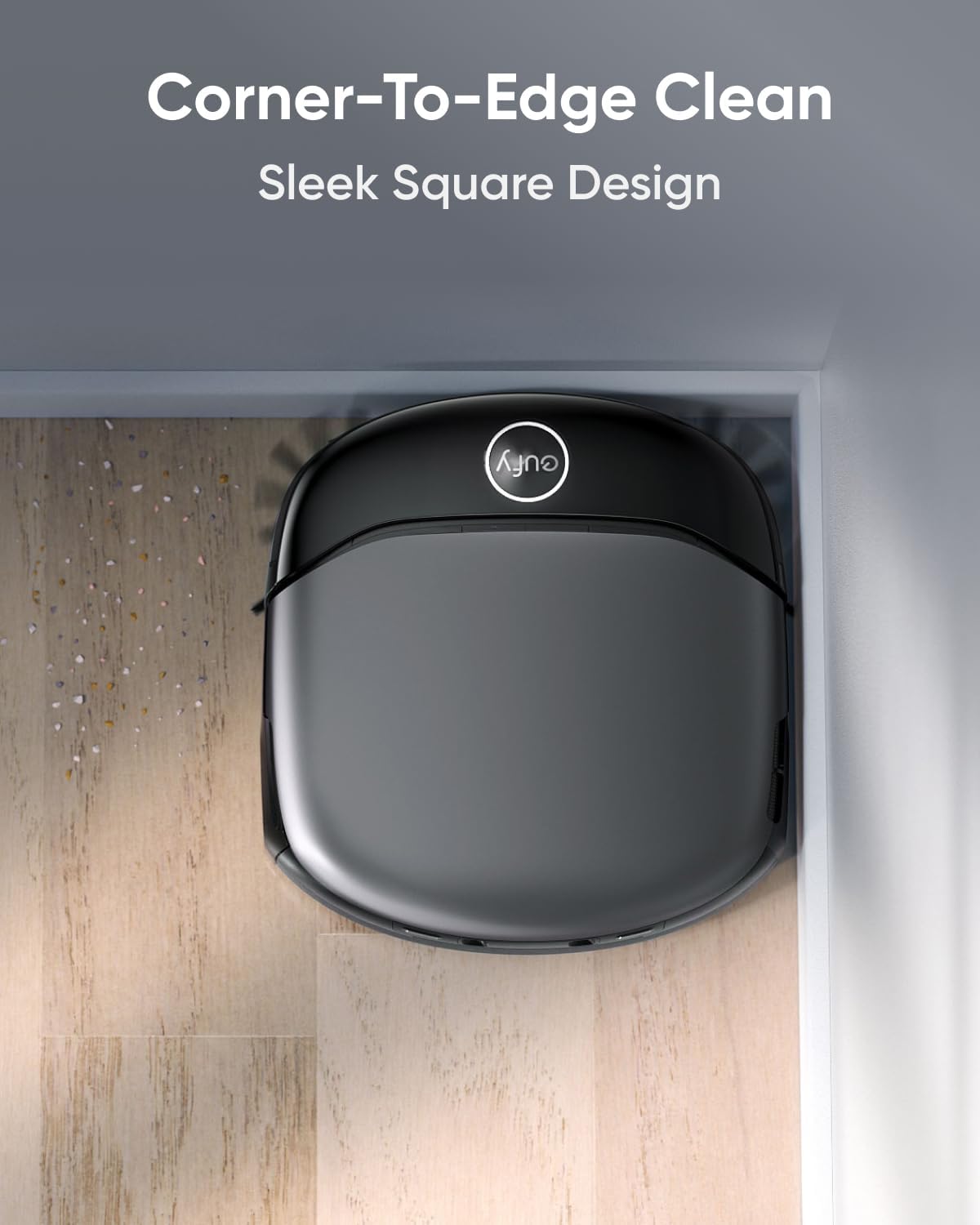
4.5 Corner-to-Edge Cleaning
The robot's square design allows it to reach and clean hard-to-access areas, including edges and corners, for a thorough clean.

4.6 App Control and Mapping
Utilize the eufy Clean app for customized cleaning experiences. This includes setting up cleaning schedules, defining no-go zones, and viewing real-time 3D maps of your home. The app supports multi-level mapping for homes with multiple floors.


4.7 Smart Features
- Voice Control: Compatible with Amazon Alexa and Google Assistant for hands-free operation.
- Threshold Climbing: Effortlessly climbs over thresholds up to 0.79 inches (2 cm) high.
- Child Safety Lock: The UniClean Station features a child safety lock to prevent accidental operation.
- Recharge and Resume: The robot automatically returns to its station to recharge and resumes cleaning from where it left off.
- Extended Runtime: Provides up to 3.6 hours of runtime, covering areas up to 1,976 sq ft (183.5 sq m).

5. Maintenance
5.1 10-in-1 UniClean Station
The UniClean Station automates many maintenance tasks, reducing manual effort.
- Auto Emptying: Collects and stores dust and debris in a 2.5 L dust bag for up to 68 days of hands-free cleaning.
- Auto Washing: Revitalizes the rolling mop with ozonated water and hard floor cleaner.
- Auto Heated Air Drying: Dries the rolling mop at 131°F (55°C) after washing to prevent odors and mildew.
- Auto Refilling: Automatically refills the robot's clean water tank with a mix of hard floor cleaner and ozonated water.
- Auto Waste Water Collection: Transfers dirty water from the robot to the station's dirty water tank.
- Auto Detergent Dispensing: Automatically mixes the correct amount of hard floor cleaner with clean water.
- Eco-Clean Ozone: Produces ozonated water using tap water for optimal disinfection, removing up to 99.99% of germs.


5.2 Robot Maintenance
Regularly inspect and clean the robot's brushes, filters, and sensors to maintain optimal performance. Refer to the app for specific cleaning schedules and instructions.
- Side Brushes: Check for tangled hair or debris and clean as needed.
- Detangling Brush: Remove hair and debris from the main rolling brush.
- High-Performance Filter: Clean or replace the filter according to the app's recommendations.

6. Troubleshooting
This section addresses common issues you might encounter with your eufy Omni S1 Pro.
6.1 Cleaning Solution Usage
Q: Is it possible to use my own cleaning solution with S1 Pro?
A: We do not recommend adding other cleaning liquids arbitrarily. Some cleaning solutions can be corrosive and may damage the internal structure of the robot. High-foaming cleaning liquids may also cause sensor misreadings, affecting the robot's operation. Therefore, we suggest using our dedicated cleaning solution. Our cleaning solution has undergone rigorous reliability and non-toxicity testing.
6.2 Obstacle Detection and Height Sensitivity
Q: How to optimize obstacle detection and height sensitivity?
A: S1 Pro detects obstacles down to 1 inch. Clear smaller items beforehand. For pet hair or fine debris, disable "Small Object Less Collision Mode" via the eufy Clean app (Settings > Robot Settings). Adjust height sensitivity in the eufy Clean app (Settings > Robot Settings > Height Sensitivity). Available modes include: 1. Safe Mode: Tailored for low furniture to avoid getting stuck. 2. Medium Mode: Balances avoidance with thorough exploration. 3. Free Mode: Explores extensively; keeps under-furniture items scratch-free and helps prevent the robot from getting stuck.
6.3 Carpet Cleaning During Mopping
Q: How can I ensure S1 Pro works effectively on carpeted areas during mopping sessions?
A: S1 Pro is designed to handle carpeted areas with ease, thanks to its intelligent features:
- Carpet Detection Technology: Equipped with sensors, S1 Pro detects carpets and automatically lifts the rolling mop to avoid wetting the carpet during mopping.
- Customizable No-Go Zones: For carpets with a pile height exceeding 0.78 inches, long-pile carpets with fibers longer than 0.47 inches, or those that are particularly light and thin, create no-go zones within the app. This prevents the robot from getting trapped or tangled in carpet fibers.
- Carpet Edge Management: If your carpet edges tend to curl, flatten, or secure them to ensure smooth navigation for S1 Pro.
- Avoidance of Dark or Reflective Surfaces: Remove black or highly reflective objects near thresholds to prevent confusion in the robot's navigation system.
- No-Mop Zones: Designate no-mop zones in areas where the mop might not lift in time, ensuring areas like rubber pads remain dry. By following these guidelines, you can optimize S1 Pro's mopping performance and maintain the cleanliness of both your hard floors and carpeted areas without manual intervention.
6.4 Multi-Floor Operation
Q: Using eufy S1 Pro on Multiple Floors: Key Points
A: S1 Pro supports cleaning on multiple floors with specific considerations:
- Single Sweep Mode: S1 Pro supports positioning, mapping, and cleaning on multiple floors. Without a base station, it returns to its starting point after cleaning.
- Mopping and Sweeping Mode: Wet the mop at the base station, simply open the eufy Clean app and go to the device homepage. Tap the base station icon at the bottom right, then select "Wash Mop" to clean the mop. Move S1 Pro to different floors for positioning, mapping, and cleaning. On new floors without a base station, manually return S1 Pro to the base for mop cleaning and drying.
- Clean Water Reservoir Capacity: Soft Mode: Cleans up to 1291.7 sq ft. Deep Mode: Cleans up to 322.92 sq ft.
- Important Notes: S1 Pro requires a base station for dust collection and mop washing. Positioning errors may occur when changing floors; click "Continue Task" to proceed. Additional base stations can be purchased and must be paired individually. For more details, refer to the knowledge base or contact eufy support.
7. Specifications
| Product Dimensions | 43 x 73.8 x 51.7 cm; 13.79 kg |
| Form Factor | Robotic |
| Batteries Required | Yes (1 Lithium Ion battery included) |
| Item Model Number | eufy Omni S1 Pro |
| Brand | eufy |
| Model Name | eufy Robot Vacuum Omni S1 Pro |
| Special Features | Incredible Suction, 10-in-1 UniClean Station, Precision Corner to Edge Clean, 3D MatrixEye Obstacle Avoidance, Always Clean Mop |
| Colour | S1 Pro Black |
8. Warranty and Support
For warranty information, technical support, or service inquiries, please refer to the eufy Clean app or visit the official eufy support website. You can also find additional resources and FAQs there.
Ask a question about this manual
Ask about setup, troubleshooting, compatibility, parts, safety, or missing instructions. Manuals+ will review the question and use this page’s manual context to help answer it.