
Jkjhbhged 500182137
F998 Sound Card User Manual
Model: 500182137 | Brand: Jkjhbhged
1. Product Overview
The Jkjhbhged F998 Sound Card is a multi-functional audio interface mixer designed to enhance your audio experience for live broadcasts, recording, and general use with phones and PCs. It features various sound effects, voice change capabilities, and adjustable audio parameters to provide professional-level sound quality.
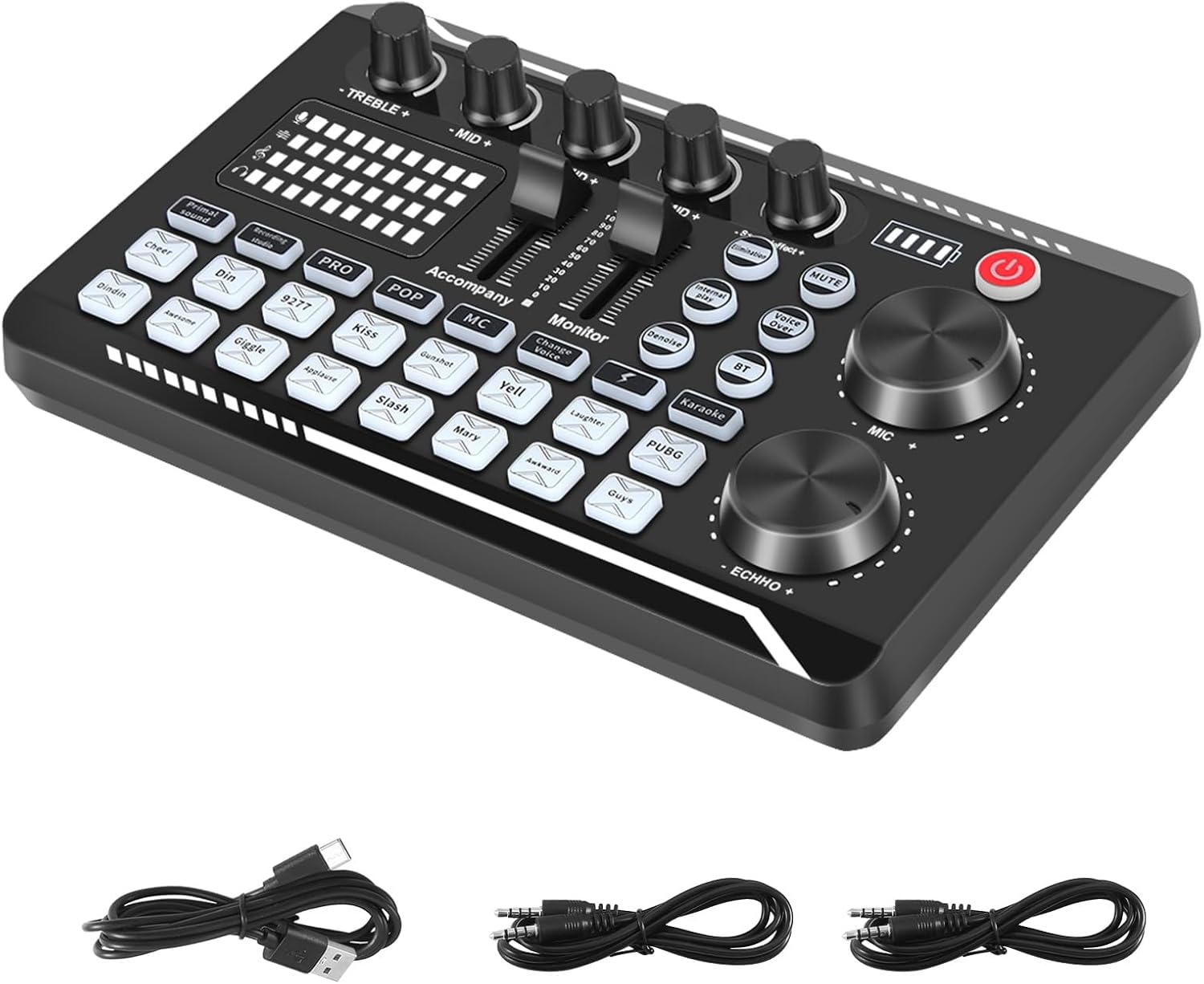
Image 1.1: The F998 Sound Card and its accompanying cables.
2. Package Contents
Verify that all items listed below are included in your package:
- 1 x F998 Live Sound Card
- 1 x Condenser Microphone
- 1 x Desktop Microphone Stand
- 1 x XLR to 3.5mm Cable
- 2 x Audio Cables
- 1 x USB Data Cable (Charger Cable)

Image 2.1: Visual representation of the F998 Sound Card package contents.
3. Setup Guide
Follow these steps to set up your F998 Sound Card:
- Connect Microphone: Plug your condenser microphone into the 'Condenser Mic' port on the sound card using the provided XLR to 3.5mm cable.
- Connect Headset/Earphone: If using a headset with a microphone, connect it to the 'Headset' port. For earphones only, use the 'Earphone' port.
- Connect to Device (Phone/PC):
- For PC: Connect the sound card to your computer using the USB Data Cable via the 'OTG/PC Live' port. This also charges the device.
- For Phone (Live Broadcast): Use one of the Audio Cables to connect your phone's headphone jack (or adapter) to one of the 'Live' ports on the sound card. For a second phone, use another 'Live' port.
- Connect Accompaniment Device: If you wish to play background music, connect your accompaniment device (e.g., another phone, tablet) to the 'Accompany' port using an Audio Cable.
- Power On: Press and hold the power button (usually red) to turn on the sound card.

Image 3.1: Connection diagram for the F998 Sound Card.
4. Operating Instructions
The F998 Sound Card offers a range of controls and features for audio manipulation:
4.1. Main Controls
- Volume Knobs: Adjust the main microphone volume (MIC) and echo level (ECHO) using the large rotary knobs.
- Faders: Control individual volume levels for various inputs and outputs using the sliding faders.
- Treble/Mid/Bass Adjustment: Use the dedicated knobs to fine-tune the high, middle, and low frequencies of your sound. Adjusting the high pitch adds clarity, middle pitch stabilizes the sound, and bass provides depth.
- Monitor: Adjust the monitor volume to control what you hear through your headphones.

Image 4.1: Detailed view of the F998 Sound Card's audio adjustment controls.
4.2. Sound Effects and Modes
- Atmosphere Sound Effects: Press the various buttons (e.g., Cheer, Din, Kiss, Laughter, PUBG) to trigger pre-set atmosphere sound effects.
- Electronic Tone: Select from 12 different electronic tones to customize your voice.
- Voice Change: Utilize the voice change function for various vocal effects.
- One-key Elimination of Sound: This feature effectively reduces or eliminates the singing voice from background music, making your voice clearer during live broadcasts.
- Live Broadcast Mode: Switch between different live broadcast modes with a single button to optimize settings for various streaming scenarios.
- Dodge Button: Automatically reduces background music volume when you speak, and restores it when you stop.

Image 4.2: The F998 Sound Card's array of live effects.

Image 4.3: Key features of the F998 Sound Card, including DSP audio processing and adjustable frequencies.
5. Maintenance
To ensure the longevity and optimal performance of your F998 Sound Card:
- Cleaning: Use a soft, dry cloth to wipe the surface of the sound card. Avoid using liquid cleaners or abrasive materials.
- Storage: Store the device in a cool, dry place away from direct sunlight and extreme temperatures.
- Handling: Handle the sound card with care to prevent drops or impacts that could damage internal components.
- Charging: Charge the built-in lithium battery using the provided USB Data Cable connected to a compatible USB power source (5V-1A). Avoid overcharging.
6. Troubleshooting
If you encounter issues with your F998 Sound Card, refer to the following common problems and solutions:
- No Sound Output:
- Check all cable connections to ensure they are secure.
- Verify that the sound card is powered on.
- Adjust the volume knobs and faders on the sound card and your connected device.
- Ensure the correct audio input/output device is selected in your computer's sound settings.
- Microphone Not Working:
- Confirm the microphone is correctly plugged into the 'Condenser Mic' port.
- Check the microphone's own power source if it requires one.
- Increase the microphone volume (MIC knob) on the sound card.
- Echo/Distortion:
- Adjust the ECHO knob to reduce the echo level.
- Check for loose connections or interference from other electronic devices.
- Ensure input levels are not too high, causing clipping.
- Device Not Recognized by PC:
- Try connecting to a different USB port on your PC.
- Restart your computer.
- Ensure the USB Data Cable is functioning correctly.
7. Specifications
| Feature | Specification |
|---|---|
| Model Number | 500182137 |
| Product Dimensions | 9.06 x 5.91 x 1.97 inches |
| Item Weight | 15.9 ounces |
| Material | Plastic |
| Power Input | 5V-1A (via USB) |
| Compatibility | Mobile Phones, PCs |
| Electronic Tones | 12 types |
| Live Effects | 16 types |
8. Warranty and Support
This product is typically covered by a standard manufacturer's warranty. For specific warranty details, return policies, or technical support, please refer to the documentation provided at the time of purchase or contact the seller directly. Keep your purchase receipt as proof of purchase.
Ask a question about this manual
Ask about setup, troubleshooting, compatibility, parts, safety, or missing instructions. Manuals+ will review the question and use this page’s manual context to help answer it.