
1. Introduction
This manual provides detailed instructions for the installation, operation, and maintenance of your Thermaltake TH360 V2 Ultra ARGB Sync Liquid Cooler and CT120 ARGB Fans. This all-in-one liquid cooling solution is designed to provide efficient thermal management for your CPU while offering customizable visual effects through its integrated LCD display and ARGB fans.
Please read this manual thoroughly before beginning installation to ensure proper setup and optimal performance.
2. Package Contents
Verify that all components listed below are present in your package. If any items are missing or damaged, please contact Thermaltake customer support.
- TH360 V2 Ultra ARGB Liquid Cooler (Radiator, Pump with LCD Display, Tubing)
- CT120 ARGB Sync 120mm Fans (3 units)
- Mounting Hardware for Intel Sockets (LGA 2066/2011-3/2011/1700/1200/1156/1155/1151/1150)
- Mounting Hardware for AMD Sockets (AM5/AM4/AM3+/AM3/AM2+/AM2/FM2/FM1)
- Thermal Paste
- Fan Screws
- Controller/Cables for ARGB and LCD
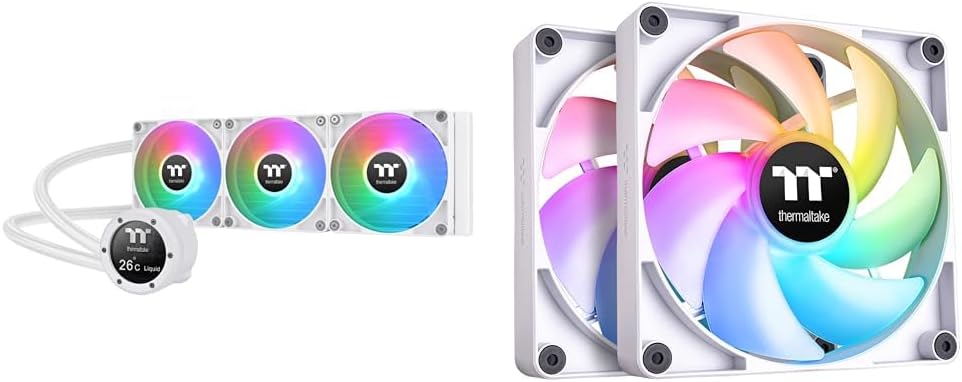
Figure 2.1: Complete Thermaltake TH360 V2 Ultra ARGB Liquid Cooler and Fan Kit. This image displays the radiator with three attached fans, the pump block with its integrated LCD screen, and the connecting tubes.

Figure 2.2: Detailed view of the TH360 V2 Ultra ARGB liquid cooler, highlighting the pump block with its LCD display showing "26C Liquid" and the three 120mm ARGB fans attached to the radiator.
3. Setup and Installation
Before starting, ensure your system is powered off and unplugged. Refer to your motherboard and PC case manuals for specific compatibility and clearance information.
3.1. Prepare the Radiator and Fans
- Attach the three CT120 ARGB fans to the radiator using the provided fan screws. Ensure the fan airflow direction is appropriate for your case's cooling strategy (typically exhausting air out of the case).
- Connect the daisy-chain cables of the CT120 ARGB fans. This design minimizes cable clutter and simplifies connection to the motherboard or ARGB controller.
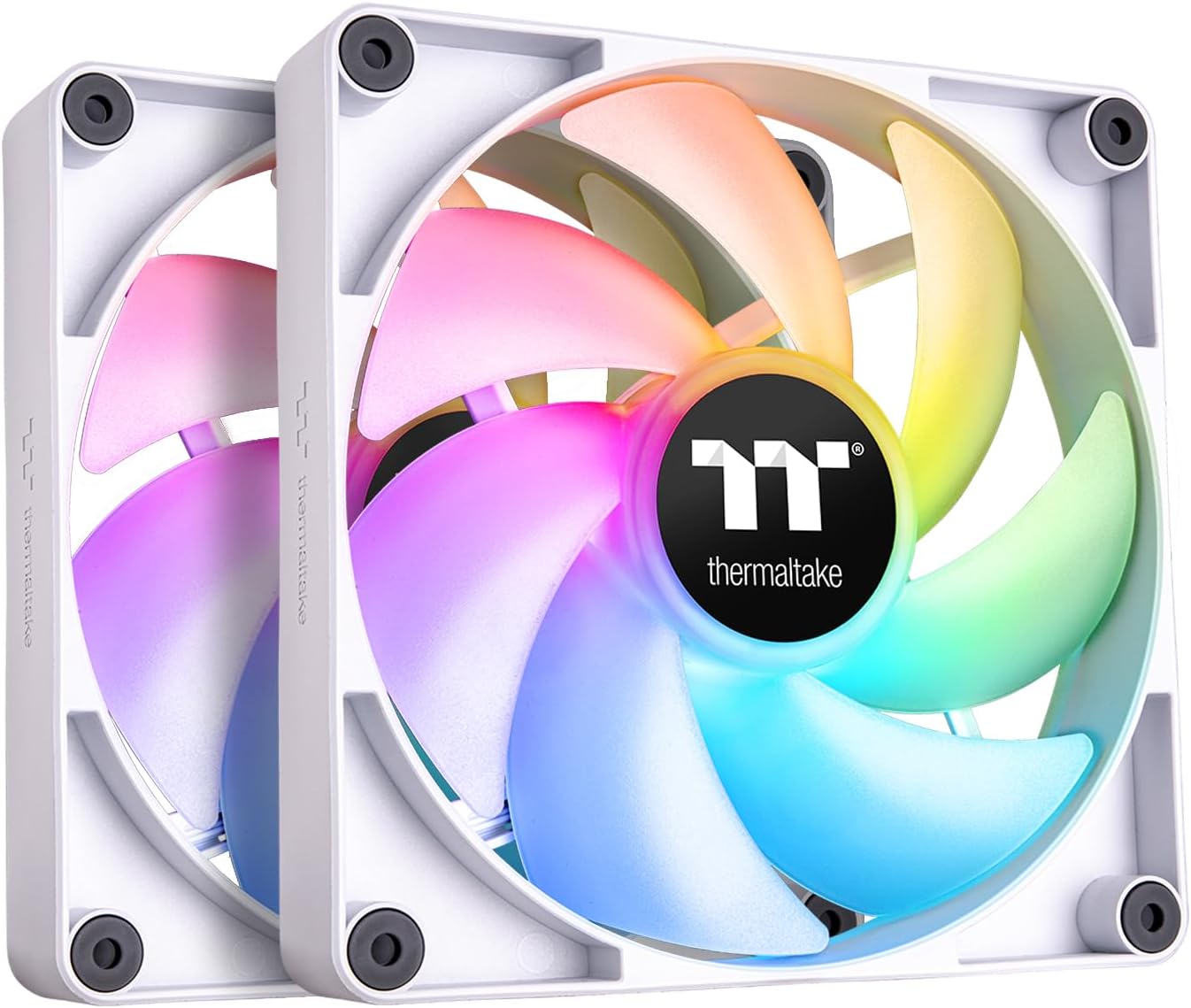
Figure 3.1: Two individual CT120 ARGB fans, showcasing their design and addressable RGB lighting capabilities. These fans are designed for optimal airflow and static pressure.

Figure 3.2: CT120 ARGB fans installed within a PC case, demonstrating their vibrant RGB lighting and the 7-blade design optimized for airflow. The image shows the fans mounted to a radiator, cooling a CPU.
3.2. Install the Radiator Assembly
Mount the radiator assembly (radiator with fans attached) into your PC case. Common mounting locations include the top, front, or rear of the case, depending on size and clearance. Secure the radiator using the appropriate screws provided with your PC case or cooler.
3.3. Prepare the CPU and Pump Block
- Clean the CPU surface thoroughly with isopropyl alcohol to remove any old thermal paste or residue.
- Apply a small amount of thermal paste (pea-sized dot) to the center of the CPU's integrated heat spreader (IHS).
- Install the correct mounting brackets for your CPU socket type (Intel or AMD) onto the pump block.
3.4. Mount the Pump Block
Carefully align the pump block with the CPU and the motherboard's mounting holes. Gently lower the pump block onto the CPU, ensuring even pressure. Secure the pump block using the provided thumb screws or retention mechanism, tightening them in a diagonal pattern until snug. Do not overtighten.
3.5. Cable Connections
- Connect the pump's power cable to the CPU_FAN or AIO_PUMP header on your motherboard.
- Connect the fan power cables (from the daisy-chain) to available fan headers on your motherboard or a fan controller.
- Connect the ARGB cables from the fans and pump to the 5V addressable RGB header on your motherboard (e.g., ASUS Aura Sync, GIGABYTE RGB Fusion, MSI Mystic Light Sync, ASRock Polychrome) or a dedicated ARGB controller.
- Connect the LCD display's USB cable to an available internal USB 2.0 header on your motherboard.
4. Operating Instructions
Once installed, the Thermaltake TH360 V2 Ultra ARGB Liquid Cooler operates automatically to maintain optimal CPU temperatures. The CT120 ARGB fans are PWM controlled, allowing for dynamic speed adjustments based on thermal load.
4.1. Software Control (TT RGB Plus)
To fully utilize the features of the TH360 V2 Ultra ARGB's LCD display and the ARGB lighting of the fans, download and install the Thermaltake TT RGB Plus software from the official Thermaltake website. This software allows you to:
- Customize the content displayed on the 2.1" LCD screen (e.g., system information, images, GIFs, videos).
- Control ARGB lighting effects, colors, and synchronization for the pump and fans.
- Monitor system temperatures and fan speeds.

Figure 4.1: Promotional image highlighting the TH360 V2 Ultra ARGB Sync All-in-One Liquid Cooler in its Snow Edition, emphasizing its new industrial cap with a 480x480 resolution LCD display. This display can show 16.8 million color videos or photos.

Figure 4.2: Close-up of a single CT120 ARGB Sync PC Cooling Fan in white, showcasing its vibrant RGB lighting. The fan features a fine-tuned blade design and a daisy-chain system for simplified cable management.
4.2. Motherboard RGB Software Sync
If you prefer to control the ARGB lighting through your motherboard's software, ensure the ARGB cables are connected to the appropriate 5V addressable RGB header. Compatible software includes:
- ASUS Aura Sync
- GIGABYTE RGB Fusion
- MSI Mystic Light Sync
- ASRock Polychrome Sync
5. Maintenance
Regular maintenance helps ensure the longevity and optimal performance of your liquid cooler.
- Dust Cleaning: Periodically clean dust from the radiator fins and fan blades using compressed air or a soft brush. Dust accumulation can impede airflow and reduce cooling efficiency.
- Tubing Inspection: Occasionally inspect the tubing for any signs of kinks, leaks, or damage. While rare, addressing these issues promptly can prevent system damage.
- Pump Noise: Listen for any unusual noises from the pump. A properly functioning pump should operate quietly. Excessive noise might indicate an issue.
- Thermal Paste: Re-applying thermal paste is generally not required unless the cooler is removed from the CPU. If you remount the cooler, always clean the old thermal paste and apply new paste.
6. Troubleshooting
If you encounter issues with your Thermaltake TH360 V2 Ultra ARGB Liquid Cooler, refer to the following common problems and solutions:
| Problem | Possible Cause | Solution |
|---|---|---|
| High CPU Temperatures |
|
|
| Fans Not Spinning / ARGB Not Lighting Up |
|
|
| LCD Display Not Working |
|
|
| Unusual Pump Noise |
|
|
7. Specifications
Key technical specifications for the Thermaltake TH360 V2 Ultra ARGB Sync Liquid Cooler and CT120 ARGB Fans:
| Feature | Detail |
|---|---|
| Model Name | TH360 V2 Ultra ARGB Sync Liquid Cooler |
| Fan Model | CT120 ARGB Sync 120mm Fan |
| Cooling Type | All-in-One Liquid Cooling |
| Radiator Size | 360mm (for TH360 V2 Ultra) |
| Compatible Sockets (Intel) | LGA 2066/2011-3/2011/1700/1200/1156/1155/1151/1150 |
| Compatible Sockets (AMD) | AM5/AM4/AM3+/AM3/AM2+/AM2/FM2/FM1 |
| Pump Material | Copper (cold plate) |
| Fan Speed | Up to 2000 RPM (PWM controlled) |
| Fan Airflow | Up to 57.05 CFM |
| Fan Blades | 7-blade design |
| ARGB LEDs (per fan) | 9 addressable LEDs |
| LCD Display | 2.1" (480x480 resolution, 16.8M colors) |
| Power Connector | 4-Pin (for pump/fans) |
| Voltage | 12 Volts (DC) |
| Color | White |

Figure 7.1: Visual comparison of different radiator sizes in the Thermaltake TH V2 Ultra ARGB series, including TH240 V2, TH280 V2, TH360 V2, and TH420 V2. This product includes the TH360 V2.
8. Warranty and Support
Thermaltake products are manufactured to the highest quality standards. For warranty information, technical support, or to register your product, please visit the official Thermaltake website or contact their customer service department.
Official Website: www.thermaltake.com
Customer Support: Refer to the support section on the Thermaltake website for contact details specific to your region.
Product Registration: Registering your product helps facilitate warranty claims and provides access to product updates and support resources.


