
Introduction
The ScreenBeam 1100 is a high-performance 4K wireless display and collaboration solution designed for organizations. It supports multi-network environments and offers flexible deployment options for both employees and guests. This device combines local Wi-Fi mode connectivity with industry-standard Miracast, alongside dual-network infrastructure connectivity with network bridge functionality, enabling seamless wireless presentations.
Package Contents
Please ensure all items are present in the package:
- ScreenBeam 1100 Wireless Display Receiver unit
- Power Adapter
- HDMI Cable
- Quick Start Guide (if applicable)
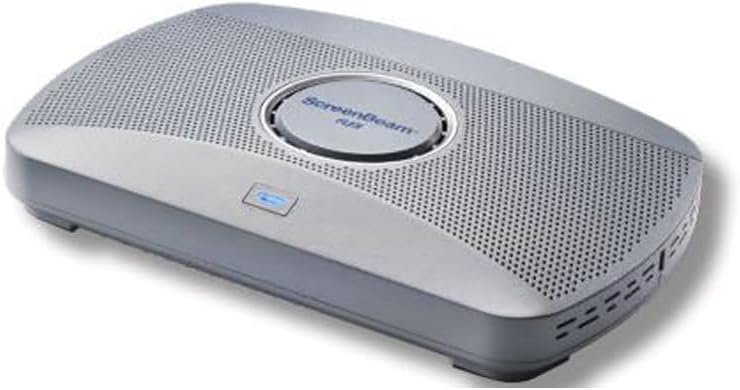
Figure 1: Top-down view of the ScreenBeam 1100 Wireless Display Receiver. This image shows the compact design of the receiver unit, featuring a perforated top surface for ventilation and the ScreenBeam logo prominently displayed in the center.
Setup
- Connect to Display: Connect one end of the HDMI cable to the HDMI OUT port on the ScreenBeam 1100 receiver and the other end to an available HDMI input on your display (TV, projector, or monitor).
- Connect Power: Plug the power adapter into the DC IN port on the ScreenBeam 1100 receiver, then plug the adapter into a power outlet. The device will power on automatically.
- Select Input: Turn on your display and select the corresponding HDMI input source to view the ScreenBeam welcome screen.
- Initial Configuration: Follow the on-screen instructions for initial network configuration, if required by your organization's IT policies.

Figure 2: Angled view of the ScreenBeam 1100 Wireless Display Receiver. This perspective highlights the side ventilation and the overall sleek profile of the device, indicating its suitability for various installation environments.
Operating Instructions
Connecting Your Device
The ScreenBeam 1100 supports native screen mirroring, eliminating the need for apps or cables.
- Windows Devices: Press Windows key + K to open the Connect sidebar. Select the ScreenBeam receiver from the list of available devices.
- Android Devices: Navigate to the Quick Settings panel (swipe down from the top of the screen) and look for "Smart View," "Cast," "Screen Mirroring," or similar options. Select the ScreenBeam receiver.
- Apple Devices (iOS/macOS): For macOS, click the AirPlay icon in the menu bar and select the ScreenBeam receiver. For iOS, open Control Center, tap "Screen Mirroring," and select the ScreenBeam receiver.
Screen Sharing Modes
Windows and macOS users can utilize different display modes:
- Duplicate Mode: Mirrors your device's screen onto the display.
- Extended Mode: Extends your desktop onto the display, allowing for more screen real estate.
Interactive Features
When connected to interactive touch displays, the ScreenBeam 1100 supports touchback functionality and Windows Ink, enhancing collaborative sessions.
Features
- App-Free Wireless Screen Sharing: Eliminates the need for downloading applications or using physical cables for presentations.
- Multi-Network Support: Designed for enterprise environments with support for various network configurations.
- Native Screen Mirroring: Compatible with Windows, Android, and Apple devices using their built-in screen mirroring capabilities (Miracast, AirPlay).
- 4K Resolution: Supports high-definition 4K wireless display for crisp visuals.
- Extended Desktop Support: Windows and macOS users can utilize extended screen modes for enhanced productivity.
- Interactive Touch and Windows Ink: Integrates with interactive touch displays for collaborative whiteboarding and annotation.
- Dual-Network Infrastructure: Offers flexible connectivity options, including network bridge functionality.
Specifications
| Brand | ScreenBeam |
| Model Name | SBWD1100F |
| Connectivity Technology | HDMI |
| Connector Type | HDMI |
| Special Feature | Miracast |
| Resolution | 4K (3840 pixels) |
| Controller Type | Android (refers to compatibility, not necessarily OS of device) |
| Form Factor | TV Box |
| Color | Black |
| Item Weight | 2.2 Pounds |
| Compatible Devices | Windows, Android, Apple devices |
| Video Codec | H.264, H.265/HEVC, VP9 |
| UPC | 850015351051 |
Troubleshooting
If you encounter issues with your ScreenBeam 1100, consider the following:
- No Display Signal:
- Ensure the HDMI cable is securely connected to both the ScreenBeam receiver and the display.
- Verify the display is set to the correct HDMI input source.
- Check if the power adapter is properly connected and the unit is powered on.
- Unable to Connect Device:
- Ensure your device's Wi-Fi is enabled.
- Make sure your device is within range of the ScreenBeam receiver.
- Restart both your source device and the ScreenBeam receiver.
- Confirm that your device's operating system is up to date.
- Poor Video/Audio Quality:
- Reduce the distance between your source device and the ScreenBeam receiver.
- Minimize interference from other wireless devices.
- Ensure your network environment meets the recommended specifications for wireless display.
Maintenance
To ensure optimal performance and longevity of your ScreenBeam 1100:
- Cleaning: Use a soft, dry cloth to clean the exterior of the device. Avoid liquid cleaners or abrasive materials.
- Ventilation: Ensure the device is placed in a well-ventilated area and that the ventilation holes are not obstructed.
- Software Updates: Periodically check the ScreenBeam official website for firmware updates to ensure the best performance and compatibility.
Warranty and Support
The ScreenBeam 1100 Wireless Display Receiver comes with a 1 Year Parts & Labor warranty.
For technical support, warranty claims, or additional information, please visit the official ScreenBeam website or contact their customer service department. Keep your purchase receipt as proof of purchase for warranty services.
Note: Warranty terms and conditions may vary by region. Refer to the official ScreenBeam warranty policy for complete details.