
1. Introduction
Thank you for choosing the Cellular Line Breezy Mini Fan. This portable, rechargeable fan is designed to provide personal cooling with convenience and efficiency. Featuring three adjustable speed settings and a compact design, it is ideal for use at home, in the office, or on the go. Please read this manual carefully before using the product to ensure proper operation and maintenance.
2. Package Contents
Please check the package for the following items:
- 1x Cellular Line Breezy Mini Fan
- 1x USB Charging Cable
- 1x Fan Base/Stand
3. Product Overview
Familiarize yourself with the components of your Breezy Mini Fan.
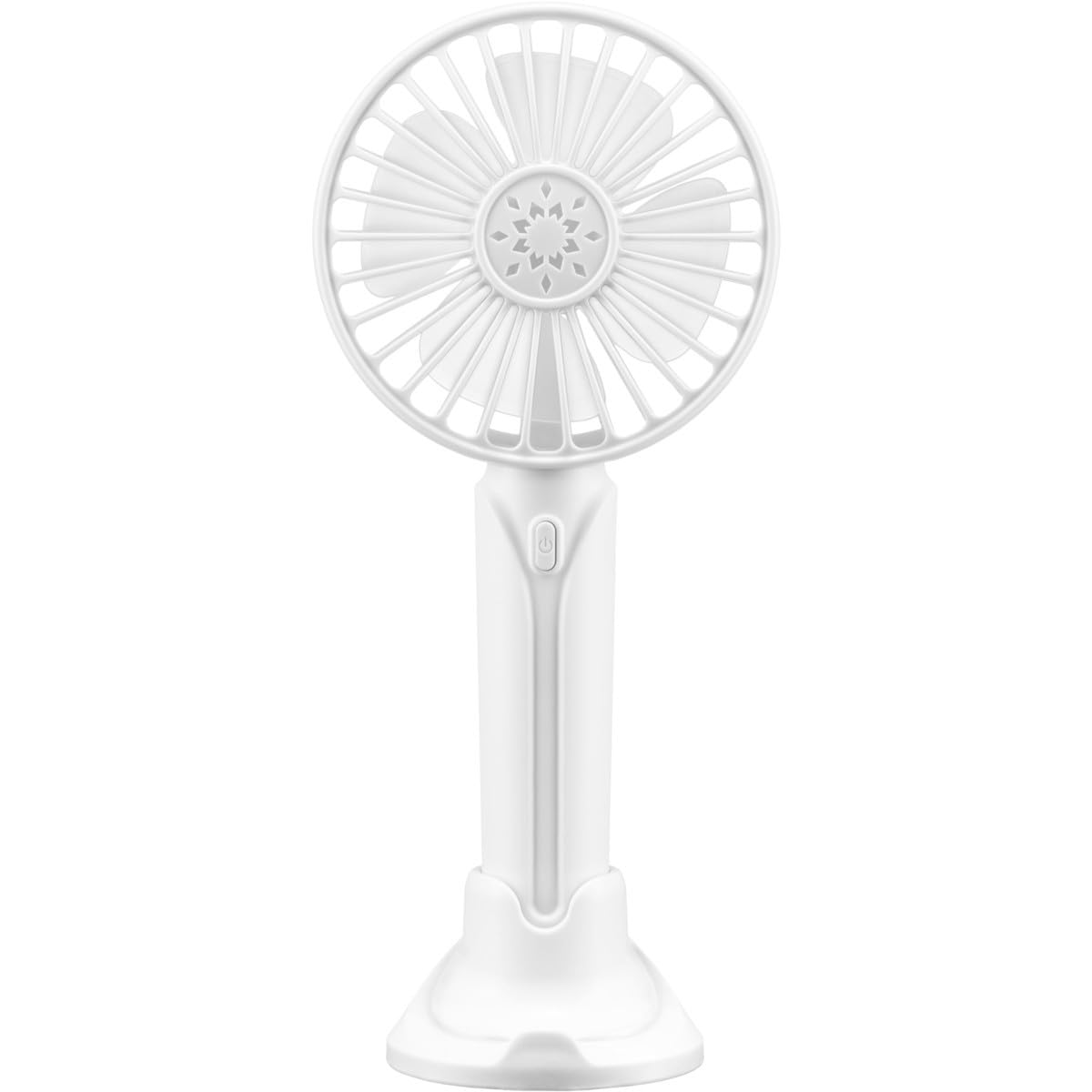
Image 3.1: Front view of the Cellular Line Breezy Mini Fan, showing the fan grille, blades, and power button on the handle.
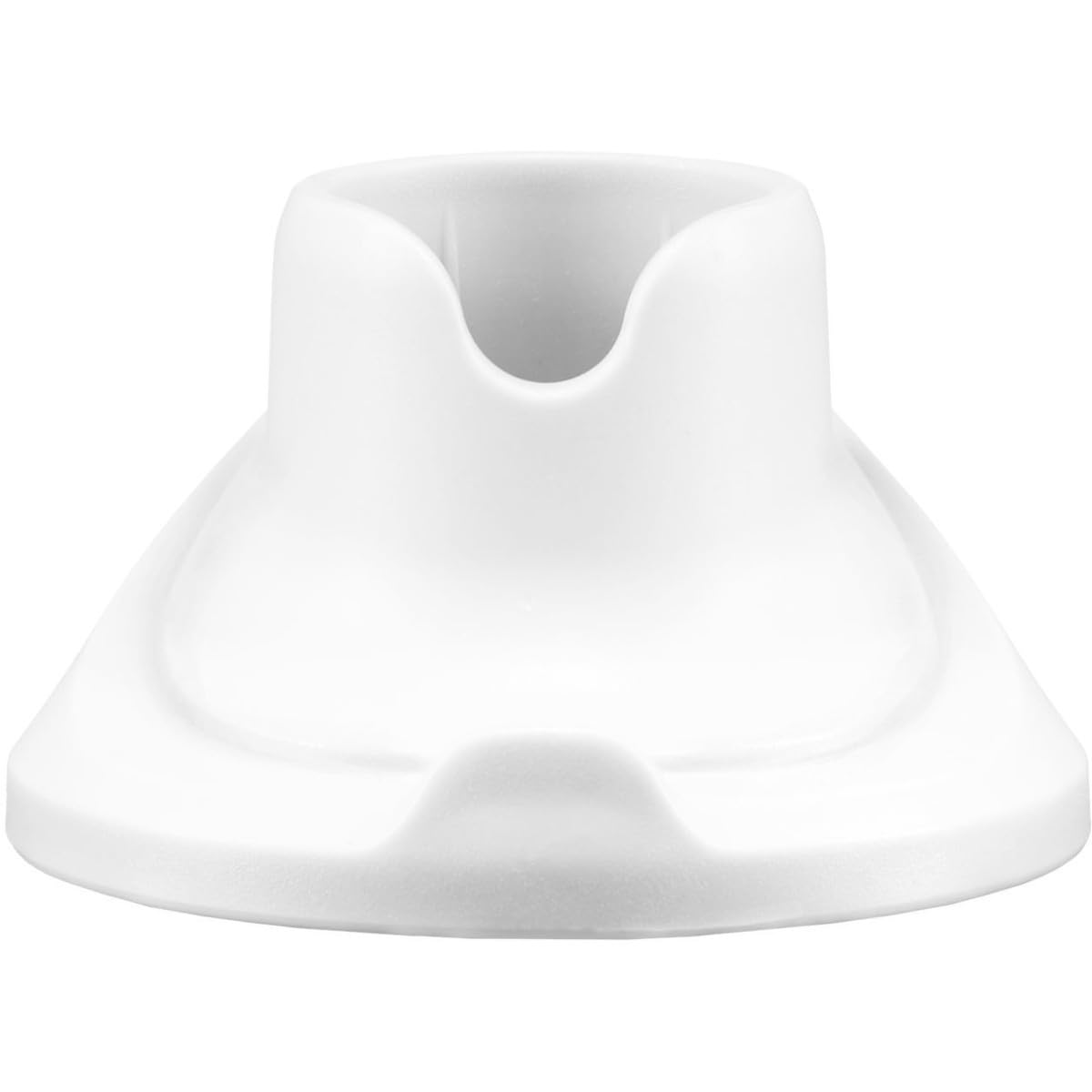
Image 3.2: The dedicated base or stand for the Cellular Line Breezy Mini Fan, allowing it to be placed on a flat surface.
- Fan Grille: Protective cover for the fan blades.
- Fan Blades: Generate airflow.
- Power Button / Speed Control: Turns the fan on/off and cycles through speed settings.
- Handle: For handheld use.
- USB Charging Port: Located at the bottom of the handle for charging.
- Fan Base/Stand: Allows the fan to stand upright on a surface.
4. Setup
- Unpack: Carefully remove all components from the packaging.
- Initial Charge: Before first use, fully charge the fan. Connect the small end of the provided USB cable to the fan's charging port and the larger end to a USB power adapter (not included) or a computer USB port. The charging indicator (if present, usually a small LED) will illuminate during charging and turn off or change color when fully charged.
- Attach to Stand (Optional): If you wish to use the fan on a desk or flat surface, gently insert the fan's handle into the provided base/stand until it is securely seated.
5. Operating Instructions
The Breezy Mini Fan features three speed settings.
- Power On / Speed 1: Press the power button once to turn on the fan at the lowest speed setting.
- Speed 2: Press the power button a second time to increase the fan speed to medium.
- Speed 3: Press the power button a third time to activate the highest fan speed.
- Power Off: Press the power button a fourth time to turn off the fan.
6. Charging
The fan is equipped with a rechargeable battery. When the fan's airflow weakens or it stops operating, it's time to recharge.
- Connect the supplied USB cable to the charging port on the fan's handle.
- Plug the other end of the USB cable into a standard USB power source (e.g., computer, wall adapter, power bank).
- A charging indicator light (if present) will typically show the charging status. Refer to the product packaging or specific model details for exact indicator behavior.
- Once fully charged, disconnect the USB cable. Avoid overcharging to prolong battery life.
7. Maintenance
To ensure the longevity and optimal performance of your fan, follow these maintenance guidelines:
- Cleaning: Ensure the fan is turned off and unplugged before cleaning. Use a soft, dry cloth to wipe the exterior of the fan. For dust accumulation on the grille or blades, use a soft brush or compressed air. Do not use abrasive cleaners, solvents, or immerse the fan in water.
- Storage: When not in use for extended periods, store the fan in a cool, dry place, away from direct sunlight and extreme temperatures. It is recommended to charge the battery periodically (e.g., every 3 months) to maintain battery health.
- Avoid Obstructions: Keep the fan grille clear of any obstructions to ensure proper airflow and prevent motor strain.
8. Troubleshooting
If you encounter any issues with your Breezy Mini Fan, please refer to the following common problems and solutions:
| Problem | Possible Cause | Solution |
|---|---|---|
| Fan does not turn on. | Battery is depleted. | Charge the fan using the provided USB cable. |
| Power button not pressed correctly. | Ensure the power button is pressed firmly. | |
| Fan does not charge. | USB cable or power source is faulty. | Try a different USB cable or power adapter. Ensure connections are secure. |
| Weak airflow. | Low battery. | Recharge the fan. |
| Fan grille or blades are obstructed/dirty. | Clean the fan grille and blades as per maintenance instructions. |
If the problem persists after trying these solutions, please contact Cellular Line customer support for further assistance.
9. Specifications
| Feature | Detail |
|---|---|
| Brand | Cellular Line |
| Model Name | Breezy |
| Color | White |
| Fan Type | Portable, Table Fan |
| Power Source | USB |
| Dimensions (D x W x H) | 225P x 100l x 41H cm (approx. 22.5 x 10 x 4.1 cm) |
| Number of Speeds | 3 |
| Rechargeable | Yes |
| Included Components | USB Cable |
10. Warranty and Support
Cellular Line products are designed and manufactured to the highest quality standards. For information regarding warranty terms and conditions, please refer to the warranty card included with your product or visit the official Cellular Line website. For technical support or customer service, please contact Cellular Line directly through their official channels.
Official Website: www.cellularline.com
