
Mobility Lab ML313979
Mobility Lab ML313979 Wireless Deluxe Keyboard User Manual
Model: ML313979
Introduction
Thank you for choosing the Mobility Lab ML313979 Wireless Deluxe Keyboard. This manual provides essential information for setting up, operating, maintaining, and troubleshooting your new keyboard. Please read it thoroughly before use to ensure optimal performance and longevity of your device.

Figure 1: Mobility Lab ML313979 Wireless Deluxe Keyboard. This image shows the full keyboard with its AZERTY layout, numeric keypad, and multimedia function keys.
Package Contents
Before proceeding with the setup, please verify that all items are present in the package:
- 1 x Mobility Lab ML313979 Wireless Deluxe Keyboard
- 1 x USB Receiver (2-in-1: USB-A and USB-C)
- 1 x User Manual (this document)
Note: AAA battery is not included and must be purchased separately.
Setup Instructions
1. Battery Installation
- Locate the battery compartment on the underside of the keyboard.
- Open the battery compartment cover.
- Insert one AAA battery, ensuring the correct polarity (+/-) as indicated inside the compartment.
- Close the battery compartment cover securely.
2. Connecting the Wireless Receiver
The keyboard comes with a versatile 2-in-1 receiver that supports both USB-A and USB-C ports.

Figure 2: The 2-in-1 USB and USB-C wireless receiver. This compact receiver allows connection to various devices.
- Identify an available USB-A or USB-C port on your computer or device.
- Carefully plug the wireless receiver into the chosen port.
- The keyboard is designed for plug-and-play operation; no additional drivers are required. Your operating system (Windows or Linux) should automatically detect and configure the keyboard.
For optimal performance, ensure the receiver is within 10 meters (33 feet) of the keyboard and avoid placing it near large metal objects or other wireless devices that may cause interference.
Operating Instructions
Basic Typing and Layout
The Mobility Lab ML313979 keyboard features an AZERTY layout, commonly used in French-speaking regions, and includes a full numeric keypad for efficient data entry.
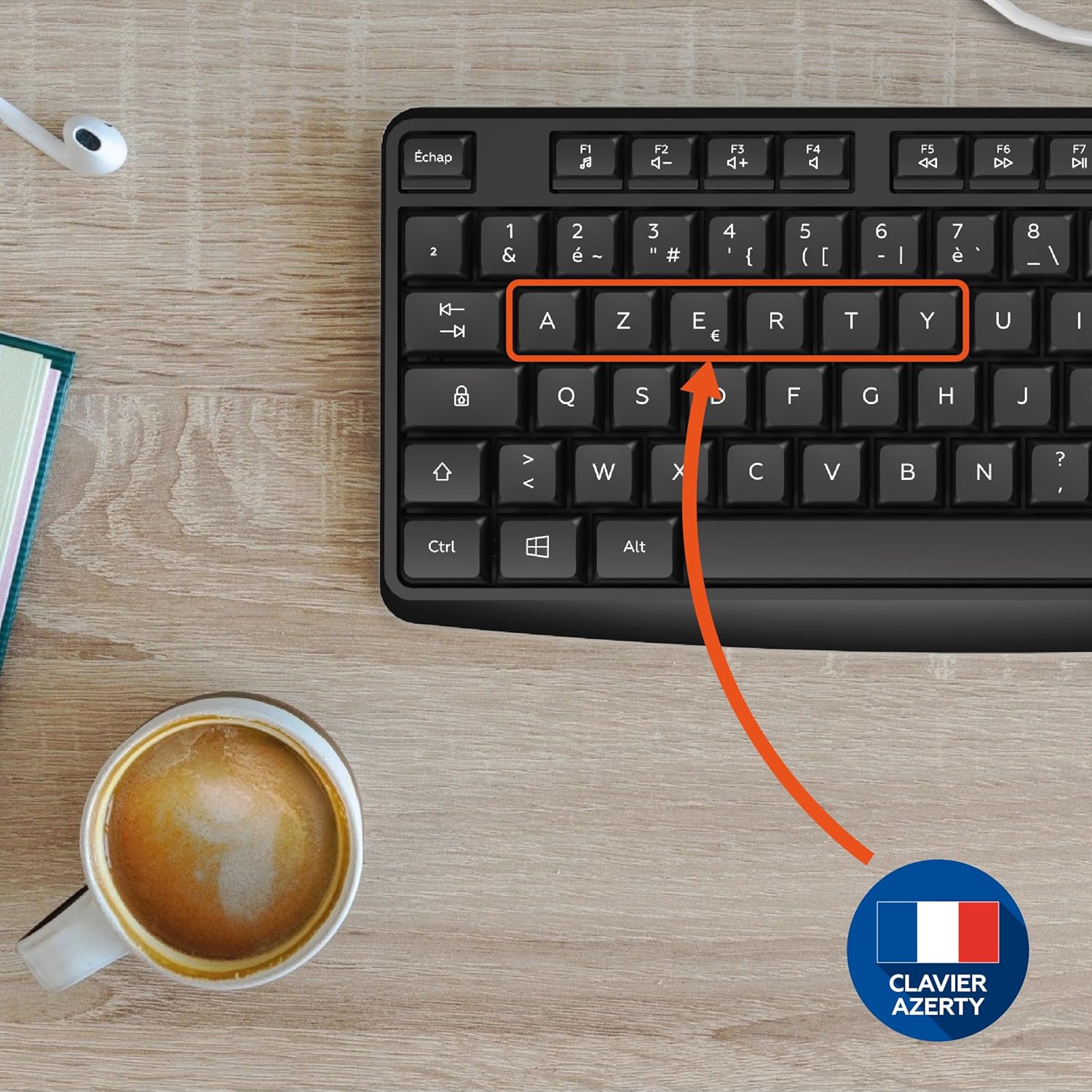
Figure 3: Close-up of the AZERTY keyboard layout, highlighting the specific key arrangement for French users.

Figure 4: The full-size keyboard, showcasing the integrated numeric keypad and dedicated multimedia shortcut keys for enhanced productivity.
The keys are designed with a concave shape for precise and comfortable typing, reducing finger fatigue during extended use.
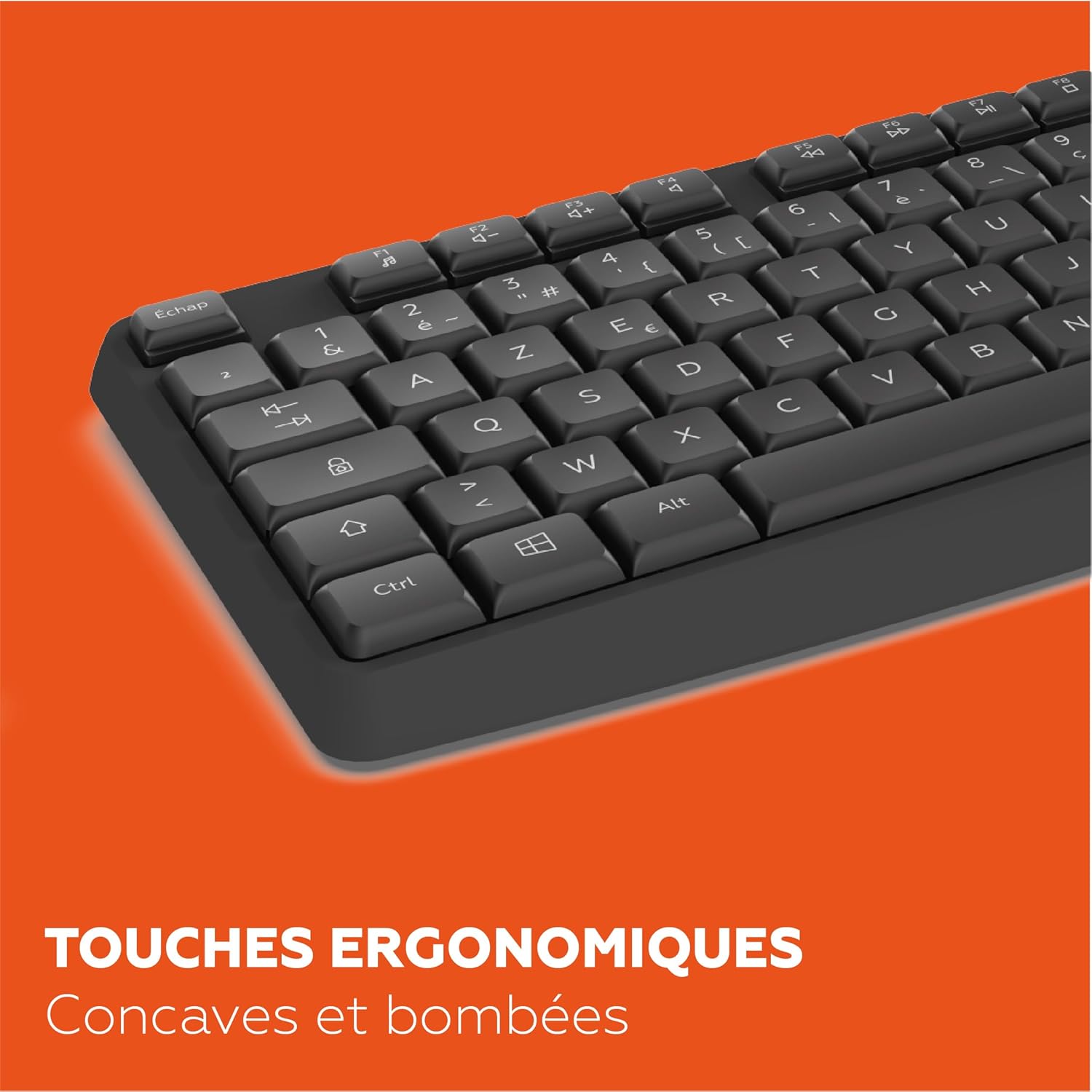
Figure 5: A close-up view of the keyboard keys, illustrating their ergonomic concave and convex design for improved typing comfort and accuracy.
Multimedia and Function Keys
The keyboard includes 15 multimedia shortcut keys accessible via the function (Fn) key, allowing quick access to common functions such as volume control, media playback, and more. Refer to the key legends for specific functions.
Adjusting Keyboard Tilt
For enhanced ergonomic comfort, the keyboard features adjustable tilt feet on its underside. You can choose between two inclination modes.
- Locate the two foldable feet at the back of the keyboard.
- Gently pull out the feet to raise the keyboard to your preferred typing angle.
- Fold the feet back in to return the keyboard to a flat position.

Figure 6: The underside of the keyboard showing the foldable feet that allow for two modes of inclination, providing adjustable ergonomic comfort.
Maintenance
Cleaning the Keyboard
- Disconnect the receiver from your computer before cleaning.
- Use a soft, lint-free cloth slightly dampened with water or a mild, non-abrasive cleaning solution.
- Avoid spraying liquids directly onto the keyboard.
- For dust and debris between keys, use compressed air.
Battery Replacement
When the keyboard's performance degrades or it stops responding, it's likely time to replace the AAA battery. Follow the battery installation steps outlined in the "Setup Instructions" section.
Storage
When not in use for extended periods, it is recommended to remove the battery to prevent leakage and store the keyboard in a dry, cool place away from direct sunlight and extreme temperatures.
Troubleshooting
| Problem | Possible Cause | Solution |
|---|---|---|
| Keyboard not responding | Low or dead battery. Receiver not properly connected. Out of range. Interference. | Replace the AAA battery. Ensure the receiver is fully plugged into a working USB/USB-C port. Move the keyboard closer to the receiver (within 10m). Move away from other wireless devices or large metal objects. |
| Keys are sticky or unresponsive | Dirt or debris under keys. | Clean the keyboard using compressed air or a damp cloth. |
| Lag or delayed input | Weak signal or interference. | Ensure the receiver is in line of sight and close to the keyboard. Avoid placing the receiver near USB 3.0 ports or other high-frequency devices. |
If you continue to experience issues after trying these solutions, please contact Mobility Lab customer support.
Specifications
| Feature | Detail |
|---|---|
| Model Number | ML313979 |
| Connectivity Technology | 2.4 GHz Wireless (USB-A and USB-C receiver) |
| Keyboard Layout | AZERTY (French) |
| Number of Keys | 104 (Full-size with numeric keypad) |
| Power Source | 1 x AAA Battery (not included) |
| Compatibility | Windows, Linux |
| Dimensions (L x W x H) | 44 x 13.8 x 2.4 cm (17.32 x 5.43 x 0.94 inches) |
| Weight | 395 Grams (0.87 lbs) |
| Special Features | Adjustable tilt, 15 multimedia shortcuts, Plug and Play, Concave keys for precise typing |

Figure 7: Detailed dimensions of the Mobility Lab ML313979 keyboard, showing length, width, and height measurements.
Warranty Information
The Mobility Lab ML313979 Wireless Deluxe Keyboard comes with a manufacturer's warranty of 2 years from the date of purchase. This warranty covers defects in materials and workmanship under normal use.
The warranty does not cover damage caused by:
- Accident, abuse, misuse, or unauthorized modification.
- Improper operation or maintenance.
- Connection to improper voltage supply.
- Attempted repair by anyone other than an authorized service center.
Please retain your proof of purchase for warranty claims.
Customer Support
For further assistance, technical support, or warranty inquiries, please visit the official Mobility Lab website or contact their customer service department. Contact information can typically be found on the product packaging or the brand's official website.
You can also visit the Mobility Lab store on Amazon for more information: Mobility Lab Amazon Store
Related documentsML313979


Ask a question about this manual
Ask about setup, troubleshooting, compatibility, parts, safety, or missing instructions. Manuals+ will review the question and use this page’s manual context to help answer it.