
1. Introduction
This instruction manual provides detailed guidance for the installation, configuration, operation, and maintenance of your Cudy Outdoor AX3000 High Power WiFi 6 Access Point (AP3000 OUTDOOR). This device is designed to provide robust and extended wireless coverage in outdoor environments, leveraging Wi-Fi 6 technology for high performance and efficiency. Please read this manual thoroughly before using the product to ensure proper setup and optimal performance.

Figure 1: Cudy Outdoor AX3000 WiFi 6 Access Point
2. Product Features
The Cudy Outdoor AX3000 Access Point offers a range of advanced features designed for superior outdoor wireless connectivity:
- High Power AX3000 Dual Band Wi-Fi 6: Equipped with five power amplifiers and advanced high-gain antennas, this AP delivers exceptional Wi-Fi coverage, navigating signals through physical obstacles for a larger area.
- IP65 Weatherproof and 6KV Lightning Protection: Designed with an IP65-rated waterproof housing and 6KV lightning protection, making it suitable for various outdoor conditions.
- 5-IN-1 Multifunctional Operation: Can function as an Outdoor Wireless Access Point, Outdoor WiFi Extender, Gigabit Outdoor WiFi Router, Gigabit Outdoor WISP Router, or Gigabit Mesh Router.
- Detachable RP-SMA Antennas: Features 2 external 5dBi WiFi antennas that enhance sensitivity and signal quality. The detachable design allows for upgrading to other high-gain outdoor antennas.
- Multiple Power Options: Supports 802.3at/af Power over Ethernet (PoE) or 48~57V passive power supply (adapter included), providing flexible deployment options.

Figure 2: Exceptional Range Performance

Figure 3: Advanced Wi-Fi 6 Capabilities

Figure 4: Weather-Proof Design and Protection
3. Package Contents
Verify that all items are present in your package:
- Cudy Outdoor AX3000 Access Point Unit
- Detachable Antennas (2 units)
- PoE Adapter
- Mounting Kit (for pole or wall mounting)
- Quick Installation Guide
4. Setup
4.1 Physical Installation
- Attach Antennas: Carefully screw the two detachable antennas onto the RP-SMA connectors on the top of the access point. Ensure they are securely fastened.
- Mounting: The device supports both wall-mounting and pole-mounting. Use the included mounting kit to secure the access point in your desired outdoor location. Ensure the location provides optimal signal coverage and is protected from direct, prolonged exposure to extreme elements if possible, despite its weatherproofing.

Figure 5: Mounting Options
4.2 Powering the Device
The AP3000 OUTDOOR is powered via Power over Ethernet (PoE). Use the included PoE adapter:
- Connect an Ethernet cable from the LAN port of your router or network switch to the 'PoE In' port on the access point. This port is located under a sealed compartment on the device.
- Connect the PoE adapter to a power outlet.
- The access point will power on automatically. Observe the LED indicator for power status.

Figure 6: Gigabit Ethernet Port with PoE-In
4.3 Initial Configuration Access
Once powered, you can access the configuration interface via a web browser or the Cudy App:
- Web Interface: Connect a computer to the same network as the access point. Open a web browser and enter the default IP address (usually printed on the device label or in the Quick Installation Guide). Follow the on-screen instructions for initial setup, including setting up your Wi-Fi network name (SSID) and password.
- Cudy App: Download the Cudy App from your mobile device's app store. Follow the in-app instructions to discover and configure your access point.
5. Operating Modes
The Cudy Outdoor AX3000 Access Point supports multiple operating modes to suit various network requirements:
- Access Point (AP) Mode: Extends an existing wired network wirelessly.
- WiFi Extender Mode: Boosts the signal of an existing wireless network.
- Gigabit Outdoor WiFi Router Mode: Functions as a primary router for your network, providing internet access.
- Gigabit Outdoor WISP Router Mode: Connects wirelessly to an Internet Service Provider (WISP) and shares the connection with local devices.
- Gigabit Mesh Router Mode: Integrates into a Cudy Mesh network for seamless whole-home Wi-Fi coverage.
You can configure the desired operating mode through the web interface or the Cudy App during the setup process or at any time thereafter.
6. Configuration and Management
Manage your Cudy Outdoor AX3000 Access Point using the intuitive web interface or the convenient Cudy App.
6.1 Web Interface
Access the web interface by typing the device's IP address into your web browser. From here, you can:
- Change Wi-Fi settings (SSID, password, security type).
- Configure operating modes.
- Manage connected devices.
- Update firmware.
- Set up advanced features like VPN (WireGuard, OpenVPN, IPSec, L2TP, PPTP) and Mesh networking.
6.2 Cudy App
The Cudy App provides a streamlined way to set up and manage your network from your smartphone or tablet.
Figure 7: Cudy App, Mesh Technology, and VPN Support
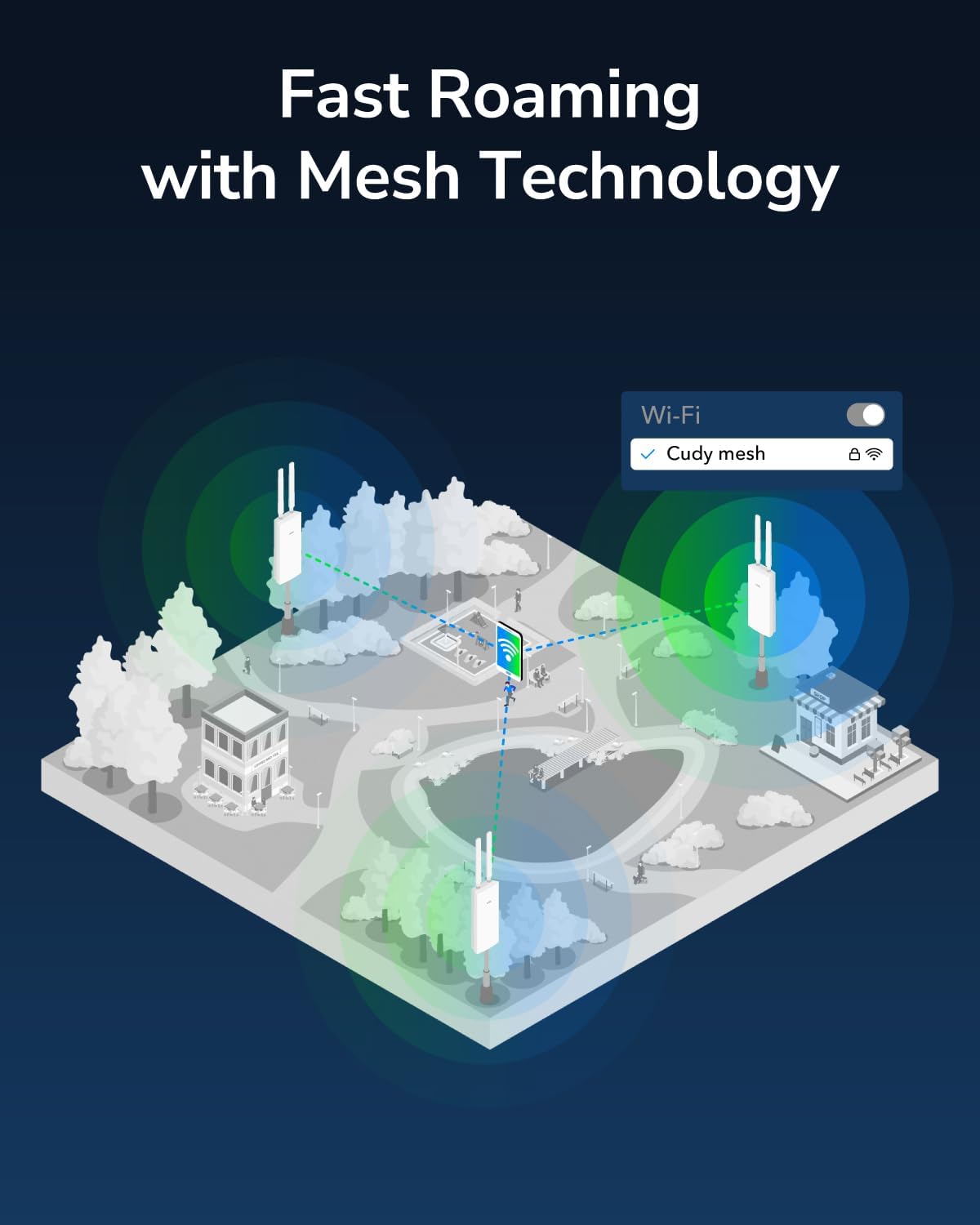
Figure 8: Fast Roaming with Mesh Technology
7. Maintenance
To ensure the longevity and optimal performance of your Cudy Outdoor AX3000 Access Point, follow these maintenance guidelines:
- Cleaning: Periodically wipe the exterior of the device with a soft, dry cloth. Do not use liquid cleaners or aerosol sprays.
- Firmware Updates: Regularly check the Cudy official website for the latest firmware updates. Updating firmware can improve performance, add new features, and enhance security. Follow the instructions provided with the firmware update package.
- Environmental Considerations: While the device is IP65 weatherproof and features lightning protection, ensure it is mounted securely to prevent physical damage from strong winds or impacts.
8. Troubleshooting
If you encounter issues with your Cudy Outdoor AX3000 Access Point, refer to the following common troubleshooting steps:
- No Power: Ensure the PoE adapter is correctly connected to a power outlet and the Ethernet cable is securely plugged into the 'PoE In' port on the access point. Check the LED indicator for power status.
- No Internet Connection: Verify that your main router or modem is functioning correctly and providing internet access. Check all Ethernet cable connections.
- Weak Wi-Fi Signal or Coverage Issues: Adjust the position of the access point and its antennas. Ensure there are no major physical obstructions (e.g., thick walls, metal objects) between the access point and your devices. Consider the range performance figures provided in Section 2.
- Cannot Access Configuration Interface: If you are unable to access the web configuration interface using the provided URL, try removing 'ap' from the URL (e.g., if the URL is 'cudy.ap', try 'cudy.net') or use a different web browser such as Firefox. Ensure your computer is on the same network segment as the access point.
- Factory Reset: If issues persist, you may perform a factory reset. Locate the reset button (usually a small pinhole) on the device. With the device powered on, press and hold the reset button for approximately 5-10 seconds until the LED indicators change, then release. The device will revert to its default factory settings.
For further assistance, please visit the official Cudy support website or contact their customer service.
9. Specifications
| Feature | Specification |
|---|---|
| Product Dimensions | 12.99 x 4.33 x 3.54 inches |
| Item Weight | 2.02 pounds |
| ASIN | B0CYT44ZYL |
| Item Model Number | AP3000 OUTDOOR |
| Manufacturer | Shenzhen Cudy Technology Co., Ltd. |
| Date First Available | March 22, 2024 |
| Wi-Fi Standard | Wi-Fi 6 (802.11ax) |
| Dual Band Speeds | Up to 2402 Mbps (5 GHz), Up to 574 Mbps (2.4 GHz) |
| Ethernet Ports | 1 x Gigabit RJ45 (PoE-In) |
| PoE Support | 802.3at/af PoE or 48~57V Passive PoE |
| Weather Protection | IP65 Rated, 6KV Lightning Protection |
10. Warranty and Support
Cudy products are backed by a manufacturer's warranty. For specific warranty terms and conditions, please refer to the warranty card included with your product or visit the official Cudy website. For technical support, troubleshooting guides, and frequently asked questions, please visit the Cudy support page or contact their customer service team. Official product videos for setup and configuration may also be available on the manufacturer's website.
You can find more information and support at the Cudy Store on Amazon.