
1. Introduction
This manual provides detailed instructions for the installation, operation, and troubleshooting of your CORSAHD HDMI 2.1 Switch 2 in 1 Out with Audio Extractor. Please read this manual thoroughly before use to ensure proper functionality and to maximize your device's performance.
The CORSAHD HDMI 2.1 Switch allows you to connect two HDMI source devices to a single HDMI display, while also providing advanced audio extraction capabilities. It supports high-resolution video up to 8K@60Hz and 4K@120Hz, along with various audio formats including eARC/ARC, Dolby Atmos, and DTS-HD Master Audio.
2. Product Overview
2.1 Key Features
- HDMI 2.1 Compliance: Supports 8K@60Hz, 4K@120Hz, 5120x1440@120Hz, 1080P@240Hz, 4:4:4 8bit.
- Advanced Video Technologies: Compatible with VRR (Variable Refresh Rate), ALLM (Auto Low Latency Mode), HDR 10+, Dolby Vision, and 3D vision.
- HDCP Bypass: Supports HDCP 2.2 and HDCP 2.3.
- Audio Extraction: Extracts audio from HDMI sources to HDMI/eARC/ARC Audio device, Optical Toslink SPDIF 5.1Ch, or AUX L/R 2.1Ch audio device.
- Audio Format Support: Includes ARC, Dolby Atmos, Dolby True HD, DTS-HD Master Audio, and Optical Toslink SPDIF 5.1Ch, AUX L/R 3.5mm 2.1Ch.
- Wide Compatibility: Works with various operating systems and devices such as PS5, Xbox, Nintendo Switch, Blu-ray players, QLED TVs, Sonos Soundbars, and Apple TV.
- Easy Switching: Manual switching between two HDMI input sources via a panel button or included IR remote control.
- Power: USB powered, no external adapter required.
2.2 Package Contents
- CORSAHD HDMI 2.1 Switch 2x1 with Audio Extractor
- IR Remote Control
- IR Receiver Cable
- USB Power Cable
- User Manual (This document)

Image: The CORSAHD HDMI 2.1 Switch unit, accompanied by its IR remote control and necessary cables.
3. Setup Instructions
Follow these steps to set up your HDMI switch and audio extractor.
- Connect HDMI Sources: Connect your two HDMI source devices (e.g., PS5, Xbox, Blu-ray player) to the "HDMI IN 1" and "HDMI IN 2" ports on the switch using certified HDMI 2.1 cables.
- Connect HDMI Display: Connect your HDMI display (e.g., TV, monitor, projector) to the "HDMI OUT" port on the switch using a certified HDMI 2.1 cable.
- Connect Audio Device (Optional):
- For eARC/ARC Soundbar: Connect your eARC/ARC compatible soundbar to the "(SOUNDBAR eARC/ARC) AUDIO OUT" port.
- For AV Receiver: Connect your AV receiver to the "(AV RECEIVER IN PORT) AUDIO OUT" port.
- For Optical Audio: Connect an optical cable from the "SPDIF OUT" port to your audio receiver or sound system.
- For Analog Audio: Connect a 3.5mm audio cable from the "AUX L/R 2.1Ch" port to your analog audio device.
- Connect IR Receiver: Plug the IR Receiver cable into the "IR Ext." port on the switch. Position the IR receiver in a location where it can receive signals from the remote control.
- Power On: Connect the USB power cable to the "DC/5V" port on the switch and then to a USB power source (e.g., TV USB port, USB wall adapter). The device will power on automatically.
Important Note:
- Always use certified HDMI 2.1 cables, preferably less than 10 feet (3 meters) in length, to ensure optimal performance, especially for 8K@60Hz or 4K@120Hz resolutions.
- This device supports 2 HDMI inputs to 1 HDMI output only. It is not bi-directional and does not support 1 input to 2 outputs.
- The switch does not support automatic input switching. You must manually select the input.

Image: A visual guide illustrating how to connect HDMI source devices (PS5, Xbox, Nintendo Switch, TV Box) to the switch inputs, and the switch output to a TV/Monitor/Projector, with audio output options to a soundbar or speakers.
4. Operating Instructions
4.1 Switching HDMI Inputs
You can switch between the two HDMI input sources using one of the following methods:
- Panel Button: Press the "SELECT" button on the front panel of the switch to cycle between HDMI IN 1 and HDMI IN 2. An LED indicator will show which input is currently active.
- IR Remote Control: Use the included IR remote control to directly select "1" for HDMI IN 1 or "2" for HDMI IN 2.
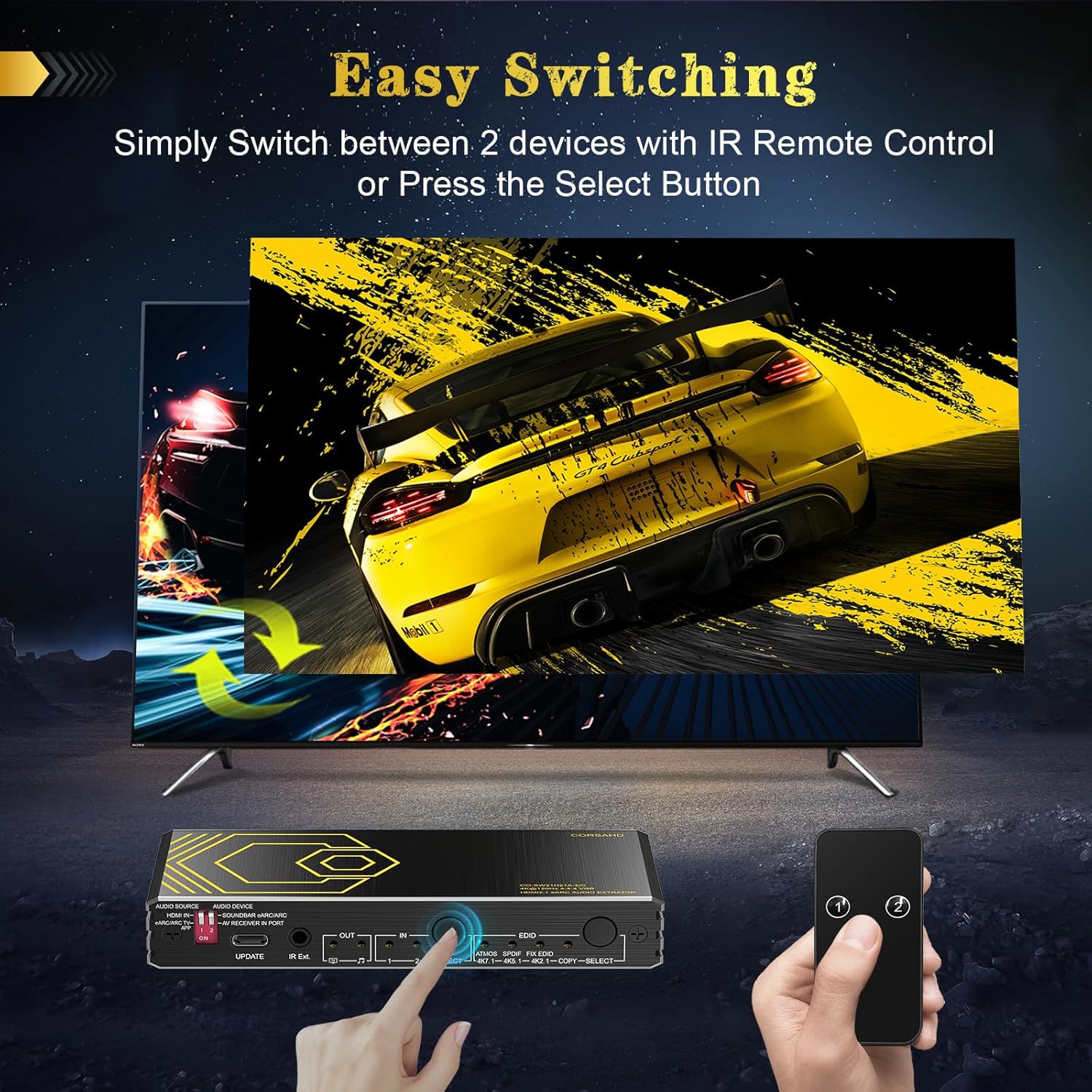
Image: A user interacting with the switch's select button and using the IR remote to switch between input sources, with the TV displaying the change.
4.2 Audio Output Selection (DIP Switches)
The device features DIP switches on the top panel to configure the audio source for extraction. These switches determine whether the audio is extracted from the HDMI input or from the eARC/ARC TV.

Image: A detailed diagram explaining the audio settings and the function of the DIP switches for selecting audio source and device type.
- DIP Switch 1 (Audio Source):
- ON: Audio output comes from the selected HDMI input. (e.g., gaming consoles, DVD players)
- OFF: Audio output comes from the eARC/ARC port of the TV (for TV apps).
- DIP Switch 2 (Audio Device):
- ON: Audio output connects to a Soundbar (eARC/ARC port).
- OFF: Audio output connects to an AV Receiver (input port).
Note for ARC Usage:
When using ARC, ensure both your TV and the audio device support ARC. You may need to switch to ARC under the Audio Out Select settings on your TV.
5. EDID Configuration
The EDID (Extended Display Identification Data) settings allow you to control how the switch communicates with your connected devices regarding supported video and audio formats. Use the "EDID SELECT" button on the front panel to cycle through the available modes.

Image: A table outlining the EDID settings and their corresponding functions, including Atmos/4K7.1, SPDIF/4K5.1, Fix EDID, and Copy EDID modes.
- ATMOS/4K7.1: Copies the TV's EDID, and audio will be Atmos/7.1Ch.
- SPDIF/4K5.1: Copies the TV's EDID, and audio will be 5.1Ch.
- FIX EDID/4K2.1: Video will be 4K@120Hz VRR, and audio will be Atmos/7.1Ch.
- COPY: EDID passthrough. The switch will copy the EDID from the connected display directly to the source.
6. Troubleshooting
If you encounter issues with your CORSAHD HDMI 2.1 Switch, please refer to the following common problems and solutions:
- No Video/Audio Output:
- Ensure all HDMI cables are securely connected to the correct ports.
- Verify that the correct HDMI input is selected on the switch (LED indicator should be lit).
- Check that your display is set to the correct HDMI input.
- Test with different HDMI 2.1 certified cables, especially if experiencing intermittent issues. Poor quality cables are a common cause of problems.
- Ensure the switch is receiving power via the USB cable.
- Intermittent Video/Audio Loss:
- Replace HDMI cables with high-quality, certified HDMI 2.1 cables, ideally under 10 feet (3 meters).
- Check for interference from other electronic devices.
- Ensure the power supply is stable.
- Try adjusting the EDID settings on the switch.
- Audio Not Working with Soundbar/Receiver:
- Verify the DIP switch settings for audio source and audio device are configured correctly for your setup (refer to Section 4.2).
- Ensure your soundbar/receiver is set to the correct input for the audio signal.
- If using ARC/eARC, confirm that both your TV and audio device support ARC/eARC and that the feature is enabled in their respective settings.
- Check the EDID settings on the switch to ensure compatibility with your audio setup.
- Resolution/Refresh Rate Issues (e.g., not getting 8K@60Hz or 4K@120Hz):
- Ensure all connected devices (source, switch, display) and cables are HDMI 2.1 compliant and support the desired resolution/refresh rate.
- Use certified HDMI 2.1 cables.
- Adjust the EDID settings on the switch, particularly the "FIX EDID/4K2.1" mode, if applicable.
- Check the display settings on your source device (e.g., PS5, Xbox) to ensure it is configured for the desired output.
- Remote Control Not Working:
- Ensure the IR receiver cable is properly plugged into the switch and positioned to receive signals.
- Check the battery in the remote control and replace if necessary.
- Ensure there are no obstructions between the remote and the IR receiver.
7. Specifications
| Feature | Detail |
|---|---|
| Brand | CORSAHD |
| Model | HDMI2.1 Switch 2 in 1 Out with Audio Extractor |
| Connector Type | HDMI 2.1, HDMI 2.0 |
| Cable Type | HDMI 2.1, HDMI 2.0 |
| Max Resolution | 8K@60Hz, 4K@120Hz, 5120x1440@120Hz, 1080P@240Hz |
| Color Depth | 4:4:4 8bit |
| Bandwidth | 48Gbps |
| HDCP Support | HDCP 2.2, HDCP 2.3 Bypass |
| HDR Support | HDR 10+, Dolby Vision |
| Other Video Features | VRR, ALLM, 3D |
| Audio Output Ports | HDMI/eARC/ARC Audio Out, Optical Toslink SPDIF 5.1Ch, AUX L/R 3.5mm 2.1Ch |
| Supported Audio Formats | ARC, Dolby Atmos, Dolby True HD, DTS-HD Master Audio, 5.1Ch, 2.1Ch |
| Power Supply | USB Powered (DC/5V) |
| Switching Method | Manual (Panel Button, IR Remote) |
| Dimensions | 7.36 x 6.34 x 1.77 inches |
| Item Weight | 15.2 ounces |
| Color | Black |
| Compatible Devices | PS5, Xbox, Nintendo Switch, Blu-Ray DVD, Graphics Card, 8K TV, Monitor, Projector, Speaker, ARC/eARC Soundbar |
8. Maintenance
To ensure the longevity and optimal performance of your CORSAHD HDMI 2.1 Switch, follow these maintenance guidelines:
- Cleaning: Use a soft, dry cloth to clean the exterior of the device. Avoid using liquid cleaners or abrasive materials.
- Ventilation: Ensure the device is placed in a well-ventilated area to prevent overheating. Do not block any ventilation openings.
- Cable Management: Keep cables organized and avoid sharp bends or excessive tension, which can damage cables and ports.
- Storage: If storing the device for an extended period, disconnect all cables and store it in a cool, dry place away from direct sunlight and extreme temperatures.
- Power: Always disconnect the power before cleaning or moving the device.
9. Warranty and Support
Information regarding product warranty and customer support was not available in the provided product data. Please refer to the product packaging or the manufacturer's official website for details on warranty coverage and how to contact customer support.