
Rii USK16+T
Contents
Rii K16 Bluetooth Keyboard User Manual
Model: USK16+T
Brand: Rii
Introduction
This manual provides detailed instructions for the Rii K16 Bluetooth Keyboard with Touch Pad. It covers setup, operation, maintenance, and troubleshooting to ensure optimal performance and longevity of your device.
Package Contents
- Rii K16 Bluetooth Keyboard
- USB Cable
- User Manual (this document)
Key Features
- Integrated Touchpad: Large touchpad with multi-function buttons for precise navigation.
- RGB Backlighting: 11 LED backlight colors for enhanced visibility in various lighting conditions.
- Multimedia Controls: 16 dedicated multimedia buttons for convenient control of media playback.
- Multi-Device Bluetooth Connectivity: Bluetooth 5.0 with support for connecting up to 3 devices simultaneously (BT1, BT2, BT3 channels).
- Rechargeable Battery: Built-in rechargeable battery providing extended working time.
- Wide Compatibility: Supports Android Tablet, iPad, iPhone, Windows 10/11, Android, Mac, PC, Desktop, Smart TV, Android TV Box, and Raspberry Pi.
- Durable Design: Aluminium alloy case with non-slip rubber feet and scissors keys for stable and comfortable typing.
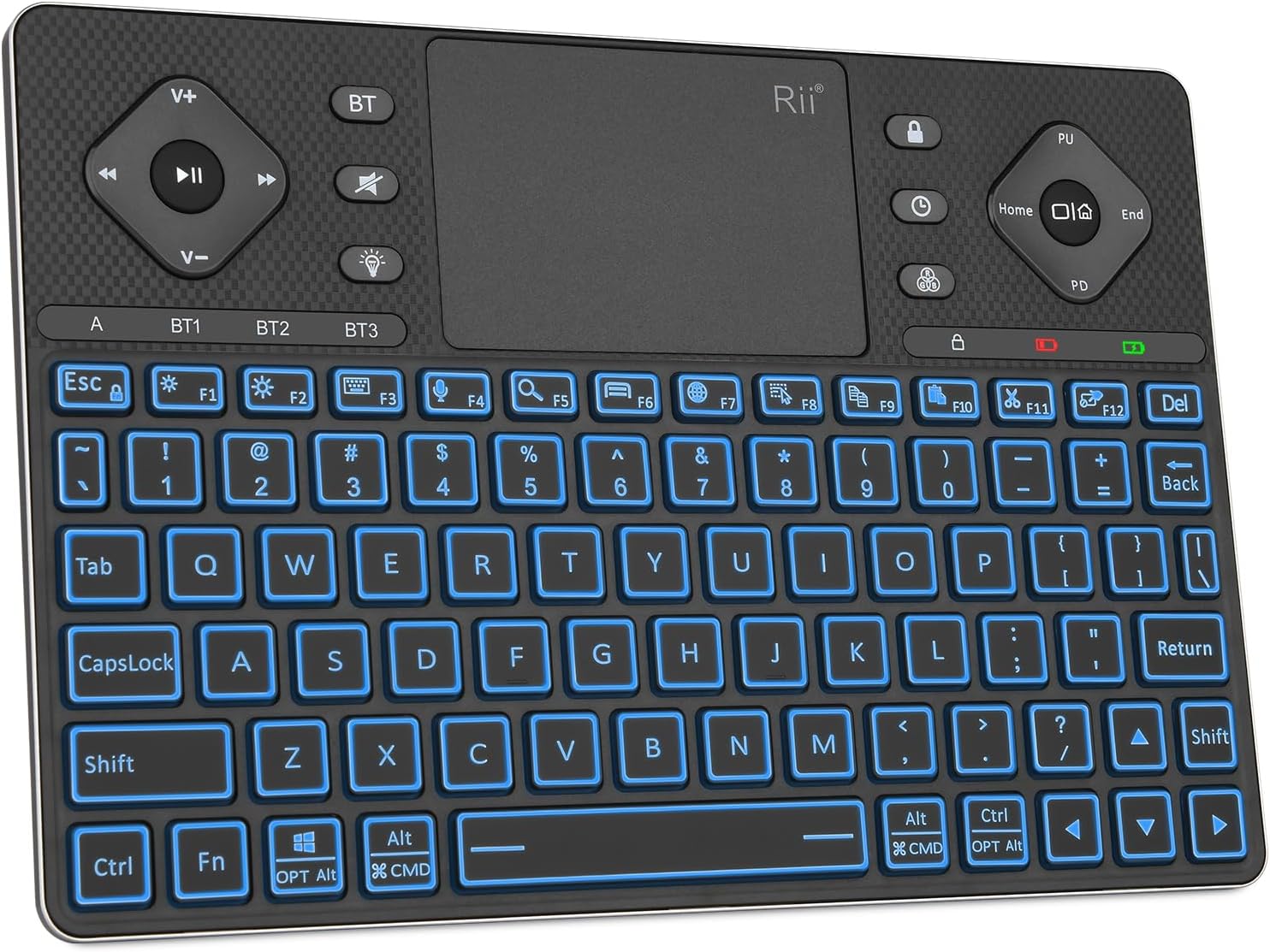
Image: Rii K16 Bluetooth Keyboard, showcasing its compact design, RGB backlighting, and integrated touchpad.

Image: The Rii K16 keyboard demonstrating its ability to connect to multiple devices simultaneously, including laptops, tablets, and smartphones.

Image: A close-up view of the Rii K16 keyboard's large touchpad, highlighting its multi-function buttons for Bluetooth connection, mute, backlight control, and RGB color switching.

Image: The Rii K16 keyboard displaying its vibrant RGB backlighting with various color options, enhancing visibility and aesthetic appeal.

Image: A side view of the Rii K16 keyboard, illustrating its reliable construction with a matte coating, scissors keys, aluminum metal case, and non-slip rubber feet.

Image: The Rii K16 keyboard connected via USB-C for charging, showing the low battery (red) and charging (green) indicators, along with battery life statistics.

Image: The Rii K16 keyboard positioned next to a laptop, emphasizing its wide compatibility with various devices including tablets, iPads, laptops, and mobile phones.
Setup Guide
Charging the Keyboard
Before first use, fully charge the keyboard using the provided USB cable. The charging indicator will show green when charging and turn off when fully charged. A red indicator signifies low battery.
Charging Time: Approximately 1.5 hours
Continuous Working Time: Up to 48 hours (with RGB backlight)
Standby Time: Up to 21 days
Bluetooth Connection
- Ensure the keyboard is charged and powered on.
- Long press the BT button for 3 seconds until the Bluetooth indicator flashes rapidly. This indicates the keyboard is in pairing mode.
- On your device (e.g., Android TV, tablet, PC), navigate to the Bluetooth settings and search for available devices.
- Select "Rii K16+" from the list of found devices to establish the connection.
- Once connected, the Bluetooth indicator on the keyboard will stop flashing.
Video: This video demonstrates the process of connecting the Rii K16 Bluetooth Keyboard to a device. It shows how to activate pairing mode and switch between Bluetooth channels.
Switching Bluetooth Channels
The Rii K16 keyboard supports connecting to up to three different devices simultaneously. To switch between connected devices:
- Press the BT button briefly to cycle through the BT1, BT2, and BT3 channels.
- The corresponding indicator (BT1, BT2, or BT3) will illuminate to show the active channel.
Operating Instructions
Touchpad Usage
The large multi-points touchpad supports various gestures for navigation and control:
- Single Finger Tap: Left-click.
- Two Finger Tap: Right-click.
- Two Finger Scroll: Scroll up or down.
- Pinch to Zoom: Zoom in or out (if supported by the connected device).
- Dedicated Left/Right Click Buttons: Located below the touchpad for traditional mouse clicks.
Image: A close-up view of the Rii K16 keyboard's large touchpad, highlighting its multi-function buttons for Bluetooth connection, mute, backlight control, and RGB color switching.
Backlight Control
The keyboard features 11 LED backlight colors and adjustable brightness:
- Press the 💡 (light bulb) button to turn the backlight on/off or adjust brightness levels.
- Press the 🌈 (RGB icon) button to cycle through the 11 available backlight colors.
- Press the ⏰ (clock icon) button to switch the backlight time.
Image: The Rii K16 keyboard displaying its vibrant RGB backlighting with various color options, enhancing visibility and aesthetic appeal.
Multimedia Keys
The keyboard includes 16 dedicated multimedia keys for quick access to common functions:
- Volume Up/Down: Adjust audio volume.
- Play/Pause: Control media playback.
- Previous/Next Track: Navigate through media.
- Mute: Mute audio output.
- Other function keys (F1-F12) may have additional multimedia or system control functions depending on the connected device.
Power Saving Mode
To conserve battery life, the keyboard will enter sleep mode if there is no operation for 10 minutes. Press any key to wake it up.
Maintenance
- Cleaning: Use a soft, dry cloth to clean the keyboard surface. For stubborn dirt, a slightly damp cloth can be used, ensuring no liquid enters the device.
- Storage: Store the keyboard in a cool, dry place away from direct sunlight and extreme temperatures.
- Battery Care: Avoid fully discharging the battery frequently. Charge the keyboard regularly to maintain battery health.
- Avoid Liquids: Do not expose the keyboard to water or other liquids.
- Handle with Care: Avoid dropping or subjecting the keyboard to strong impacts.
Troubleshooting
Keyboard Not Connecting via Bluetooth
- Check Battery: Ensure the keyboard is sufficiently charged.
- Re-enter Pairing Mode: Long press the BT button for 3 seconds until the indicator flashes rapidly.
- Device Bluetooth: Ensure Bluetooth is enabled on your device and it is discoverable.
- Forget Device: If previously paired, try "forgetting" the keyboard on your device and re-pairing.
- Interference: Move away from other wireless devices that might cause interference.
Keys Not Responding
- Recharge: The battery might be too low.
- Re-connect: Disconnect and reconnect the Bluetooth connection.
- Clean Keys: Ensure no debris is lodged under the keys.
Backlight Not Working
- Check Battery: Backlight intensity may decrease or turn off if the battery is low.
- Press Light Button: Ensure the backlight is turned on using the light bulb button.
Touchpad Not Responding
- Clean Touchpad: Ensure the touchpad surface is clean and free of obstructions.
- Re-connect: Disconnect and reconnect the Bluetooth connection.
- Device Settings: Check touchpad settings on your connected device.
Specifications
| Feature | Detail |
|---|---|
| Model Number | USK16+T |
| Product Dimensions | 9.5 x 6.5 x 0.5 inches |
| Item Weight | 13.8 ounces |
| Connectivity Technology | Bluetooth 5.0 |
| Number of Keys | 78 |
| Backlighting | RGB (11 colors) |
| Battery Type | 1 Lithium Ion (included) |
| Manufacturer | Rii |
| Compatible Devices | Tablet, iPad, iPhone, Windows 10/11, Android, Mac, PC, Desktop, Smart TV, Android TV Box, Raspberry Pi |
Warranty and Support
Rii provides a 12-month warranty for this product. For any issues or inquiries, please contact Rii customer service. Support is available 7 days a week, 24 hours a day.
For further assistance, please refer to the contact information provided on the Rii official website or your purchase documentation.
Ask a question about this manual
Ask about setup, troubleshooting, compatibility, parts, safety, or missing instructions. Manuals+ will review the question and use this page’s manual context to help answer it.