
1. Introduction
Thank you for choosing the AILKIN Z04-HEI 1200Mbps Dual Band WiFi Repeater. This device is designed to extend your existing wireless network coverage, eliminate Wi-Fi dead zones, and provide a stable, high-speed internet connection throughout your home or office. Featuring dual-band technology (2.4GHz and 5GHz) and four high-gain antennas, it ensures robust signal penetration and broad compatibility with various Wi-Fi standards and devices.

Image: The AILKIN Z04-HEI WiFi Repeater shown extending Wi-Fi coverage, highlighting its dual-band 1200Mbps capability.
2. Package Contents
Please verify that all items are present in your package:
- 1 x AILKIN Z04-HEI WiFi Repeater
- 1 x User Manual (this document)
3. Features
- Dual Band Connectivity: Supports both 2.4GHz (for wider coverage) and 5GHz (for higher speed) bands, with WiFi speeds up to 1200Mbps.
- High-Gain Antennas: Equipped with 4 powerful external antennas for strong signal penetration through walls and extended coverage.
- WPS Function: Simple one-touch setup for quick connection to your main router.
- Gigabit LAN/WAN Port: Allows for wired connections to devices like PCs, smart TVs, or gaming consoles.
- Wide Compatibility: Compatible with IEEE 802.11ac/a/b/g/n standards and supports Wi-Fi 4, Wi-Fi 5, and Wi-Fi 6 routers.
- Smart Home Integration: Connects simultaneously to over 20 wireless devices, including iPads, laptops, mobile phones, IP cameras, printers, and Alexa devices.
- Reset Function: Easy factory reset option available.

Image: The AILKIN Z04-HEI WiFi Repeater showcasing its 4 powerful antennas, dual-band capability, 1200Mbps speed, and wall penetration.

Image: Visual representation of the repeater's strong wall penetration capability and speed improvements up to 1200Mbps.

Image: Illustration of the dual-band functionality, showing 2.4GHz (300Mbps) for general use and 5GHz (867Mbps) for high-bandwidth activities like 4K streaming and gaming.
4. Setup
4.1 Placement Considerations
For optimal performance, place the AILKIN Z04-HEI WiFi Repeater in an area where your main router's Wi-Fi signal is still strong. This ensures the repeater receives a good signal to extend. Avoid placing it in areas with thick walls, metal objects, or other electronic devices that may cause interference. Ideally, the repeater should be within 10 meters of your main router.

Image: A house diagram illustrating how to strategically place the WiFi repeater to extend the existing WiFi signal throughout different areas and floors.
4.2 Quick Setup using WPS Button
- Plug the AILKIN Z04-HEI WiFi Repeater into a power outlet near your main router.
- Wait for the power indicator light to stabilize.
- Press the WPS button on your main router.
- Within 2 minutes, press the WPS button on the AILKIN Z04-HEI WiFi Repeater.
- The repeater's indicator lights will flash and then stabilize, indicating a successful connection.
- You can now unplug the repeater and move it to your desired location within the extended Wi-Fi coverage area.

Image: The AILKIN Z04-HEI WiFi Repeater, highlighting the WPS button for quick and easy one-click setup.
4.3 Manual Setup (via Web Browser)
If WPS setup is not preferred or available, you can configure the repeater via a web browser. Refer to the detailed instructions provided in the full manual (if available) or contact support for specific steps, as the default IP address and login credentials may vary.
5. Operating Modes
The AILKIN Z04-HEI WiFi Repeater supports multiple operating modes to suit your networking needs:
5.1 Repeater Mode (Wireless to Wireless)
In this mode, the device extends the range of your existing wireless network. It connects wirelessly to your main router and broadcasts an extended Wi-Fi signal, making your network accessible in previously uncovered areas. This is ideal for expanding Wi-Fi coverage for mobile devices like phones, tablets, and laptops.
5.2 Access Point (AP) Mode (Wireless to Wired)
When connected to your main router via an Ethernet cable (using the LAN/WAN port), the repeater functions as an Access Point. It creates a new wireless network, converting a wired connection into a wireless one. This is useful for providing Wi-Fi to devices in a specific area or for connecting wired devices to your network.
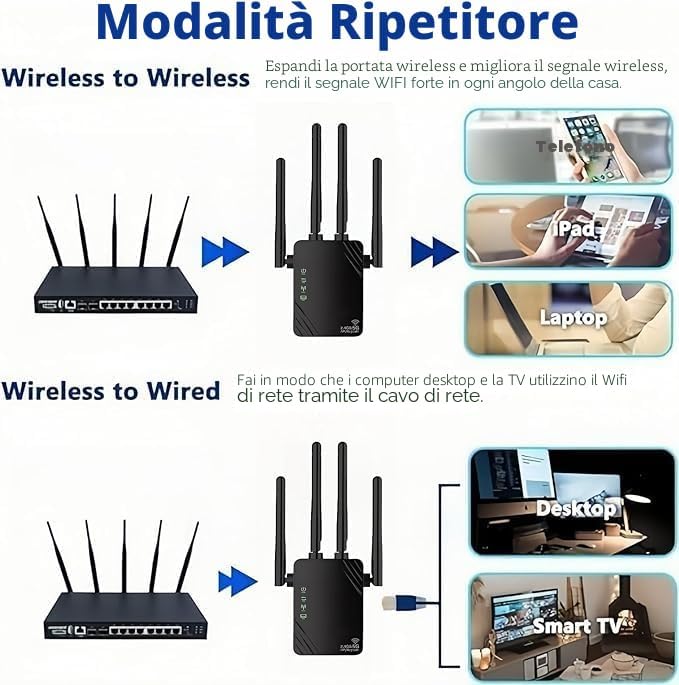
Image: Visual explanation of the Repeater Mode (Wireless to Wireless) for extending Wi-Fi to mobile devices and the Wireless to Wired mode for connecting desktop PCs and smart TVs via an Ethernet cable.
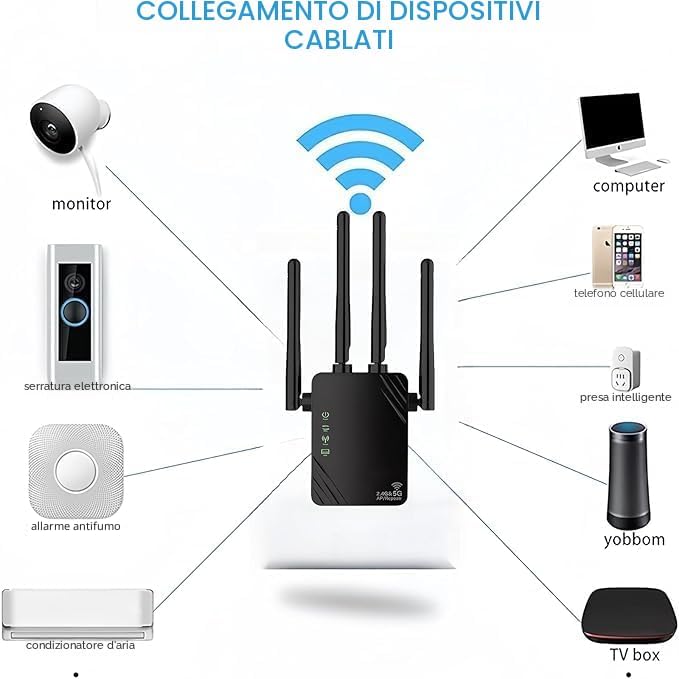
Image: An illustration demonstrating how the repeater can connect various wired devices such as monitors, computers, smart plugs, smoke alarms, air conditioners, and TV boxes to the network.
6. Troubleshooting
If you encounter issues with your AILKIN Z04-HEI WiFi Repeater, please refer to the following common problems and solutions:
- No Signal / Cannot Connect:
- Incorrect WiFi Password: Ensure the entered WiFi password for your main router is correct during setup.
- No Network Source: If the repeater connects but has no internet access, restart the repeater and your main router.
- Installation Distance: The repeater must be installed within your main router's effective WiFi coverage area. If it's too far (e.g., more than 10 meters), it may not receive a strong enough signal to extend. Relocate the repeater closer to the router.
- Repeater Not Functioning / Indicator Light Off:
- Power Cycle: Unplug the repeater from the power outlet, wait 3-5 minutes, then plug it back in. The repeater has a memory function and should automatically reconnect to the WiFi network.
- Router Signal Issue: Ensure your main router is powered on and broadcasting a signal.
- Overheating: Prolonged continuous operation can sometimes lead to issues. Allow the device to cool down if it feels warm.
- If the Repeater has a Pre-set Password:
- Restart the device. Then, search for the repeater's WiFi network (e.g., 'wifi-XXX'), disconnect from it, and then reconnect.
- If you still encounter password issues, refer to the device's default password (usually found on a label on the device) or perform a factory reset.
7. Specifications
| Brand | AILKIN |
| Model Number | Z04-HEI |
| Wireless Standard | 802.11ac (compatible with a/b/g/n, Wi-Fi 4/5/6) |
| Data Transfer Rate | Up to 1200 Mbps |
| Frequency Bands | 2.4 GHz and 5 GHz |
| Range | 80-100 meters (extended area) |
| Antennas | 4 External High-Gain Antennas |
| Ports | 1 x Gigabit LAN/WAN Port |
| Color | Black |
| Compatible Devices | Devices with Wi-Fi functionality supporting IEEE 802.11ac/a/b/g/n standards |
| UPC | 797999227111 |
8. Maintenance
To ensure the longevity and optimal performance of your AILKIN Z04-HEI WiFi Repeater, follow these maintenance guidelines:
- Keep Clean: Regularly wipe the device with a soft, dry cloth to remove dust. Ensure ventilation holes are not blocked.
- Avoid Extreme Conditions: Do not expose the device to extreme temperatures, humidity, or direct sunlight.
- Proper Ventilation: Ensure the repeater is placed in a location with adequate airflow to prevent overheating.
- Reset Function: If the device becomes unresponsive or experiences persistent issues, perform a factory reset as described in Section 3. This can resolve many software-related problems.
9. Warranty and Support
9.1 Product Warranty
The AILKIN Z04-HEI WiFi Repeater comes with a 1-year warranty from the date of purchase. This warranty covers manufacturing defects and malfunctions under normal use. Please retain your proof of purchase for warranty claims.
9.2 Customer Support
If you have any questions, require technical assistance, or encounter issues not covered in this manual, please contact AILKIN customer support. Refer to the contact information provided with your product packaging or visit the official AILKIN website for support options.

Image: An infographic illustrating the after-sales service process, including initiating contact, describing the problem, and problem resolution.