
Introduction
The Logickeyboard 'Titan' is a wireless backlit keyboard designed for composing and editing in Logic Pro. It features backlit keys and a dual-connectivity system, allowing for both wireless and wired connections. This manual provides instructions for setting up, operating, and maintaining your 'Titan' keyboard.

Image: The Logickeyboard 'Titan' Wireless Backlit Keyboard, showcasing its full layout and design.
Setup
Charging the Battery
The 'Titan' keyboard includes a rechargeable lithium-ion battery for wireless operation. Before first use, fully charge the keyboard using the provided USB-C cable. Connect the USB-C end to the keyboard and the other end to a compatible USB power source (e.g., computer USB port, USB wall adapter).
A full charge provides up to 300 hours of use with the backlit keys off. The battery indicator light will show charging status.
Connecting the Keyboard
The 'Titan' keyboard supports dual connectivity: wireless (Bluetooth) and wired (USB-C).
Wireless Connection (Bluetooth)
- Ensure the keyboard is charged.
- Press the F18 key to activate Bluetooth mode. The Bluetooth indicator light will blink.
- On your Mac, go to System Settings (or System Preferences) > Bluetooth.
- Select the 'Titan' keyboard from the list of available devices and click Connect.
- The Bluetooth indicator light on the keyboard will become solid when connected.
- The keyboard can connect to two Macs, one wirelessly and one wired, allowing for easy switching.
Wired Connection (USB-C)
- Connect the provided USB-C cable to the keyboard's USB-C port.
- Connect the other end of the USB-C cable to a compatible USB port on your Mac.
- The keyboard will automatically switch to wired mode. The wired indicator light (F19) will illuminate.
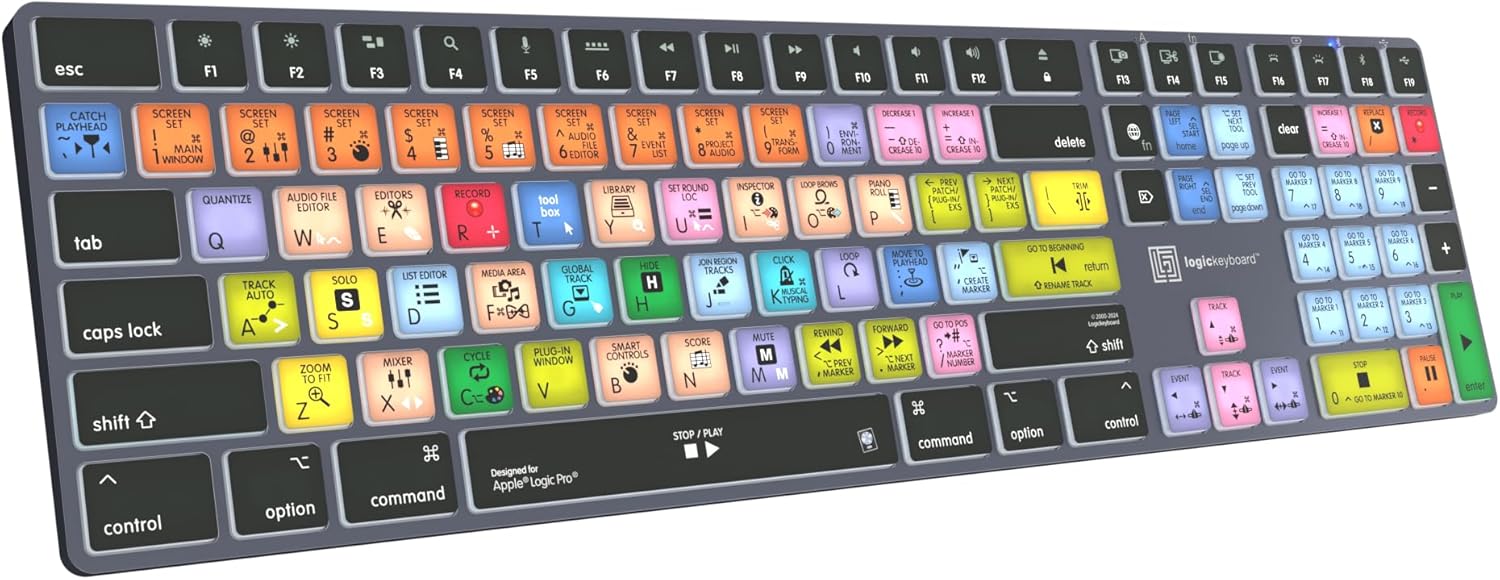
Image: Angled view of the Logickeyboard 'Titan', highlighting the key layout and design.
Operating Instructions
Backlit Keys
The 'Titan' keyboard features backlit keys with 5 adjustable brightness levels. This allows for comfortable use in various lighting conditions.
- To decrease the brightness, press the F16 key.
- To increase the brightness, press the F17 key.
Video: Official product video demonstrating the features of the 'Titan' Logickeyboard, including backlit keys and dual connectivity.
Logic Pro Shortcuts
The 'Titan' keyboard is designed with over 100 Logic Pro shortcuts visualized directly on the keys. These shortcuts are color-coded and labeled to streamline your workflow and reduce reliance on menu navigation.
- Familiarize yourself with the key legends for common Logic Pro functions such as Record, Play, Stop, Mixer, Media Area, and more.
- Many keys have multiple functions, often accessed by holding modifier keys like Shift, Control, Option, or Command. Refer to the key legends for specific combinations.

Image: A close-up view of the 'Titan' keyboard keys, showing the color-coded Logic Pro shortcuts and labels.
Switching Connectivity
To switch between wireless (Bluetooth) and wired (USB-C) connections, simply connect or disconnect the USB-C cable. The keyboard will automatically detect the connection type.
If you have two Macs, you can connect one wirelessly and the other via USB-C, switching between them by connecting/disconnecting the cable from the wired Mac.
Maintenance
Cleaning
To clean your keyboard, gently wipe the surface with a soft, lint-free cloth. For stubborn dirt, slightly dampen the cloth with water or a mild, non-abrasive cleaning solution. Avoid excessive moisture and do not spray cleaners directly onto the keyboard.
Ensure the keyboard is powered off or disconnected before cleaning.
Battery Care
To prolong battery life, avoid fully discharging the battery frequently. Recharge the keyboard when the battery indicator shows low power. If storing the keyboard for an extended period, charge it to approximately 50% before storage and recharge every few months.
Troubleshooting
Keyboard Not Responding
- Check Battery: Ensure the keyboard battery is charged. Connect the USB-C cable to charge.
- Check Connection:
- For wireless connection, verify Bluetooth is enabled on your Mac and the keyboard is paired. Try re-pairing if necessary.
- For wired connection, ensure the USB-C cable is securely connected to both the keyboard and your Mac. Try a different USB port or cable.
- Restart: Restart your Mac and the keyboard (if applicable, by cycling power or re-connecting).
Backlight Not Working or Dim
- Adjust Brightness: Use the F16 and F17 keys to adjust the backlight brightness.
- Battery Level: Low battery can affect backlight performance. Charge the keyboard.
Keys Not Functioning Correctly
- Clean Keys: Ensure no debris is lodged under the keys.
- Test Connection: Try both wired and wireless connections to determine if the issue is connection-specific.
- Software Interference: Ensure no other software or system settings are interfering with keyboard input.
Specifications
| Feature | Detail |
|---|---|
| Product Dimensions | 16.93 x 4.69 x 0.51 inches |
| Item Weight | 1.28 pounds |
| Manufacturer | Logickeyboard |
| Model Number | LKB-LOGXP2-TM-US |
| Batteries | 1 Lithium Ion battery (included) |
| Connectivity Technology | USB-C, Wireless (Bluetooth) |
| Compatible Devices | Logic Pro Software, Mac |
| Special Features | Backlit, Rechargeable, Wireless |
| Keyboard Backlighting Color | Single Color |
| Material | Plastic |
What's in the Box
- Logickeyboard 'Titan' Wireless Backlit Keyboard
- USB Cable (USB-C to USB-A)
Warranty and Support
For warranty information and technical support, please refer to the official Logickeyboard website or contact their customer service. Keep your purchase receipt for warranty claims.
For further assistance, visit: www.logickeyboard.com


