
1. Introduction
The Logickeyboard Wireless Backlit 'Titan' is an advanced keyboard engineered to enhance your workflow in Adobe Premiere Pro on Mac. Featuring dedicated color-coded shortcut keys, adjustable backlighting, and dual connectivity options, this keyboard is designed for efficiency and comfort in professional video editing environments.
This manual will guide you through getting started with your new keyboard and maximizing its potential.
2. Package Contents
Please ensure all items are present in your package:
- Logickeyboard Wireless Backlit 'Titan' Keyboard
- USB-C to USB-C Charging Cable
- Cleaning Tissue
- Instruction Manual (this document)
- Warranty Information
3. Setup
3.1. Charging the Keyboard
Before initial use, fully charge your keyboard. The 'Titan' keyboard features a long-lasting rechargeable lithium-ion battery.
- Locate the USB-C port on the back edge of the keyboard.
- Connect one end of the provided USB-C cable to the keyboard's USB-C port.
- Connect the other end of the USB-C cable to a powered USB-C port on your Mac or a compatible USB wall adapter.
- The LED indicator near the USB-C port will illuminate to indicate charging status. It will turn green when fully charged.
3.2. Connecting to Devices
The 'Titan' keyboard offers dual connectivity, allowing you to switch between wireless (Bluetooth) and wired (USB-C) connections.
3.2.1. Wireless Connection (Bluetooth)
You can connect up to three Mac devices wirelessly via Bluetooth.
- Ensure the keyboard is charged and powered on using the switch on the back edge.
- On your Mac, go to System Settings > Bluetooth.
- On the keyboard, press and hold one of the Easy-Switch keys (F13, F14, or F15) for 3 seconds until the LED above the key starts blinking rapidly. This indicates pairing mode.
- On your Mac, select the 'Titan' keyboard from the list of available Bluetooth devices.
- Once connected, the LED above the Easy-Switch key will glow solid for 5 seconds.
- Repeat these steps for up to two additional devices using the other Easy-Switch keys.
3.2.2. Wired Connection
For a direct and reliable connection, use the provided USB-C cable.
- Connect one end of the USB-C cable to the keyboard's USB-C port.
- Connect the other end of the USB-C cable to a USB-C port on your Mac.
- The keyboard will automatically switch to wired mode and begin charging.
3.3. Software Installation (Logi Options+)
For advanced customization of your keyboard's functions, including programmable keys and smart illumination settings, download and install the Logi Options+ software from the official Logickeyboard website. This software allows you to tailor the keyboard to your specific workflow in Adobe Premiere Pro.
4. Operating Instructions
4.1. Key Layout and Functions
The 'Titan' keyboard features a standard Mac layout with additional color-coded keys specifically designed for Adobe Premiere Pro shortcuts. These shortcuts are printed directly on the keys to facilitate faster editing.
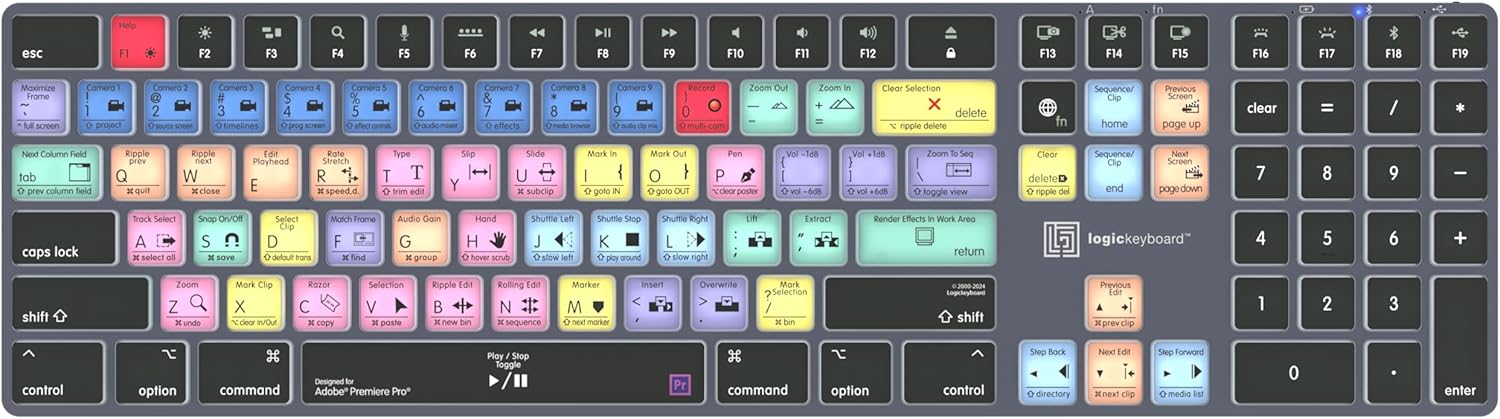
Familiarize yourself with the color-coding system:
- Keys with specific colors indicate their function within Adobe Premiere Pro.
- Standard Mac function keys (e.g., brightness, volume) are also present.
- The keyboard features low-profile chiclet-style keys for comfortable and precise typing.
4.2. Backlighting
The 'Titan' keyboard includes smart backlighting that automatically adjusts to your lighting conditions. The illumination is dimmable in 5 levels.
- The backlighting automatically activates when your hands approach the keyboard.
- Use the dedicated brightness control keys (usually F5 and F6 or similar function keys) to manually adjust the backlighting intensity.
4.3. Dual Connectivity Switching
To switch between up to three paired Bluetooth devices or to the wired connection:
- Press the F13, F14, or F15 Easy-Switch key corresponding to the device you wish to use. The LED above the selected key will illuminate.
- If connected via USB-C cable, the keyboard will prioritize the wired connection.
4.4. Optimizing Workflow with Adobe Premiere Pro
The color-coded keys provide immediate visual cues for common Adobe Premiere Pro functions, significantly speeding up your editing process. Utilize the pre-assigned shortcuts to navigate timelines, apply effects, and perform edits without extensive menu navigation.
5. Maintenance and Care
5.1. Cleaning
To maintain the keyboard's appearance and functionality:
- Use the provided cleaning tissue or a soft, lint-free cloth.
- Gently wipe the keycaps and keyboard surface.
- Avoid using harsh chemicals, abrasive cleaners, or excessive moisture.
5.2. Battery Care
To prolong battery life:
- Charge the keyboard regularly, especially when the battery indicator is low.
- Avoid exposing the keyboard to extreme temperatures.
- If storing the keyboard for an extended period, ensure it is partially charged (around 50%) and power it off.
6. Troubleshooting
If you encounter issues with your keyboard, refer to the following common solutions:
- Keyboard not connecting wirelessly: Ensure Bluetooth is enabled on your Mac, the keyboard is charged, and it is in pairing mode (blinking LED on F13/F14/F15). Try re-pairing the device.
- Backlighting not working: Check the battery level. Ensure smart illumination is enabled or adjust brightness manually using the function keys.
- Keys not responding: Try connecting the keyboard via USB-C cable to rule out wireless interference or battery issues. Restart your Mac.
- Incorrect key functions: Verify that the Logi Options+ software is installed and configured correctly for Adobe Premiere Pro. Ensure the correct device profile is active.
For further assistance, consult the Logickeyboard support website.
7. Specifications
| Feature | Detail |
|---|---|
| Model Number | LKB-PPROCC-TM-US |
| Product Dimensions | 16.93 x 4.69 x 0.51 inches |
| Item Weight | 1.28 pounds |
| Connectivity Technology | USB-C, Wireless (Bluetooth) |
| Special Feature | Backlit, Rechargeable, Wireless |
| Compatible Devices | Adobe Premiere Pro Software, Mac |
| Batteries | 1 Lithium Ion battery (included) |
8. Warranty and Support
Your Logickeyboard Wireless Backlit 'Titan' keyboard is covered by a manufacturer's warranty. Please refer to the included warranty information card for details regarding coverage, terms, and conditions.
For technical support, product registration, or to access additional resources, please visit the official Logickeyboard website or contact their customer service.


