

1. Introduction
This manual provides essential instructions for the setup, operation, and maintenance of your OPPO 5G CPE T2 router. The OPPO 5G CPE T2 is designed to provide ultra-fast 5G connectivity, supporting dual-mode SA/NSA 5G and global frequency bands. It features the Snapdragon X62 5G modem and RF system, along with Wi-Fi 6 technology for robust wireless performance.
2. Package Contents
Verify that all items are present in your product package:
- OPPO 5G CPE T2 Router (x1)
- Ethernet Cable (1.5m) (x1)
- Power Adapter (x1)
- Quick Start Guide (x1)
- Warranty Card (x1)
3. Product Overview
The OPPO 5G CPE T2 integrates advanced networking capabilities. It features the self-developed O-Reserve 2.0 5G Intelligent Antenna technology for stable 5G signal reception and Wi-Fi 6 (AX5400) for enhanced wireless performance. The device includes essential ports for connectivity.

Side view of the router, highlighting the power button, WPS button, two Gigabit Ethernet ports (LAN1/WAN, LAN2), and the power input port.
- Power Button: Used to turn the device on or off.
- WPS Button: For quick and secure Wi-Fi connection setup.
- LAN1/WAN Port: Gigabit Ethernet port, functions as either a LAN port or a WAN port for external internet sources.
- LAN2 Port: Additional Gigabit Ethernet port for wired connections.
- Power Port: Connects to the included power adapter.
- Indicator Lights: Display device status, network mode, and signal strength.
4. Setup Instructions
Follow these steps to set up your OPPO 5G CPE T2 router:
- Insert SIM Card: Locate the Nano-SIM card slot, typically at the bottom of the device. Insert your Zen SIM card into the slot until it clicks into place. Ensure the SIM card is correctly oriented.
- Connect Power: Connect the power adapter to the router's power port and then plug it into a power outlet. The router will automatically power on.
- Power On: If the router does not power on automatically, press the power button on the side of the device.
- Indicator Check: Observe the indicator lights on the front panel. The 'Network' indicator should show a stable light, indicating a successful 5G connection.
- Connect Devices:
- Wi-Fi: Find the Wi-Fi network name (SSID) and password printed on the label at the bottom of the router. Connect your devices (smartphones, tablets, PCs) to this Wi-Fi network.
- Ethernet: For wired connections, connect an Ethernet cable from the router's LAN1 or LAN2 port to your computer or other network device.
- Access Management Page: Open a web browser on a connected device and enter the default management page address (e.g., http://oppowifi.com). Use the default username and password (typically 'admin' for both, as indicated on the bottom label) to log in and configure advanced settings.
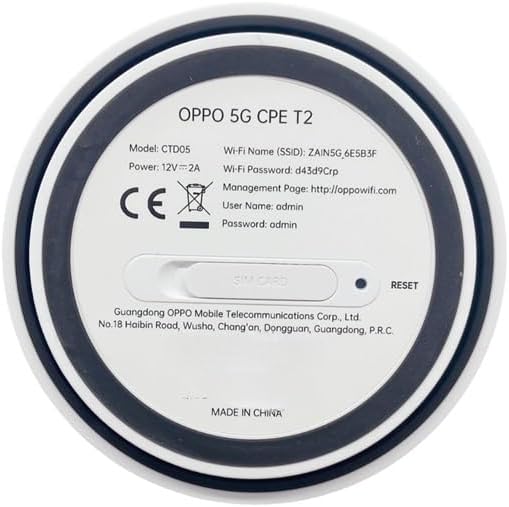
Bottom view of the router, illustrating the Nano-SIM card slot and the recessed reset button.
5. Operating Instructions
Once set up, your OPPO 5G CPE T2 router provides high-speed internet access. Here are key operational aspects:
- 5G Connectivity: The router automatically connects to the available 5G network. The O-Reserve 2.0 5G Intelligent Antenna technology optimizes signal reception for a stable connection.
- Wi-Fi 6 (AX5400): Utilize the advanced Wi-Fi 6 standard for faster speeds, lower latency, and increased capacity for multiple connected devices. The router employs OPPO Wi-Fi Channel Improvement technology to adapt to channel environments.
- Dual-Band Wi-Fi: The router supports both 2.4GHz and 5GHz Wi-Fi bands, allowing you to connect devices to the most suitable frequency for optimal performance.
- Wired Connections: Use the Gigabit Ethernet ports for high-speed wired connections to devices like desktop computers, gaming consoles, or smart TVs.
- Compatible Devices: The router is compatible with a wide range of devices including personal computers, security cameras, smart televisions, smartphones, and tablets.
6. Maintenance
Proper maintenance ensures the longevity and optimal performance of your OPPO 5G CPE T2 router:
- Cooling System: The router features a new generation cooling system with improved heat dissipation efficiency. Ensure adequate ventilation around the device to prevent overheating. Avoid placing it in enclosed spaces or near heat sources.
- Cleaning: Regularly clean the exterior of the router with a soft, dry cloth. Do not use liquid cleaners or aerosols.
- Environmental Responsibility: The device incorporates PCR (Post-Consumer Recycled) materials to reduce carbon emissions. Dispose of the product responsibly according to local regulations.
- Firmware Updates: Periodically check the router's management page for available firmware updates. Keeping the firmware updated can improve performance, security, and add new features.

Internal diagram showing the airflow and heat dissipation mechanism of the router's cooling system.
7. Troubleshooting
If you encounter issues with your OPPO 5G CPE T2 router, refer to the following common problems and solutions:
- No Internet Connection / Frequent Disconnections:
- Ensure the Zen SIM card is correctly inserted and active.
- Check the 'Network' indicator light on the router. If it's not stable, try repositioning the router for better signal reception.
- Restart the router by unplugging the power adapter, waiting 10 seconds, and plugging it back in.
- Log in to the management page (http://oppowifi.com) to check the 5G connection status and network settings.
- Wi-Fi Not Visible or Unable to Connect:
- Verify that the Wi-Fi function is enabled via the management page.
- Ensure you are entering the correct Wi-Fi SSID and password.
- Try pressing the WPS button on the router and then on your device to establish a connection.
- Slow Internet Speed:
- Check the 5G signal strength indicated on the router or via the management page. Weak signal can lead to slower speeds.
- Ensure your connected devices are Wi-Fi 6 compatible to fully utilize the router's capabilities.
- Reduce the number of active devices or bandwidth-intensive applications.
- Resetting the Router: If issues persist, you may perform a factory reset. With the router powered on, use a pin to press and hold the recessed 'RESET' button (located near the SIM slot on the bottom) for approximately 5-10 seconds until the indicator lights change. This will restore the router to its factory default settings, including Wi-Fi name and password.
8. Specifications
| Model Name | OPPO 5G CPE T2 |
| Item Model Number | CTD05 |
| Package Dimensions | 29 x 14.5 x 11.5 cm |
| Weight | 1.5 kg |
| Connectivity Technology | 5G, Ethernet, Wi-Fi |
| Wireless Communication Standard | 802.11ax (Wi-Fi 6) |
| Frequency Band Class | Dual-Band |
| Antenna Type | Internal |
| Special Features | Access Point Mode, Internet Security, QoS, Remote Access, Weatherproof |
| Compatible Devices | Personal Computer, Security Camera, Smart Television, Smartphone, Tablet |
| SIM Card Slot | 1 x Nano-SIM (Supports Zen SIM only) |
| Ethernet Ports | 2 x Gigabit Ethernet Ports (LAN1/WAN, LAN2) |
9. Warranty and Support
Your OPPO 5G CPE T2 router comes with a standard manufacturer's warranty. Please refer to the included Warranty Card for specific terms and conditions, including warranty period and coverage details. For technical support, troubleshooting assistance beyond this manual, or service inquiries, please contact OPPO customer support through their official website or designated service channels.