
VHXSIN X96mini android tv box
Contents
User Manual for VHXSIN X96 Mini Android TV Box
Model: X96mini android tv box
Introduction
The VHXSIN X96 Mini Android TV Box is a streaming media player designed to transform your television into a smart entertainment hub. Equipped with an Amlogic S905W Quad-Core processor, 2GB RAM, and 16GB ROM, it supports 4K video playback, dual-band Wi-Fi, and a variety of multimedia formats. This manual provides essential information for setting up, operating, and maintaining your device.
Package Contents
Please verify that all items are present in the package:
- 1 x X96 Mini TV Box
- 1 x Power Adapter
- 1 x Remote Control
- 1 x HD Cable
- 1 x User Manual (this document)

Product Overview
The X96 Mini TV Box features a compact design with various ports for connectivity.
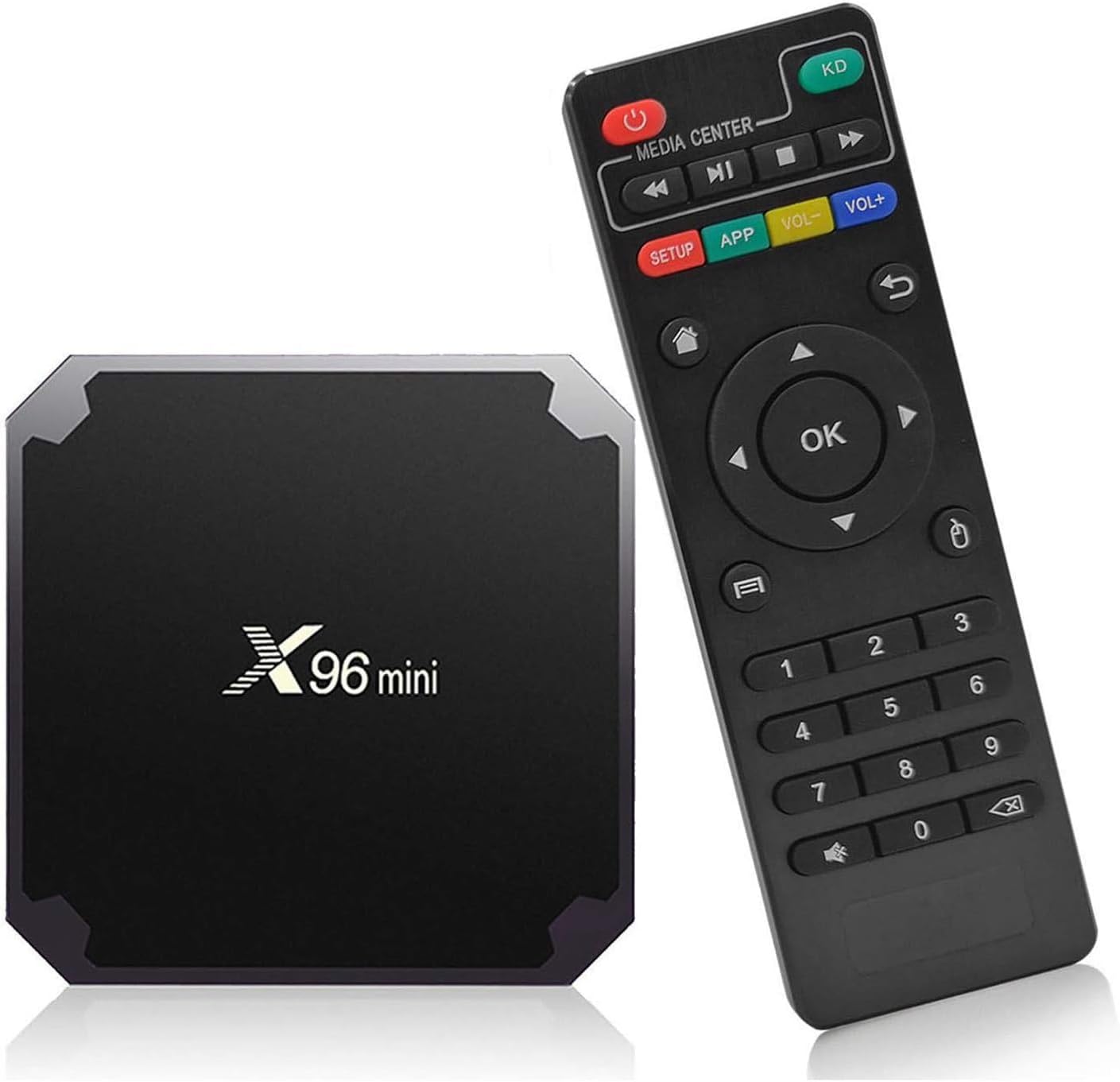
Key Features:
- Amlogic S905W Quad-Core Chipset: Equipped with an Amlogic S905W Quad core A35 processor running at 2.0GHz for fast application, video, and game performance.
- 2GB RAM + 16GB ROM: Provides ample space for applications, browsing, games, and movies.
- 2.4G WiFi & Ethernet: Built-in 2.4G WiFi and 10/100M RJ-45 Ethernet LAN for stable and high-quality video streaming.
- 4K HDR+ Support: Delivers high-definition video playback with HDR10+ technology for a lifelike viewing experience.


Ports and Interfaces:

- USB 2.0 Ports: Two ports for connecting external devices like USB drives or keyboards.
- TF Card Slot: For expanding storage with a TF (microSD) card.
- DC 5V: Power input port.
- Ethernet (RJ45): For wired network connection.
- HDMI: High-definition video and audio output to your TV.
- AV: Analog audio/video output.
- IR: External IR receiver port (if applicable).
Setup Guide
- Connect to TV: Connect one end of the provided HD cable to the HDMI port on the X96 Mini TV Box and the other end to an available HDMI input on your television.
- Connect Power: Plug the power adapter into the DC 5V port on the TV Box, then plug the adapter into a wall outlet. The device should power on automatically, or you may need to press the power button on the remote.
- Select Input: On your TV, select the correct HDMI input source that corresponds to the port you connected the TV Box to.
- Initial Setup: Follow the on-screen instructions to complete the initial setup, which typically includes language selection, screen calibration, and network connection.
- Network Connection:
- Wi-Fi: Navigate to Settings > Network > Wi-Fi, select your network, and enter the password.
- Ethernet: Connect an Ethernet cable from your router to the RJ45 port on the TV Box. The connection should be established automatically.
Operating Instructions
Using the Remote Control:
The included remote control allows you to navigate the Android interface and control media playback. Familiarize yourself with the buttons:
- Power Button: Turns the device on/off or puts it into standby.
- Navigation Pad (Arrow Keys & OK): Used to move through menus and select items.
- Back Button: Returns to the previous screen.
- Home Button: Returns to the main home screen.
- Volume Buttons: Adjusts the audio volume.
- Media Playback Controls: Play, Pause, Fast Forward, Rewind, Stop.
- Number Pad: For direct input or channel selection (if applicable).
Navigating the Interface:
The X96 Mini runs on an Android operating system. You can access installed applications, settings, and media content from the home screen. Use the remote's navigation pad to select icons and press OK to launch.
Installing Applications:
You can download and install applications from the pre-installed app store or by sideloading APK files. Ensure you only install apps from trusted sources.
Media Playback:
The device supports various video and audio formats. You can play media from connected USB drives, TF cards, or stream content over the network from services like Prime Video, Disney+, and YouTube (subscription fees may apply for some services).
Maintenance
- Cleaning: Use a soft, dry cloth to clean the exterior of the device. Do not use liquid cleaners or aerosols.
- Ventilation: Ensure the TV Box is placed in a well-ventilated area to prevent overheating. Do not block ventilation openings.
- Software Updates: Periodically check for system updates in the device settings to ensure optimal performance and security.
- Power Off: When not in use for extended periods, it is recommended to power off the device and unplug the power adapter.
Troubleshooting
| Problem | Possible Cause | Solution |
|---|---|---|
| No power/Device not turning on | Power adapter not connected or faulty; power outlet issue. | Ensure power adapter is securely connected to the device and a working power outlet. Try a different outlet. |
| No signal on TV screen | Incorrect HDMI input selected on TV; loose HDMI cable connection. | Verify your TV is set to the correct HDMI input. Check that the HDMI cable is securely connected at both ends. |
| Wi-Fi connection issues | Incorrect Wi-Fi password; router too far; interference. | Double-check Wi-Fi password. Move the TV Box closer to the router. Restart your router and the TV Box. |
| Remote control not working | Low batteries; IR sensor blocked; remote not paired (if Bluetooth). | Replace batteries. Ensure no obstructions between remote and TV Box. Point remote directly at the TV Box. |
| Applications freezing or crashing | Insufficient RAM; app compatibility issues; outdated software. | Close background applications. Clear app cache. Update the app or the TV Box firmware. Restart the device. |
Specifications
| Feature | Detail |
|---|---|
| CPU | Amlogic S905W, Quad-Core, Cortex-A53 |
| GPU | Penta-Core Mali-450 |
| RAM | DDR3 2GB |
| ROM | eMMC 16GB |
| Wi-Fi | 2.4G |
| Ethernet | Standard 10/100M, Gigabit RJ-45 |
| Video Output | SD/HD Max. 1920 x 1080 pixels (Supports 4K resolution) |
| Power Supply | DC 5V/2A |
| Supported Video Formats | Avi / Rm / Rmvb / Ts / Vob / Mkv / Mov / ISO / wmv / asf / flv / dat / mpg / mpeg |
| Supported Audio Formats | MP3 / WMA / AAC / WAV / OGG / AC3 / DDP / TrueHD / DTS / DTS / HD / FLAC / APE |
| Supported Photo Formats | HD JPEG / BMP / GIF / PNG / TIFF |
| Dimensions | 7.09 x 4.72 x 2.36 inches |
| Color | Black |
Warranty and Support
VHXSIN provides a one-year warranty and lifetime technical support for the X96 Mini Android TV Box. Each unit undergoes a 4-hour aging test to ensure quality.
For any questions or issues, please contact VHXSIN customer support. They aim to resolve problems within 24 hours.
Note: Warranty terms may vary based on region and retailer. Please refer to your purchase documentation for specific details.
Ask a question about this manual
Ask about setup, troubleshooting, compatibility, parts, safety, or missing instructions. Manuals+ will review the question and use this page’s manual context to help answer it.