
AZDOME M580
AZDOME M580 5K 3 Channel Dash Cam User Manual
Model: M580
1. Introduction
Thank you for choosing the AZDOME M580 5K 3 Channel Dash Cam. This device is designed to provide comprehensive vehicle surveillance with its advanced recording capabilities and integrated features. The M580 utilizes a super capacitor for enhanced durability and requires a continuous power supply, which is facilitated by the included 3-Lead USB C Hardwire Kit (JYX05). This manual will guide you through the installation, operation, and maintenance of your new dash cam system.
2. Safety Information
- Do not operate the dash cam or access its settings while driving.
- Ensure the dash cam is securely mounted and does not obstruct the driver's view or airbag deployment.
- Use only the original power cables and accessories provided by AZDOME.
- Avoid exposing the device to extreme temperatures, direct sunlight for prolonged periods, or excessive moisture.
- Do not attempt to disassemble or repair the device yourself. Contact customer support for assistance.
- Regularly back up important video files to prevent loss.
3. Package Contents
Please check the package for the following items:
- AZDOME M580 5K Dash Cam Unit
- AZDOME 3-Lead USB C Hardwire Kit (JYX05)
- Rear Camera (if included in bundle)
- Interior Camera (if included in bundle)
- Power Cable (USB-C)
- Mounting Bracket with Adhesive Pad
- User Manual
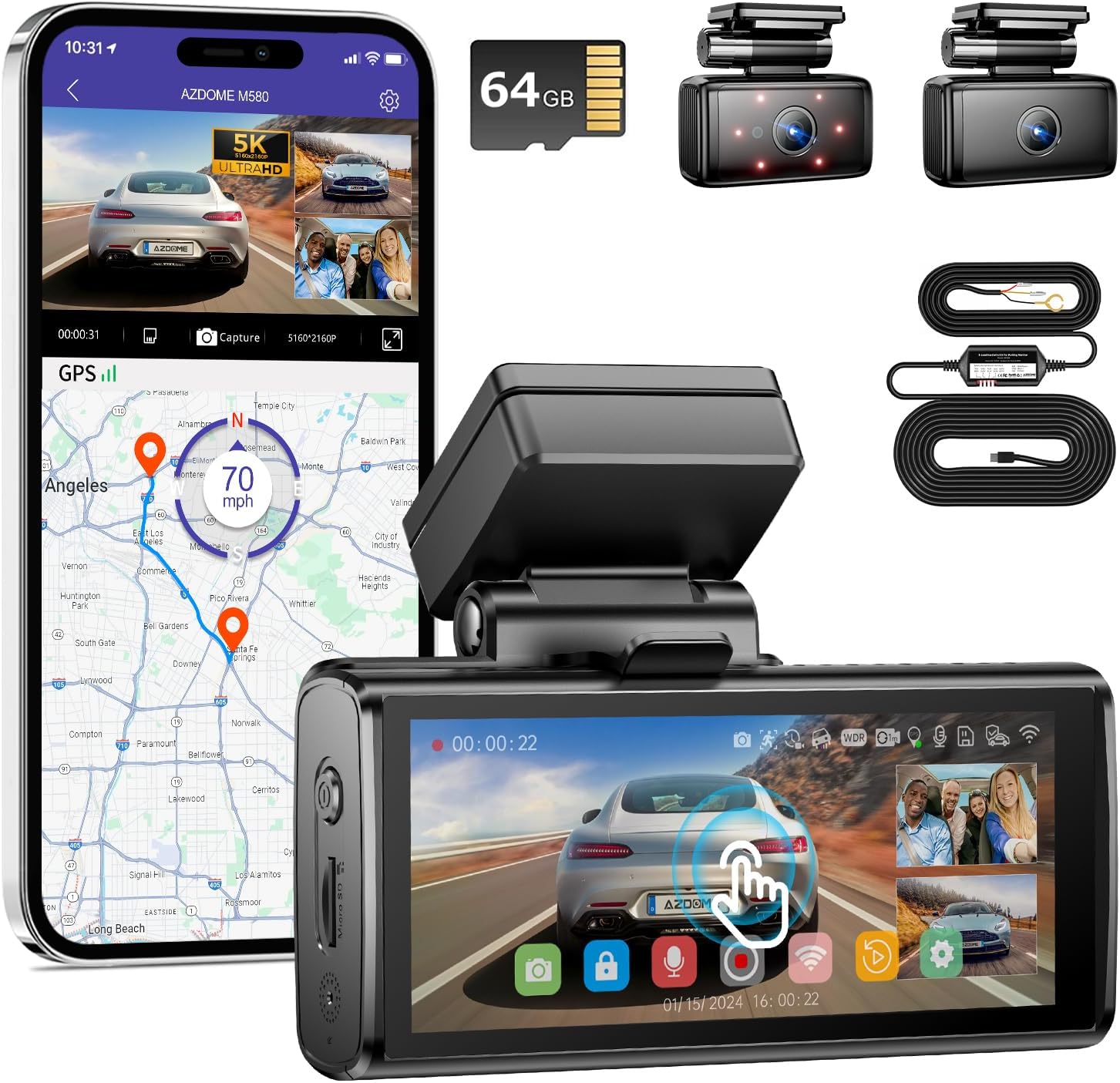
Image: AZDOME M580 Dash Cam with included accessories, including the main unit, rear camera, interior camera, and hardwire kit.

Image: The AZDOME 3-Lead USB C Hardwire Kit (JYX05), showing the main module and wiring.
4. Product Overview
The AZDOME M580 is a high-performance 3-channel dash cam system designed to capture comprehensive video footage around and inside your vehicle. Key features include:
- 5K Front Recording: Captures ultra-high-definition video from the front camera.
- 3-Channel Recording: Simultaneous recording from front, interior, and rear cameras (configuration dependent).
- 4-inch Touchscreen: Intuitive interface for easy navigation and playback.
- Built-in 5G WiFi: Fast wireless connectivity for video transfer and app control.
- 24H Parking Monitor: Continuous surveillance even when the vehicle is parked, requiring the hardwire kit.
- G-Sensor: Automatically detects impacts and locks video files.
- Super Capacitor: Provides enhanced durability and reliability compared to traditional batteries.

Image: Visual representation of the AZDOME M580 dash cam highlighting its key features such as 3-channel recording, 5G WiFi, 64GB card support, IR night vision, 4-inch touchscreen, built-in GPS, 24H parking mode, and G-Sensor.
5. Setup
5.1 Installing the Dash Cam
- Choose a Location: Select a spot on your windshield that does not obstruct your view or interfere with airbags. Typically, near the rearview mirror is ideal.
- Clean the Windshield: Ensure the mounting area is clean and dry for optimal adhesive adhesion.
- Attach the Mount: Secure the adhesive mount to the chosen location on the windshield. Press firmly for at least 30 seconds.
- Attach the Dash Cam: Slide the AZDOME M580 onto the mounting bracket until it clicks into place.
- Adjust Angle: Adjust the lens angle to ensure it captures the road ahead clearly.
5.2 Installing the 3-Lead Hardwire Kit (JYX05)
The hardwire kit is essential for enabling the 24-hour parking monitor feature and providing continuous power to the dash cam. It connects directly to your car's fuse box.
- Identify Fuse Box: Locate your vehicle's fuse box (refer to your car's owner's manual).
- Connect the Wires: The JYX05 hardwire kit has three wires:
- Black Wire (GND): Connect to a metal bolt or screw on the car's chassis for ground.
- Yellow Wire (ACC): Connect to a fuse that is only powered when the ignition is on (Accessory power).
- Red Wire (BAT+): Connect to a fuse that has constant power, even when the ignition is off (Battery power).
- Route Cables: Carefully route the cables along the vehicle's interior trim to conceal them and prevent interference.
- Connect to Dash Cam: Plug the USB-C connector from the hardwire kit into the dash cam's power port.

Image: Diagram illustrating the connection points for the 3-lead hardwire kit: Black (GND) to metal, Yellow (ACC) to ignition-switched fuse, and Red (BAT+) to constant power fuse.
The hardwire kit also features optional 4 levels of low voltage protection to prevent draining your car battery. Users can set these according to their needs.

Image: Close-up of the 3-Lead Hardwire Kit module, showing the battery drain protection settings and voltage options for 12V and 24V batteries.
5.3 Inserting a Memory Card
The AZDOME M580 requires a microSD card (not included) for recording. Ensure the card is a high-speed Class 10 or U3 card (up to 256GB recommended).
- Locate the microSD card slot on the dash cam.
- Insert the microSD card with the gold contacts facing the back of the dash cam until it clicks into place.
- Format the card via the dash cam's settings menu before first use to ensure optimal performance.
6. Operating Instructions
6.1 Powering On/Off
- The dash cam will automatically power on and begin recording when your vehicle's ignition is turned on (if connected via ACC power).
- It will automatically power off shortly after the ignition is turned off.
6.2 Touchscreen Operation
The AZDOME M580 features a responsive 4-inch touchscreen display. Navigate through menus, view live footage, and play back recorded videos by tapping and swiping on the screen.
6.3 Recording Modes
The M580 supports various recording configurations:
- Front Only: 5K (5160x2160P) resolution.
- Front and Rear: 4K (Front) + 1080P (Rear).
- Front and Inside: 4K (Front) + 1080P (Interior).
- Front, Rear, and Inside: 4K (Front) + 1080P (Rear) + 1080P (Interior).

Image: Illustration of the 3-channel recording capabilities, showing views from the front (4K), cabin (1080P), and rear (1080P) cameras.
6.4 24-Hour Parking Monitor
With the hardwire kit installed, the dash cam can monitor your vehicle even when parked. There are three parking mode options:
- Auto Turn Off Parking Mode: The G-sensor detects collisions and records video while the camera is off.
- Normal Recording Parking Mode: The G-sensor detects collisions and locks the video, while the camera continues recording.
- Time-Lapse Parking Mode: The dash cam records continuously at a low frame rate (e.g., 1fps) for 24 hours, compressing long periods into short videos.

Image: Visual explanation of the 24-hour parking mode, detailing collision detection and time-lapse recording options.
6.5 Built-in 5G WiFi
The M580 features 5GHz WiFi for faster data transfer. Use the AZDOME app on your smartphone to connect to the dash cam's WiFi network. This allows you to:
- Live View: See real-time footage from the dash cam.
- Replay: Play back recorded videos directly on your phone.
- Share: Easily share video clips to social media or messaging apps.
- Download: Quickly download video files to your phone (5.8GHz WiFi allows downloading 800Mb video within 10 seconds).

Image: Depiction of the dash cam's 5G WiFi capabilities, showing a smartphone connected to the dash cam for live view, replay, sharing, and downloading videos.
7. Maintenance
- Cleaning: Use a soft, dry cloth to clean the dash cam lens and screen. Avoid abrasive cleaners.
- Memory Card: Format the microSD card regularly (e.g., once a month) to maintain optimal performance and prevent data corruption. Replace the card if it shows signs of degradation or errors.
- Firmware Updates: Check the AZDOME official website periodically for firmware updates to ensure your dash cam has the latest features and bug fixes.
8. Troubleshooting
| Problem | Possible Cause | Solution |
|---|---|---|
| Dash cam does not power on. | No power supply; loose connection. | Check power cable connection; ensure hardwire kit is correctly installed and receiving power from the fuse box. |
| Recording stops or freezes. | Faulty/slow microSD card; card full; firmware issue. | Use a high-speed Class 10/U3 microSD card; format the card; try a new card; check for firmware updates. |
| Poor video quality. | Dirty lens; protective film on lens; incorrect resolution settings. | Clean the lens; remove any protective film; check video resolution settings in the menu. |
| WiFi connection issues. | Incorrect password; too far from device; app issue. | Ensure correct WiFi password; stay within close proximity; restart dash cam and phone app. |
| Parking mode not working. | Hardwire kit not installed correctly; parking mode not enabled. | Verify hardwire kit installation (especially constant power connection); enable parking mode in settings. |
9. Specifications
| Feature | Detail |
|---|---|
| Model | M580 |
| Front Video Capture Resolution | 5K (5160x2160P) |
| Multi-Channel Resolution | 4K+1080P (Front+Rear/Inside), 4K+1080P+1080P (Front+Rear+Inside) |
| Screen Size | 4 Inches |
| Control Method | Touch |
| Connectivity Technology | Wi-Fi (5GHz) |
| Special Feature | Parking Monitor, G-Sensor |
| Power Source | Super Capacitor (requires continuous power from car) |
| Included Components | Hardwire Kit (JYX05) |
| Vehicle Service Type | Car |
10. Warranty and Support
AZDOME products come with a standard manufacturer's warranty. For specific warranty terms, registration, or technical support, please refer to the warranty card included with your product or visit the official AZDOME website. If you encounter any issues not covered in this manual, please contact AZDOME customer service for assistance.
No official product videos are available for embedding at this time.
Related documentsM580


Ask a question about this manual
Ask about setup, troubleshooting, compatibility, parts, safety, or missing instructions. Manuals+ will review the question and use this page’s manual context to help answer it.