1. Introduction
This manual provides detailed instructions for the setup, operation, maintenance, and troubleshooting of your NEWISION M10 Android Tablet. Please read this manual thoroughly before using the device to ensure proper functionality and to maximize your user experience.
2. What's in the Box
Verify that all items are present in the package:
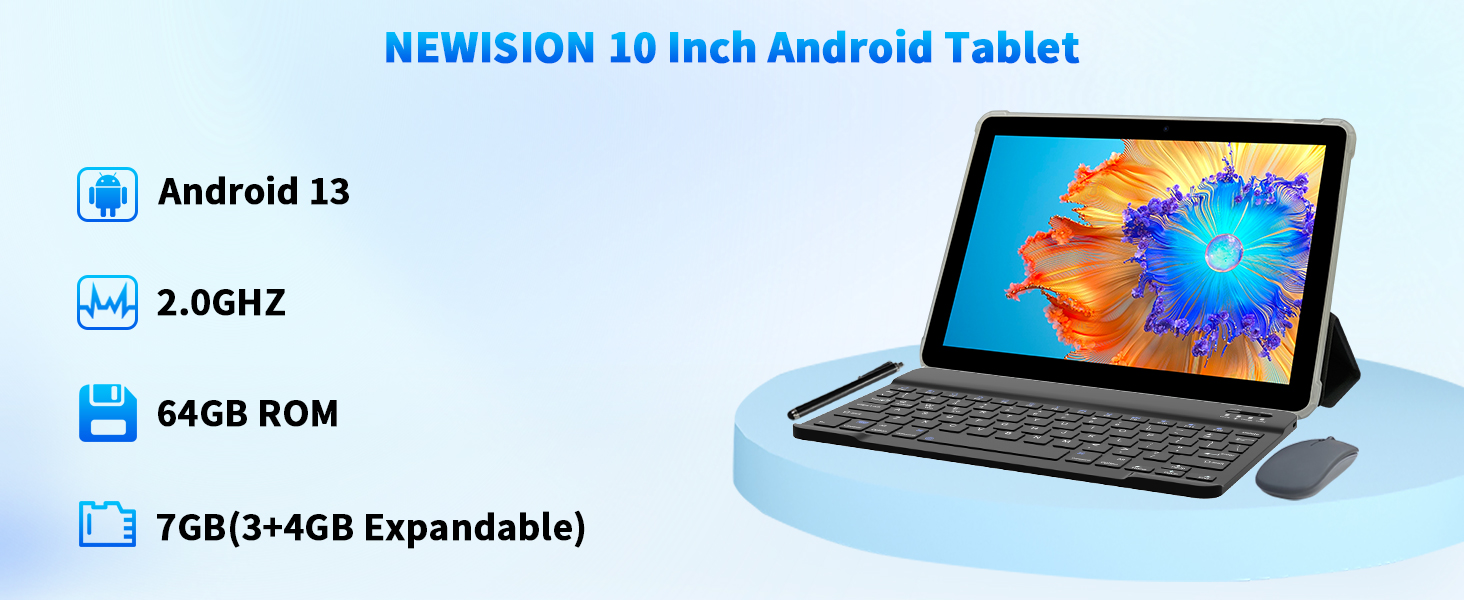
- 1 x NEWISION M10 Android 13 Tablet
- 1 x Protective Cover
- 1 x Bluetooth Keyboard
- 1 x Wireless Mouse
- 1 x Stylus Pen
- 1 x Screen Protector (pre-applied or separate)
- 1 x Charging Head (Power Adapter)
- 1 x USB-C Charger Cable

3. Product Overview
3.1 Tablet Components and Ports
Familiarize yourself with the physical features of your tablet:
- Power Button: Located on the side, press and hold to power on/off or restart.
- Volume Buttons: Adjust the tablet's volume.
- USB-C Port: For charging and data transfer.
- Micro-SD Card Slot: Insert a Micro-SD card to expand storage up to 1TB.
- Headphone Jack: Connect 3.5mm headphones.
- Speakers: Dual speakers for audio output.
- Front Camera: 2-megapixel camera for video calls and selfies.
- Rear Camera: 8-megapixel camera for photos and videos.
- Reset Button: A small pinhole button for system reset if the tablet becomes unresponsive. Use a thin tool to press.
4. Setup
4.1 Initial Power On and Basic Configuration
- Charge the Tablet: Before first use, connect the tablet to the power adapter and USB-C cable to fully charge the battery.
- Power On: Press and hold the Power Button until the screen lights up.
- Language and Region: Follow the on-screen prompts to select your preferred language and region.
- Connect to Wi-Fi: Select your Wi-Fi network from the list and enter the password. The tablet supports 5G/2.4G dual-band Wi-Fi.
- Google Account: Sign in with your Google account or create a new one to access the Google Play Store and other Google services.
- Date and Time: Set the correct date and time, or allow the network to set it automatically.
- Security: Set up a screen lock (PIN, pattern, or password) for security.
4.2 Connecting Accessories (Keyboard and Mouse)
Your NEWISION M10 tablet comes with a Bluetooth keyboard and a wireless mouse for enhanced productivity.
4.2.1 Bluetooth Keyboard
- Charge the Keyboard: Ensure the Bluetooth keyboard is charged.
- Turn On Keyboard: Locate the power switch on the keyboard and slide it to the 'ON' position.
- Enable Pairing Mode: Press the 'Connect' or 'Pairing' button on the keyboard (refer to keyboard's specific instructions if available). An indicator light should flash.
- Enable Bluetooth on Tablet: Go to Settings > Connected devices > Bluetooth on your tablet and turn Bluetooth ON.
- Pair Device: Your tablet will scan for available devices. Select the keyboard's name (e.g., "Bluetooth Keyboard") from the list.
- Confirm Pairing: If prompted, enter the pairing code displayed on the tablet screen into the keyboard and press Enter.
4.2.2 Wireless Mouse
- Insert Battery: Ensure the wireless mouse has a working battery.
- Turn On Mouse: Locate the power switch on the mouse and slide it to the 'ON' position.
- Enable Pairing Mode: Press the 'Connect' or 'Pairing' button on the mouse. An indicator light should flash.
- Enable Bluetooth on Tablet: Go to Settings > Connected devices > Bluetooth on your tablet and turn Bluetooth ON.
- Pair Device: Your tablet will scan for available devices. Select the mouse's name (e.g., "Bluetooth Mouse") from the list.
5. Operating Instructions
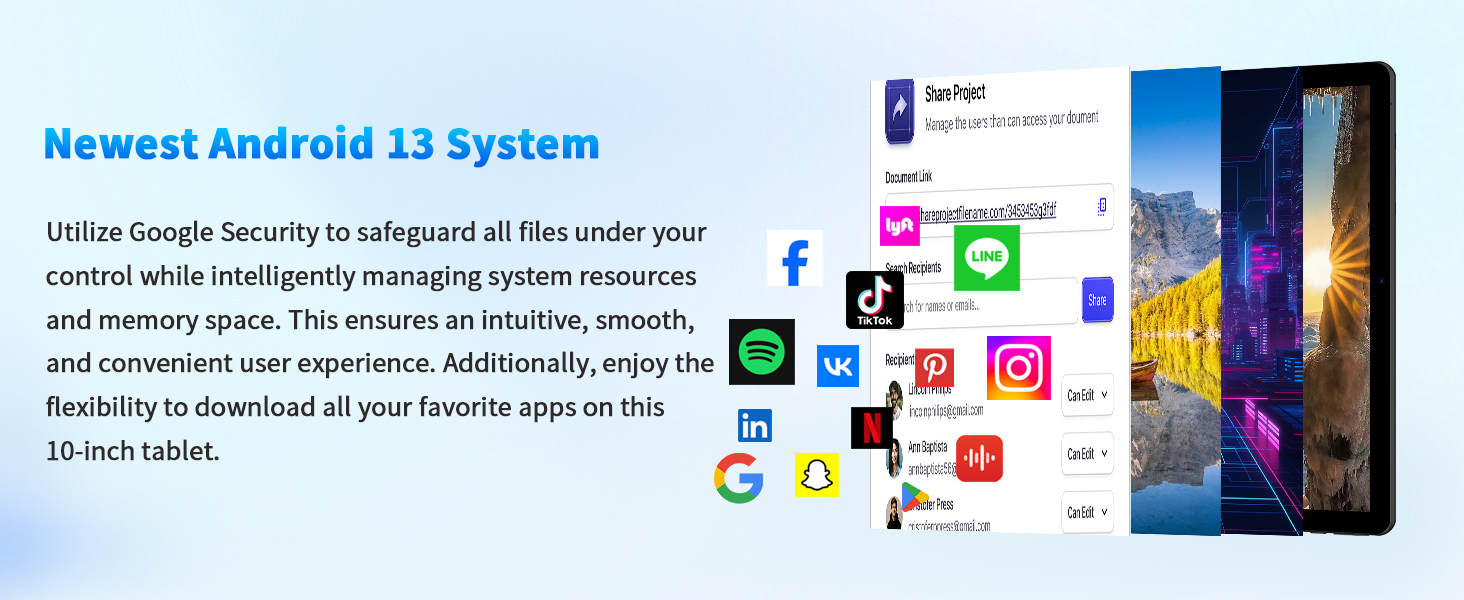
5.1 Basic Navigation (Android 13)
- Home Screen: Swipe left or right to navigate between home screens.
- App Drawer: Swipe up from the bottom of the screen to access all installed applications.
- Notifications and Quick Settings: Swipe down from the top of the screen to view notifications and access quick settings toggles (Wi-Fi, Bluetooth, Brightness, etc.).
- Multitasking: Swipe up from the bottom and hold, then release to view recently used apps. Swipe left or right to dismiss an app, or tap to switch.
- Back Button: Use the on-screen back button or gesture to return to the previous screen.
5.2 Using the Cameras
The tablet features an 8MP rear camera and a 2MP front camera.
- Open Camera App: Tap the Camera icon on your home screen or app drawer.
- Switch Cameras: Tap the camera switch icon (usually a circular arrow) to toggle between the front and rear cameras.
- Take Photos/Videos: Tap the shutter button to take a photo or switch to video mode and tap to start/stop recording.
- Settings: Access camera settings for options like flash, timer, and resolution.
5.3 Storage Management
The tablet comes with 64GB of internal storage, expandable up to 1TB via a Micro-SD card.
- Insert Micro-SD Card: Gently insert a Micro-SD card into the designated slot until it clicks into place.
- Access Storage: Go to Settings > Storage to view internal and external storage usage.
- Manage Files: Use a file manager app (pre-installed or downloaded from Play Store) to organize, move, or delete files.
5.4 Battery Management
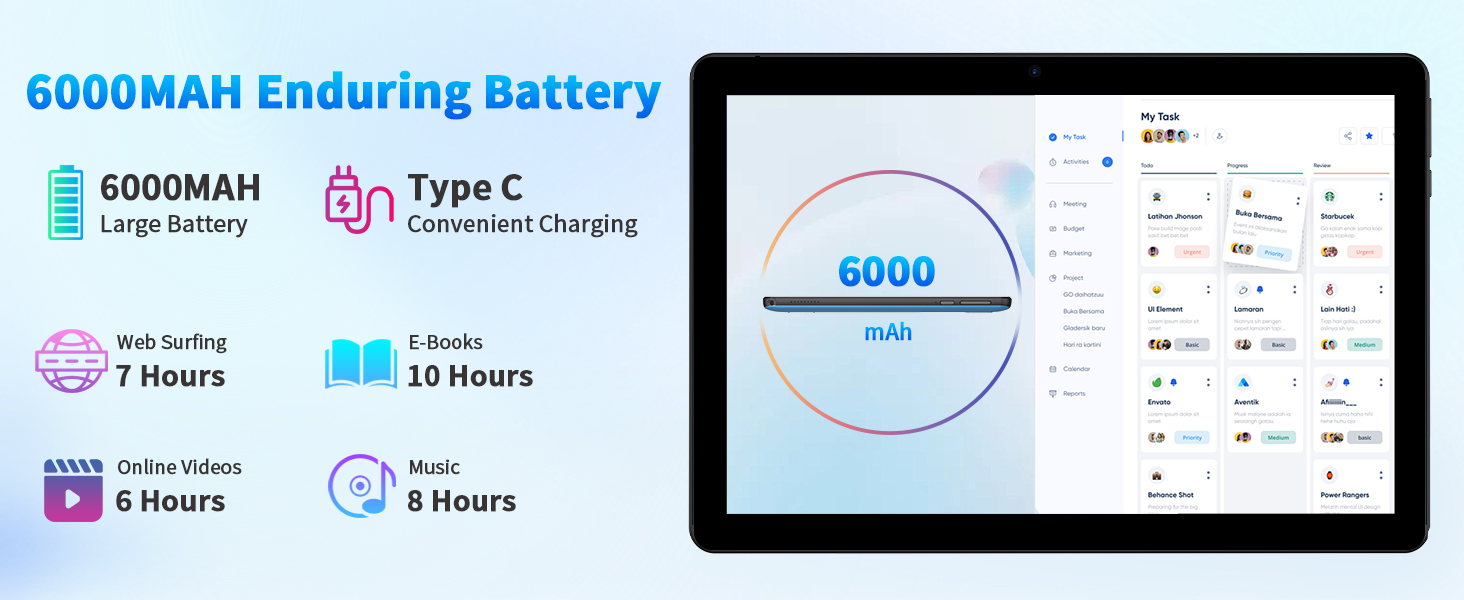
The 6000mAh battery provides approximately 6 hours of continuous use.
- Charging: Use the provided USB-C cable and power adapter for optimal charging.
- Battery Saver: Enable Battery Saver mode in Settings > Battery to extend battery life.
- Monitor Usage: Check battery usage by app in Settings > Battery to identify power-consuming applications.
6. Specifications
Key technical specifications of the NEWISION M10 Android Tablet:
| Feature | Specification |
|---|---|
| Operating System | Android 13 |
| Processor | 2 GHz Quad-core (ARM Rockchip RK3562) |
| RAM | 7GB (3GB physical + 4GB virtual expandable) |
| Internal Storage | 64GB ROM |
| Expandable Storage | Up to 1TB via Micro-SD card |
| Display | 10.1 Inch IPS HD (1280 x 800 pixels) |
| Rear Camera | 8 MP |
| Front Camera | 2 MP |
| Battery | 6000mAh Lithium Polymer |
| Wireless Connectivity | 5G/2.4G Dual-band Wi-Fi (802.11b), Bluetooth 5.2 |
| Ports | USB-C, 3.5mm Headphone Jack, Micro-SD Card Slot |
| Dimensions | 9.8 x 6.6 x 0.39 inches |
| Weight | 1.98 pounds |
7. Troubleshooting
This section addresses common issues you might encounter with your tablet.
7.1 Tablet Does Not Power On
- Check Battery: Ensure the tablet is sufficiently charged. Connect the charger and wait a few minutes before attempting to power on again.
- Hard Reset: If the tablet is unresponsive, press and hold the Power Button for 10-15 seconds. If this doesn't work, locate the small 'Reset' pinhole and gently press it with a thin tool (like a paperclip) for a few seconds.
7.2 Keyboard or Mouse Not Connecting
- Check Power: Ensure the keyboard/mouse is turned on and has sufficient battery.
- Re-pair: Go to Settings > Connected devices > Bluetooth on your tablet. Forget the device if it's listed, then re-initiate pairing mode on the accessory and re-pair it with the tablet.
- Proximity: Ensure the accessory is within Bluetooth range of the tablet.
7.3 Wi-Fi Connection Issues
- Restart Router: Power cycle your Wi-Fi router.
- Forget Network: On the tablet, go to Settings > Network & internet > Internet, tap the gear icon next to your Wi-Fi network, and select 'Forget'. Then, reconnect to the network.
- Check Signal: Ensure you are within range of your Wi-Fi router.
7.4 Slow Performance
- Close Background Apps: Close unnecessary applications running in the background.
- Clear Cache: Regularly clear app caches in Settings > Apps > [App Name] > Storage & cache > Clear cache.
- Free Up Storage: Delete unused apps, photos, or videos to free up internal storage. Consider using a Micro-SD card for media.
- Software Update: Check for system updates in Settings > System > System update.
8. Maintenance
- Cleaning: Use a soft, lint-free cloth to clean the screen and body of the tablet. Avoid harsh chemicals.
- Protection: Use the provided protective case to guard against scratches and minor impacts.
- Software Updates: Keep your tablet's operating system and applications updated to ensure optimal performance and security.
- Avoid Extreme Temperatures: Do not expose the tablet to extreme heat or cold, as this can damage the battery and internal components.
- Proper Charging: Always use the original charger and cable provided with the tablet. Avoid overcharging.
9. Warranty and Support
For warranty information, please refer to the documentation included with your purchase or contact NEWISION customer support directly. If you encounter issues not covered in this manual, please reach out to the manufacturer's support team for assistance.
Contact Information: Refer to the NEWISION official website or your purchase platform for the most current support contact details.


