1. Introduction
The Godox X3 S Nano Touchscreen TTL Wireless Flash Trigger is designed for Sony camera systems, providing wireless control over compatible flashes within the Godox X wireless radio system. This compact and lightweight trigger features an intuitive touchscreen interface for easy adjustment of flash settings.
It operates on a 2.4 GHz frequency, offering a wireless range of up to 328 feet (100 meters). Key functionalities include support for Sony's ADI / P-TTL system, high-speed sync up to 1/8000 second, and control over flash exposure compensation, modeling light, and zoom settings. The device is powered by an internal rechargeable battery and includes a USB-C port for charging and firmware updates.
2. What's in the Box
Verify that all components are present upon unpacking your Godox X3 S Nano Flash Trigger:
- Godox X3 S Touchscreen TTL Wireless Flash Trigger for Sony
- USB-C Charging Cable
- Carry Bag
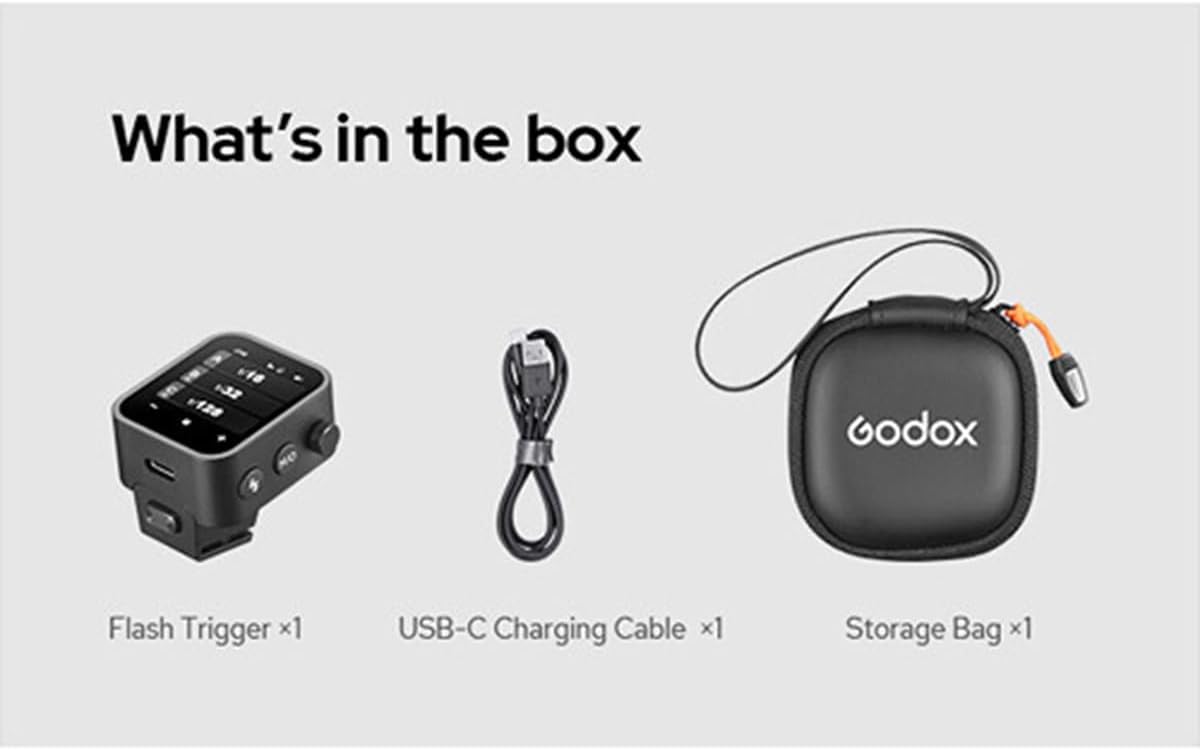
Image: Included components: Godox X3 S trigger, USB-C cable, and carry bag.
3. Product Overview
The Godox X3 S Nano features a compact design with a touchscreen interface and physical buttons for essential controls.

Image: Front view of the X3 S Nano, highlighting the touchscreen and control buttons.
Key Components:
- Touchscreen Display: Primary interface for adjusting settings.
- Hot Shoe Mount: For attaching to a camera.
- USB-C Port: For charging and firmware updates.
- M/Q Button: Mode/Quick access button.
- Flash Button: Test flash button.
- Control Dial: For navigating menus and adjusting values.

Image: Side view showing the control buttons and dial.
4. Setup
4.1 Charging the Battery
The X3 S Nano has an internal rechargeable lithium-ion battery. Before first use, fully charge the device.
- Connect the supplied USB-C cable to the USB-C port on the trigger.
- Connect the other end of the USB-C cable to a USB power adapter (not included) or a computer's USB port.
- The charging indicator on the screen will show the charging status. The device is fully charged when the indicator shows full.
4.2 Mounting to Camera
Attach the X3 S Nano to your Sony camera's hot shoe.
- Slide the hot shoe foot of the X3 S Nano into the camera's hot shoe.
- Secure the trigger by tightening the locking mechanism (if present) on the hot shoe mount.
4.3 Powering On/Off
Press and hold the power button (usually integrated with the control dial) for a few seconds to power on or off the device.
5. Operating Instructions
5.1 Basic Interface Navigation
The X3 S Nano features a touchscreen for intuitive control. Tap on icons or values to select them, and use the control dial or on-screen +/- buttons to adjust settings.
5.2 Pairing with Flashes
To wirelessly control Godox X system flashes, ensure both the trigger and the flash units are set to the same channel and ID.
- On the X3 S Nano, access the channel settings via the touchscreen. Select a channel (1-32).
- Set a wireless ID (01-99 or OFF) if desired for interference prevention.
- On your compatible Godox flash unit, set the same channel and ID.
- The trigger should now be able to communicate with the flash. Perform a test flash using the flash button on the trigger.
5.3 Adjusting Flash Settings
The touchscreen allows for quick adjustments:
- Flash Mode: Tap to switch between TTL, Manual (M), and Multi (Stroboscopic) modes.
- Group Control: Select individual flash groups (A, B, C, etc.) to adjust their power levels or modes independently.
- Power Output: In Manual mode, tap the power value and use the dial or +/- buttons to adjust from 1/1 to 1/256.
- Flash Exposure Compensation (FEC): In TTL mode, adjust FEC from -3 to +3 EV.
- High-Speed Sync (HSS): The trigger supports HSS up to 1/8000 second when used with compatible cameras and flashes. This is typically enabled automatically or through camera settings.
- Modeling Light: Control the modeling light on compatible flash units.
- Zoom: Adjust the flash head zoom for compatible units.
5.4 Firmware Updates
Periodically check the Godox official website for firmware updates. Connect the X3 S Nano to a computer via the USB-C cable and follow the instructions provided by Godox for the update process.
6. Maintenance
6.1 Cleaning
- Use a soft, dry cloth to clean the exterior of the trigger.
- For the touchscreen, use a microfiber cloth specifically designed for electronics. Avoid abrasive materials or harsh chemicals.
- Keep the hot shoe contacts clean and free of dust or debris.
6.2 Storage
When not in use, store the X3 S Nano in its provided carry bag in a cool, dry place, away from direct sunlight and extreme temperatures.
7. Troubleshooting
| Problem | Possible Cause | Solution |
|---|---|---|
| Trigger does not power on. | Battery is depleted. | Charge the trigger using the USB-C cable. |
| Flash units are not firing. | Incorrect channel/ID settings. Flash units are not powered on or are out of range. Camera hot shoe connection issue. |
Ensure trigger and flashes are on the same channel and ID. Verify flashes are powered on and within 328' range. Re-mount the trigger securely on the camera hot shoe. |
| Flash settings cannot be adjusted. | Trigger is in a locked mode or a specific flash mode does not allow adjustment. | Check the trigger's screen for any lock indicators. Ensure the flash mode (e.g., TTL) allows for the desired adjustment (e.g., FEC). |
| Touchscreen is unresponsive. | Temporary software glitch. | Power off the device and restart it. If the issue persists, check for firmware updates. |
8. Specifications
| Feature | Detail |
|---|---|
| Model Number | D260971 |
| Compatibility | Sony ADI / P-TTL systems |
| Wireless System | Godox X Wireless Radio System |
| Frequency | 2.4 GHz |
| Wireless Range | Up to 328' (100 m) |
| Channels | 32 |
| Wireless IDs | 99 |
| Sync Speed | Up to 1/8000 second (High-Speed Sync) |
| Flash Exposure Compensation | ±3 EV in 1/3 stop increments |
| Power Source | Internal Rechargeable Lithium-Ion Battery (3.7V, 850mAh, 3.145Wh) |
| Charging Port | USB-C (Input: 5V∷2A) |
| Dimensions (L x W x H) | 1.57 x 1.54 x 1.85 inches (40 x 39 x 47 mm) |
| Weight | 0.705 ounces (20 g) |
| Manufacturer | Godox |

Image: Bottom view displaying product information and regulatory details.
9. Warranty and Support
For warranty information and technical support, please refer to the official Godox website or contact your local distributor. Keep your purchase receipt as proof of purchase for warranty claims.
Godox Official Website: www.godox.com


