
ORICO D35M2
ORICO USB-C Docking Station D35M2 User Manual
Model: D35M2
1. Product Overview
The ORICO D35M2 is a versatile 12-in-1 USB-C docking station integrated with a dual hard drive enclosure. It is designed to expand connectivity options for USB-C enabled devices and provide additional storage capacity. This device supports M.2 NVMe/SATA SSDs and 2.5/3.5 inch SATA SSD/HDDs, offering up to 22TB of storage expansion. It features high-speed data transfer, 4K@60Hz HDMI output, Gigabit Ethernet, 100W Power Delivery, and multiple USB ports and card readers.

Image 1.1: The ORICO D35M2 docking station showcasing its various ports, a 3.5-inch hard drive, an M.2 SSD, and included cables and adapters, illustrating its comprehensive connectivity and storage capabilities.
1.1 Package Contents
Please verify that all items are present in the package:
- USB C Docking Station (D35M2)
- USB C to C Cable
- User Manual
- 12V 3A Power Adapter
- M.2 Heatsink
- Silicone Cooling Pads

Image 1.2: A visual representation of the ORICO D35M2 docking station's package contents, including the main unit, cables, power adapter, and accessories.
2. Safety Information
- Ensure the correct power adapter (12V/3A) is used to prevent damage to the device and connected drives.
- Do not expose the device to water, moisture, or extreme temperatures.
- Avoid dropping or subjecting the device to strong impacts.
- Do not attempt to disassemble or repair the device yourself. Contact customer support for assistance.
- Ensure proper ventilation around the device during operation.
- When installing or removing drives, ensure the device is powered off and disconnected from the host computer.
3. Setup Guide
3.1 Connecting the Power Adapter
Connect the included 12V/3A power adapter to the DC port on the docking station and then plug it into a power outlet. The power indicator light will illuminate when power is applied.
3.2 Installing M.2 NVMe/SATA SSD
- Gently remove the magnetic upper cover of the docking station.
- Apply the silicone thermal pad to the M.2 SSD.
- Place the M.2 heatsink on top of the thermal pad and SSD.
- Insert the M.2 SSD into its designated slot on the docking station, ensuring it is fully seated.

Image 3.1: Step-by-step guide illustrating the installation process of both M.2 SSDs and 2.5/3.5-inch hard drives into the ORICO D35M2 docking station, including the application of thermal pads and heatsinks.
3.3 Installing 2.5/3.5 inch SATA HDD/SSD
- With the magnetic upper cover removed, gently slide the 2.5 or 3.5-inch SATA HDD/SSD into its dedicated slot until it connects firmly with the SATA connector.
- Replace the magnetic cover back onto the docking station.
Note: The switch on the docking station controls the power to the 2.5/3.5-inch hard drive. The M.2 SSD is functional as soon as it is plugged in and powered, and is not controlled by this switch.

Image 3.2: The magnetic cover of the ORICO D35M2 docking station, highlighting its tool-free installation design for easy access to the drive bays.
3.4 Connecting to Host Device
Use the provided USB-C to USB-C cable to connect the docking station's USB-C upstream port to a USB-C port on your laptop, desktop, or other compatible host device.
4. Operating Instructions
4.1 USB Data Transfer
The docking station features three USB-A ports and two USB-C ports, all supporting USB 3.2 Gen2 speeds up to 10Gbps. Connect your USB devices (e.g., external drives, flash drives, peripherals) to these ports for high-speed data transfer.
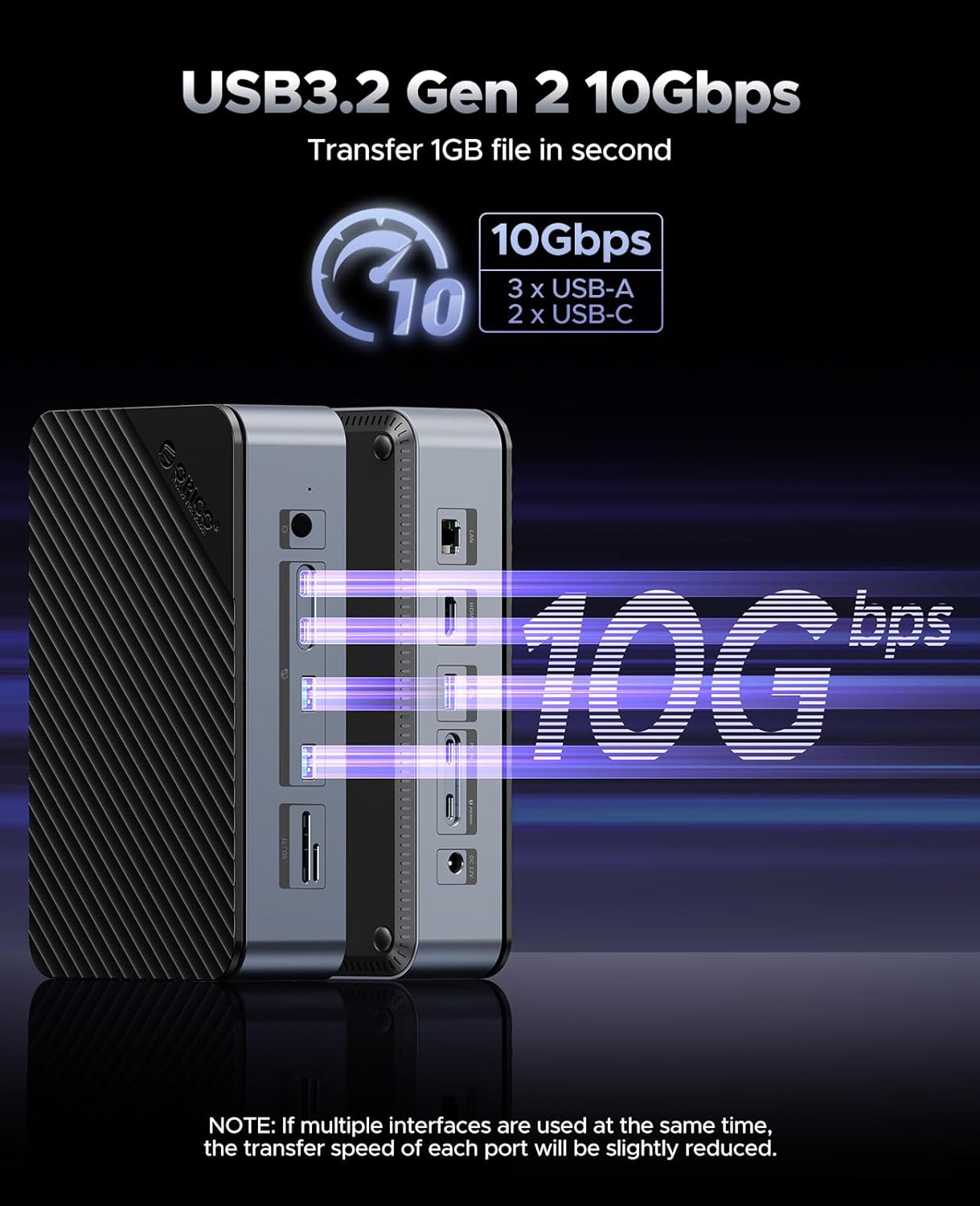
Image 4.1: An illustration demonstrating the 10Gbps data transfer speed capability of the ORICO D35M2 docking station's USB 3.2 Gen 2 ports, highlighting its efficiency in moving large files.
Note: If multiple interfaces are used simultaneously, the transfer speed of each port may be slightly reduced.
4.2 HDMI Display Output
Connect an HDMI cable from the docking station's HDMI port to an external monitor or TV to extend or mirror your display. The HDMI port supports resolutions up to 4K@60Hz.
Important: Ensure your host device's USB-C port supports video transmission (DisplayPort Alternate Mode) for the HDMI output to function.

Image 4.2: A visual representation of the ORICO D35M2 docking station connected to a laptop and an external monitor, demonstrating its 4K@60Hz HDMI display output capability.
4.3 Gigabit Ethernet
Connect an Ethernet cable to the RJ45 port on the docking station for a stable, wired network connection. It supports speeds up to 1000Mbps and is compatible with 10/100 Ethernet standards.

Image 4.3: A close-up view of the Gigabit Ethernet port on the ORICO D35M2 docking station, illustrating its 1000Mbps network connectivity.
4.4 PD 100W Fast Charging
The USB-C PD port supports up to 100W Power Delivery. Connect your laptop's original power adapter to this port to charge your laptop while using the docking station's other features.
4.5 SD/TF Card Reader
Insert SD or TF (MicroSD) cards into the respective slots for data transfer. The card reader supports USB 3.0 speeds up to 100MB/s. Both card slots can be used simultaneously.
4.6 Hard Drive Management
The docking station allows for easy access and management of installed M.2 SSDs and 2.5/3.5 inch SATA drives. For the 2.5/3.5 inch SATA drive, use the dedicated power button on the side of the docking station to bring the drive online or offline. The M.2 SSD is always active when the device is powered.

Image 4.4: An annotated view of the ORICO D35M2 docking station, clearly labeling all 12 ports and features, including the power button for the 3.5-inch hard drive.
5. Maintenance
- Keep the device clean by wiping it with a soft, dry cloth. Avoid using liquid cleaners.
- Ensure the M.2 heatsink and silicone cooling pads are properly installed for optimal temperature management of M.2 SSDs, especially during high-speed transfers.
- Do not block the ventilation openings to ensure proper airflow and prevent overheating.
- When not in use for extended periods, disconnect the power adapter.

Image 5.1: An exploded view of the ORICO D35M2 docking station highlighting its internal cooling components, including the M.2 heatsink and turbo fan, designed for efficient heat dissipation.
6. Troubleshooting
- Device not recognized:
- Ensure the 12V power adapter is connected and the power indicator is on.
- Verify the USB-C cable is securely connected to both the docking station and the host device.
- Try connecting to a different USB-C port on your host device.
- Restart your host device.
- Hard drive not detected:
- For 2.5/3.5 inch drives, ensure the independent switch control is turned on.
- Verify the drive is properly seated in its slot.
- Check if the drive is initialized and formatted in your operating system's Disk Management (Windows) or Disk Utility (macOS).
- Ensure the 12V power adapter is connected, as it is required for stable data transfer, especially with SSDs.
- HDMI display not working:
- Confirm your host device's USB-C port supports video output (DisplayPort Alternate Mode).
- Try a different HDMI cable or monitor.
- Ensure the HDMI cable is securely connected.
- Slow data transfer speeds:
- Ensure you are using USB 3.2 Gen2 compatible cables and devices.
- Avoid using multiple high-bandwidth devices simultaneously if possible, as this can share bandwidth.
- Check the health of your hard drives/SSDs.
- Device overheating:
- Ensure proper ventilation around the device.
- Verify the M.2 heatsink and thermal pads are correctly installed on the M.2 SSD.
- Reduce heavy workload if sustained high temperatures are observed.
7. Specifications
| Feature | Detail |
|---|---|
| Model | D35M2 |
| Interfaces | 3x USB-A (10Gbps), 2x USB-C (10Gbps), 1x HDMI (4K@60Hz), 1x RJ45 Gigabit Ethernet, 1x SD Card Reader, 1x TF Card Reader, 1x PD 100W, 1x DC 12V Power Input |
| Hard Drive Compatibility | M.2 NVMe/SATA SSD, 2.5/3.5 inch SATA HDD/SSD |
| Max Storage Capacity | Up to 22TB (8TB M.2 SSD + 18TB 2.5/3.5 inch HDD/SSD) |
| Data Transfer Rate | 10Gbps (USB 3.2 Gen2) |
| HDMI Resolution | 4K@60Hz |
| Ethernet Speed | 10/100/1000Mbps |
| Power Delivery | PD 100W |
| Power Supply | DC 12V/3A |
| Material | Aluminum |
| Dimensions | 9.25 x 8.46 x 2.55 inches (Package) |
| Item Weight | 1.41 pounds (640 Grams) |

Image 7.1: A diagram illustrating the double storage expansion capabilities of the ORICO D35M2, showing compatibility with M.2 SSDs (up to 8TB) and 2.5/3.5-inch SSD/HDDs (up to 18TB), along with supported M.2 key types and protocols.
8. Warranty and Support
ORICO products typically come with a standard manufacturer's warranty. For specific warranty terms, duration, and support, please refer to the warranty card included in your product package or visit the official ORICO website. If you encounter any issues or require technical assistance, please contact ORICO customer support.
ORICO Official Website: www.oricotech.com
Related documentsD35M2


Ask a question about this manual
Ask about setup, troubleshooting, compatibility, parts, safety, or missing instructions. Manuals+ will review the question and use this page’s manual context to help answer it.