
ONOAYO AY3 2024
ONOAYO AY3 Mini Projector User Manual
Model: AY3 2024
1. Introduction
Thank you for choosing the ONOAYO AY3 Mini Projector. This portable projector is designed to provide a versatile and high-quality viewing experience with its 360° adjustable stand, electric focus, auto keystone correction, and comprehensive connectivity options including WiFi and Bluetooth. This manual will guide you through the setup, operation, and maintenance of your new projector to ensure optimal performance and enjoyment.

Image 1.1: The ONOAYO AY3 Mini Projector, showcasing its compact design and integrated adjustable stand.
2. What's in the Box
Please check the contents of your package to ensure all items are present:
- Mini Projector x 1
- Stand x 1
- Power Cord x 1
- HDMI Cable x 1
- Remote Control x 1 (batteries not included)
- User Manual x 1
- Cleaning Kit x 1
3. Product Overview
3.1. Components and Controls
Familiarize yourself with the projector's main components and control interfaces.

Image 3.1: Rear panel of the ONOAYO AY3 Mini Projector, highlighting the various input and output ports.
- Lens: Projects the image.
- IR Receiver: For remote control signals.
- DC Input: Connects to the power adapter.
- USB Port: For connecting USB storage devices.
- HDMI Port: For connecting devices like laptops, gaming consoles, or streaming sticks.
- 3.5mm Audio Jack: For connecting external speakers or headphones.
- Adjustable Stand: Integrated stand for 360° rotation and versatile projection angles.
4. Setup
4.1. Attaching the Stand
The AY3 projector features a tool-free, non-destructive adjustable stand for easy setup.
- Prepare the projector, screws, and projector bracket.
- Rotate the screws and tighten them to secure the projector to the stand.
- Rotate the projector to the desired position. The stand allows for a full 360° rotation.

Image 4.1: Instructions for attaching and adjusting the projector stand, demonstrating its 360° rotation capability.
4.2. Power Connection
Connect the power cord to the DC input port on the projector and then plug it into a power outlet.
5. Operating Instructions
5.1. Power On/Off
Press the power button on the projector or the remote control to turn the device on or off.
5.2. Electric Focus Adjustment
The AY3 projector features electric focus for quick and precise image clarity.
- Use the F+ and F- buttons on the remote control to adjust the focus until the image is clear and sharp.

Image 5.1: Remote control buttons for electric focus (F+/F-) and auto keystone correction.
5.3. Auto Keystone Correction
The projector supports automatic vertical keystone correction (±30°). You can also manually adjust it via the remote control.
- The projector will attempt to correct vertical distortion automatically.
- For manual adjustment, use the keystone correction options in the projector's menu, accessible via the remote.
5.4. Connectivity
The AY3 projector offers multiple ways to connect your devices.
5.4.1. WiFi Connection (5G WiFi 6)
Connect your projector to a wireless network for online content and screen mirroring.
- Navigate to the network settings in the projector's menu.
- Select your WiFi network and enter the password. The projector supports 5G (Wi-Fi 6) for faster and more stable connections.

Image 5.2: The ONOAYO AY3 projector demonstrating 5G WiFi and Bluetooth 5.2 connectivity with a smartphone.
5.4.2. Bluetooth Connection (Two-Way Bluetooth 5.2)
Connect to external Bluetooth speakers or use the projector as a Bluetooth speaker itself.
- To connect to external speakers: Go to Bluetooth settings, enable Bluetooth, and pair with your desired device.
- To use as a Bluetooth speaker: Select the Bluetooth speaker mode in the projector's settings.
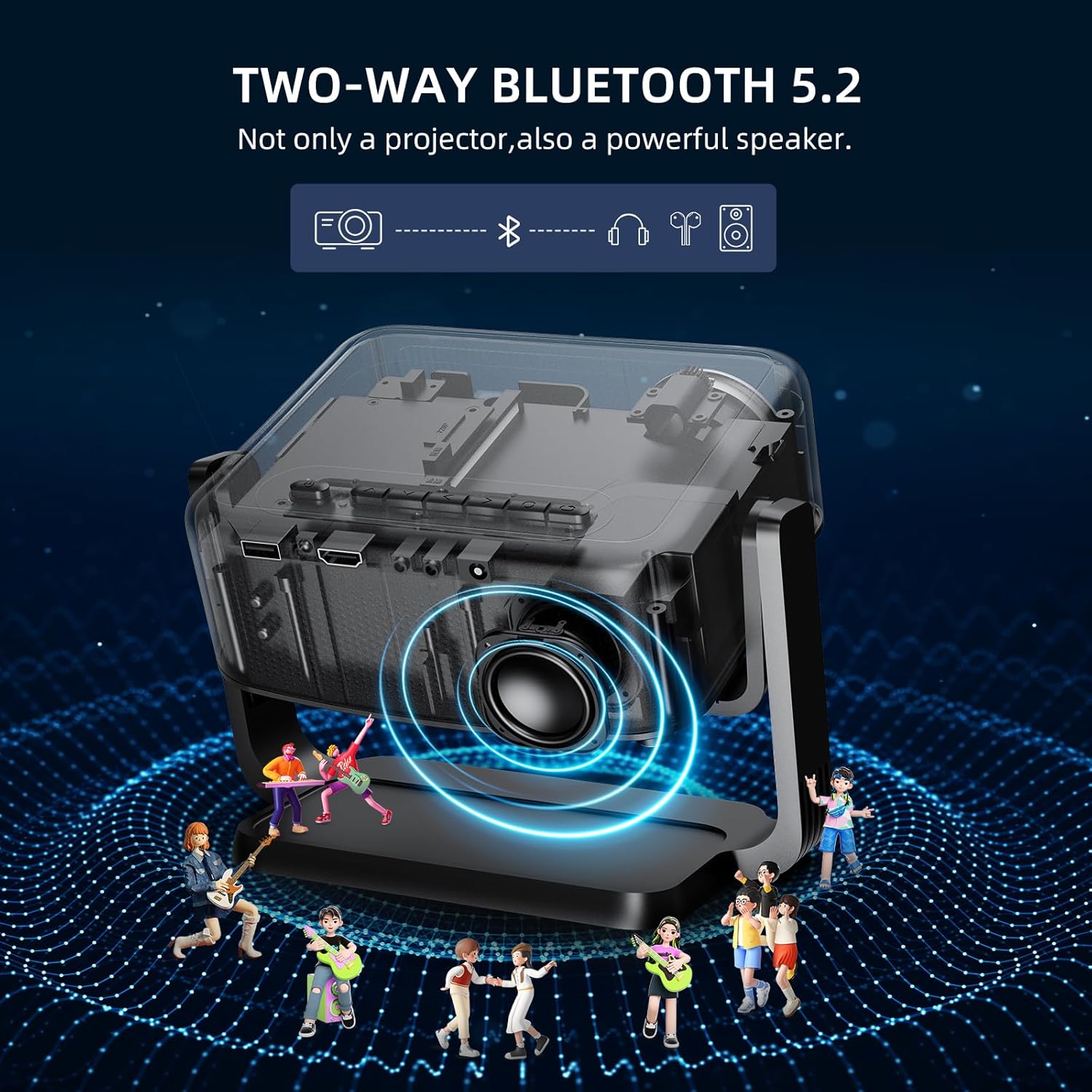
Image 5.3: Illustration of the projector's two-way Bluetooth 5.2 capability, functioning as both a projector and a powerful speaker.
5.4.3. HDMI and USB Connections
Connect devices such as laptops, gaming consoles, TV sticks, or USB drives.
- Plug your HDMI cable into the projector's HDMI port and the other end into your device.
- Insert a USB flash drive into the USB port to play media files directly.
5.5. Screen Mirroring
Mirror your smartphone or tablet screen to the projector wirelessly.
- Ensure both your device and the projector are connected to the same WiFi network.
- Select the screen mirroring option on the projector and follow the on-screen instructions for your specific device (iOS/Android).
- Note on Copyrighted Content: Due to HDCP copyright limitations, most projectors, including the AY3, cannot directly play videos from Netflix or Amazon Prime via smartphone mirroring. For these services, it is recommended to use a Fire TV Stick (not included) or connect a laptop via HDMI.
5.5.1. 90° Counterclockwise Mirror Rotate
This feature allows the projector to rotate the mirrored smartphone screen counterclockwise to landscape mode, even if the phone is in portrait mode, without requiring adjustments to the phone or projector setup.

Image 5.4: Illustration of the 90° counterclockwise mirror rotation feature, enabling landscape projection from a portrait-oriented smartphone.
5.6. Projection Distance and Screen Size
The AY3 projector can display stunning images up to 300 inches. The optimal projection distance varies with desired screen size.
Image 5.5: Reference table for projection distance versus screen size, based on ONOAYO laboratory conditions.
| Screen Size (in) | Projection Distance (ft) |
|---|---|
| 60 | 3.28 |
| 100 | 6.56 |
| 120 | 8.2 |
| 220 | 19.68 |
| 300 | 25.4 |
Note: The sizes tested under ONOAYO ideal laboratory conditions are for reference only.
6. Maintenance
Proper maintenance ensures the longevity and performance of your projector.
- Lens Cleaning: Use the provided cleaning kit or a soft, lint-free cloth specifically designed for optical lenses. Do not use abrasive cleaners or cloths.
- Dust Removal: Regularly clean the projector's vents to prevent dust buildup, which can affect cooling and performance. Use a soft brush or compressed air.
- Storage: When not in use, store the projector in a cool, dry place, away from direct sunlight and extreme temperatures.
7. Troubleshooting
If you encounter issues with your ONOAYO AY3 projector, please refer to the following common problems and solutions:
| Problem | Possible Cause | Solution |
|---|---|---|
| No image or blurry image | Incorrect focus; lens cap on; incorrect input source. | Adjust focus using F+/F- buttons; remove lens cap; select correct input source (HDMI, USB, Screen Mirroring). |
| Image is trapezoidal/distorted | Projector not perpendicular to screen; auto keystone off. | Adjust projector position; enable auto keystone correction or manually adjust via remote. |
| No sound | Volume too low; incorrect audio output; external device muted. | Increase projector volume; check audio output settings; unmute connected device. |
| Cannot connect to WiFi | Incorrect password; network issues; Google Pixel compatibility. | Double-check WiFi password; restart router and projector. For Google Pixel phones, wireless casting may not be directly compatible; consider using a Chromecast via HDMI or a USB-C to HDMI cable. |
| Netflix/Prime Video not playing via screen mirroring | HDCP copyright protection. | Use a Fire TV Stick, Roku, or connect a laptop via HDMI to access these streaming services. |
| Remote control not working | Batteries low/dead; IR receiver blocked. | Replace batteries (AAA); ensure no obstructions between remote and projector's IR receiver. |
8. Specifications
Key technical specifications for the ONOAYO AY3 Mini Projector:
- Brand: ONOAYO
- Model Number: AY3 2024
- Native Resolution: 1920 x 1080 (1080P)
- Brightness: 500 ANSI Lumens
- Connectivity Technology: Bluetooth 5.2, WiFi (5G/WiFi 6), HDMI, USB, 3.5mm Audio Jack
- Special Features: 360° Adjustable Stand, Built-In Speaker, Electric Focus, Auto Keystone Correction (Vertical only), Lightweight & Portable
- Product Dimensions: 5.31 x 4.64 x 4.56 inches
- Item Weight: 2.99 pounds
- Color: Black
- Recommended Uses: Home Cinema
- Visible Screen Diagonal: Up to 300 inches / 762 cm
9. Warranty and Support
ONOAYO is committed to long-term customer satisfaction. For any inquiries or assistance regarding your AY3 Mini Projector, please do not hesitate to contact our support team.
- Customer Support Email: Support_us@onoayo.net
Please retain your proof of purchase for warranty claims.
Ask a question about this manual
Ask about setup, troubleshooting, compatibility, parts, safety, or missing instructions. Manuals+ will review the question and use this page’s manual context to help answer it.