1. Introduction
This manual provides detailed instructions for the setup, operation, and maintenance of your Thunderobot ML903 4K Wireless Gaming Mouse. Please read this manual thoroughly before using the product to ensure optimal performance and longevity.

Figure 1: Thunderobot ML903 4K Wireless Gaming Mouse with its RGB Charging Dock.
2. Package Contents
Verify that all items are present in the package:
- Thunderobot ML903 Wireless Gaming Mouse
- Magnetic RGB Charging Dock
- USB-C to USB-A Cable (for charging and wired mode)
- 2.4GHz Wireless Receiver (USB dongle)
- Receiver Extender
- User Manual (this document)
3. Product Overview
The Thunderobot ML903 mouse features an ergonomic design and advanced components for high-performance gaming.

Figure 2: Overview of the ML903's core technologies and features.
3.1 Ergonomics and Design
The ML903 is designed for comfort and agility, weighing approximately 65 grams. It features a frontal trapezoidal elevation, a midsection waistline design, and palm arch support to reduce fatigue during extended use.

Figure 3: Ergonomic design elements of the ML903 mouse.
3.2 Internal Components
The mouse incorporates a Pixart PAW3395 optical sensor, Kailh GM8.0 microswitches, and Nordic nRF528 series MCUs for precise tracking and reliable clicks.

Figure 4: Exploded view of ML903 internal components.
4. Setup
4.1 Charging the Mouse
The ML903 mouse can be charged using the included magnetic RGB charging dock or directly via the USB-C cable.
- Using the Charging Dock: Place the mouse onto the magnetic charging dock. The mouse will align automatically and begin charging. The RGB lighting on the dock indicates charging status and can be adjusted.
- Direct USB-C Charging: Connect the USB-C cable to the front port of the mouse and the other end to a USB power source.

Figure 5: ML903 mouse on its magnetic charging dock.
4.2 Connectivity Modes
The ML903 supports three connectivity modes: Wired USB, 2.4GHz Wireless, and Bluetooth.

Figure 6: Tri-mode connectivity setup.
- 2.4GHz Wireless Mode:
- Locate the 2.4GHz USB receiver. It may be stored in a compartment on the underside of the mouse.
- Plug the receiver into an available USB port on your computer. For optimal signal, use the included receiver extender to position the receiver closer to the mouse.
- Turn on the mouse. The mouse should automatically connect.
- Bluetooth Mode:
- Ensure your device's Bluetooth is enabled.
- Switch the mouse to Bluetooth mode (refer to the mouse's underside switch for mode selection).
- On your device, search for new Bluetooth devices and select "Thunderobot ML903" to pair.
- Wired USB Mode:
- Connect the USB-C cable to the mouse and the USB-A end to your computer.
- The mouse will function as a wired mouse and charge simultaneously.
4.3 Dual-Dongle Switching Capability
The ML903 supports switching between two 2.4GHz dongles, allowing seamless use with two different PCs.
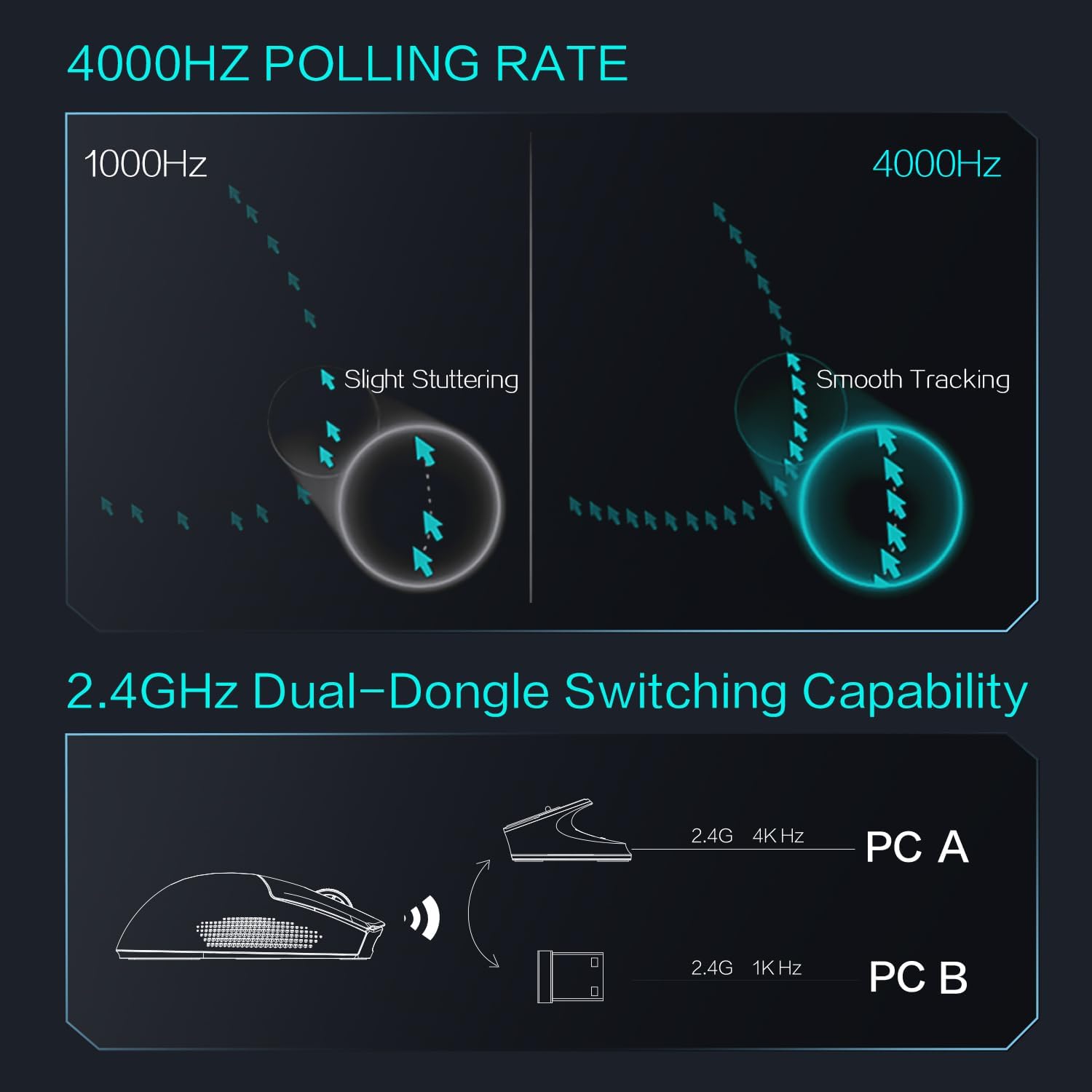
Figure 7: Dual-dongle switching for multiple PCs.
5. Operating Instructions
5.1 DPI Adjustment
The ML903 features a Pixart PAW3395 optical sensor with a resolution up to 26,000 DPI. DPI settings can typically be adjusted via dedicated buttons on the mouse or through the Thunderobot software (if available).

Figure 8: PAW3395 Sensor Specifications.
5.2 Polling Rate Adjustment
The mouse supports an adjustable polling rate up to 4000Hz, providing smoother tracking and lower latency compared to standard 1000Hz mice. Polling rate settings are usually managed through the mouse's software.

Figure 9: Polling rate comparison (1000Hz vs. 4000Hz).
5.3 Battery Indicator
The mouse features an intuitive battery indicator. When the battery level drops below 10%, the last indicator light will start blinking (1s/1 time) to remind you to charge.

Figure 10: Battery indicator details.
6. Maintenance
6.1 Cleaning
To maintain optimal performance and appearance:
- Use a soft, dry cloth to wipe the mouse surface.
- For stubborn dirt, slightly dampen the cloth with water or a mild cleaning solution. Avoid harsh chemicals.
- Clean the optical sensor area periodically with a cotton swab to ensure accurate tracking.
6.2 Battery Care
The ML903 is equipped with a Lithium Polymer battery. To prolong battery life:
- Avoid fully discharging the battery frequently.
- Store the mouse in a cool, dry place when not in use for extended periods.
- Charge the mouse regularly, especially if it has been unused for a long time.
7. Troubleshooting
If you encounter issues with your Thunderobot ML903 mouse, refer to the following common solutions:
| Problem | Possible Solution |
|---|---|
| Mouse not responding in 2.4GHz mode |
|
| Mouse not connecting via Bluetooth |
|
| Inaccurate tracking or stuttering |
|
| Battery drains quickly |
|
8. Specifications
| Feature | Detail |
|---|---|
| Brand | Thunderobot |
| Model Number | ML903 |
| Connectivity Technology | Bluetooth, 2.4GHz Wireless, Wired USB-C |
| Movement Detection Technology | Optical (Pixart PAW3395) |
| Max DPI | 26,000 DPI |
| Max Polling Rate | 4000Hz |
| Max Speed | 650 IPS |
| Max Acceleration | 50G |
| Microswitches | Kailh GM8.0 (80 million click lifecycle) |
| Battery Type | Lithium Polymer (included) |
| Battery Life (Wireless Mode) | 70+ hours |
| Item Weight | 2.29 ounces (approx. 65 grams) |
| Special Feature | Soundless clicks, Magnetic RGB Charging Dock |
| Color | White |
9. Warranty and Support
For warranty information and technical support, please refer to the official Thunderobot website or contact your retailer. Keep your proof of purchase for warranty claims.


