
MOES MOES_2G
Contents
MOES 2nd Generation WiFi Smart Light Switch User Manual
Model: MOES_2G
Brand: MOES
1. Introduction
Thank you for choosing the MOES 2nd Generation WiFi Smart Light Switch. This device is designed to enhance your home's convenience and efficiency by providing smart control over your lighting. It features a sleek design, remote control capabilities via the Smart Life APP, and voice control compatibility with Amazon Alexa and Google Assistant. Please read this manual carefully before installation and use to ensure proper functionality and safety.
2. Safety Information
- Electrical Safety: Installation should only be performed by a qualified electrician or a person with a thorough understanding of electrical wiring. Always turn off power at the circuit breaker before installation, removal, or maintenance.
- Neutral Wire Required: This smart switch requires a neutral wire for proper operation. Verify your electrical box has a neutral wire before attempting installation.
- Wi-Fi Compatibility: Only supports 2.4GHz Wi-Fi networks. Not compatible with 5GHz Wi-Fi.
- Load Type: Not designed for use with smart light bulbs. Not intended to function as a dimmer switch.
- Indoor Use Only: This device is for indoor use in dry locations only.
3. Package Contents
- MOES 2nd Generation WiFi Smart Light Switch
- Mounting Screws
- Wire Nuts
- User Manual
4. Product Overview
The MOES Smart Light Switch features a modern design with a tactile button and an indicator light. Its compact form factor allows for easy installation in standard US wall boxes.

Figure 4.1: MOES 1 Gang Black Smart Switch and packaging.
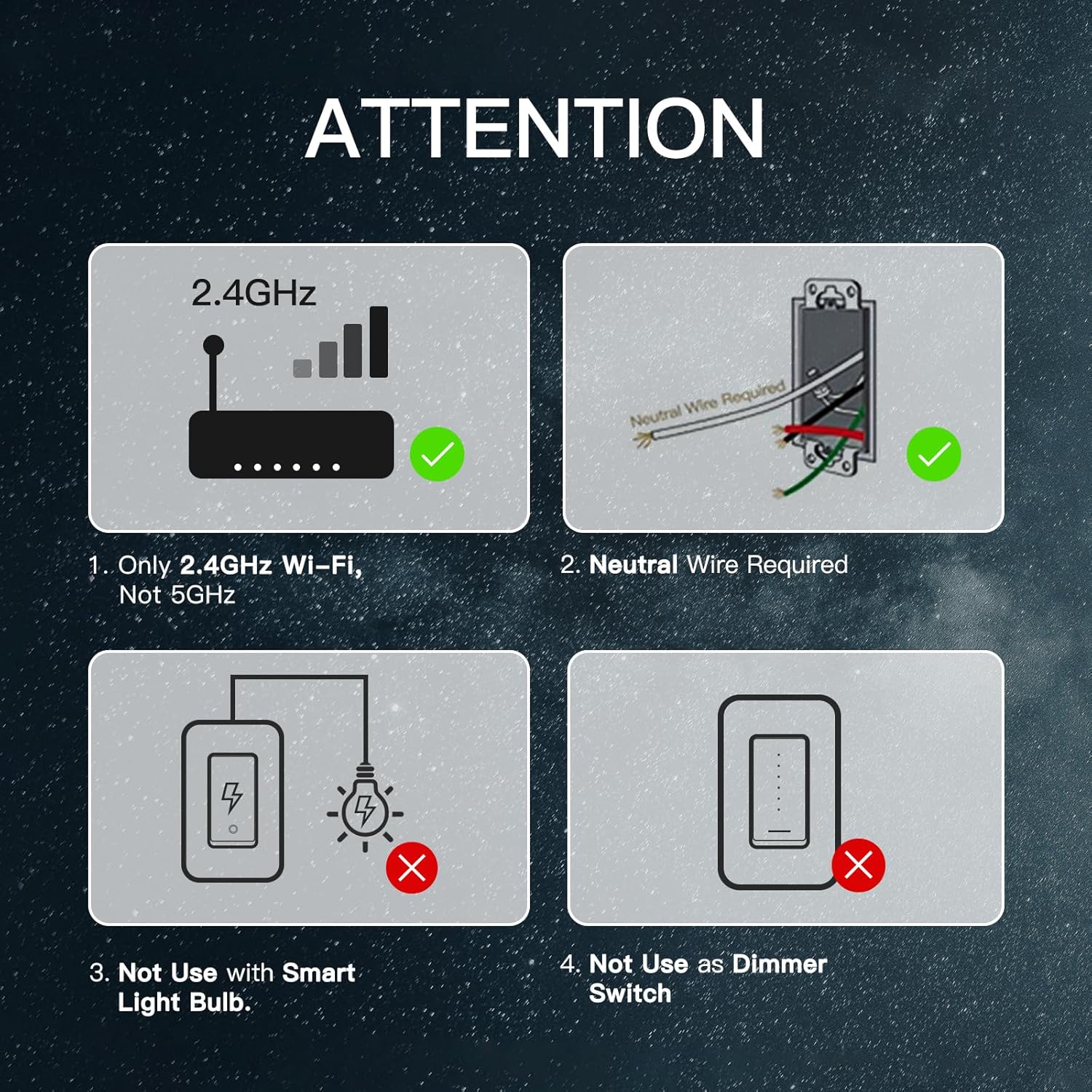
Figure 4.2: Important considerations for installation and use: requires 2.4GHz Wi-Fi, neutral wire, not for smart bulbs, not a dimmer.

Figure 4.3: Dimensions of the smart light switch, showing its compact design.

Figure 4.4: Close-up view highlighting the high-quality PC material used in the switch's construction.
5. Setup and Installation
5.1 Wiring Installation
- Turn Off Power: Before starting, ensure the power to the light switch circuit is turned off at the circuit breaker.
- Verify Neutral Wire: Confirm that a neutral wire (usually white) is present in your electrical box. This switch requires a neutral wire.
- Connect Wires: Connect the wires from your wall box to the smart switch using the provided wire nuts. Typically, this involves Line (Live), Load, Neutral, and Ground wires. Refer to the wiring diagram provided with your switch for specific connections.
- Mount Switch: Secure the smart switch into the wall box using the mounting screws.
- Restore Power: Once the switch is securely installed and wired, restore power at the circuit breaker.
5.2 App Installation and Pairing
- Download App: Download the "Smart Life" or "MOES" app from your smartphone's app store (iOS or Android).
- Register/Login: Open the app and register for a new account or log in if you already have one.
- Add Device: In the app, tap the "+" icon to add a new device. Select "Electrical Switch" or "Wall Switch".
- Enter Wi-Fi Details: Ensure your phone is connected to a 2.4GHz Wi-Fi network. Enter your Wi-Fi password in the app.
- Pairing Mode: Follow the app's instructions to put the switch into pairing mode (usually by pressing and holding the switch button for a few seconds until the indicator light blinks rapidly).
- Complete Pairing: The app will detect and connect to the switch. Once connected, you can rename the device and assign it to a room.
6. Operating Instructions
6.1 Manual Control
Press the physical button on the smart switch to manually turn the connected light ON or OFF.
6.2 App Control
Once paired, you can control your light switch from anywhere using the Smart Life/MOES app.
- Remote ON/OFF: Tap the switch icon in the app to turn the light on or off remotely.
- Scheduling: Set schedules for your lights to turn on or off automatically at specific times.
- Timers: Set countdown timers for temporary control.
- Light Mode Adjustment: The app allows you to adjust the indicator light behavior (e.g., on when light is on, on when light is off, or always off).

Figure 6.1: Illustrations of voice control with Alexa/Google Assistant and remote control via the MOES APP.
6.3 Voice Control
The MOES Smart Light Switch is compatible with Amazon Alexa and Google Assistant for hands-free voice control.
- Linking with Alexa: To link your MOES account with Alexa, open the Alexa app, go to Skills & Games, search for "MOES" or "Smart Life", enable the skill, and link your account.
- Voice Commands: Once linked, you can use commands such as:
- "Alexa, turn on [Device Name]"
- "Alexa, turn off [Device Name]"
- "Hey Google, turn on [Device Name]"
- "Hey Google, turn off [Device Name]"
Video 6.1: Demonstration of connecting the MOES Smart Light Switch with Amazon Alexa for voice control.
6.4 Wireless Multi-Control (3-Way Setup)
The MOES Smart Switch supports multi-control association within the app, allowing you to control one light from multiple switches without additional wiring, simulating a 3-way circuit.

Figure 6.2: Diagram illustrating wireless multi-control functionality for a single light from multiple switch locations.

Figure 6.3: Screenshot of the MOES/Tuya Smart APP showing the multi-control association feature for 3-way circuit setup.
7. Maintenance
- Cleaning: Use a soft, dry cloth to clean the switch plate. Do not use abrasive cleaners or solvents.
- Regular Checks: Periodically check the switch for any signs of damage or loose connections. If any issues are found, turn off power at the breaker and consult a qualified electrician.
8. Troubleshooting
| Problem | Possible Cause | Solution |
|---|---|---|
| Switch not responding to app/voice commands. | No Wi-Fi connection, incorrect Wi-Fi band, app issue. | Ensure switch is connected to 2.4GHz Wi-Fi. Check Wi-Fi signal strength. Restart router and switch. Re-pair the device in the app. Verify Alexa/Google Assistant skill is enabled and linked. |
| Light does not turn on/off. | Incorrect wiring, no neutral wire, power off. | Verify power is on at the breaker. Check all wiring connections, ensuring a neutral wire is connected. Consult a qualified electrician if unsure. |
| Switch does not dim lights. | This is not a dimmer switch. | This switch is designed for ON/OFF functionality only and does not support dimming. |
| Cannot connect to 5GHz Wi-Fi. | Switch only supports 2.4GHz Wi-Fi. | Ensure your router is broadcasting a 2.4GHz network and connect your smartphone to it during pairing. |
9. Specifications
| Feature | Detail |
|---|---|
| Model Number | MOES_2G |
| Product Dimensions | 4.65 x 2.83 x 1.38 inches |
| Weight | 4.66 ounces |
| Operation Mode | ON-OFF-ON |
| Current Rating | 10 Amps |
| Operating Voltage | 120.02 Volts |
| Contact Type | Normally Open |
| Connector Type | Screw |
| Terminal | Screw |
| Circuit Type | 3-way |
| Actuator Type | Push Button |
10. Warranty and Support
MOES products are designed and manufactured to the highest quality standards. For warranty information and technical support, please refer to the contact details provided on the product packaging or visit the official MOES website. Keep your purchase receipt as proof of purchase for warranty claims.
Ask a question about this manual
Ask about setup, troubleshooting, compatibility, parts, safety, or missing instructions. Manuals+ will review the question and use this page’s manual context to help answer it.