1. Introduction
Thank you for choosing the Tenveo VLoop PTZ Camera VL11H. This camera is designed to provide high-quality video for various applications, including video conferencing, live streaming, and educational settings. Featuring 11x optical zoom, Full HD 1080P resolution at 60 frames per second, and versatile connectivity options, the VL11H ensures clear and dynamic visual communication. This manual provides essential information for setting up, operating, maintaining, and troubleshooting your camera.
2. Package Contents
Please verify that all items listed below are included in your package:
- Tenveo VLoop PTZ Camera (11x Optical Zoom)
- USB Cable
- IR Remote Control
- Wall Mount Stand
- DC12V Power Adapter
- Instruction Manual

3. Product Overview
The Tenveo VLoop PTZ Camera VL11H is equipped with advanced features for superior video quality and flexible control.
3.1 Key Features
- 1080P 60FPS Video: Delivers crisp, clear Full HD video at 60 frames per second for smooth motion.
- 11x Optical Zoom: Allows for detailed close-ups of subjects from a distance without loss of quality.
- 1/2.8-inch CMOS Sensor: High-quality sensor with 2.38 megapixels for excellent image capture.
- Smooth Pan/Tilt Movement: Horizontal rotation of ±175° and vertical rotation of ±90° for comprehensive room coverage.
- Wide Field of View: Captures a broad area, ensuring all participants are visible.
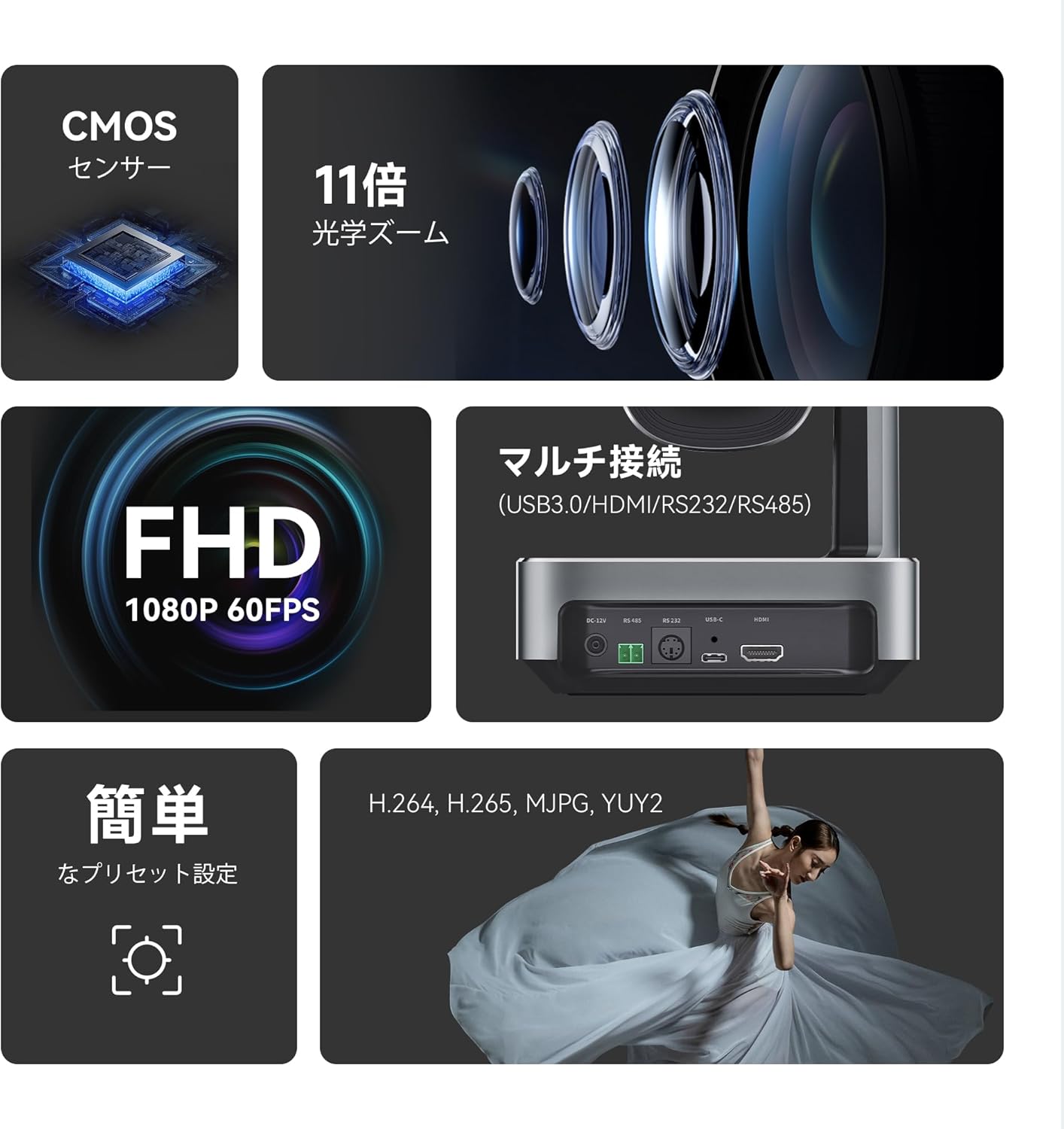
3.2 Ports and Connections
The camera offers multiple interfaces for flexible integration into your existing setup:
- DC-12V: Power input.
- RS485 & RS232: Control ports for advanced PTZ control via serial communication.
- USB-C: Video output for direct connection to computers.
- HDMI: High-definition video output.

4. Setup
Follow these steps to set up your Tenveo VLoop PTZ Camera:
- Mounting: Choose an appropriate installation method (desktop, monitor, tripod, wall, or ceiling). Use the provided wall mount stand and screws if mounting to a wall or ceiling. Ensure the camera is securely positioned.
- Power Connection: Connect the DC12V power adapter to the camera's DC-12V port and plug it into a power outlet.
- Video Output: Connect the camera to your display or capture device using either the USB-C cable (for direct computer connection) or an HDMI cable.
- Control Connection (Optional): For advanced control, connect an RS232 or RS485 cable to a compatible control device (e.g., serial joystick).

5. Operating Instructions
Control your camera's movements and settings using the IR remote control or serial communication.
5.1 PTZ Control
Use the directional buttons on the IR remote control to pan (horizontal), tilt (vertical), and zoom the camera. The camera supports ±175° pan and ±90° tilt rotation.
5.2 Presets
The camera supports up to 10 presets via the IR remote control and up to 255 presets via RS232/RS485. Presets allow you to quickly recall specific camera positions and zoom levels.
- Setting a Preset: Position the camera to your desired view, then press the 'PRESET' button followed by a number (1-10) on the remote.
- Recalling a Preset: Press the desired number (1-10) on the remote.

5.3 OSD Menu
Access the On-Screen Display (OSD) menu to adjust various camera settings:
- Exposure: Auto/Manual exposure, backlight compensation.
- Color: Brightness, contrast, hue, saturation, sharpness, white balance mode.
- Image: Digital noise reduction (2D & 3D NR).
- P/T/Z: Pan/Tilt/Zoom settings.
- Communication: Protocol, baud rate, RC address.
- Information: Camera firmware and version details.
- Restore Default: Reset all settings to factory defaults.
- Language: Select menu language.

6. Connectivity
The VL11H camera offers flexible video output options:
- USB3.0: Connect directly to a computer for video capture. Recommended effective distance is up to 15m (49.21ft).
- HDMI: Connect to displays, video switchers, or capture cards. Recommended effective distance is up to 30m (98.42ft).
- Simultaneous Output: The camera can output video up to 1080p@60fps via both USB3.0 and HDMI simultaneously.
7. Compatibility
The Tenveo VLoop PTZ Camera VL11H is designed for broad compatibility with popular video conferencing software and operating systems:
- Software: Compatible with Zoom, YouTube, Facebook Messenger, Teams, Facetime, Google Hangout, OBS, Google Meet, and other popular video/meeting software.
- Operating Systems: Supports Windows 7/8.1/10, Mac 10.10 and above, Linux, and Android.

8. Installation Methods
The VL11H camera offers versatile installation options to suit various environments:
- Desktop: Place the camera on a flat surface.
- Monitor: Mount on top of a monitor using a compatible bracket (not included).
- Tripod: Attach to a standard tripod using the 1/4-inch screw hole at the bottom.
- Wall Mount: Use the provided wall mount stand to secure the camera to a wall.
- Ceiling Mount: Use the provided wall mount stand to secure the camera to the ceiling.
9. Maintenance
To ensure the longevity and optimal performance of your camera, please follow these maintenance guidelines:
- Cleaning: Use a soft, dry cloth to clean the camera body. For the lens, use a lens cleaning cloth and solution specifically designed for optical lenses.
- Environment: This product is designed for indoor use only. Avoid exposing the camera to extreme temperatures, humidity, dust, or direct sunlight.
- Handling: Handle the camera with care. Avoid dropping or subjecting it to strong vibrations.
- Audio: Please note that this camera does not have a built-in microphone. An external microphone is required for audio capture.
10. Troubleshooting
If you encounter any issues with your Tenveo VLoop PTZ Camera VL11H, please refer to the following common solutions or contact customer support.
| Problem | Possible Cause | Solution |
|---|---|---|
| No video output | Loose cable connection, incorrect input selection on display, power issue. | Check all cable connections (USB, HDMI, power). Ensure the display is set to the correct input source. Verify the power adapter is functioning. |
| Camera not responding to remote | Remote batteries low, obstruction, incorrect remote address. | Replace remote batteries. Ensure no obstructions between remote and camera. Check camera's communication settings in OSD menu. |
| Image is blurry/out of focus | Auto-focus issue, dirty lens. | Try manual focus adjustment via OSD menu. Clean the camera lens. |
If the issue persists, please contact Tenveo customer support for further assistance. You can expect a response within 24 hours.
11. Specifications
| Feature | Specification |
|---|---|
| Brand | Tenveo |
| Model Number | VL11H |
| Optical Zoom | 11x |
| Video Capture Resolution | 1080p @ 60FPS |
| Photo Sensor Technology | CMOS (1/2.8 inch, 2.38 Megapixels) |
| Pan/Tilt Rotation | Pan: ±175°, Tilt: ±90° |
| Focal Length (Wide Side) | 3.9mm |
| Focal Length (Telephoto Side) | 46.8mm |
| Aperture (Wide Side) | f/2.8 |
| Lens Configuration | Zoom, Macro, Wide Angle |
| Connectivity Technology | HDMI, USB, Infrared (IR) |
| Video Compression Format | H.264, H.265, MJPG, YUY2 |
| Operation Systems | Windows, MacOS, Android, Linux (requires UVC support) |
| Working Temperature | 10°C to 50°C |
| Dimensions (W×H×D) | 171.8 x 192.0 x 171.1 mm (before packing) |
| Net Weight | 1200g |
12. Warranty and Support
Tenveo is committed to providing high-quality products and excellent customer service.
- Return Policy: 30-day no-reason return policy.
- Warranty: 3-year manufacturer's warranty.
- Support: Lifetime maintenance and technical support. For any inquiries, please contact us. We guarantee a response within 24 hours.