
Introduction
The Keychron Q0 Max is a versatile, full-metal custom mechanical numpad designed for enhanced productivity and customization. It offers multiple connectivity options, hot-swappable switches, and QMK/VIA support for personalized key mapping. This manual provides essential information for setting up, operating, and maintaining your Q0 Max numpad.
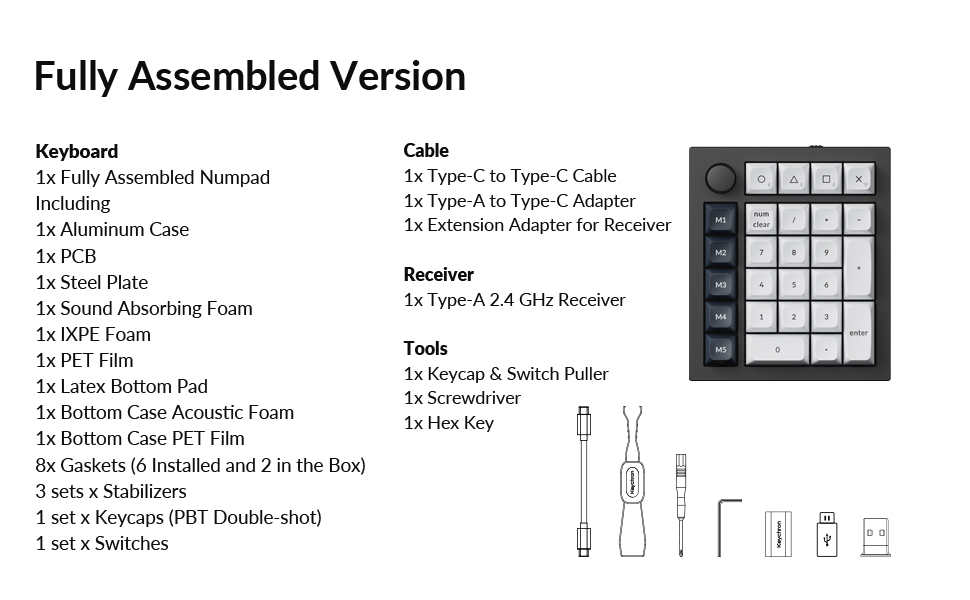
Image: The Keychron Q0 Max numpad shown alongside a full-sized keyboard, highlighting its compact design and integration into a desktop setup.
Package Contents
Verify that all items are present in your Keychron Q0 Max package:
- Keyboard:
- 1x Fully Assembled Numpad (including Aluminum Case, PCB, Steel Plate, Sound Absorbing Foam, IXPE Foam, PET Film, Latex Bottom Pad, Bottom Case Acoustic Foam, Bottom Case PET Film, 8x Gaskets (6 Installed and 2 in the Box), 3 sets x Stabilizers, 1 set x Keycaps (PBT Double-shot), 1 set x Switches)
- Cable:
- 1x Type-C to Type-C Cable
- 1x Type-A to Type-C Adapter
- 1x Extension Adapter for Receiver
- Receiver:
- 1x Type-A 2.4 GHz Receiver
- Tools:
- 1x Keycap & Switch Puller
- 1x Screwdriver
- 1x Hex Key

Image: A visual representation of the Keychron Q0 Max numpad and its included accessories, such as cables, adapters, tools, and extra components.
Features
- Full-Metal Construction: The Q0 Max features a durable body crafted from 6063 aluminum, processed through CNC machining, polishing, anodizing, and sandblasting for a robust and premium feel.
- Tri-Mode Connectivity: Connect wirelessly via 2.4 GHz (1000 Hz polling rate) or Bluetooth 5.1 (up to 3 devices), or use the wired USB-C connection.
- Hot-Swappable Switches: Easily change every switch on the Q0 Max without soldering. It supports almost all MX mechanical switches on the market.
- Enhanced Acoustic Design: Features premium acoustic foams (IXPE, PET, Latex) and a double-gasket design, combined with screw-in stabilizers, to provide a satisfying typing experience.
- QMK/VIA Programmability: Customize key assignments, macros, and lighting effects with open-source QMK firmware and VIA software.
- Programmable Rotary Knob: The rotary encoder knob can be programmed for various functions, such as volume control or zoom.
- South-Facing RGB Backlight: Enjoy customizable RGB lighting with south-facing LEDs for optimal illumination with various keycap profiles.
- PBT Keycaps: Equipped with KSA profile double-shot non-backlight shine-through PBT keycaps, offering excellent oil resistance and durability.


Setup
1. Charging the Numpad
Before initial use, fully charge the Keychron Q0 Max. Connect the provided Type-C to Type-C cable to the numpad's USB-C port and to a power source. The LED indicator will show charging status.
2. Connecting the Numpad
The Q0 Max supports three connection modes: 2.4 GHz wireless, Bluetooth 5.1, and wired USB-C.
- 2.4 GHz Wireless:
- Locate the 2.4 GHz receiver (USB-A dongle) in the package.
- Plug the receiver into an available USB-A port on your computer. If your computer only has USB-C ports, use the provided Type-A to Type-C adapter.
- Switch the mode toggle on the side of the numpad to 'G' (2.4 GHz mode).
- The numpad should automatically connect.
- Bluetooth 5.1:
- Switch the mode toggle on the side of the numpad to 'BT' (Bluetooth mode).
- On your computer or device, enable Bluetooth and search for new devices.
- Select 'Keychron Q0 Max' from the list of available devices to pair.
- The numpad can store up to three Bluetooth profiles. Use the Fn + 1/2/3 keys to switch between paired devices.
- Wired USB-C:
- Connect the provided Type-C to Type-C cable from the numpad's USB-C port to a USB-C port on your computer.
- Switch the mode toggle on the side of the numpad to 'Cable' (wired mode).
- The numpad will function as a wired device and charge simultaneously.

Image: A side view of the Keychron Q0 Max, showing the toggle switch for selecting between 2.4 GHz, Bluetooth, and wired USB-C modes.
Operation
1. Basic Key Functions
The Q0 Max functions as a standard numeric keypad. Keys are pre-programmed for typical numeric input and arithmetic operations. The 'M1' through 'M5' keys on the left column are macro keys, and the rotary knob provides additional functionality.
2. Customizing with QMK/VIA
The Keychron Q0 Max is fully compatible with QMK firmware and VIA software, allowing for extensive customization of key functions, macros, and RGB lighting.
- Download VIA Software: Visit the official Keychron website to download the latest VIA software or use the web-based Keychron Launcher.
- Connect Numpad: Ensure your Q0 Max is connected to your computer via USB-C cable for VIA detection.
- Key Remapping: Use the VIA interface to remap any key, assign macros, or configure the rotary knob. The software provides a visual layout of the numpad for easy customization.
- Lighting Control: Adjust RGB effects, brightness, and colors through the VIA software.

Image: A screenshot of the Keychron Launcher interface, demonstrating how users can program and remap keys on the Q0 Max numpad across different layers.
Maintenance
1. Cleaning
To clean your numpad, disconnect it from your computer. Use a soft, dry cloth to wipe the aluminum case. For keycaps, a damp cloth with mild soap can be used, ensuring no liquid enters the switches. Use a keycap puller to remove keycaps for thorough cleaning.
2. Switch and Keycap Replacement
The Q0 Max features hot-swappable switches, allowing for easy replacement without soldering.
- Removing Keycaps: Use the provided keycap puller to gently remove keycaps by hooking onto two sides and pulling upwards.
- Removing Switches: Use the provided switch puller. Align the prongs with the clips on the top and bottom of the switch, squeeze, and pull upwards.
- Installing Switches: Ensure the switch pins are straight. Align the pins with the holes on the PCB and press down firmly until the switch clicks into place. Do not force switches if they don't align, as this can bend pins.
- Installing Keycaps: Align the keycap stem with the switch stem and press down gently until it is secure.
Troubleshooting
- Numpad Not Responding:
- Ensure the numpad is charged.
- Check the connection mode switch (2.4 GHz, BT, or Cable) matches your connection method.
- For 2.4 GHz, ensure the receiver is properly plugged in.
- For Bluetooth, ensure Bluetooth is enabled on your device and the numpad is paired. Try re-pairing if necessary.
- For wired, ensure the USB-C cable is securely connected to both the numpad and your computer.
- Keys Not Registering:
- If individual keys are not working, the switch might be faulty or improperly seated. Use the switch puller to remove and re-insert the switch.
- Ensure no debris is lodged under the keycap or switch.
- VIA/QMK Software Issues:
- Ensure the numpad is connected via USB-C cable when using VIA for programming.
- Download the latest version of VIA software or Keychron Launcher from the official website.
- Restart the software and reconnect the numpad.
- Battery Drains Quickly:
- High RGB brightness and complex lighting effects consume more power. Reduce brightness or simplify effects to extend battery life.
- Ensure the numpad is turned off or enters sleep mode when not in use.
Specifications
| Brand | Keychron |
| Model | Q0 Max |
| Connectivity Technology | 2.4 GHz, Bluetooth 5.1, USB-C |
| Keyboard Description | Custom Mechanical Numpad Keyboard, Wireless, QMK/VIA, Hot-swappable, RGB, for Mac, Windows and Linux, Number Pad, Aluminum |
| Compatible Devices | Laptop (Mac, Windows, Linux) |
| Special Features | Backlit, Hot-Swappable, Programmable Keys, Rechargeable, Screw-In PCB Stabilizers |
| Material | CNC Aluminum |
| Item Weight | 2.38 pounds |
| Batteries | 1 A battery required (included) |
Warranty and Support
Keychron products are covered by a limited warranty. For detailed warranty information, technical support, or to access additional resources, please visit the official Keychron website or contact their customer service. Keep your proof of purchase for warranty claims.


