1. Introduction
This user manual provides comprehensive instructions for the Cenmate Dual Bay Hard Drive RAID Enclosure. This device is designed to provide reliable external storage for both individuals and businesses, supporting a maximum capacity of up to 40TB using 2.5-inch or 3.5-inch SATA HDDs and SSDs. Please read this manual carefully before using the product to ensure proper setup and operation.
2. Product Overview
2.1. What's in the Box
- Dual Bay Hard Drive RAID Enclosure
- USB A/C 3.0 Cable
- Power Adapter
- User Manual (this document)
2.2. Key Features
- High Capacity: Supports up to 40TB (20TB per hard drive) for 2.5/3.5-inch SATA HDD/SSD.
- Multiple RAID Modes: Supports RAID 0, RAID 1, Normal, and JBOD modes.
- Efficient Cooling: Built-in 2-inch fan and aluminum-alloy materials for superior heat dissipation. Note: Fan noise is approximately 40-50 decibels.
- High-Speed Data Transfer: Equipped with JMS561 chip and USB 3.0 output interface, offering up to 5Gbps under UASP control.
- Wide Compatibility: Plug and play with Windows 7 and above, Mac 9.1 and above, and Linux. Includes USB A/C 3.0 Cable.
- Tool-Free Design: Easy, screwless installation for 3.5-inch hard drives.
- Stable Power Supply: DC 12V power adapter ensures stable data transfer.
- LED Indicators: Blue indicates standby mode, red flashing indicates reading and writing activity.
- Silicone Anti-skid Pad: Wear-resisting and skidproof for dock protection.
2.3. Product Visuals
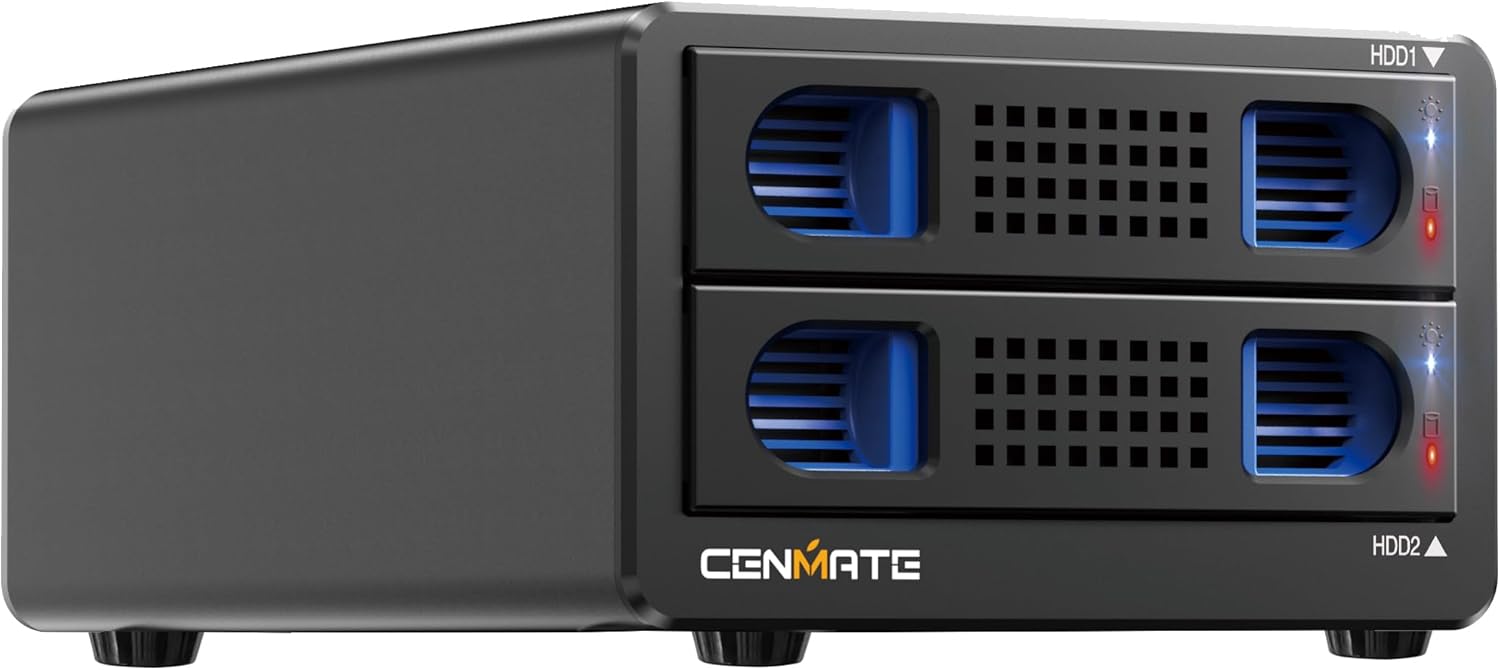
Front view of the Cenmate Dual Bay Hard Drive RAID Enclosure, showing the two drive bays.

Illustration highlighting the 40TB large capacity, supporting two 20TB 2.5/3.5-inch SATA HDD/SSD drives.

Image demonstrating the maximum 5Gbps data transfer speed, allowing data transfer in seconds.

Diagram showing the internal upgraded built-in cooling fan and aluminum housing for heat dissipation.

Comparison showing the tool-free, screwless installation for 3.5-inch hard drives and the non-slip feet on the enclosure.

Illustration of the enclosure's wide compatibility with laptops and PCs, supporting 3.5" HDD, 2.5" HDD, and 2.5" SSD.

Image showing the DC 12V power supply connection, ensuring a stable power and safe data transfer environment.

Diagram illustrating the four RAID modes: Normal, JBOD, RAID 0, and RAID 1, with corresponding switch settings.

Image explaining the LED indicators: Blue for standby mode, Red flashing for reading and writing.

Close-up of the silicone anti-skid pads on the bottom of the enclosure, designed for wear-resistance and protection.

Image of the included 2-in-1 USB cable, featuring both USB-A and USB-C connectors for wide device compatibility.
3. Setup Instructions
3.1. Installing Hard Drives
- Gently pull out the drive tray from the enclosure.
- For 3.5-inch HDDs: Pull up the blue clasps on both sides of the bracket and gently place the hard disk into the tray. The tool-free design secures the drive.
- For 2.5-inch SSDs/HDDs: Use a screwdriver to open the blue clasp on the side of the tray. Place the 2.5-inch drive into the tray and secure it with screws (provided).
- Slide the loaded drive tray back into the enclosure until it clicks into place.
3.2. Connecting the Enclosure
- Connect the power adapter to the enclosure's DC 12V input port and plug it into a power outlet.
- Connect the provided USB A/C 3.0 cable from the enclosure's USB 3.0 output interface to your computer's USB port.
- Turn on the enclosure using the power switch.
3.3. Initializing and Formatting Drives
After connecting a new hard drive to your computer, it must be formatted before the system can recognize and use it. Follow these steps:
- Right-click 'Computer' (or 'This PC') and select 'Manage'.
- Open 'Disk Management'.
- Find the new hard drive. Right-click on it and select 'Initialize Disk'. Choose 'MBR' for hard drives less than or equal to 2TB, or 'GPT' for hard drives greater than 2TB.
- Right-click the unallocated space on the new disk and select 'New Simple Volume'. Follow the wizard to format the partition.
- Once formatting is complete, the hard drive can be used normally and will appear with a new disk symbol.
4. Operating Instructions
4.1. RAID Mode Configuration
The enclosure supports four RAID modes: Normal, JBOD, RAID 0, and RAID 1. The mode is set using DIP switches on the back of the unit. Note: Designing or resetting a RAID array may result in data loss. Back up important data before changing RAID modes.
Diagram illustrating the four RAID modes: Normal, JBOD, RAID 0, and RAID 1, with corresponding switch settings.
- Normal Mode: (Switch 1 & 2 are down) Each drive operates independently.
- JBOD Mode: (Switch 1 down & Switch 2 up) Drives are concatenated to form a single large volume.
- RAID 0 Mode: (Switch 1 up & Switch 2 down) Data is striped across both drives for increased performance. No redundancy.
- RAID 1 Mode: (Switch 1 & 2 are up) Data is mirrored across both drives for redundancy. Capacity is limited to the smallest drive.
After setting the desired RAID mode using the DIP switches, press and hold the
Related Documents - 2 Bay Raid
 |
CENMATE 802RU 2-Bay RAID HDD Enclosure User Manual User manual for the CENMATE 802RU, a 2-bay RAID HDD enclosure supporting USB 3.0 to SATA connections. Includes setup, OS support, partitioning, formatting, and product specifications. |
 |
Cenmate 804U3RAID3G 4-Bay External RAID Hard Drive Enclosure User Manual Comprehensive user manual for the Cenmate 804U3RAID3G 4-bay external RAID hard drive enclosure. Covers installation, setup, product specifications, various RAID levels (RAID 0, 1, 5, 10, JBOD, Clone, Normal), troubleshooting, and technical support. Supports 2.5/3.5 inch SATA HDDs and SSDs. |
 |
CENMATE 802RU 2 Bay External Hard Drive RAID Enclosure User Manual This document provides product instructions and specifications for the CENMATE 802RU 2 Bay External Hard Drive RAID Enclosure for 2.5/3.5" SATA HDDs/SSDs. It covers features, installation, troubleshooting, and RAID level settings. |
 |
Cenmate 804PM6G 4-Bay Non-RAID Hard Drive Enclosure User Manual User manual for the Cenmate 804PM6G 4-bay non-RAID hard drive enclosure, detailing product specifications, installation steps, and troubleshooting. |
 |
Cenmate 802RU 2-Bay External Hard Drive RAID Enclosure User Manual Comprehensive user manual for the Cenmate 802RU 2-Bay External Hard Drive RAID Enclosure, covering installation, RAID configurations (RAID 0, RAID 1, JBOD, Normal), drive formatting, troubleshooting, and safety guidelines. |
 |
CENMATE 810RU 10 Bay USB 3.0/eSATA RAID/JBOD Enclosure User Manual User manual for the CENMATE 810RU 10 Bay USB 3.0/eSATA RAID/JBOD Enclosure. Includes installation guides, RAID configuration details, troubleshooting steps, product specifications, and technical support information. |