Introduction
Welcome to the user manual for your new MEIZE Android 14 Tablet D106. This guide provides detailed instructions on setting up, operating, maintaining, and troubleshooting your device. Please read this manual thoroughly to ensure optimal performance and longevity of your tablet.

Image: Front view of the MEIZE Android 14 Tablet D106, displaying its vibrant screen with various application icons and a dynamic wallpaper. The tablet features a sleek design with a dark gray finish.
What's in the Box
Upon unboxing your MEIZE Tablet, please verify that all the following items are included:
- MEIZE Android 14 Tablet D106
- USB Charging Cable
- Power Adapter
- User Manual (this document)
- SIM Ejector Tool (if applicable)
Setup Guide
1. Initial Charging
Before first use, it is recommended to fully charge your tablet. Connect the provided USB charging cable to the tablet's charging port and the power adapter, then plug the adapter into a wall outlet. The battery indicator on the screen will show charging progress.
2. Powering On/Off
- To Power On: Press and hold the Power button (usually located on the side) until the MEIZE logo appears on the screen.
- To Power Off: Press and hold the Power button until a power options menu appears. Select "Power Off" and confirm.
- To Restart: From the power options menu, select "Restart" and confirm.
3. SIM and SD Card Installation
Your tablet supports dual 4G cellular connectivity and expandable storage via a microSD card.
- Locate the SIM/SD card tray on the side of the tablet.
- Insert the SIM ejector tool into the small hole next to the tray and gently push until the tray pops out.
- Carefully place your Nano SIM card(s) and/or microSD card into the designated slots on the tray, ensuring correct orientation.
- Gently push the tray back into the tablet until it clicks into place.
Image: Close-up of a SIM and SD card tray, showing the slots for Nano SIM cards and a microSD card, along with a SIM ejector tool.
4. Initial Setup Wizard
The first time you power on your tablet, you will be guided through an initial setup process. Follow the on-screen prompts to:
- Select your language.
- Connect to a Wi-Fi network.
- Sign in with your Google account or create a new one.
- Set up screen lock (PIN, pattern, password).
- Review and accept terms and conditions.
Operating Your Tablet
1. Basic Navigation
Your MEIZE tablet uses a capacitive touchscreen for interaction:
- Tap: To select an item or open an app.
- Tap & Hold: To access contextual menus or move icons.
- Swipe: To scroll through pages or lists.
- Pinch-to-Zoom: To zoom in or out on images or web pages.
2. Connecting to Wi-Fi
To connect to the internet via Wi-Fi:
- Go to Settings > Network & internet > Wi-Fi.
- Toggle Wi-Fi ON.
- Select your desired network from the list.
- Enter the password if prompted and tap Connect.

Image: Visual representation of the tablet's connectivity features, including 5G/2.4G WiFi, Bluetooth 5.0, Octa-Core Processor, and Dual 4G Cellular capabilities.
3. Bluetooth Pairing
To connect Bluetooth devices (e.g., headphones, speakers):
- Go to Settings > Connected devices > Bluetooth.
- Toggle Bluetooth ON.
- Ensure your Bluetooth device is in pairing mode.
- Select the device from the "Available devices" list and follow any on-screen prompts to complete pairing.
4. Using the Cameras
Your tablet is equipped with a 13MP rear camera and an 8MP front camera for photos and videos.
- Open the Camera app.
- Tap the shutter button to take a photo.
- Switch between photo and video modes as needed.
- Tap the camera switch icon to toggle between front and rear cameras.

Image: Depiction of the tablet's dual camera system, highlighting the 13MP HD rear camera and 8MP HD front camera, with a visual of the tablet displaying a vibrant image of a surfer.
5. Managing Storage
The tablet comes with 128GB of internal storage and supports up to 512GB additional expansion via microSD card. To manage your storage:
- Go to Settings > Storage to view storage usage.
- You can free up space by uninstalling unused apps, deleting old photos/videos, or moving files to the SD card.

Image: A graphic illustrating the tablet's memory capabilities, including 128GB of large memory, 14(8+6)GB of running memory, and support for 512GB of additional expansion. Multiple tablets are shown displaying diverse content, emphasizing storage capacity.
6. Battery Management
Your tablet features an 8000mAh lithium polymer battery. To optimize battery life:
- Adjust screen brightness.
- Close unused apps running in the background.
- Turn off Wi-Fi, Bluetooth, or GPS when not in use.
- Enable Battery Saver mode in Settings.
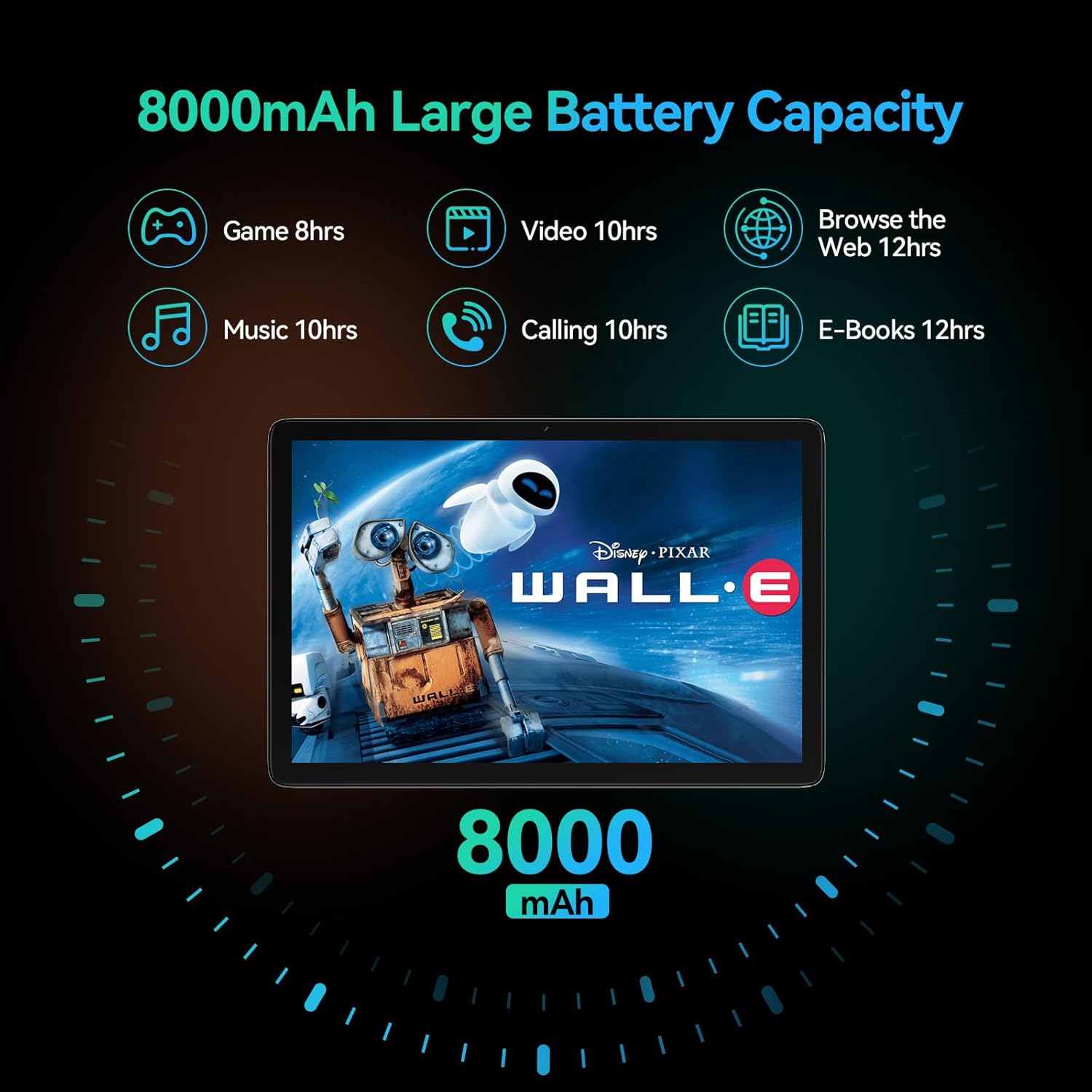
Image: A visual representation of the tablet's 8000mAh battery capacity, detailing estimated usage times for various activities such as gaming (8 hours), video playback (10 hours), music (10 hours), calling (10 hours), e-books (12 hours), and web browsing (12 hours).
7. 4G Cellular Function
With a compatible Nano SIM card, your tablet supports 4G calls and mobile data. Ensure your SIM card is properly installed and activated by your service provider. The tablet supports 2G GSM full band, WCDMA: B1\B2\B4\B5\B8, and 4G full frequency band: B1\B2\B3\B4\B5\B7\B8\B12\B17\B19\B20\B28A\B28B\B66\B38\B39\B40\B41.
Maintenance
1. Cleaning the Device
To keep your tablet clean and in good condition:
- Use a soft, lint-free cloth to wipe the screen and body.
- For stubborn smudges, slightly dampen the cloth with water or a screen cleaner.
- Avoid using harsh chemicals, abrasive materials, or excessive moisture.
2. Software Updates
Regularly check for and install software updates to ensure your tablet has the latest features, security patches, and performance improvements.
- Go to Settings > System > System update.
- Follow the on-screen instructions to download and install any available updates.
3. Storage Management
Periodically review your tablet's storage to prevent it from becoming full, which can affect performance. Delete unnecessary files, clear app caches, and uninstall apps you no longer use.
Troubleshooting
| Problem | Possible Solution |
|---|---|
| Tablet won't turn on. | Ensure the battery is charged. Connect to the charger for at least 30 minutes. Try holding the Power button for 10-15 seconds to force a restart. |
| Screen is unresponsive or frozen. | Force restart the tablet by holding the Power button for 10-15 seconds. If the issue persists, try a factory reset (data will be lost). |
| Wi-Fi or Bluetooth connectivity issues. | Toggle Wi-Fi/Bluetooth off and on. Restart your router/Bluetooth device. Forget the network/device and reconnect. |
| Apps are crashing or running slowly. | Clear app cache (Settings > Apps > [App Name] > Storage & cache > Clear cache). Update apps. Free up storage space. Restart the tablet. |
| Tablet is not charging. | Check the charging cable and adapter for damage. Try a different outlet. Ensure the charging port is clean and free of debris. |
| Poor camera quality. | Ensure the camera lens is clean. Check lighting conditions. Update camera app or system software. |
Factory Reset (Last Resort)
If you encounter persistent issues that cannot be resolved by other troubleshooting steps, a factory reset may be necessary. Warning: This will erase all data on your tablet. Back up important data before proceeding.
- Go to Settings > System > Reset options.
- Select Erase all data (factory reset).
- Confirm your decision and enter your PIN/pattern/password if prompted.
- The tablet will restart and begin the reset process.
Specifications
Key technical specifications for the MEIZE Android 14 Tablet D106:

Image: An infographic highlighting the core specifications of the MEIZE tablet, including Android 14, 128GB storage, 14(8+6)GB RAM, 8000mAh battery, 13MP+8MP cameras, 10.1-inch display, GPS, and an Octa-core processor.
| Feature | Detail |
|---|---|
| Model Name | D106 |
| Operating System | Android 14 |
| Processor | Octa-Core, 1.6 GHz |
| RAM | 14GB (8GB + 6GB Expansion) |
| Internal Storage | 128GB ROM |
| Expandable Storage | Up to 512GB via microSD |
| Screen Size | 10.1 Inches |
| Screen Resolution | 1920 x 1200 pixels (HD Display) |
| Rear Camera | 13MP |
| Front Camera | 8MP |
| Battery Capacity | 8000mAh Lithium Polymer |
| Connectivity | Dual 4G Cellular, 5G WiFi, Bluetooth 5.0, GPS |
| Dimensions (LxWxH) | 10 x 7 x 0.3 inches |
| Item Weight | 2.09 pounds |
| Color | Gray |
Warranty and Support
MEIZE is committed to providing high-quality products and excellent customer service. Your MEIZE Tablet D106 comes with a standard manufacturer's warranty. Please refer to the warranty card included in your product packaging for specific terms and conditions, including warranty period and coverage details.
For technical support, troubleshooting assistance, or warranty claims, please contact MEIZE customer service through the following channels:
- Email: Refer to your product packaging or the official MEIZE website for the most current support email address.
- Online Support: Visit the official MEIZE website for FAQs, support resources, and contact forms.
- Amazon Store: You can also reach out through the MEIZE store page on Amazon for product-related inquiries: MEIZE Amazon Store
When contacting support, please have your tablet's model number (D106) and purchase information readily available.


