
1. Introduction
The Makayuron Smart Lock GDH8 is a versatile door locking system designed for enhanced security and convenience. It offers multiple unlocking methods including fingerprint, TT Lock App (Bluetooth), password, NFC, and a traditional mechanical key. This manual provides detailed instructions for installation, setup, operation, and maintenance of your smart lock.
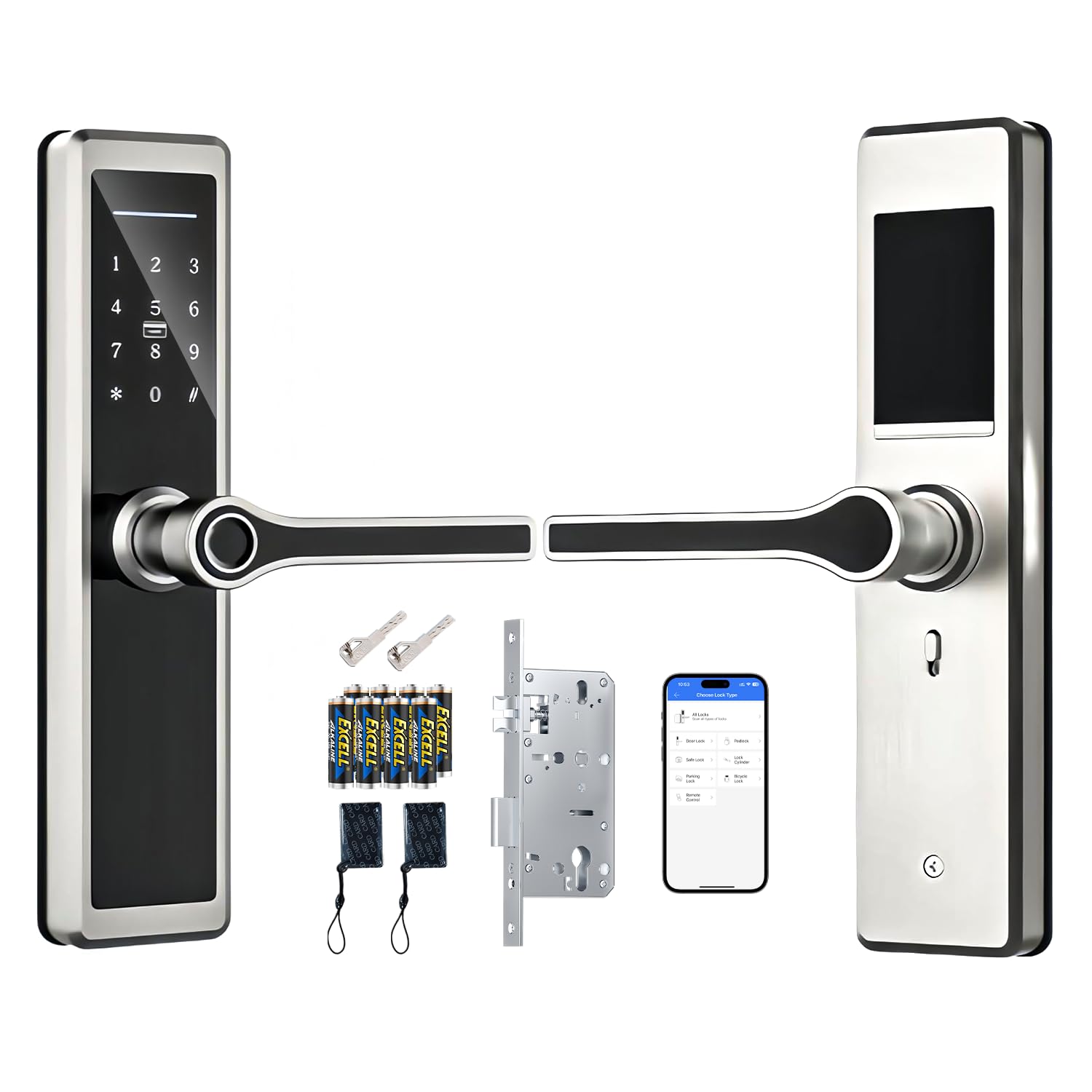
Image: The Makayuron Smart Lock GDH8 showcasing its various unlocking methods: fingerprint, send eKey, remote unlock, generate passcode, authorized admin, eKeys, passcodes, and cards (NFC).
2. Safety Information
- Read all instructions carefully before installation and use.
- Do not attempt to disassemble or repair the lock yourself. Contact customer support for assistance.
- Ensure the correct battery type (4 AAA alkaline batteries) is used and installed with correct polarity.
- Keep mechanical keys in a safe location outside the property.
- Avoid exposing the lock to direct water or extreme temperatures.
- Before permanent installation, connect the lock to your mobile phone and test all functions to ensure proper operation.
3. Package Contents
Verify that all components are present in the package:
- Smart Lock Body (Front and Rear Panels)
- 4585 Mortise Lock
- Mechanical Keys (2 included)
- IC Cards (NFC Fobs, 2 included)
- Installation Accessories (screws, spindles, etc.)
- 4 AAA Batteries

Image: Overview of the main components: the smart lock's front and back panels with adjustable handles, the 4585 mortise lock with dimensions (240mm length, 60mm backset, 45mm faceplate width, 175mm height), mechanical keys, and IC cards.
4. Specifications
| Feature | Detail |
|---|---|
| Model Number | GDH8 |
| Brand | Makayuron |
| Material | Stainless Steel |
| Color | Bright Silver |
| Product Dimensions | 6.3 x 7.15 x 28 cm |
| Item Weight | 2.8 Kilograms |
| Lock Type | Mortise Lock (4585) |
| Unlocking Methods | Fingerprint, TT Lock App (Bluetooth), Password, NFC, Mechanical Key |
| Power Source | 4 AAA batteries (included) |
| Door Thickness Compatibility | 35-100 mm |
| Handle Direction | Universal (Adjustable for Left/Right opening) |
The Makayuron Smart Lock GDH8 is suitable for various door types including wooden, steel, aluminum, and iron art doors, and can be installed in residential, office, and villa environments.

Image: Visual representation of applicable installation environments (villa, residential, office, apartment, patio) and compatible door materials (wooden, steel, aluminum, iron art).
5. Installation
Important Pre-Installation Step: Before physically installing the smart door lock onto your door, connect it to your mobile phone and test all functions to ensure proper operation. This helps verify functionality before permanent mounting.
5.1 Door Preparation and Measurement
Ensure your door meets the required dimensions for the 4585 mortise. Refer to the diagram below for critical measurements:
- Door Thickness: 35-100 mm
- Panel Length: 280 mm
- Front Panel Width: 63 mm
- Back Panel Width: 63 mm
- Door Cavity Size: 175 x 60 x 19 mm

Image: Detailed diagram showing the mortise dimensions (240mm length, 60mm backset, 45mm faceplate width, 175mm height) and the overall lock panel dimensions (280mm length, 63mm width). It also illustrates the universal right/left handle direction adjustment.
5.2 Handle Direction Adjustment
The handles are interchangeable for left and right opening doors. Adjust the handle direction according to your door's opening direction before installation.
5.3 General Installation Steps (Summary)
- Prepare the door by drilling necessary holes according to the provided template (not included in this manual, refer to separate installation guide).
- Install the mortise lock into the door edge.
- Attach the front panel, ensuring cables are routed correctly.
- Connect the cables to the back panel.
- Secure the back panel to the door.
- Install the batteries and battery cover.
6. Initial Setup and App Configuration
6.1 TT Lock App Download and Pairing
- Download the TT Lock App from your smartphone's app store.
- Create an account and log in.
- Ensure your phone's Bluetooth is turned on and you are close to the smart lock.
- Wake up the lock's touchscreen keypad.
- In the TT Lock App, follow the on-screen instructions to add your new lock.
- Note: Do not change the master code before completing the pairing process.
6.2 User Management and Access Permissions
The TT Lock App allows for comprehensive management of your smart lock:
- Add Users: Register fingerprints, passwords, and NFC cards for family members or guests.
- Generate Passcodes: Create one-time, timed, or permanent passcodes for temporary access.
- eKeys: Grant access to other TT Lock app users via eKeys.
- Remote Control: With a Bluetooth connection, you can remotely control your smart lock from anywhere. This includes setting, changing, or deleting codes.
- Activity Logs: Monitor door status, battery life, and access records in real-time through the app.

Image: The TT Lock App interface demonstrating multi-user management capabilities, allowing the creation of one-time codes and assigning access to various user types such as family, friends, pet sitters, and repairmen.
7. Operating Instructions
7.1 Unlocking by Fingerprint
- Place your registered finger on the fingerprint sensor.
- The lock will unlock if the fingerprint is recognized.
7.2 Unlocking by Password
- Wake up the keypad by touching it.
- Enter your registered password followed by the '#' key.
- The lock will unlock if the password is correct.
7.3 Unlocking by NFC Card
- Place your registered NFC card (IC Card) against the card reader area on the lock.
- The lock will unlock if the card is recognized.
7.4 Unlocking by Mechanical Key
- Insert the mechanical key into the keyhole.
- Turn the key to unlock the door. This method is primarily for emergency access.
7.5 Unlocking via TT Lock App
- Open the TT Lock App on your smartphone.
- Ensure Bluetooth is active and you are within range of the lock (or connected via gateway for remote access).
- Tap the unlock icon within the app.
7.6 Auto-Lock Function
The lock is equipped with an auto-lock feature that will automatically secure the door after a set period once it is closed. This setting can typically be configured within the TT Lock App.
8. Maintenance
8.1 Battery Replacement
The smart lock requires 4 AAA alkaline batteries. When the battery level is low, the lock will provide a low battery warning. Replace all four batteries simultaneously to ensure optimal performance. Do not mix old and new batteries or different battery types.
8.2 Cleaning
Clean the lock's surface with a soft, dry cloth. Avoid using abrasive cleaners, solvents, or harsh chemicals, as these can damage the finish and electronic components.
9. Troubleshooting
- Lock not responding: Check battery level and replace if necessary. Ensure the keypad is awake.
- Fingerprint not recognized: Ensure your finger is clean and dry. Re-register your fingerprint if issues persist.
- App connectivity issues: Ensure Bluetooth is enabled on your phone and you are within range. Restart the app or your phone.
- Mechanical key not working: Ensure the key is fully inserted and turned correctly. If the lock is jammed, do not force the key.
- Lock does not engage: Check for any obstructions in the door frame or mortise. Ensure the mortise is installed correctly and aligned.
10. Warranty and Support
The Makayuron Smart Lock GDH8 comes with a 1-year product warranty from the date of purchase. This warranty covers manufacturing defects and malfunctions under normal use.
For technical support, warranty claims, or any questions regarding your smart lock, please contact Makayuron customer service through your retailer or the official Makayuron support channels.