
1. Introduction and Product Overview
The ManbaOne Wireless Game Controller is an advanced gaming peripheral designed for an immersive and customizable gaming experience across multiple platforms. Featuring an innovative interactive screen, Hall Effect joysticks and triggers, and extensive customization options, it provides precise control and enhanced gameplay. This manual will guide you through the setup, operation, and maintenance of your new controller.

Image: The ManbaOne Wireless Game Controller in black, resting on its magnetic charging dock. The controller features an interactive screen, standard gaming buttons, and illuminated side panels.
2. Package Contents
Please verify that all items listed below are included in your package:
- 1 x ManbaOne Wireless Game Controller
- 1 x Magnetic Charging Station
- 1 x Type-C Cable
- 1 x Bluetooth Adapter
- 2 x Replacement Joysticks
- 1 x User Manual (this document)
3. Product Features
- Innovative Interactive Screen: A 5.1 cm screen allows direct configuration of controller settings without external applications or software.
- Multi-Platform Compatibility: Compatible with Nintendo Switch/OLED, iOS, Android, and Windows PC. For PC, connection is supported via wireless adapter or USB cable. Bluetooth connection for PC is also possible (iOS mode), but the adapter offers greater stability.
- Hall Effect Joysticks: Designed to prevent stick drift, offering high accuracy and responsiveness with an 800Hz wired polling rate. Features 4 joystick modes.
- Linear Hall Effect Triggers: Provides precise input for various game genres, with two adjustable trigger stroke gears (Micro and Full) for shooting and racing games.
- Customizable Settings: Easily adjust vibration, button mapping, joystick sensitivity, and LED lighting directly via the interactive screen. Save up to 4 custom configurations.
- Programmable Back Paddles: Four rear paddles support macro definition settings, allowing for complex actions with a single press.
- High-Capacity Battery & Smart Charging: Equipped with an 1800mAh built-in battery and a magnetic charging station that supports smart wake-up and visual battery life display.
- Micro-Switch Buttons & ALPS Bumpers: Ensures tactile feedback and durability.
- 6-Axis Gyroscope: Enhances immersion, particularly for games on Nintendo Switch.
- Adjustable Joysticks: Includes both high and low joysticks to suit different player preferences.
- Important Note: This controller is not compatible with Xbox or PlayStation 5 consoles.

Image: A close-up view of the ManbaOne controller's interactive screen, displaying options for Pairing, Mode, Settings, Display, More, and Help. Text overlay indicates "No App & Software Needed VISUAL INTERACTIVE SCREEN."

Image: The ManbaOne controller surrounded by various compatible devices including a Nintendo Switch, laptop, smartphone, and Steam Deck, illustrating its multi-platform compatibility.

Image: A cutaway diagram highlighting the internal components of a Hall Effect joystick, with text indicating "Anti-Drift" and "Accurate."
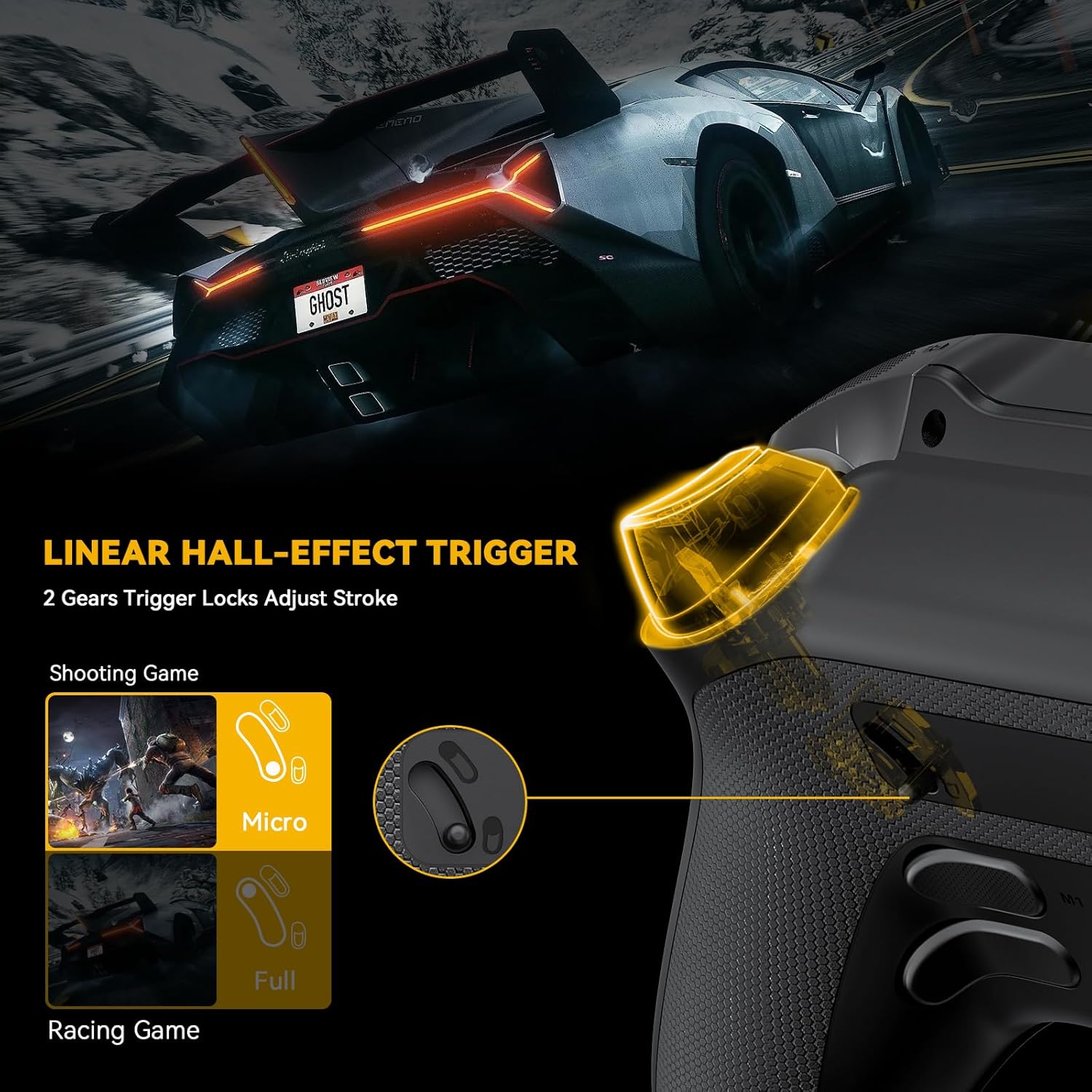
Image: A diagram illustrating the Linear Hall-Effect Trigger mechanism on the controller, showing two adjustable gears for trigger stroke: Micro for shooting games and Full for racing games.

Image: A close-up of the ManbaOne controller's side panel, which features customizable LED lighting. The interactive screen displays options for brightness, LED colors, and LED modes, with a color palette for selection.
4. Setup Guide
4.1 Charging the Controller
- Connect the Type-C cable to the magnetic charging station and a power source (e.g., USB wall adapter, computer USB port).
- Place the ManbaOne controller onto the magnetic charging station. Ensure the controller is properly aligned and the charging indicator lights up.
- The interactive screen will display the battery charging status. A full charge typically takes approximately 2-3 hours.
4.2 Initial Pairing and Connection
The ManbaOne controller supports multiple connection modes. Select the appropriate mode for your device.
4.2.1 Connecting to Nintendo Switch/OLED
- On your Nintendo Switch, go to the HOME Menu, select Controllers, then Change Grip/Order.
- On the ManbaOne controller, press and hold the Mode button (usually located near the screen) until the controller enters pairing mode (indicated by flashing lights or a specific icon on the interactive screen).
- The Switch will detect the controller. Once detected, press the A button on the ManbaOne controller to confirm pairing.
4.2.2 Connecting to Windows PC
There are two methods for connecting to a Windows PC:
- Using the Bluetooth Adapter (Recommended for Stability):
- Plug the included Bluetooth adapter into an available USB port on your PC.
- On the ManbaOne controller, select the PC mode via the interactive screen or by pressing the designated mode button.
- The controller should automatically connect to the adapter. If not, follow the pairing instructions on the controller's screen.
- Direct Bluetooth Connection:
- On your PC, go to Settings > Devices > Bluetooth & other devices and ensure Bluetooth is turned on.
- Select Add Bluetooth or other device > Bluetooth.
- On the ManbaOne controller, select the iOS mode via the interactive screen (this mode is used for direct PC Bluetooth connection).
- Select the ManbaOne controller from the list of available devices on your PC to pair.
4.2.3 Connecting to iOS/Android Devices
- On your iOS or Android device, enable Bluetooth in the settings.
- On the ManbaOne controller, select the iOS or Android mode via the interactive screen.
- The controller will appear in the list of available Bluetooth devices on your phone/tablet. Select it to pair.
5. Operating Instructions
5.1 Navigating the Interactive Screen
The 5.1 cm interactive screen is the primary interface for customizing your controller. Use the D-pad or left joystick to navigate through the menu options, and the A button to select.
- Menu: Access the main settings and options.
- Pairing: Manage device connections.
- Mode: Switch between different platform modes (Switch, PC, iOS, Android).
- Settings: Adjust various controller parameters.
- Display: Configure screen brightness and other display settings.
- More: Additional options and advanced settings.
- Help: Access on-screen assistance and information.
5.2 Customizing Controller Settings
Within the Settings menu on the interactive screen, you can personalize your controller:
- Vibration: Adjust the intensity of the haptic feedback.
- Button Mapping: Remap the functions of individual buttons to suit your playstyle.
- Joystick Calibration/Modes: Calibrate joysticks to prevent drift and select from 4 different joystick response modes.
- LED Lights: Customize the color and lighting effects of the controller's LED strips.
- Saving Configurations: The controller allows you to save up to 4 different custom profiles. Select a profile slot and save your current settings for quick switching between games or preferences.
5.3 Programming Back Paddles (Macros)
The four back paddles (M1, M2, M3, M4) can be programmed with single button presses or complex macro sequences:
- Navigate to the Macro Settings option on the interactive screen.
- Select the back paddle you wish to program (M1-M4).
- Follow the on-screen prompts to record your desired button sequence or assign a single button function.
- Save the macro to the selected paddle.
5.4 Trigger Adjustment
The linear Hall Effect triggers can be adjusted for different game types:
- Micro Mode: Provides a shorter trigger pull, ideal for rapid firing in shooting games.
- Full Mode: Offers a longer, more linear trigger pull, suitable for precise acceleration control in racing games.
Adjust the physical switch located near the triggers to toggle between these modes.
6. Maintenance
Proper care will extend the life of your ManbaOne controller:
- Cleaning: Use a soft, dry cloth to wipe down the controller. For stubborn dirt, slightly dampen the cloth with water. Avoid harsh chemicals or abrasive materials.
- Storage: Store the controller in a cool, dry place away from direct sunlight and extreme temperatures.
- Battery Care: To maintain battery health, avoid fully discharging the controller frequently. Charge it regularly, even if not in use for extended periods.
- Joystick Replacement: If joysticks become worn or damaged, use the included replacement joysticks. Refer to the interactive screen's help section or online resources for detailed replacement instructions.
7. Troubleshooting
If you encounter issues with your ManbaOne controller, please refer to the following common problems and solutions:
| Problem | Possible Cause | Solution |
|---|---|---|
| Controller does not power on. | Low or no battery charge. | Place the controller on the charging station and ensure it is charging. Allow sufficient time for charging. |
| Controller does not connect to device. | Incorrect pairing mode selected; Bluetooth interference; device's Bluetooth is off. | Ensure the correct mode (Switch, PC, iOS, Android) is selected on the controller. Turn off and on Bluetooth on your device. Re-attempt the pairing process. For PC, try using the Bluetooth adapter. |
| Joystick drift or inaccurate input. | Calibration issue; physical wear. | Navigate to the Settings menu on the interactive screen and perform a joystick calibration. If the issue persists, consider replacing the joystick with one of the included spares. |
| Buttons are unresponsive or sticky. | Debris under buttons; software glitch. | Gently clean around the buttons. Try resetting the controller (refer to the interactive screen's help section for reset instructions). |
| LED lights are not working or incorrect color. | Incorrect LED settings. | Access the LED Lights settings via the interactive screen and adjust colors and modes. |
If you continue to experience issues, please contact Manba after-sales service for further assistance.
8. Specifications
| Feature | Detail |
|---|---|
| Brand | Manba |
| Model | B0CY7YSW3R |
| Color | Black |
| Compatible Operating Systems | Windows 7 and above, iOS, Android, Nintendo Switch |
| Connectivity Technology | Bluetooth, USB |
| Special Features | Wireless, Interactive Screen, Hall Effect Joysticks, Hall Effect Triggers, Programmable Back Paddles, Gyroscope |
| Battery Type | Lithium-polymer |
| Battery Capacity | 1800 mAh |
| Number of Buttons | 16 |
| Item Weight | 670 Grams |
| Controller Type | Gamepad |
9. Warranty and Support
Manba products are designed for quality and durability. For any questions, technical support, or warranty claims, please contact Manba after-sales service. Refer to the product packaging or the official Manba website for specific contact information.
Please retain your proof of purchase for warranty purposes.