
ANCEL FX3300
ANCEL FX3300 OBD2 Scanner User Manual
Your comprehensive guide to vehicle diagnostics.
1. Product Overview
The ANCEL FX3300 is an advanced OBD2 diagnostic scanner designed to provide comprehensive insights into your vehicle's health. It supports full system scans and a wide range of OBD2 functions, offering a user-friendly experience for both professionals and car owners.
1.1 What's in the Box
- 1 * ANCEL FX3300 OBD2 Scanner
- 1 * OBD Diagnostic Cable
- 1 * USB Cable
- 1 * User Manual
- 1 * EVA Storage Bag

Image: The ANCEL FX3300 scanner, OBD diagnostic cable, USB cable, user manual, and EVA storage bag.
1.2 Key Features
- All System Scan: Diagnoses all electronic control modules (ECM) including Engine, ABS, SAS, SRS, TPMS, TCM, Fuel Pump, EPS, Suspension, SCM, BMS, and more.
- Full OBD2 Modes: Supports all 10 OBD2 test modes for comprehensive engine diagnostics.
- WiFi Update: Enables convenient and fast software updates via WiFi or phone hotspot.
- Wide Vehicle Compatibility: Supports over 90 car brands and 10,000+ vehicles (US models after 1996, European models after 1998, Asian models after 1996).
- User-Friendly Design: Features a 4.3-inch TFT color screen and an intuitive interface.
- Built-in DTC Library: Provides definitions for diagnostic trouble codes.
2. Setup Guide
2.1 Connecting the Device
- Step 1: Locate your vehicle's OBD2 port. This is typically found under the dashboard on the driver's side.
- Step 2: Plug the 16-pin OBD diagnostic cable into the vehicle's OBD2 port.
- Step 3: Connect the other end of the diagnostic cable to the ANCEL FX3300 scanner.

Image: Visual guide for connecting the scanner to the vehicle.
2.2 Initial Power On
- Once connected to the vehicle, turn the car engine on (or to the 'ON' position without starting the engine, depending on the vehicle and desired diagnostic).
- The ANCEL FX3300 scanner will power on automatically.
- Follow the on-screen prompts to select your preferred language and region.
2.3 WiFi Connection
Connecting to WiFi is essential for software updates and accessing online features.
- From the main menu, navigate to Settings.
- Select WLAN or WiFi.
- Choose your desired WiFi network from the list.
- Enter the WiFi password if prompted and confirm the connection.

Image: The scanner screen showing the WiFi update option.
2.4 Software Updates
Regular software updates ensure optimal performance and compatibility with the latest vehicle models and diagnostic protocols.
- Ensure the device is connected to a stable WiFi network.
- From the main menu, select Update.
- The system will check for available updates. Follow the on-screen instructions to download and install any new software versions.
- Alternatively, updates can be performed via USB connection to a Windows PC. Select 'Via USB' in the update menu and follow the instructions to connect the scanner as a storage device.

Image: Options for updating the scanner via WiFi or USB.
3. Operating Instructions
3.1 Navigating the Interface
The ANCEL FX3300 features a clear 4.3-inch display and intuitive button controls. Use the directional arrows to move between options and the 'OK' button to confirm selections. The 'FN' button provides quick access to frequently used functions.
3.2 Performing a Full System Scan
The FX3300 can diagnose all major vehicle systems to identify issues beyond basic engine codes.
- From the main menu, select Diagnose.
- The scanner will automatically identify the vehicle's VIN (Vehicle Identification Number) or prompt you to enter it manually.
- Select Auto Scan or choose specific systems for diagnosis (e.g., Engine, ABS, SRS, Transmission).
- The scanner will perform a comprehensive scan and display any detected Diagnostic Trouble Codes (DTCs) and system statuses.
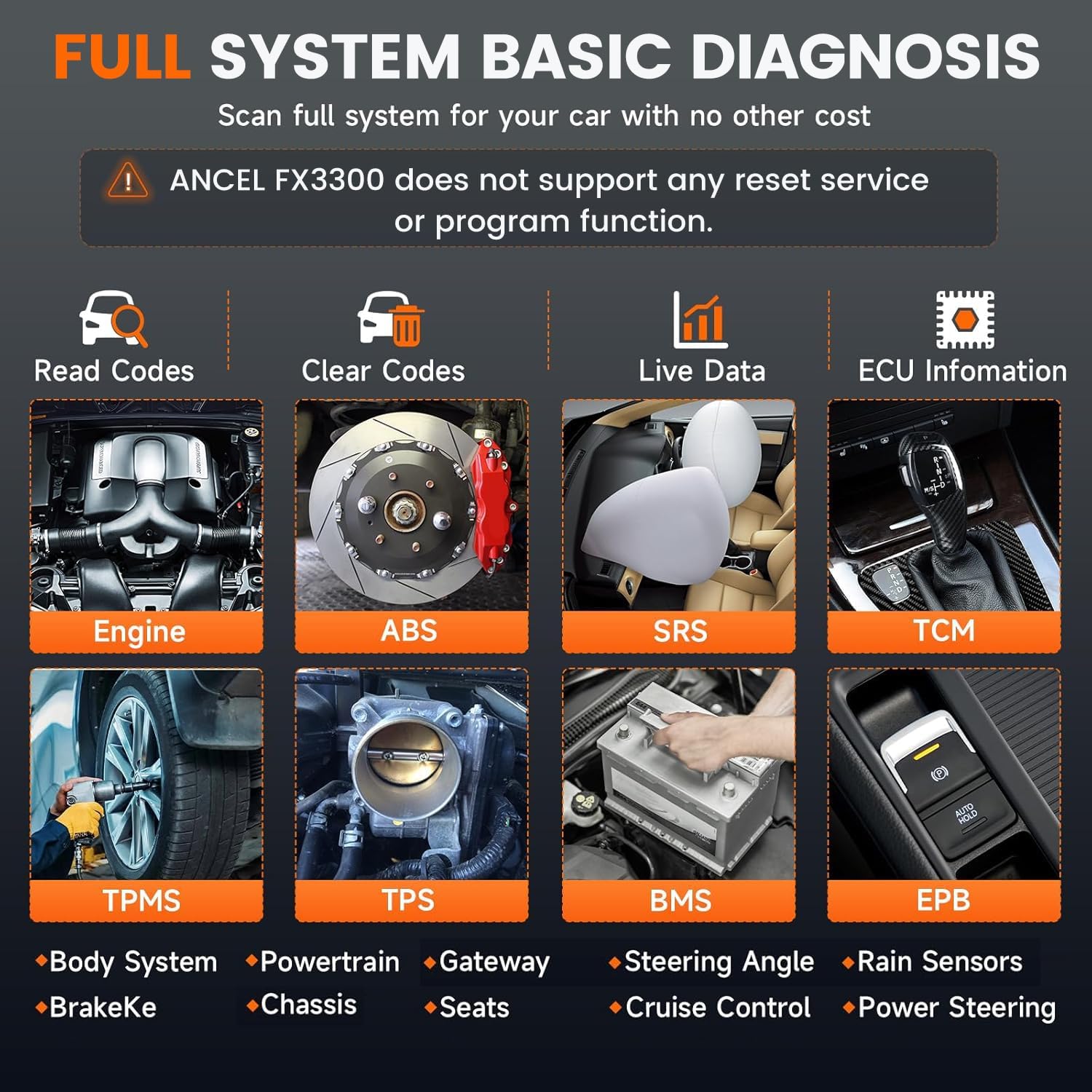
Image: Overview of vehicle systems supported by the FX3300 for basic diagnosis.

Image: Detailed diagram of vehicle systems diagnosable by the FX3300.
3.3 OBD2 Functions
The FX3300 supports all 10 modes of OBD2 diagnostics, providing detailed information about your vehicle's engine and emissions systems.
- Read Codes: Displays current, pending, and permanent Diagnostic Trouble Codes (DTCs).
- Clear Codes: Erases DTCs from the vehicle's computer and turns off the Malfunction Indicator Lamp (MIL).
- Live Data: Shows real-time data stream from various sensors in text or graph format.
- Freeze Frame: Captures a snapshot of vehicle operating conditions at the moment a fault code is set.
- O2 Sensor Test: Retrieves O2 sensor monitoring test results.
- EVAP System Test (Mode 8): Initiates a test of the evaporative emission control system.
- I/M Readiness: Checks the readiness status of various emission-related monitors.
- DTC Lookup: Provides definitions for generic and manufacturer-specific codes.
- Retrieve Vehicle Info: Displays vehicle information such as VIN, CALID, and CVN.
- On-Board Monitor Test (Mode 6): Retrieves results for emission-related powertrain components and systems that are not continuously monitored.

Image: Icons representing the full suite of OBD2 diagnostic functions.
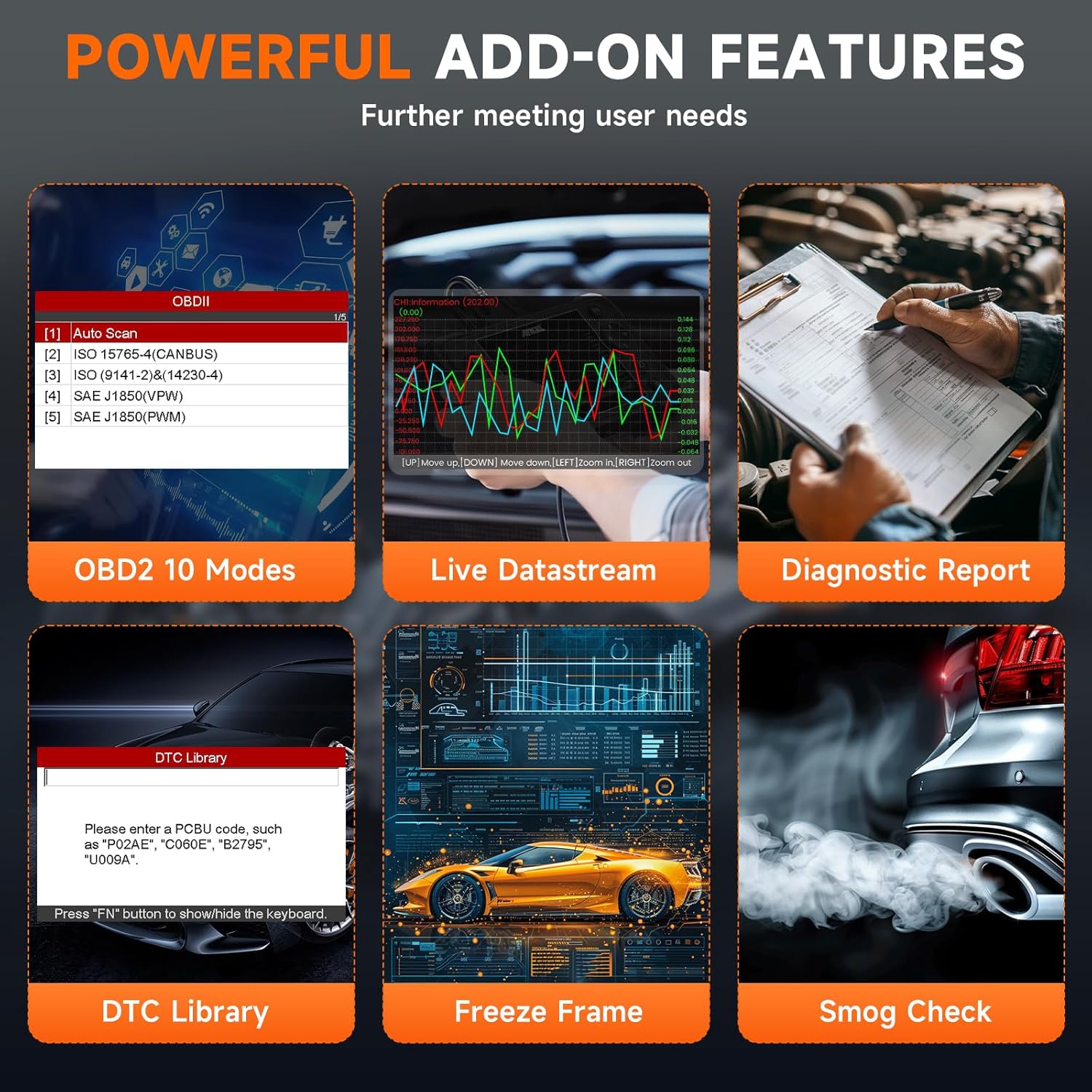
Image: Visual representation of advanced diagnostic features.
3.4 Generating Diagnostic Reports
After a scan, the FX3300 can generate a diagnostic report summarizing the findings. These reports can be saved and printed for record-keeping or sharing.
- After completing a scan, look for the option to Save Report or Print Report.
- Reports are typically saved in PDF format and can be accessed when the device is connected to a PC via USB in update mode.
4. Maintenance
4.1 General Care
- Keep the device clean using a soft, dry cloth. Avoid abrasive cleaners or solvents.
- Store the scanner in its protective EVA storage bag when not in use to prevent damage.
- Avoid exposing the device to extreme temperatures, direct sunlight, or excessive moisture.
- Do not attempt to disassemble the device, as this will void any potential warranty.
4.2 Keeping Software Updated
Regularly check for and install software updates as described in Section 2.4. Updates often include bug fixes, new vehicle coverage, and improved diagnostic capabilities, ensuring your scanner remains effective and up-to-date.
5. Troubleshooting
5.1 Common Issues
- Device does not power on: Ensure the OBD diagnostic cable is securely connected to both the vehicle's OBD2 port and the scanner. Verify the vehicle's ignition is in the 'ON' position or the engine is running.
- Failed to connect to vehicle: Check the cable connections. Ensure the vehicle is OBD2 compliant (most vehicles after 1996 in the US, 1998 in Europe, and 1996 in Asia). Try connecting to a different vehicle to rule out a vehicle-specific issue.
- Update process is slow or fails: Ensure a strong and stable WiFi connection. If using a phone hotspot, ensure sufficient data and signal strength. Try updating via USB connection to a PC if WiFi issues persist.
- Inaccurate or no diagnostic data: Verify the vehicle's compatibility with the FX3300 for the specific functions you are attempting to use. Some advanced functions may not be supported on all vehicle models or years.
5.2 Addressing Second-Hand Product Concerns
If you believe you have received a second-hand product, please contact customer service immediately. Amazon's policy may involve repackaging and reshipping returned items. The manufacturer is committed to replacing genuinely second-hand items with new ones.

Image: Information on how to handle receiving a second-hand product.
5.3 Compatibility Issues
Vehicle compatibility can vary based on the year and model. Before purchasing or if you encounter compatibility issues, it is recommended to contact customer service to confirm specific vehicle support for desired functions.

Image: Reminder to check vehicle compatibility.
6. Specifications
| Feature | Specification |
|---|---|
| Model | FX3300 |
| Item Weight | 1.87 pounds |
| Product Dimensions | 10.43 x 6.29 x 4.13 inches |
| Operating System | Android |
| Display | 4.3-inch TFT Color Screen |
| Memory | 16GB |
| Connectivity | OBD2 Cable, USB, WiFi |
| Automotive Fit Type | Universal Fit |

Image: Internal view of the scanner, showcasing its upgraded CPU.
7. Support and Warranty
7.1 Customer Support
For any concerns, technical assistance, or inquiries regarding your ANCEL FX3300 OBD2 Scanner, please contact our dedicated customer service team. Support is available Monday to Friday from 9:00 AM to 6:00 PM Eastern Time.
You can typically reach customer service through the Amazon messaging service or via the contact information provided on the official ANCEL website.
7.2 Warranty Information
The ANCEL FX3300 comes with a manufacturer's warranty covering defects in materials and workmanship. Specific warranty terms and duration may vary. Please refer to the warranty card included in your product packaging or contact ANCEL customer support for detailed information.
Extended protection plans may also be available for purchase separately, offering additional coverage beyond the standard manufacturer's warranty.
Related documentsFX3300


Ask a question about this manual
Ask about setup, troubleshooting, compatibility, parts, safety, or missing instructions. Manuals+ will review the question and use this page’s manual context to help answer it.