
Introduction
This manual provides detailed instructions for the installation, operation, and maintenance of your MekedeTech Android Car Stereo. This unit is designed for Toyota RAV4 models from 2005 to 2013, offering an upgraded in-car entertainment and navigation experience.
Key features include:
- Android 13 OS with 8-Core A53 1.8GHz CPU, 2GB RAM, and 32GB ROM.
- 9-inch IPS touch screen with 1280x720 resolution.
- Built-in Wireless CarPlay and Wired Android Auto for seamless smartphone integration.
- Integrated 4G LTE and WiFi module for internet connectivity.
- Built-in GPS navigation and maps.
- Support for original steering wheel controls.
- DSP sound system for enhanced audio quality.
- Bluetooth 5.0 for calls and music streaming.
Setup and Installation
The MekedeTech Android Car Stereo is designed for a plug-and-play installation in compatible Toyota RAV4 vehicles (2005-2013). It includes all necessary accessories such as a dash kit, power cable, RCA cable, reversing camera cable, and USB cables.
1. Pre-Installation Check
- Ensure the vehicle's ignition is off and the battery is disconnected before starting installation.
- Verify all included components match the packing list.
- Familiarize yourself with the vehicle's existing dashboard layout and wiring.
2. Removing the Original Head Unit
Carefully remove the trim panels and screws securing the original head unit in your Toyota RAV4. Disconnect all wiring harnesses and antenna cables from the back of the original unit.

Image: Comparison showing the original car stereo (bottom left) and the MekedeTech Android Car Stereo installed (top and bottom right).
3. Connecting the New Head Unit
- Connect the provided wiring harness from the MekedeTech stereo to the vehicle's factory wiring harness.
- Connect the GPS antenna, WiFi antenna, and 4G LTE antenna (if using a SIM card).
- If installing a reversing camera, connect its video and power cables to the designated inputs on the stereo.
- Connect any USB cables for external devices.
4. Cooling Fan Setup (If Applicable)
Some models include a cooling fan to manage internal temperatures. Follow these steps to ensure proper operation:
- Connect the cooling fan cable to the designated port on the main unit.
- Access the device settings: Go to Settings > Device > Sound.
- Navigate to Factory settings (password may be required, consult support if unknown).
- Locate and enable the AMP ON or Cooling Fan option.

Image: Visual guide for connecting the cooling fan and enabling it through the system settings.
5. Final Assembly and Testing
- Before fully reassembling the dashboard, reconnect the vehicle battery.
- Turn on the ignition and power on the stereo. Test all functions: audio, radio, GPS, Bluetooth, steering wheel controls, and camera inputs.
- If all functions operate correctly, proceed to reassemble the dashboard panels.
Operating Instructions
1. Basic Navigation
- Touch Screen: Navigate through menus and applications by tapping, swiping, and pinching on the 9-inch IPS touch screen.
- Home Button: Returns to the main Android home screen.
- Volume Control: Adjust volume using the physical buttons (if present) or on-screen controls.
- Steering Wheel Controls: The unit supports your vehicle's original steering wheel controls for functions like volume, track skip, and mode selection.
2. Wireless CarPlay and Android Auto
Connect your smartphone wirelessly for access to navigation, music, messages, and more.
- Enable Bluetooth: On your phone and the car stereo, ensure Bluetooth is enabled.
- Pair Devices: Search for the car stereo's Bluetooth name on your phone and pair them.
- Launch Car Link: On the car stereo, open the "Car Link" application.
- Connect: Follow the on-screen prompts to establish a Wireless CarPlay (for iOS) or Wireless Android Auto (for Android) connection. Wired connection is also supported via USB.

Image: Step-by-step guide for connecting iOS devices via Wireless CarPlay and Android devices via Wireless Android Auto.
3. Internet Connectivity (4G LTE & WiFi)
The unit supports both 4G LTE via a SIM card and WiFi for internet access.
- 4G LTE: Insert a compatible 4G SIM card into one of the provided SIM card slots (one on the main unit, one on the RCA cable). The unit will automatically connect to the cellular network.
- WiFi: Go to Settings > Network & Internet > Wi-Fi. Select your desired network and enter the password.
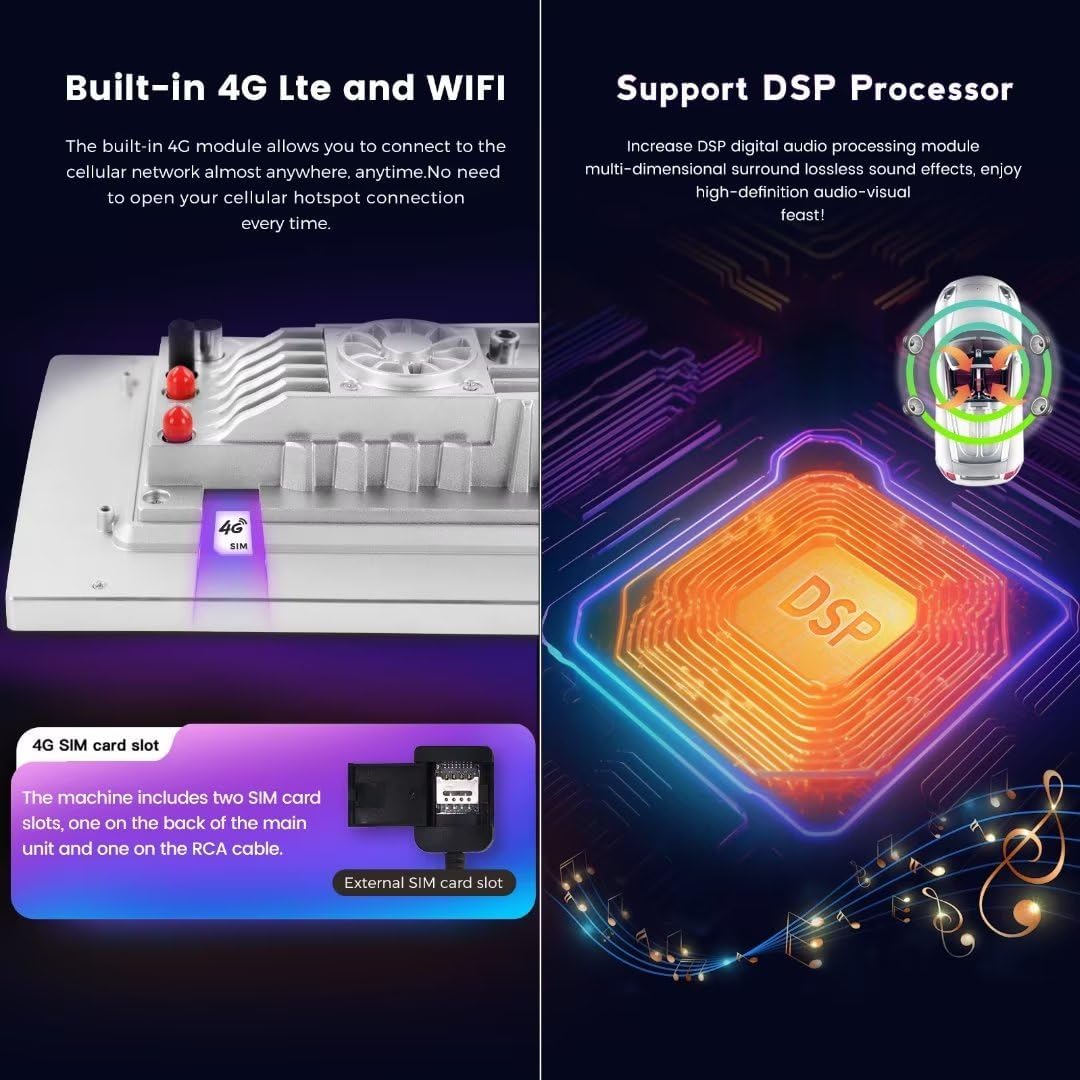
Image: Illustration of the 4G SIM card slot and the integrated DSP processor for audio enhancement.
4. GPS Navigation
The stereo comes with built-in GPS navigation. Open the pre-installed navigation application (e.g., Google Maps, Waze) or download your preferred navigation app from the Google Play Store. Ensure the GPS antenna is properly installed for optimal signal reception.
5. Bluetooth Functions
- Hands-Free Calling: Pair your phone via Bluetooth to make and receive calls directly from the stereo.
- Audio Streaming: Play music from your phone through the car stereo's speakers.
Maintenance
- Screen Cleaning: Use a soft, lint-free cloth to gently wipe the touch screen. For stubborn smudges, slightly dampen the cloth with water or a screen-safe cleaner. Avoid harsh chemicals.
- Software Updates: Periodically check for system software updates via the settings menu (Settings > About device > System updates). Keeping the software updated ensures optimal performance and access to new features.
- General Care: Avoid exposing the unit to extreme temperatures, direct sunlight for prolonged periods, or excessive moisture.
Troubleshooting
No Power
- Check the vehicle's fuse box for any blown fuses related to the stereo or accessory power.
- Ensure all power cables are securely connected to the stereo and the vehicle's wiring harness.
- Verify the vehicle battery is properly connected and charged.
No Sound
- Check the volume level on the stereo and ensure it is not muted.
- Verify speaker connections are secure.
- Ensure the correct audio source is selected (e.g., Radio, Bluetooth, CarPlay/Android Auto).
GPS Signal Issues
- Ensure the GPS antenna is properly installed and has a clear line of sight to the sky (e.g., mounted on the dashboard).
- Check the GPS settings within the stereo to ensure it is enabled and configured correctly.
CarPlay/Android Auto Not Connecting
- Ensure Bluetooth and Wi-Fi are enabled on both your phone and the stereo.
- Try forgetting the device on both ends and re-pairing.
- For wired connections, try a different USB cable.
- Update your phone's operating system and the stereo's software to the latest versions.
Unit Overheating
- Ensure the cooling fan (if present) is properly connected and enabled in settings (refer to "Cooling Fan Setup" in the Setup section).
- Check for any obstructions around the unit that might impede airflow.
Specifications
| Brand | MekedeTech |
| Model | 8-Core 2+32G |
| Operating System | Android 13 OS |
| CPU | 8-Core A53 1.8GHz |
| Memory | 2GB RAM, 32GB ROM |
| Screen Size | 9 Inches |
| Resolution | 1280 x 720 (IPS Touch Screen) |
| Power Output | 4*50W |
| Connectivity | 4G LTE, WiFi, Bluetooth 5.0 |
| Special Features | Wireless CarPlay, Wired Android Auto, GPS Navigation, DSP Sound System, Steering Wheel Control Support |
| Compatible Vehicle | Toyota RAV4 (2005-2013) |
Warranty Information
This MekedeTech Android Car Stereo comes with a 1-Year Warranty from the date of purchase. This warranty covers manufacturing defects and malfunctions under normal use. It does not cover damage caused by improper installation, misuse, accidents, or unauthorized modifications.
Please retain your proof of purchase for warranty claims.
Customer Support
For technical assistance, troubleshooting not covered in this manual, or warranty inquiries, please contact MekedeTech customer support.
- Seller: Mekedetech
- Online Support: Visit the MekedeTech Store on Amazon for contact options and additional resources.
When contacting support, please have your product model number (8-Core 2+32G) and proof of purchase readily available.