
Introduction
Thank you for choosing the TECURS Wireless Backlit Keyboard. This manual provides detailed instructions for setting up, operating, and maintaining your keyboard. Designed for versatility, this 2.4G wireless keyboard features a comfortable QWERTY UK layout, quiet keys, adjustable white backlighting, and dedicated multimedia controls. It is compatible with a wide range of devices, including Mac, PC, PS4, and PS5.
Package Contents
Please verify that all items listed below are included in your package:
- TECURS Wireless Backlit Keyboard
- USB 2.4G Wireless Receiver (Dongle)
- USB Charging Cable
- User Manual
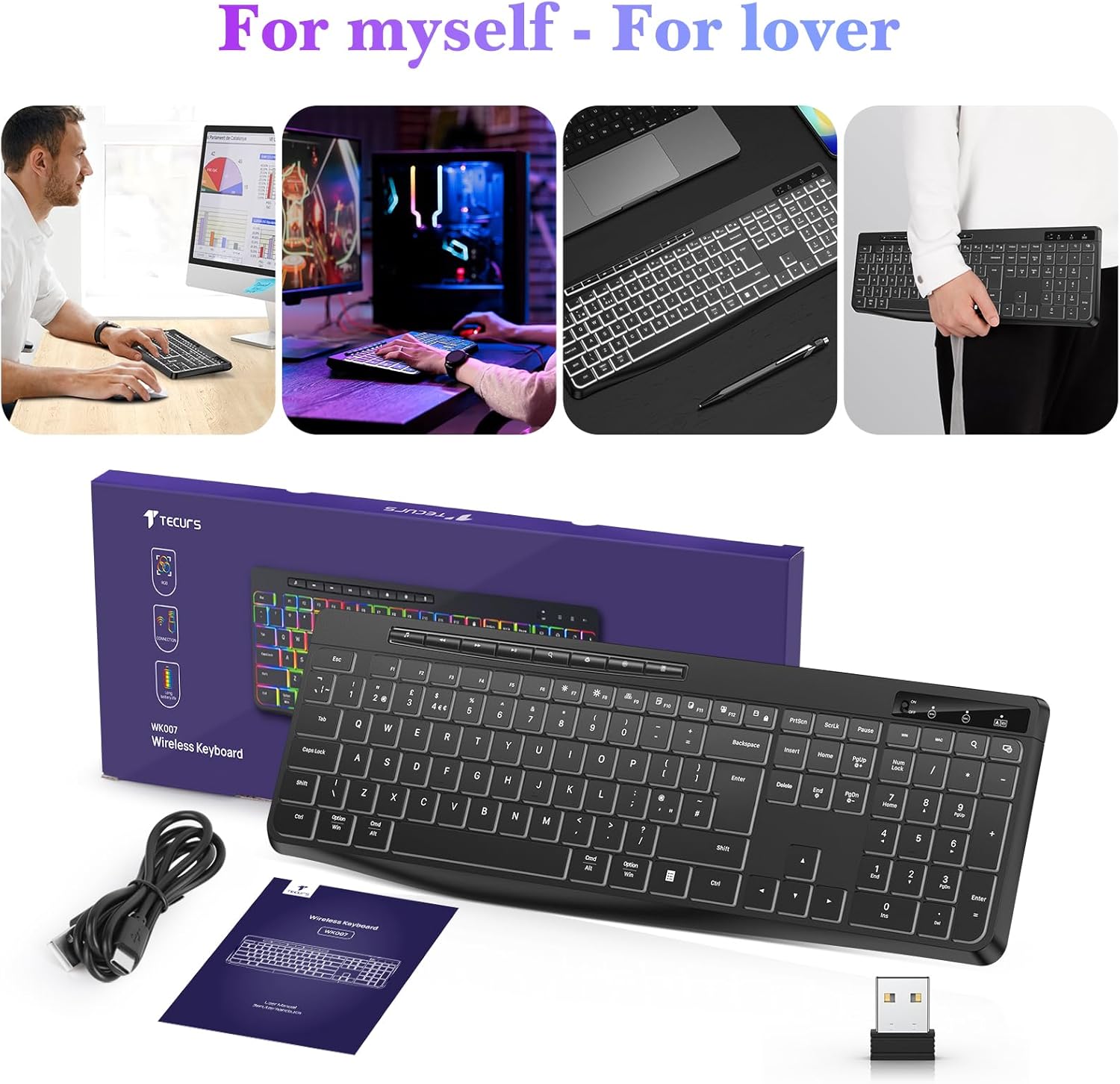
Image: Contents of the TECURS Wireless Backlit Keyboard package.
Setup Instructions
1. Charging the Keyboard
Before initial use, fully charge the keyboard. Connect the provided USB charging cable to the keyboard's charging port and to a USB power source (e.g., computer USB port, USB wall adapter). The charging indicator light will illuminate during charging and turn off when fully charged.
2. Connecting the Wireless Receiver
- Locate the USB 2.4G wireless receiver (dongle) in the package.
- Insert the USB receiver into an available USB port on your computer or compatible device.
- Turn on the keyboard using the power switch, usually located on the top edge or underside of the keyboard.
- The keyboard should automatically connect to the receiver. No additional drivers are typically required for most operating systems.

Image: The TECURS Wireless Keyboard and its USB receiver, demonstrating a stable wireless connection range of 8-10 meters.
Operating Instructions
Power On/Off
Use the power switch on the keyboard to turn it on or off. Turning off the keyboard when not in use helps conserve battery life.
Wireless Connection
The keyboard utilizes a 2.4G wireless connection, providing a stable and reliable link to your device within an 8-10 meter range. Ensure the USB receiver is securely plugged into your device for optimal performance.
Backlight Control
The keyboard features a soft white backlight with adjustable brightness levels. Use the dedicated backlight control keys (often Fn + specific keys) to cycle through brightness settings or turn the backlight off. The backlight is designed to automatically turn off after approximately 5 seconds of inactivity to conserve battery power.
Multimedia Keys
Dedicated multimedia keys are located on the keyboard for quick access to functions such as play/pause, volume control, and track skipping. These keys allow for convenient management of your media without interrupting your workflow.
Quiet Typing Experience
The keyboard is engineered with membrane technology and low-profile keys to provide a quiet and responsive typing experience, minimizing disturbance in shared environments.
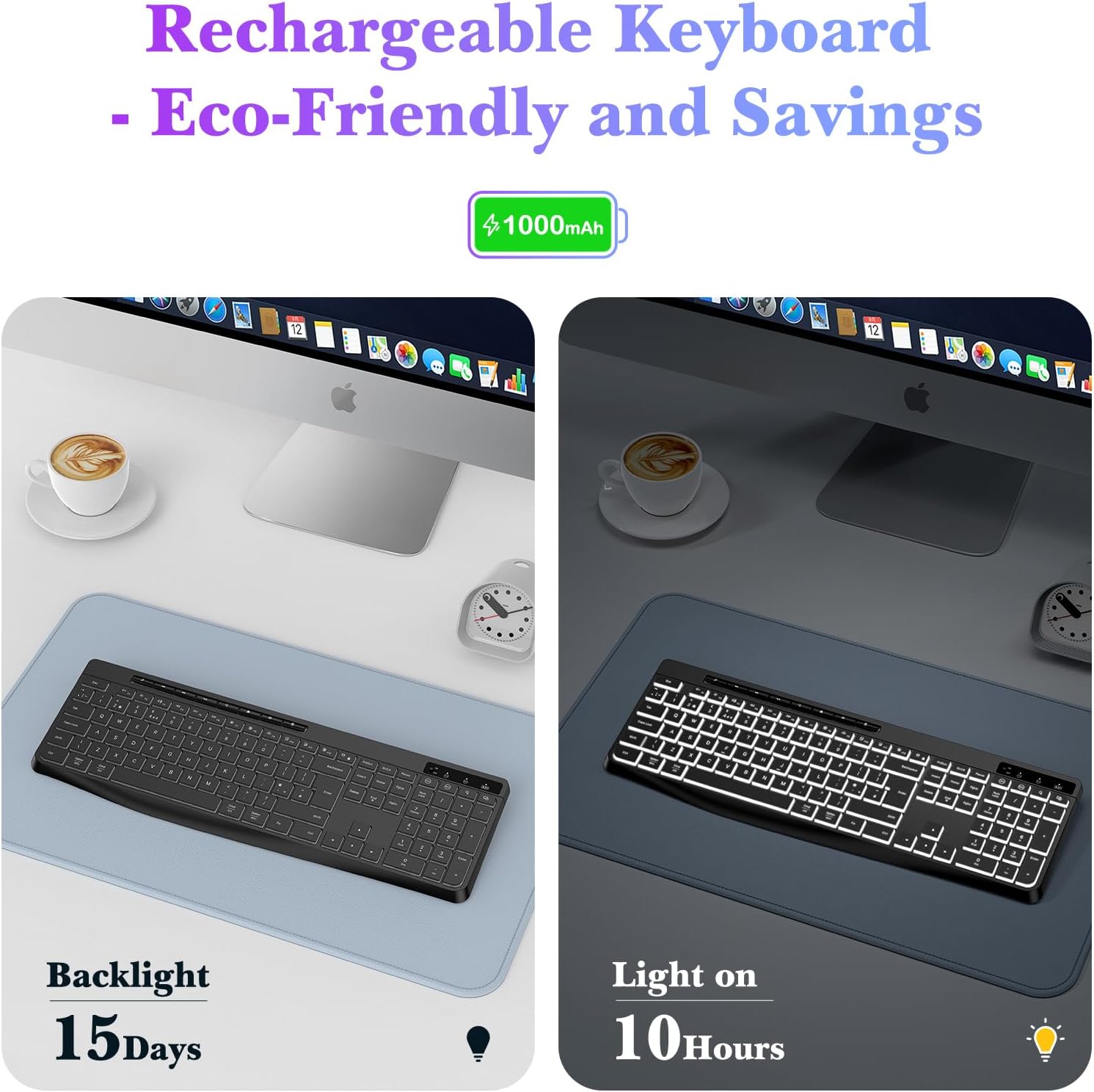
Image: Close-up of the TECURS keyboard showing individual multimedia buttons and the adjustable stand for ergonomic comfort.

Image: The TECURS keyboard being used in a quiet environment, emphasizing its low noise operation.
Charging and Battery Life
The TECURS keyboard is equipped with a 1000mAh rechargeable lithium battery. To charge, connect the keyboard to a USB power source using the provided charging cable.
- Battery Capacity: 1000mAh
- Usage with Backlight Off: Up to 15 days on a full charge.
- Usage with Backlight On: Approximately 10 hours on a full charge.
- Charging Indicator: The indicator light will show charging status.

Image: Illustration of the keyboard's rechargeable nature and its battery performance with the backlight on for 10 hours and off for 15 days.
Compatibility
This keyboard is designed for broad compatibility with various operating systems and devices:
- Operating Systems: Windows (including Vista), Linux, macOS
- Compatible Devices: PC, Laptop, Mac, PS4, PS5, Gaming Consoles
Maintenance
To ensure the longevity and optimal performance of your TECURS Wireless Backlit Keyboard, follow these maintenance guidelines:
- Cleaning: Use a soft, dry cloth to wipe the surface of the keyboard. For stubborn dirt, slightly dampen the cloth with water or a mild cleaning solution. Avoid excessive moisture.
- Dust Removal: Use compressed air to remove dust and debris from between the keys.
- Storage: Store the keyboard in a cool, dry place away from direct sunlight and extreme temperatures.
- Avoid Liquids: Do not expose the keyboard to liquids. In case of accidental spills, immediately power off the keyboard and allow it to dry completely before reuse.
Troubleshooting
If you encounter issues with your TECURS Wireless Backlit Keyboard, please refer to the following common problems and solutions:
| Problem | Solution |
|---|---|
| Keyboard not connecting |
|
| Backlight not working |
|
| Keys are unresponsive |
|
| Short battery life |
|
Specifications
| Feature | Detail |
|---|---|
| Brand | TECURS |
| Model | B0CY2KWLMF |
| Connectivity | 2.4G Wireless |
| Layout | QWERTY UK |
| Backlight | White, Adjustable Brightness |
| Battery | 1000mAh Rechargeable Lithium |
| Key Type | Membrane |
| Material | Plastic |
| Compatible OS | Linux, Windows Vista, macOS |
| Compatible Devices | Gaming Console, Laptop, PC, Mac, PS4, PS5 |
| Special Features | White Backlight, Wireless, Multimedia Keys, Quiet Operation |
Warranty and Support
TECURS products are designed for reliability and performance. For any questions, technical support, or warranty inquiries, please contact your retailer or the TECURS customer service team through the contact information provided with your purchase or on the official TECURS website. Please retain your proof of purchase for warranty claims.


