
1. Introduction
The PenPower EZ Go Wireless Writing Pad is designed for seamless digital handwriting input on Windows and Mac computers. It offers multi-language recognition, a large writing area, and wireless connectivity for enhanced productivity.
Package Contents:
- PenPower EZ Go Wireless Writing Pad
- Digital Pen
- USB Receiver (for wireless connection)
- USB-C Cable (for charging/wired connection)
- Replacement Pen Nibs and Nib Clip
- Quick Start Guide
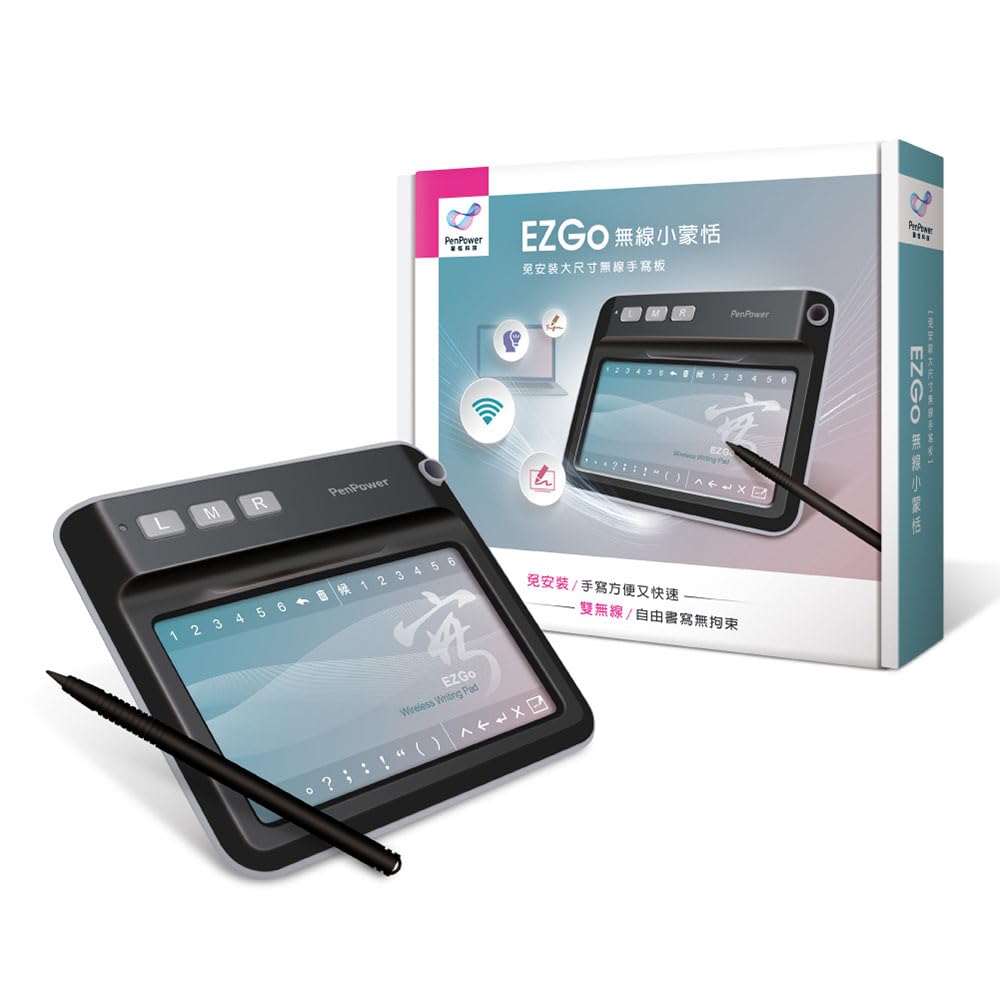
Image: The PenPower EZ Go Wireless Writing Pad shown with its accompanying digital pen, highlighting the compact design and writing surface.
2. Key Features
- Multi-Language Recognition: Supports Traditional Chinese, Simplified Chinese, Hong Kong characters (HKSCS2008), English letters, symbols, numbers, Japanese Katakana and Hiragana. Includes cursive writing and artificial intelligence recognition.
- Plug-and-Play Operation: No driver installation needed for basic functionality. Simply plug in the USB receiver to start writing.
- Wireless Connectivity: Utilizes 2.4GHz wireless transmission technology with a range of up to 10 meters.
- Signature Mode: Dedicated mode for realistic handwriting strokes, ideal for digital signatures.
- Large Writing Area: Features a 5-inch writing pad for comfortable and expansive input.
- Broad Compatibility: Compatible with popular applications such as MS Word, MS PowerPoint, Google Docs, WeChat, Whatsapp, Skype, and Line. Supports both Windows and Mac operating systems.

Image: Visual representation of the writing pad's features, including wireless use, plug-and-play, continuous handwriting, mixed recognition, smart word selection, and personalized signature.
3. Setup Instructions
- Connect the USB Receiver: Insert the USB receiver into an available USB port on your computer (Windows or Mac).
- Power On: Ensure the writing pad is charged or connected via the USB-C cable. The device should automatically power on.
- Automatic Recognition: The computer should automatically recognize the device. No additional driver installation is typically required for basic handwriting input.
- Software Integration: Open your desired application (e.g., MS Word, Google Docs) and select the text input area. Begin writing on the pad with the digital pen.

Image: A hand inserting the USB receiver into a laptop, illustrating the simple plug-and-play setup process for the writing pad.
4. Operating the Writing Pad
4.1 Handwriting Input
- Use the digital pen to write directly on the large writing area of the pad.
- Your handwriting will be recognized and converted into digital text in the active application on your computer.
- The pad supports continuous handwriting and mixed input of characters and symbols without needing to switch interfaces.

Image: A user writing on the PenPower EZ Go pad, with the corresponding recognized text displayed on a laptop screen, demonstrating the handwriting input feature.
4.2 Signature Mode
- Switch to signature mode for capturing realistic handwriting strokes, ideal for digital signatures on documents.
- Refer to the Quick Start Guide for specific instructions on activating and using the signature mode.
4.3 Wireless Usage
- The 2.4GHz wireless connection allows you to use the pad up to 10 meters away from your computer.
- Ensure the USB receiver is securely plugged into your computer for stable wireless operation.
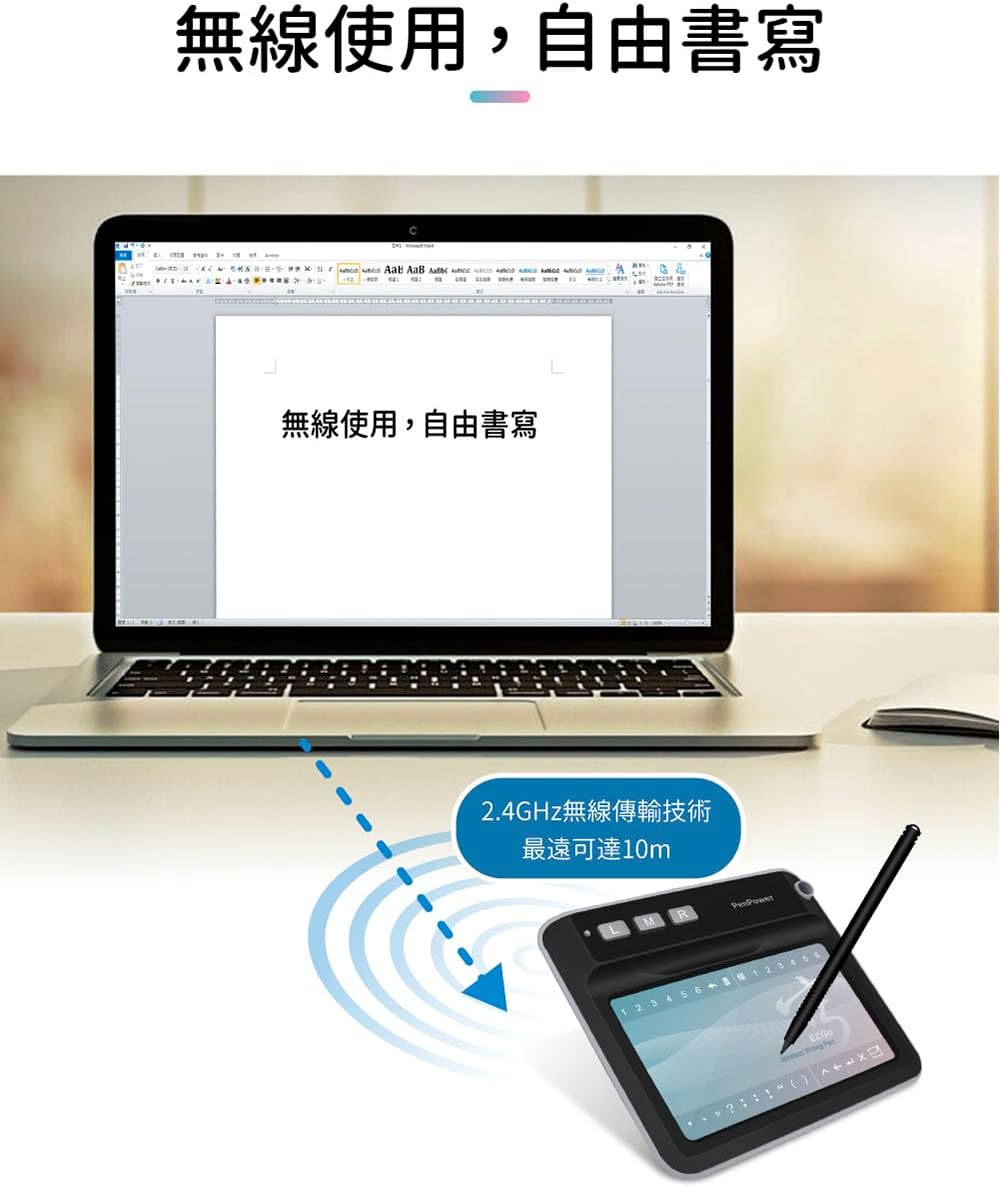
Image: A visual diagram illustrating the wireless connection between the PenPower EZ Go writing pad and a laptop, highlighting the 2.4GHz transmission technology and 10-meter range.
5. Maintenance and Care
- Cleaning: Use a soft, dry cloth to clean the surface of the writing pad and digital pen. Avoid using harsh chemicals or abrasive materials.
- Storage: Store the device in a cool, dry place away from direct sunlight and extreme temperatures.
- Pen Nibs: Replace pen nibs as needed to maintain optimal writing performance. Use the provided nib clip for easy replacement.
- Battery (Pen): The digital pen is battery-free, eliminating the need for charging or battery replacement.
6. Troubleshooting
| Problem | Solution |
|---|---|
| Device not recognized by computer. | Ensure the USB receiver is securely plugged into a working USB port. Try a different USB port. Restart your computer. |
| Handwriting recognition is inaccurate. | Ensure you are writing clearly within the designated writing area. Check for any software updates for the PenPower device (if applicable, though typically driver-free). Practice writing to improve recognition accuracy. |
| Pen is not responding. | Verify the pen nib is properly inserted. The pen is battery-free, so no charging is required. Ensure the pad is powered on and connected. |
| Wireless connection is unstable. | Reduce the distance between the pad and the USB receiver. Avoid obstructions that may interfere with the 2.4GHz signal. Ensure no other devices are causing interference on the same frequency. |
7. Specifications
- Product Dimensions: 5.4 x 4.3 x 0.1 inches
- Item Weight: 2.82 ounces (80 Grams)
- Brand: PenPower
- Material: LCD, Plastic
- Compatible Devices: Laptop (Windows/Mac)
- Batteries Required: No (for pad and pen)
- Connectivity: 2.4GHz Wireless, USB-C (for wired connection/charging)
- Writing Area: Approximately 5 inches
8. Warranty and Support
For warranty information and technical support, please refer to the official PenPower website or contact their customer service directly. Keep your purchase receipt as proof of purchase for any warranty claims.
You can visit the PenPower Store for additional resources and product information: PenPower Store