
Amazon Fire TV Soundbar Plus
Amazon Fire TV Soundbar Plus User Manual
Model: Fire TV Soundbar Plus
Brand: Amazon
1. Introduction
The Amazon Fire TV Soundbar Plus is designed to deliver a comprehensive cinematic audio experience for your home. This 5.1 channel system includes a soundbar, a wireless subwoofer, and two wireless surround sound speakers, providing immersive audio with Dolby Atmos and DTS:X support, along with crystal-clear dialogue.

Figure 1: The Amazon Fire TV Soundbar Plus system, including the soundbar, wireless subwoofer, and two wireless surround speakers.
This manual provides detailed instructions for setting up, operating, and maintaining your Fire TV Soundbar Plus system, ensuring you get the best possible audio performance.

Figure 2: The immersive sound experience provided by the Fire TV Soundbar Plus with Dolby Atmos and DTS:X.
2. What's in the Box
Verify that all components are present in the packaging:
- Fire TV Soundbar Plus
- Subwoofer
- Two Surround Speakers
- Remote
- HDMI 2.0 Cable
- 4 AC Cords
- 2 AAA Batteries
- Wall mount kit (soundbar only)
- Quick Start Guide

Figure 3: All items included in the Fire TV Soundbar Plus package.
3. Specifications
| Feature | Detail |
|---|---|
| Soundbar Size (LxWxH) | 37” x 5.2” x 2.5” |
| Soundbar Weight | 8.8lbs |
| Subwoofer Size (LxWxH) | 10.4” x 10.4” x 13.4” |
| Subwoofer Weight | 14.3lbs |
| Surround Speaker Size (LxWxH) | 5.1” x 5.1” x 6.0” |
| Surround Speaker Weight | 2.6lb |
| Subwoofer Connectivity | Wireless |
| Surround Speaker Connectivity | Wireless |
| Speaker Channels | 5.1 (external subwoofer and two external surround speakers) |
| EQ Modes | Movie, Music, Sports, Night |
| Surround Sound Supported | Dolby Atmos, DTS:X |
| Ports | HDMI, Optical, AC, USB-A |
| Bluetooth Support | Yes |
| Compatibility | Smart TVs and TVs with streaming media players |
Figure 4: Dimensions of the Fire TV Soundbar Plus components.
4. Setup Guide
Follow these steps to set up your Fire TV Soundbar Plus system:
- Connect the Soundbar to your TV:
Locate the HDMI (ARC) port on your TV. Connect one end of the included HDMI 2.0 cable to the HDMI (ARC) port on the soundbar and the other end to the HDMI (ARC) port on your TV. This connection enables audio return channel functionality, allowing your TV to send audio to the soundbar.

Figure 5: Rear ports of the Fire TV Soundbar Plus, highlighting the HDMI (ARC) port.
- Power On Components:
Plug the AC power cords into the soundbar, subwoofer, and each of the two surround speakers, then plug them into a power outlet. The subwoofer and surround speakers are designed to connect wirelessly to the soundbar automatically once powered on. A white light on these speakers indicates a successful connection.
- TV Audio Settings:
Ensure your TV's audio output is set to the HDMI (ARC) port. You may need to enable HDMI-CEC (Consumer Electronics Control) or ARC functionality in your TV's settings for proper operation and remote control integration.
- Initial Sound Check:
Play some audio content on your TV to confirm sound is coming from the soundbar system. The system should be ready for use.
5. Operating Instructions
The Fire TV Soundbar Plus offers various features to enhance your audio experience:
- Remote Control: Use the included remote control or your TV's remote (if HDMI-CEC is enabled) to adjust volume. The soundbar's remote also features dedicated buttons for dialogue enhancement, bass, and treble adjustments. Pressing these buttons will audibly indicate the current level (e.g., "Dialogue Level 3"). The soundbar's indicator lights will also show the level, with nine levels being the maximum.
- EQ Modes: Optimize your audio for different content types using the EQ modes:
- Movie Mode: Enhances cinematic sound effects and dialogue for films.
- Music Mode: Provides balanced audio for music playback.
- Sports Mode: Optimizes audio for sports broadcasts, often emphasizing commentary.
- Night Mode: Reduces dynamic range to prevent sudden loud sounds, ideal for late-night viewing.
- Bluetooth Streaming: Connect your mobile device or tablet via Bluetooth to stream audio directly to the soundbar.
- Enable Bluetooth on your mobile device.
- Select the Fire TV Soundbar Plus from the list of available devices.
- Once paired, you can play music or podcasts from your device through the soundbar system.
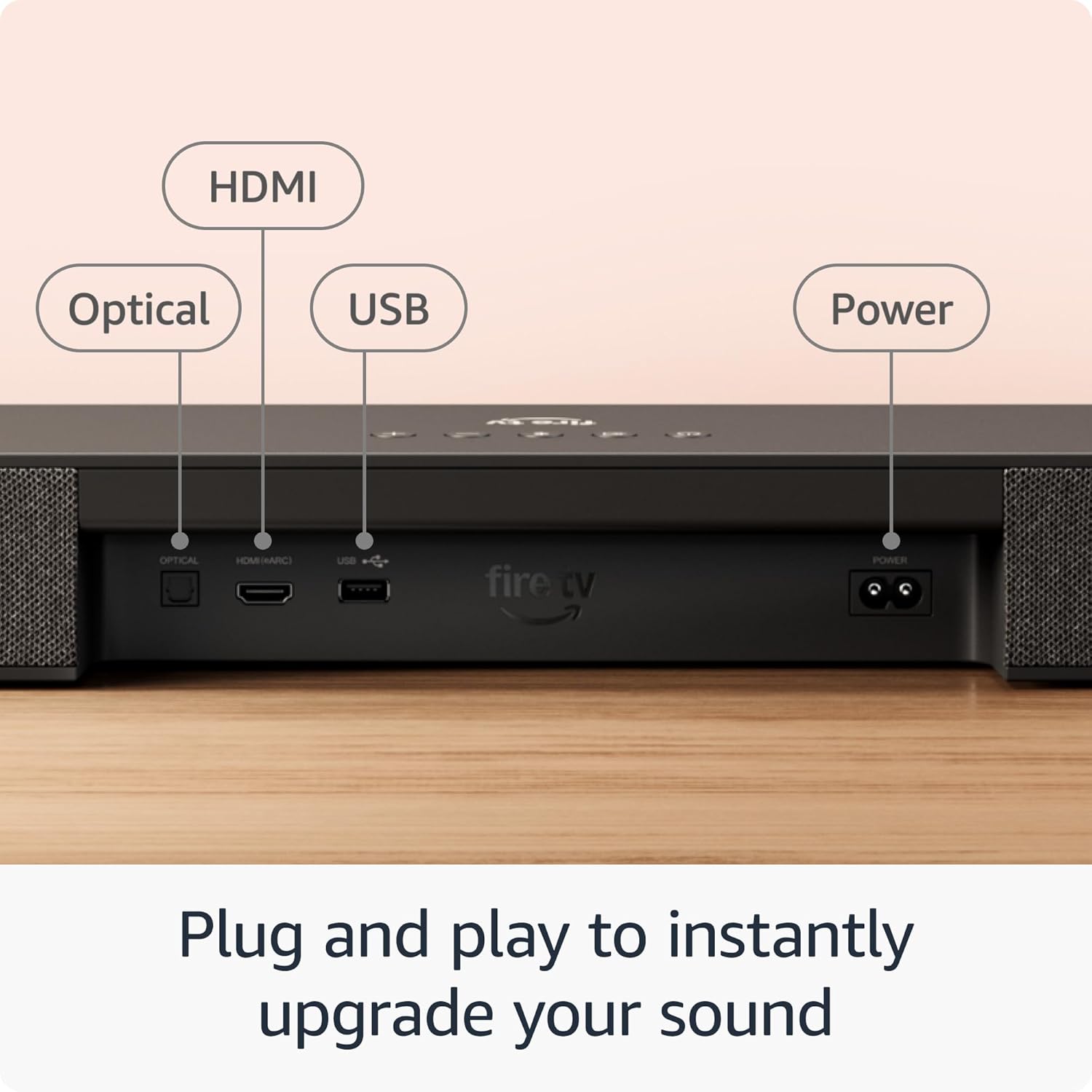
Figure 6: Streaming audio via Bluetooth to the Fire TV Soundbar Plus.
6. Maintenance
To ensure the longevity and optimal performance of your Fire TV Soundbar Plus system, follow these simple maintenance guidelines:
- Cleaning: Use a soft, dry, lint-free cloth to clean the surfaces of the soundbar, subwoofer, and surround speakers. Do not use liquid cleaners, aerosols, or abrasive solvents, as they may damage the finish or internal components.
- Placement: Ensure the components are placed in a well-ventilated area, away from direct sunlight, heat sources, and excessive moisture. Avoid placing the subwoofer directly against a wall or in a corner if possible, as this can affect bass performance.
- Power: Disconnect the power cords from the wall outlet if the system will not be used for an extended period.
7. Troubleshooting
If you encounter issues with your Fire TV Soundbar Plus, refer to the following common problems and solutions:
| Problem | Possible Cause / Solution |
|---|---|
| No sound from the soundbar. |
|
| Subwoofer or surround speakers are not producing sound. |
|
| Poor sound quality or distortion. |
|
| Bluetooth device cannot connect. |
|
8. Warranty and Support
Warranty Information:
The Amazon Fire TV Soundbar Plus comes with a 1-year limited warranty and service included. Optional 1-Year, 2-Year, and 3-Year extended warranties are available for U.S. customers and are sold separately. Use of the Fire TV Soundbar Plus is subject to the terms provided by Amazon.
Customer Support:
For further assistance, technical support, or warranty claims, please visit the official Amazon support website or contact Amazon customer service directly. You can find detailed support information and contact options on the Amazon website under the "Help" or "Customer Service" sections.
Related documentsFire TV Soundbar Plus


Ask a question about this manual
Ask about setup, troubleshooting, compatibility, parts, safety, or missing instructions. Manuals+ will review the question and use this page’s manual context to help answer it.