
Introduction
Welcome to the user manual for your new Sky Devices Elite T10 Tablet. This guide provides comprehensive instructions on setting up, operating, maintaining, and troubleshooting your device. Please read this manual carefully to ensure optimal performance and longevity of your tablet.
What's in the Box
Upon unboxing your Elite T10 Tablet, please verify that all the following items are included:
- Sky Devices Elite T10 Tablet
- See-Through Protective Case
- Charging Cable
- Blank SIM Placeholder Card (for quality assurance and dust protection)
Product Overview
Familiarize yourself with the physical components of your Elite T10 Tablet.

Figure 1: Elite T10 Tablet General View. This image displays the Elite T10 tablet from an angled perspective, showcasing both its vibrant 10-inch HD display on the front and the sleek blue metal body on the back. The tablet is shown powered on, displaying the Android home screen with various app icons and a scenic wallpaper. This view highlights the overall design and form factor of the device.

Figure 2: Elite T10 Tablet Front View. This image provides a direct front view of the Elite T10 tablet, with its 10-inch HD screen fully illuminated. The Android operating system's home screen is visible, featuring the Google search bar, date, time, and various application shortcuts. The front-facing camera is subtly located at the top bezel, indicating its position for video calls and selfies.
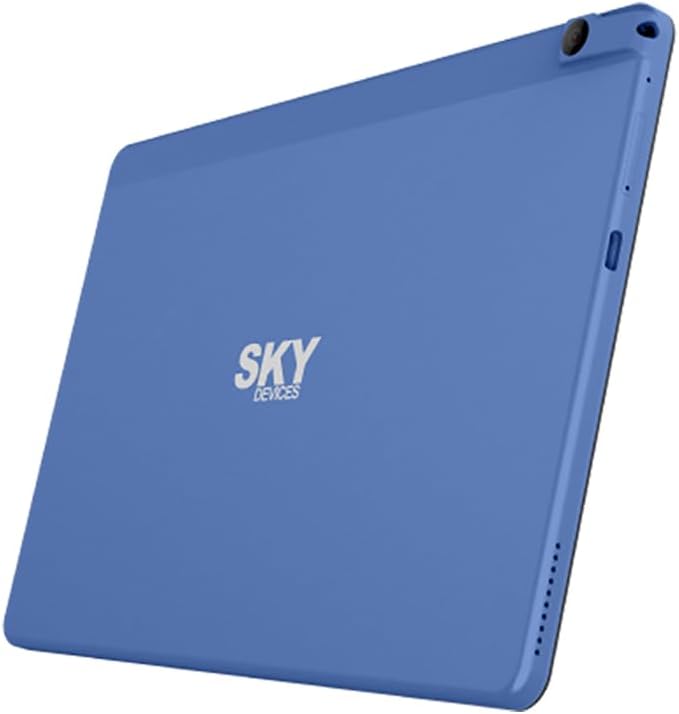
Figure 3: Elite T10 Tablet Back View. This image shows the rear of the Elite T10 tablet, highlighting its full metal body in a distinctive blue color. The "SKY DEVICES" logo is prominently displayed in the center. The rear camera lens is visible in the upper left corner, and speaker grilles are located along one of the edges. This view emphasizes the tablet's elegant and durable construction.
Physical Components:
- Power Button: Located on the side, used to turn the tablet on/off or wake/sleep the screen.
- Volume Buttons: Adjacent to the power button, used to adjust audio volume.
- USB-C Port: For charging the tablet and connecting to a computer.
- 3.5mm Headphone Jack: For connecting wired headphones or external speakers.
- MicroSD Card Slot: Allows for expandable storage up to 128GB.
- Front Camera (8MP): Located on the front bezel, ideal for video calls and selfies.
- Rear Camera (13MP): Located on the back, for capturing photos and videos.
- Speakers: Integrated speakers for audio output.
Setup
1. Initial Charging
Before first use, fully charge your Elite T10 Tablet. Connect the provided charging cable to the USB-C port on the tablet and the other end to a compatible power adapter (not included) or a computer's USB port. The battery indicator on the screen will show charging progress. A full charge may take several hours.
2. Powering On/Off
- To Power On: Press and hold the Power button until the Sky Devices logo appears on the screen.
- To Power Off: Press and hold the Power button until a power menu appears. Select "Power off" and confirm.
- To Sleep/Wake: Briefly press the Power button to put the screen to sleep or wake it up.
3. Initial Setup Wizard
The first time you power on the tablet, you will be guided through an initial setup wizard. Follow the on-screen prompts to:
- Select your language.
- Connect to a Wi-Fi network.
- Sign in with your Google account or create a new one.
- Set up screen lock (PIN, pattern, password).
- Review and accept terms and conditions.
Operating
1. Basic Navigation
The Elite T10 Tablet uses a touch-based interface. Common gestures include:
- Tap: To select an item or open an application.
- Touch and Hold: To access contextual menus or move icons.
- Swipe: To scroll through pages or lists.
- Pinch-to-Zoom: To zoom in or out on images or web pages.
2. Connecting to Wi-Fi
- Go to Settings > Network & internet > Wi-Fi.
- Toggle Wi-Fi On.
- Select your desired Wi-Fi network from the list.
- Enter the password if prompted and tap Connect.
3. Using the Cameras
Your tablet is equipped with an 8MP front camera and a 13MP rear camera.
- Open the Camera application from the home screen or app drawer.
- Tap the camera switch icon to alternate between front and rear cameras.
- Tap the shutter button to take a photo or start/stop video recording.
4. Storage Management
The tablet comes with 64GB of internal storage. You can expand this by inserting a microSD card (up to 128GB) into the dedicated slot.
- To insert a microSD card: Locate the microSD card slot on the side of the tablet. Gently insert the card until it clicks into place.
- To manage storage: Go to Settings > Storage to view usage and free up space.
Maintenance
1. Cleaning Your Tablet
- Use a soft, lint-free cloth to clean the screen and body.
- For stubborn smudges, slightly dampen the cloth with water or a screen cleaner designed for electronics.
- Avoid using harsh chemicals, abrasive cleaners, or aerosol sprays.
2. Software Updates
Regularly check for software updates to ensure your tablet has the latest features, security patches, and performance improvements.
- Go to Settings > System > System update.
- Follow the on-screen instructions to download and install any available updates. Ensure your tablet is sufficiently charged or connected to power during updates.
3. Battery Care
- Avoid completely draining the battery frequently.
- Do not expose the tablet to extreme temperatures.
- Use only the provided charging cable or a certified compatible charger.
Troubleshooting
Here are solutions to common issues you might encounter:
- Tablet not turning on:
Ensure the tablet is charged. Connect it to a power source for at least 30 minutes, then try pressing and holding the Power button for 10-15 seconds.
- Slow performance:
Close unused applications, clear cache, or restart the tablet. Consider uninstalling rarely used apps or moving large files to a microSD card.
- Wi-Fi connection issues:
Ensure Wi-Fi is enabled on the tablet. Restart your Wi-Fi router. Forget the network and reconnect. Check if other devices can connect to the same network.
- Tablet not charging or charging slowly:
Check if the charging cable and port are clean and undamaged. Try a different compatible charging cable and power adapter. Ensure the power outlet is working.
- Screen unresponsive:
Perform a forced restart by pressing and holding the Power button for approximately 10-15 seconds until the tablet restarts.
Specifications
| Feature | Specification |
|---|---|
| Model Name | Elite T10 |
| Brand | Sky Devices |
| Operating System | Android 11 |
| Screen Size | 10 Inches |
| Screen Resolution | 800x1280 Pixels (HD) |
| Processor | Octa-Core 2.0 GHz |
| RAM | 4GB |
| Internal Storage | 64GB |
| Expandable Storage | Up to 128GB via MicroSD |
| Rear Camera | 13MP |
| Front Camera | 8MP |
| Battery Capacity | 7,100 mAh |
| Average Battery Life | 8.5 Hours |
| Connectivity | 802.11ac Wireless (Wi-Fi) |
| Dimensions (LxWxH) | 9.48 x 6.21 x 0.35 inches |
| Weight | 1 pound |
| Color | Blue |
Warranty and Support
For warranty information and technical support, please refer to the warranty card included with your product or visit the official Sky Devices website. Keep your proof of purchase for warranty claims.
For further assistance, you may contact Sky Devices customer support directly through their official channels.


