
1. Introduction
This manual provides essential instructions for the safe and effective use of your Dpofirs 4K Action Camera, Model 4K12X. This portable camera features 4K HD video recording, 16MP photo capabilities, a 1.3-inch HD LCD screen, and a 270° rotatable lens. It is designed for various outdoor activities, including diving, riding, and general sports, with support for an external microphone and Wi-Fi connectivity.

Image 1.1: Front view of the Dpofirs 4K Action Camera.

Image 1.2: Overview of key features including 270° shooting, portability, HD display, and external microphone support.
2. Safety Information
- Do not expose the camera to extreme temperatures or direct sunlight for extended periods.
- Keep the camera and accessories away from children and pets.
- Use only approved charging cables and adapters.
- Ensure the waterproof case is properly sealed before underwater use.
- Avoid dropping or subjecting the camera to strong impacts.
3. Package Contents
Please check that all items are present in your package:
- Dpofirs 4K Action Camera (Model 4K12X)
- Waterproof Case (30m/98ft rated)
- External Microphone with 3-meter cable
- Rotatable Clip Stand
- USB Cable
- Various Mounting Accessories (e.g., helmet mount, bicycle mount)
- Wrist Strap

Image 3.1: Contents of the Dpofirs 4K Action Camera package.
4. Setup
4.1 Charging the Camera
Connect the camera to a power source using the provided USB cable. A full charge typically takes approximately 1.5 hours. The charging indicator light will show the charging status.
4.2 Inserting a Micro SD Card
The camera supports Micro SD cards up to 64GB. Insert the Micro SD card into the designated slot until it clicks into place. Ensure the card is formatted correctly (FAT32) for optimal performance.
4.3 Attaching the Waterproof Case
For underwater activities or protection against water and dust, place the camera inside the waterproof case. Ensure the case is securely latched and the seals are free from debris before submersion. The case provides waterproof protection up to 30 meters (98 feet).

Image 4.1: The camera in its waterproof case, suitable for diving up to 30 meters.
4.4 Attaching the Rotatable Clip Stand
Attach the rotatable clip stand to the camera for versatile mounting options. This allows for easy attachment to backpacks, clothing, or other surfaces, enabling 270° rotation for various shooting angles.

Image 4.2: The rotatable clip stand attached to the camera for hands-free recording.
4.5 Connecting the External Microphone
Plug the external microphone into the camera's audio input port. The 3-meter cable allows for clear audio capture even when the camera is positioned at a distance.
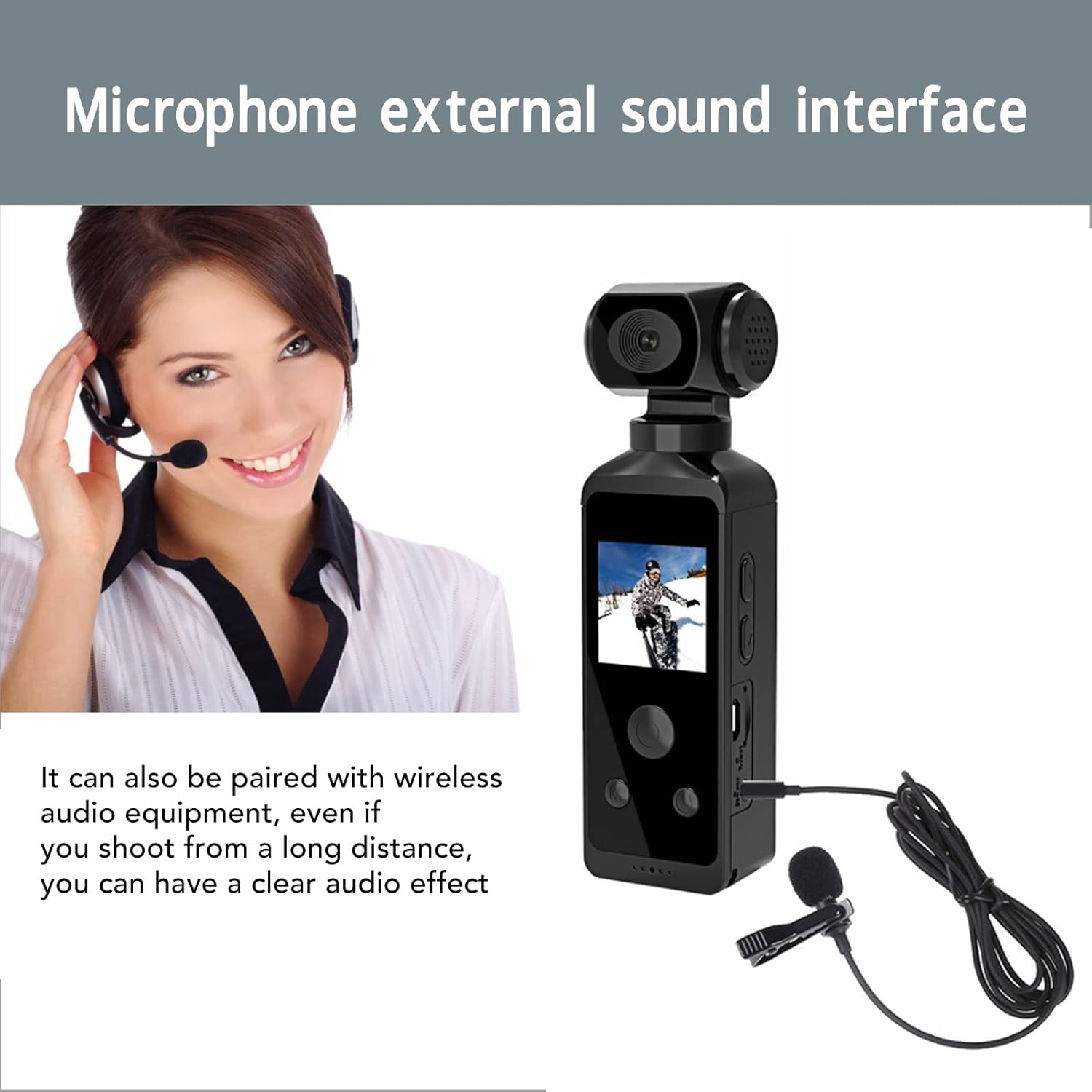
Image 4.3: Connecting the external microphone for improved sound quality.
4.6 Wi-Fi Connection and Mobile App
The camera features built-in Wi-Fi for connecting to a mobile application. Download the official app to your smartphone. Once connected, you can remotely control the camera, view live footage, and download pictures and videos directly to your phone for easy sharing.

Image 4.4: Wi-Fi connectivity for remote control and content sharing.
5. Operating Instructions
5.1 Powering On/Off
- To Power On: Press and hold the Power button (usually marked with a power symbol) until the screen illuminates.
- To Power Off: Press and hold the Power button again until the camera shuts down.
5.2 Basic Recording (Video/Photo)
- Mode Selection: Use the 'M' (Mode) button to cycle through video recording, photo capture, and playback modes.
- Start/Stop Recording: In video mode, press the Shutter/OK button to start recording. Press it again to stop.
- Take Photo: In photo mode, press the Shutter/OK button to capture a still image.
5.3 Using the 270° Rotatable Lens
The camera's lens can be manually rotated 270 degrees. This feature allows you to adjust the shooting angle without repositioning the entire camera, making it ideal for capturing various perspectives, including self-portraits or dynamic action shots.

Image 5.1: Demonstrating the 270° rotatable lens for flexible shooting angles.
5.4 Mounting for Activities
Utilize the included mounting accessories to secure your camera during various activities. The rotatable clip stand is particularly useful for attaching the camera to bicycle handlebars or backpacks, ensuring stable footage while on the move.

Image 5.2: Camera mounted for recording during cycling.
5.5 File Transfer and PC Camera Mode
Connect the camera to a computer using the USB cable. The camera can function as a mass storage device, allowing you to transfer recorded videos and photos. It can also be used as a PC camera (webcam) for live streaming or video calls.

Image 5.3: File transfer and PC camera mode functionality.
6. Maintenance
- Cleaning: Use a soft, dry cloth to clean the camera body. For the lens, use a specialized lens cleaning cloth and solution.
- Storage: Store the camera in a cool, dry place away from direct sunlight and moisture when not in use.
- Battery Care: For prolonged storage, ensure the battery is partially charged (around 50%) to maintain battery health.
- Waterproof Case: After each underwater use, rinse the waterproof case with fresh water and allow it to air dry completely. Inspect seals for wear or damage.
7. Troubleshooting
- Camera Not Turning On: Ensure the battery is charged. Connect to a power source and try again.
- Poor Image/Video Quality: Check that the lens is clean and free from smudges. Ensure adequate lighting conditions. Verify that the Micro SD card is not full or corrupted.
- Wi-Fi Connection Issues: Ensure the camera's Wi-Fi is enabled. Restart both the camera and your smartphone. Make sure you are within range of the camera's Wi-Fi signal. Reinstall the mobile application if necessary.
- External Microphone Not Working: Ensure the microphone is securely plugged into the correct port. Check microphone settings in the camera menu.
- Camera Freezes: If the camera becomes unresponsive, press and hold the Power button for 10-15 seconds to force a shutdown, then restart.
8. Specifications
| Feature | Specification |
|---|---|
| Brand | Dpofirs |
| Model Name | 4K12X |
| Video Capture Resolution | 4K |
| Photo Sensor Technology | CCD |
| Maximum Focal Length | 16 Millimeters |
| Flash Memory Type | Micro SD (up to 64GB) |
| Video Capture Format | AVI |
| Screen Size | 1.3 Inches |
| Connectivity Technology | USB, Wi-Fi |
| Item Weight | 11.8 ounces |
| Package Dimensions | 6.65 x 4.53 x 2.48 inches |
9. Warranty and Support
For warranty information or technical support, please refer to the purchase documentation or contact Dpofirs customer service. You can also visit the official Dpofirs store for more information: Dpofirs Store.