
1. Introduction
Welcome to the user manual for your new Samsung TQ83S93D 83-inch OLED 4K Smart TV. This television is designed to deliver an immersive viewing experience with vibrant colors, deep blacks, and exceptional clarity. Featuring advanced OLED technology, 4K resolution, and a 144Hz refresh rate, it is optimized for both cinematic content and high-performance gaming. This manual provides essential information for setting up, operating, maintaining, and troubleshooting your TV to ensure you get the most out of its capabilities.

Figure 1.1: Samsung TQ83S93D 83-inch OLED 4K Smart TV in a living room setting, showcasing its vibrant display during a football match.
2. Safety Information
Before operating your TV, please read all safety instructions carefully. Failure to follow these instructions may result in electric shock, fire, or damage to the product.
- Power Source: Only connect the TV to an AC power supply that matches the voltage specified on the product label.
- Ventilation: Ensure adequate ventilation around the TV. Do not block ventilation openings. Maintain a minimum distance from walls and other objects.
- Water and Moisture: Do not expose the TV to rain or moisture. Do not place objects filled with liquids, such as vases, on the TV.
- Cleaning: Unplug the TV from the power outlet before cleaning. Use a soft, dry cloth. Do not use liquid cleaners or aerosol cleaners.
- Placement: Place the TV on a stable, level surface. If wall-mounting, ensure the wall mount is securely installed and can support the TV's weight.
- Children: Do not allow children to climb on or play with the TV.
3. What's in the Box
Carefully unpack your TV and check that all the following items are included:
- Samsung TQ83S93D OLED 4K Smart TV
- SolarCell Remote Control
- Power Cable
- User Manual (Electronic Manual)
- Batteries for Remote Control (may be pre-installed or included separately)

Figure 3.1: Overview of the items included in the TV packaging, showing the TV, SolarCell Remote, power cable, and a visual representation of the TV's connectivity ports.
4. Setup
4.1 Physical Setup
Before powering on your TV, ensure it is physically set up correctly.
- Stand Installation: If using the included stand, follow the instructions provided in the separate quick setup guide to securely attach it to the TV.
- Wall Mounting: If wall-mounting, use a VESA-compatible wall mount kit (sold separately) and ensure it is installed by a qualified professional. Refer to the wall mount kit's instructions for proper installation.
- Placement: Position the TV in a location with adequate ventilation and away from direct sunlight or heat sources. Consider the recommended viewing distance for optimal experience.

Figure 4.1: Detailed dimensions of the Samsung TQ83S93D TV, illustrating its width, height, and depth with and without the stand, crucial for planning placement.

Figure 4.2: Recommended viewing distances for different TV sizes, helping users choose optimal placement for their 83-inch model.
4.2 Connecting Devices
Connect your external devices such as Blu-ray players, game consoles, and sound systems to the TV's ports.
- HDMI: Use HDMI cables to connect devices like game consoles (e.g., PlayStation, Xbox), Blu-ray players, or set-top boxes. The TQ83S93D features HDMI 2.1 ports for high-bandwidth connections, supporting 4K at 144Hz.
- USB: Connect USB storage devices for media playback or software updates.
- LAN: For a stable internet connection, connect an Ethernet cable from your router to the TV's LAN port.
- Power: Once all connections are made, plug the power cable into the TV and then into a wall outlet.
Figure 4.3: Detailed view of the TV's connectivity ports, including HDMI, USB, and LAN, for connecting various external devices.
4.3 Initial Power On & First-Time Setup
When you power on your TV for the first time, it will guide you through the initial setup process.
- Language Selection: Choose your preferred language.
- Network Connection: Connect your TV to the internet via Wi-Fi or Ethernet. This is essential for Smart TV features, app downloads, and software updates.
- Samsung Account: Sign in or create a Samsung account to access all Smart TV features, including app stores and personalized recommendations.
- Channel Scan: If you are using an antenna or cable connection, the TV will scan for available channels.
- SmartThings Setup: You can integrate your TV with Samsung SmartThings for smart home control.
5. Operating Your TV
5.1 Basic Operation
Use the SolarCell Remote Control to navigate your TV.

Figure 5.1: The slim design of the TV and the innovative SolarCell Remote Control, which can be charged using ambient light.
- Power: Press the Power button to turn the TV on or off.
- Source: Press the Source button to switch between connected input devices (HDMI 1, HDMI 2, TV, etc.).
- Volume: Use the Volume Up/Down buttons to adjust the sound level.
- Channel: Use the Channel Up/Down buttons to change TV channels.
- Navigation: Use the directional pad and OK button to navigate menus and select options.
5.2 Smart TV Features (Tizen OS)
Your Samsung TV runs on the Tizen operating system, providing access to a wide range of smart features.
- Apps: Download and use popular streaming apps like Netflix, YouTube, Amazon Prime Video, and more from the Samsung App Store.
- Samsung TV Plus: Enjoy over 100 free and exclusive channels with Samsung TV Plus, offering a variety of content without subscriptions.
- Gaming Hub: Access cloud gaming services directly from your TV without needing a console. Connect your favorite Bluetooth controller and play.

Figure 5.2: The intuitive Samsung Smart TV interface, powered by Tizen OS, displaying a selection of available streaming services and content categories.

Figure 5.3: The Samsung Gaming Hub, illustrating its capability to access cloud gaming platforms and play games directly on the TV with a Bluetooth controller.

Figure 5.4: A selection of entertainment applications and services available on the Samsung Smart TV, highlighting the breadth of content options.
5.3 Picture and Sound Settings
Optimize your viewing and listening experience through the TV's settings.
- Picture Quality: The TQ83S93D features OLED technology for perfect blacks and vibrant colors. It supports HDR10+ Adaptive/Gaming and Quantum Dot technology for enhanced brightness and contrast. Adjust settings like Brightness, Contrast, Sharpness, and Color Tone in the Picture menu.
- Motion Xcelerator 144Hz: For smooth motion in fast-paced content and gaming, the TV supports a 144Hz refresh rate. Ensure your input source is capable of delivering 4K 144Hz via HDMI 2.1.
- Sound Quality: Experience immersive audio with Dolby Atmos, Q-Symphony, and OTS Lite.
- Q-Symphony: If you have a compatible Samsung soundbar (e.g., HW-Q990D), Q-Symphony allows the TV's speakers and the soundbar to operate simultaneously for a richer, more expansive soundstage.

Figure 5.5: Visual representation of the TV's superior brightness and contrast capabilities with OLED HDR+, and its immersive multi-dimensional audio experience powered by Dolby Atmos.
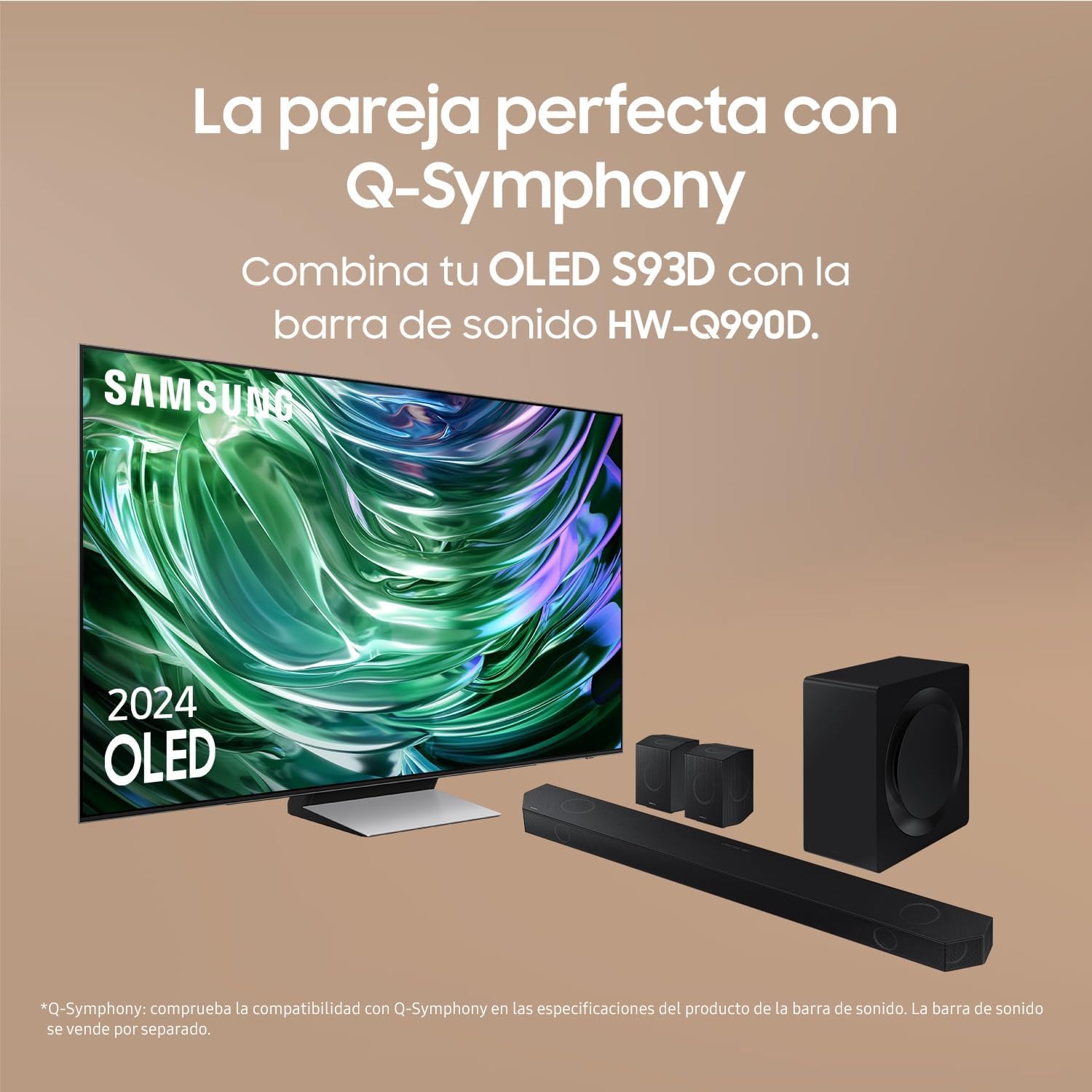
Figure 5.6: The Samsung OLED S93D TV seamlessly integrated with a compatible Samsung soundbar system, demonstrating the Q-Symphony feature for enhanced audio.
5.4 SmartThings Integration
Control your smart home devices directly from your TV using Samsung SmartThings.
- Connect Devices: Link compatible smart devices (lights, thermostats, robot vacuums, etc.) to your SmartThings account.
- Control from TV: Use the SmartThings dashboard on your TV to monitor and control connected devices.

Figure 5.7: The Samsung TV acting as a central control point for a smart home ecosystem, managing various compatible devices through the SmartThings platform.
6. Maintenance
Proper maintenance ensures the longevity and optimal performance of your TV.
- Cleaning the Screen: Gently wipe the screen with a soft, lint-free microfiber cloth. For stubborn smudges, slightly dampen the cloth with distilled water. Do not spray liquid directly onto the screen.
- Cleaning the Body: Use a soft, dry cloth to wipe the TV's frame and stand.
- Software Updates: Regularly check for and install software updates. These updates can improve performance, add new features, and enhance security. You can usually find this option in the TV's Settings menu under Support > Software Update.
7. Troubleshooting
If you encounter issues with your TV, try the following common troubleshooting steps before contacting support.
| Problem | Possible Solution |
|---|---|
| No Power | Ensure the power cable is securely plugged into the TV and the wall outlet. Check if the outlet is working by plugging in another device. |
| No Picture, but Sound is Present | Check the input source. Press the Source button on your remote to cycle through inputs. Ensure all video cables are securely connected. |
| No Sound, but Picture is Present | Check the volume level. Ensure the TV is not muted. Check audio output settings (e.g., internal speakers, external soundbar). |
| Remote Control Not Working | Ensure the remote is charged (SolarCell Remote). Point the remote directly at the TV. Remove any obstructions between the remote and the TV. |
| Cannot Connect to Wi-Fi | Restart your router and modem. Ensure you are entering the correct Wi-Fi password. Move the TV closer to the router or use an Ethernet cable. |
If the problem persists after trying these solutions, please refer to the full electronic manual or contact Samsung customer support.
8. Specifications
Detailed technical specifications for the Samsung TQ83S93D OLED 4K Smart TV.
| Feature | Specification |
|---|---|
| Brand | Samsung |
| Model Number | TQ83S93DAEXXC |
| Screen Size (Diagonal) | 83 inches (210.9 cm) |
| Display Technology | OLED |
| Resolution | 4K (3840 x 2160 pixels) |
| Refresh Rate | 144 Hz (Motion Xcelerator) |
| HDR Support | HDR10+ Adaptive/Gaming |
| Smart TV Platform | Tizen OS |
| Audio Technology | Dolby Atmos, Q-Symphony, OTS Lite |
| Connectivity | 4 x HDMI (HDMI 2.1 support), 2 x USB, 1 x LAN, Bluetooth |
| Power Consumption (SDR) | 150 W |
| Power Consumption (HDR) | 227 W |
| Energy Efficiency Class | F (A_TO_G scale) |
| Product Dimensions (with stand) | Approx. 1851.0 mm (W) x 1133.7 mm (H) x 359.0 mm (D) |
| Product Weight | 42 Kilograms |

Figure 8.1: The official product information sheet, providing comprehensive details on energy efficiency, power consumption, and other technical parameters.
9. Warranty and Support
Your Samsung TQ83S93D TV comes with a standard manufacturer's warranty. Please refer to the warranty card included in your packaging or visit the official Samsung website for detailed warranty terms and conditions specific to your region.
For technical assistance, troubleshooting beyond this manual, or warranty claims, please contact Samsung Customer Support:
- Online Support: Visit the Samsung support website for FAQs, downloads, and online chat.
- Phone Support: Refer to the contact information provided in your product documentation or on the Samsung website for your local support number.


